Switching to S3 Storage
This tutorial is a community contribution and is not supported by the Open WebUI team. It serves only as a demonstration on how to customize Open WebUI for your specific use case. Want to contribute? Check out the contributing tutorial.
This guide provides instructions on how to switch the default local storage in Open WebUI config to Amazon S3.
Prerequisites
In order to follow this tutorial, you must have the following:
- An active AWS account
- An AWS Access Key and Secret Key, or another credential the default AWS credential chain can find (an IAM role, for example)
- IAM permissions in AWS to create and put objects in S3
- Docker installed on your system
What is Amazon S3
Direct from AWS' website:
"Amazon S3 is an object storage service that offers industry-leading scalability, data availability, security, and performance. Store and protect any amount of data for a range of use cases, such as data lakes, websites, cloud-native applications, backups, archive, machine learning, and analytics. Amazon S3 is designed for 99.999999999% (11 9's) of durability, and stores data for millions of customers all around the world."
To learn more about S3, visit: Amazon S3's Official Page
How to Set-Up
1. S3 environment variables
In order to configure this option, gather the following environment variables (only S3_BUCKET_NAME is strictly required; see Step 2):
| Open-WebUI Environment Variable | Example Value |
|---|---|
S3_ACCESS_KEY_ID | ABC123 |
S3_SECRET_ACCESS_KEY | SuperSecret |
S3_ENDPOINT_URL | https://s3.us-east-1.amazonaws.com |
S3_REGION_NAME | us-east-1 |
S3_BUCKET_NAME | my-awesome-bucket-name |
- S3_ACCESS_KEY_ID: This is an identifier for your AWS account's access key. You get this from the AWS Management Console or AWS CLI when creating an access key.
- S3_SECRET_ACCESS_KEY: This is the secret part of your AWS access key pair. It's provided when you create an access key in AWS and should be stored securely.
- S3_ENDPOINT_URL: This URL directs to your S3 service endpoint and can typically be found in AWS service documentation or account settings.
- S3_REGION_NAME: This is the AWS region where your S3 bucket resides, like "us-east-1". You can identify this from the AWS Management Console under your S3 bucket details.
- S3_BUCKET_NAME: This is the unique name of your S3 bucket, which you specified when creating the bucket in AWS.
For a complete list of the available S3 endpoint URLs, see: Amazon S3 Regular Endpoints
See all the Cloud Storage configuration options in the Open-WebUI Cloud Storage Config documentation.
2. Run Open-WebUI
Before we launch our instance of Open-WebUI, there is one final environment variable called STORAGE_PROVIDER we need to set. This variable tells Open-WebUI which provider you want to use. By default, STORAGE_PROVIDER is local; an empty or unknown value stops startup with "Unsupported storage provider". With s3, every upload is first written to /app/backend/data/uploads and then copied to the bucket, and each read downloads the object back there, so the local data volume is still needed.
| Storage Provider | Type | Description | Default |
|---|---|---|---|
local | str | Files stay under /app/backend/data/uploads | Yes |
s3 | str | Uses S3 client library and related environment variables mentioned in Amazon S3 Storage | No |
gcs | str | Uses GCS client library and related environment variables mentioned in Google Cloud Storage | No |
azure | str | Uses the Azure Blob Storage client with AZURE_STORAGE_ENDPOINT and AZURE_STORAGE_CONTAINER_NAME, plus AZURE_STORAGE_KEY or, without it, the default Azure credential | No |
To use Amazon S3, we need to set STORAGE_PROVIDER to s3 (lowercase; the value is matched exactly) along with the environment variables we gathered in Step 1. Only S3_BUCKET_NAME is strictly required, with S3_REGION_NAME normally needed too: without S3_ACCESS_KEY_ID and S3_SECRET_ACCESS_KEY the default AWS credential chain (an IAM role, for example) is used, and S3_ENDPOINT_URL is only needed for S3-compatible services. S3_KEY_PREFIX, S3_ADDRESSING_STYLE (path for MinIO-style endpoints), S3_USE_ACCELERATE_ENDPOINT and S3_ENABLE_TAGGING are also available.
Here, I'm also setting the ENV to "dev", which will allow us to see the Open-WebUI Swagger docs so we can further test and confirm the S3 storage set-up is working as expected.
docker run -d \
  -p 3000:8080 \
  -v open-webui:/app/backend/data \
  -e STORAGE_PROVIDER="s3" \
  -e S3_ACCESS_KEY_ID="ABC123" \
  -e S3_SECRET_ACCESS_KEY="SuperSecret" \
  -e S3_ENDPOINT_URL="https://s3.us-east-1.amazonaws.com" \
  -e S3_REGION_NAME="us-east-1" \
  -e S3_BUCKET_NAME="my-awesome-bucket-name" \
  -e ENV="dev" \
  --name open-webui \
  ghcr.io/open-webui/open-webui:main
3. Test the set-up
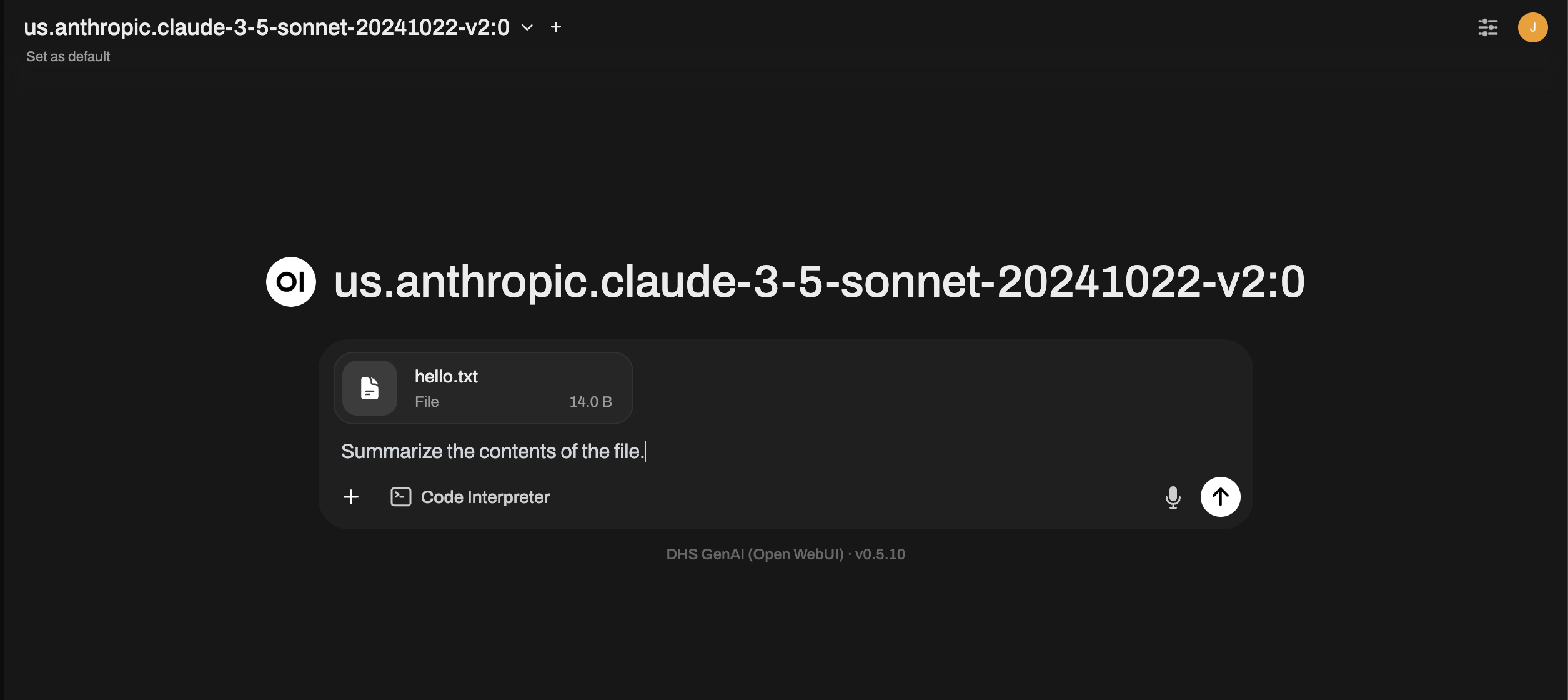
Now that we have Open-WebUI running, let's upload a simple Hello, World text file and test our set-up.
And confirm that we're getting a response from the selected LLM.
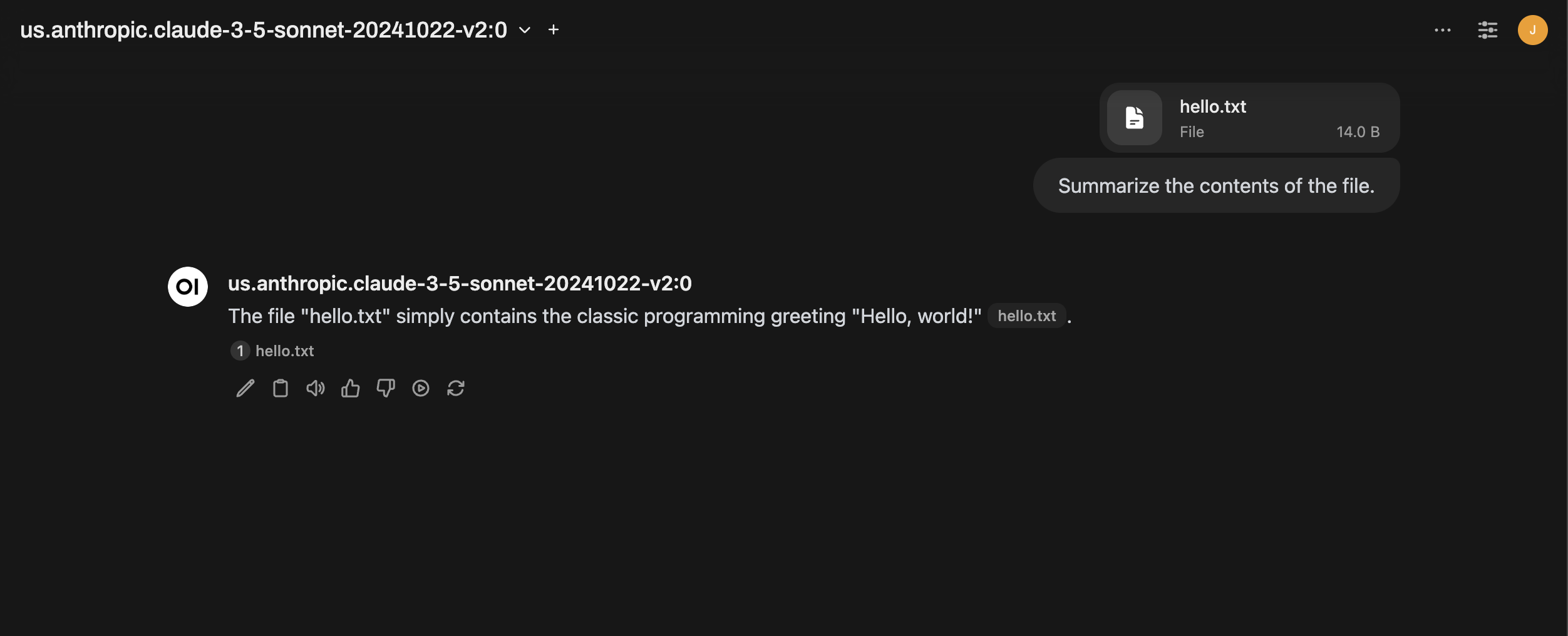
Great! Looks like everything is worked as expected in Open-WebUI. Now let's verify that the text file was indeed uploaded and stored in the specified S3 bucket. Using the AWS Management Console, we can see that there is now a file in the S3 bucket. In addition to the name of the file we uploaded (hello.txt) you can see the object's name was prefixed with a unique ID (<file-id>_hello.txt, under S3_KEY_PREFIX if set). This is how Open-WebUI tracks all the files uploaded.

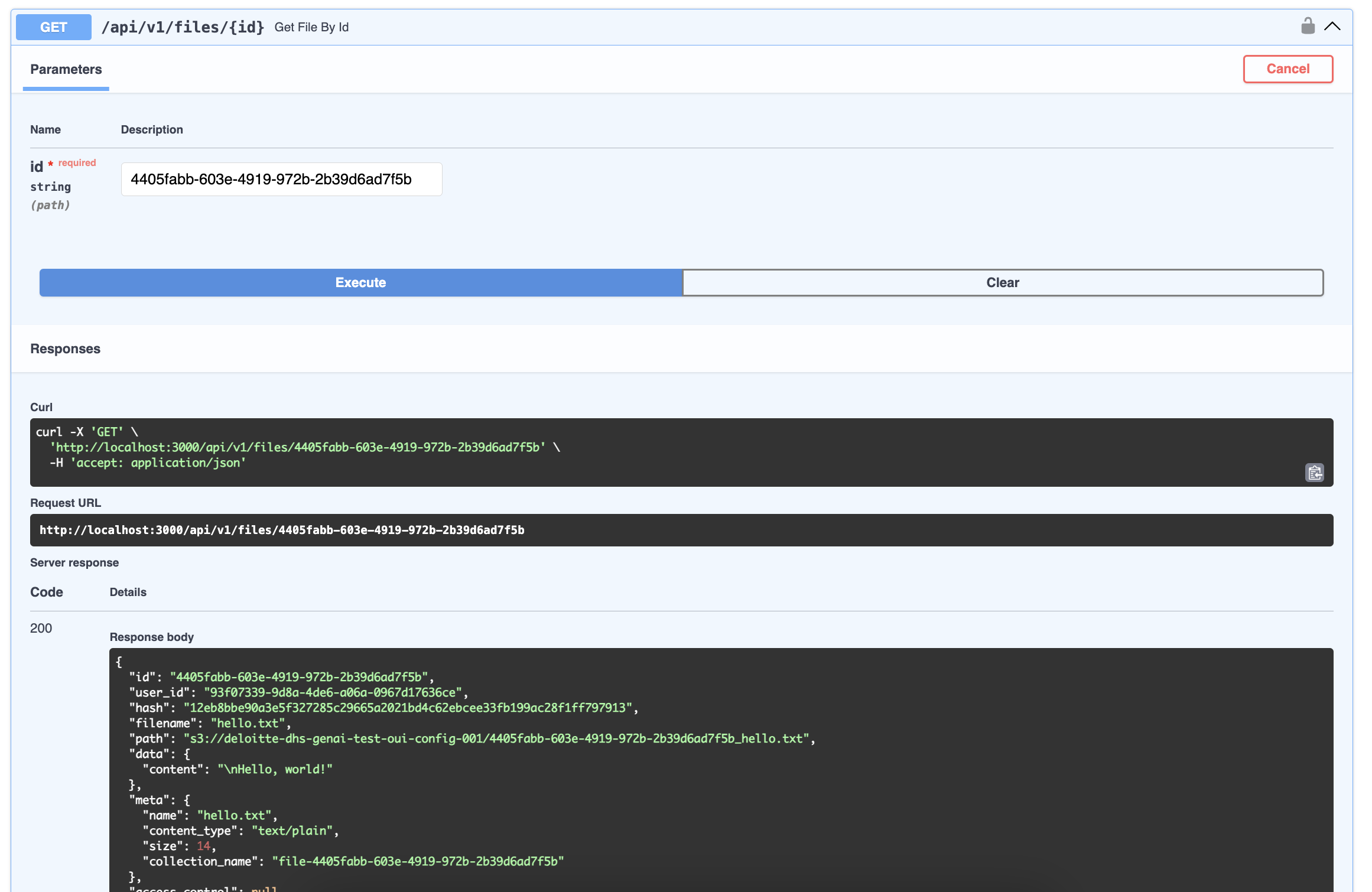
Using Open-WebUI's swagger docs, we can get all the information related to this file using the /api/v1/files/{id} endpoint and passing in the unique ID (4405fabb-603e-4919-972b-2b39d6ad7f5b).