Open WebUI Community
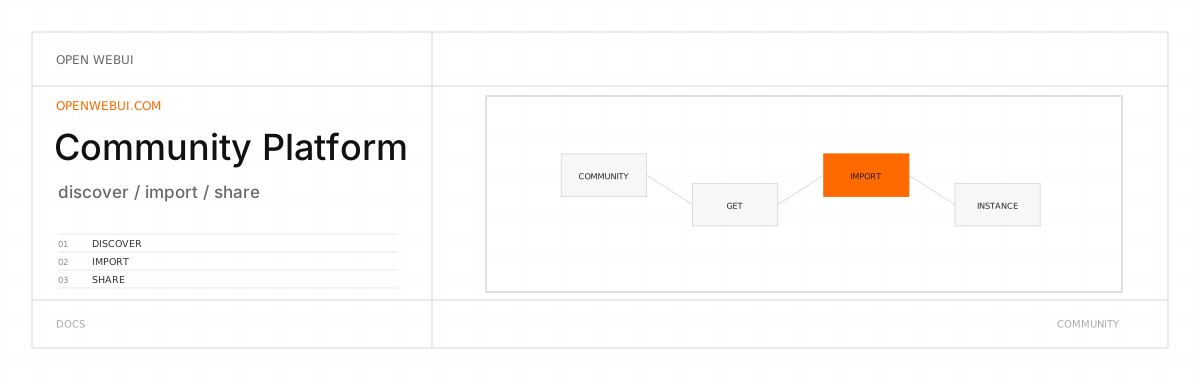
Use models, prompts, skills and plugins that other people have already built, and share your own.
You don't have to write every system prompt, Tool or Function yourself. Open WebUI Community is a separate website where people publish what they've built for Open WebUI, and anything posted there can be imported into your instance in a few clicks.
Run the server? For admins covers who can bring code onto it through the site, what reaches openwebui.com, and how to turn it off.
Import a post
You need an account on openwebui.com, which is separate from your account on your instance.
- Open the post on openwebui.com and click Get.
- Enter your Open WebUI URL, for example
http://localhost:3000, and click Import. - Your instance opens in a new tab with the editor filled in, after you sign in if you aren't already. Read the item, including all the code of a Tool or Function, and save it.
| Post | Lands in | Who can import it |
|---|---|---|
| Model preset | Workspace > Models | Users allowed to create models |
| Prompt | Workspace > Prompts | Users allowed to create prompts |
| Skill | Workspace > Skills | Users allowed to create and import skills |
| Tool | Workspace > Tools | Users allowed to create tools |
| Function | Admin Panel > Functions | Admins only |
Share what you built
Share opens openwebui.com in a new tab with a new post already filled in. Nothing is published until you finish the post there.
- A model preset, prompt or Tool: in Workspace, open the item's menu and click Share.
- A skill: in Workspace > Skills, open the skill's menu and click Share. This needs the Export Skills permission. The post carries the skill with all its files, up to 15 MiB in total.
- A Function (admins only): in Admin Panel > Functions, open the function's menu and click Share.
- A chat: in the chat's Share dialog, click Share to Open WebUI Community.
Sharing a Tool or Function publishes its full source code. Check it for API keys, internal addresses or anything else you wouldn't post publicly. Values you entered in its Valves aren't included.
Review a model
Reviews on openwebui.com tell you how a model holds up for other people before you spend time setting it up, and yours does the same for them. Two links in Open WebUI lead to a model's reviews:
- To read them: in the model selector, open a model's menu and click Community Reviews.
- To write one: rate a reply with thumbs up or down, then click Leave a public review for the model in the panel that opens. On openwebui.com, open the model from the results. Under Write a review, give it a star rating, a title and what worked for you and what didn't, and click Post.
Both links search the site's Models catalog for the model's ID on your instance, so a custom model or preset may not match an entry there. Nothing about your chats is sent, and your review is posted publicly under your openwebui.com account.
Add your usage to the Leaderboard
The Leaderboard ranks models by how many messages people actually send them. Syncing your usage adds the models you rely on to that count, and your openwebui.com profile then shows your top models and a heatmap of your messages through the year.
- Sign in on openwebui.com, open Leaderboard and click Sync Stats. The sync buttons on your profile and above your name at the bottom of the sidebar do the same.
- In Sync Open WebUI Stats, enter your Open WebUI URL and click Sync. Your instance needs Open WebUI v0.7.0 or later.
- Your instance opens in a new tab with a Sync Usage Stats dialog that lists what is and isn't shared. Download as JSON saves the data so you can read it first.
- Click Sync.
Only stats about your own chats are sent, never their text. What reaches openwebui.com lists every field. After the first sync, later ones send stats only for chats that changed since the last one.
For admins
Who can bring code onto your server
A Tool or Function imported from the site is Python that runs on your server from the moment it's saved.
- Functions can only be imported by admins.
- Tools, model presets and prompts can be imported by any user whose workspace permissions let them create that kind of item.
- A Tool or Function can list Python packages in a
requirementsline at its top, and Open WebUI installs them with pip when it loads the plugin. To stop that, setENABLE_PIP_INSTALL_FRONTMATTER_REQUIREMENTStoFalse.
What reaches openwebui.com
openwebui.com never connects to your server. Everything passes between two tabs in a user's browser, so an instance on localhost or a private network works the same as a public one, and nothing is sent until a user clicks for it. A user can send two things:
- A share. Whatever they share is published as a post: a model preset or prompt as it's set up, a skill with all its files, a Tool's full source code or a snapshot of a chat, messages included. Admins can also share a Function's full source code.
- A stats sync for the Leaderboard. Each user decides whether to sync, and it covers only their own chats. They confirm it in a Sync Usage Stats dialog on your instance.
A stats sync sends:
- the Open WebUI version
- for each chat: its ID, the user's ID on your instance, its created and updated times, and its tags
- for each message: its ID, role, model, length in characters, token count, timestamp, and the rating and tags it was given
- per-chat totals: message counts, models used, average message lengths and average response time
It doesn't send message text, prompts, model responses, chat titles, or uploaded files and images.
Your instance's own Evaluation leaderboard, built from your users' ratings, never leaves your instance.
Turn it off
| Setting | Where | Default |
|---|---|---|
| Community Sharing | Settings > Admin > General | On |
ENABLE_COMMUNITY_SHARING sets it on an instance's first start. After that, the value saved in the Admin Panel wins.
Turning it off hides these for every user, admins included:
- the Made by Open WebUI Community links on the Models, Prompts, Skills, Tools and Functions pages
- Share in the model, prompt, skill, tool and function menus
- Share to Open WebUI Community in the chat share dialog
- Community Reviews in the model selector, and the review link after rating a reply
- the Sync Usage Stats dialog
The stats export behind that dialog still answers admins through the API, and refuses everyone else.
Where to go next
- Community Plugins: find a plugin by what you want it to do.
- Starting with Functions: a first Function import, from finding it to setting its Valves.
- Sharing chats: share links, and who can see a chat you share to the site.