Chat Sharing
Enabling Community Sharing
To enable community sharing, follow these steps:
- Navigate to the Admin Panel page as an Admin.
- Click on the Settings tab.
- Toggle on Community Sharing within the General settings tab.
Note: Only Admins can toggle the Community Sharing option. If this option is toggled off, users and Admins will not see the Share to Open WebUI Community option for sharing their chats. Community sharing must be enabled by an Admin for users to share chats to the Open WebUI community. With it off, the openwebui.com author link on imported models is hidden too.
This will enable community sharing for all users on your Open WebUI instance.
Sharing Chats
To share a chat:
- Select the chat conversation you want to share.
- Click on the 3-dots that appear when hovering the mouse pointer above the desired chat. On a touchscreen the 3-dots are always shown, so tap them directly.
- Then click on the Share option.
- Select either Share to Open WebUI Community (if Community Sharing is toggled on by an Admin under Settings > General > Features; creating any share link also needs the Allow Chat Share permission,
USER_PERMISSIONS_CHAT_SHARE) or Copy Link.
The modal shows an Access Control selector for who can open the link, offering Private, Public and Open, plus specific users and groups. A new link starts private; giving someone access creates the link if the chat does not have one yet.
Public makes the link reachable by any signed-in user of this instance, so a visitor who is not logged in is still sent to the login page. It is gated by the Chats Public Sharing permission. When disabled, non-admin users only see options to grant access to specific users or groups. Admins always retain access to all options. See RBAC Permissions and USER_PERMISSIONS_CHAT_ALLOW_PUBLIC_SHARING for configuration.
Open removes the login requirement entirely and is covered in Open links below.
Open links (no sign-in)
Open is the only setting that makes a chat readable without an Open WebUI account. Anyone holding the link can read the conversation straight from the internet, with no login and no record of who viewed it.
It is off by default. A non-admin needs the Chats Open Sharing permission (USER_PERMISSIONS_CHAT_ALLOW_OPEN_SHARING, default False) before the option appears at all. Without it the dropdown shows only Private and Public, and the server refuses open grants.
What an open link does and does not allow:
- It is read-only. Open access exists only as a read grant, so the write toggle is not offered and a write grant for it is rejected.
- It applies to chats only. No other resource type accepts this kind of grant, so knowledge bases, models, prompts, tools, notes and calendars cannot be shared this way.
- Copying the conversation into an account still requires signing in and holding the Chat Import permission.
- The page asks search engines not to index it (
noindex,nofollow). That is a request to well-behaved crawlers, not access control: the link still works for anyone who receives it.
Treat the URL itself as the only protection. It cannot be revoked selectively, so if it leaks, the way to cut access is to delete the share link (see Deleting Shared Chats) or switch the chat back to Private. Shared chats are snapshots, so anything in the conversation at the moment the link was generated stays visible, including any file contents, names or internal details quoted in the messages.
Sharing to Open WebUI Community
When you select Share to Open WebUI Community:
- A new tab will open, allowing you to upload your chat as a snapshot to the Open WebUI community website (https://openwebui.com/chats/upload).
- You can control who can view your uploaded chat by choosing from the following access settings:
- Private: Only you can access this chat.
- Public: Anyone on the internet can view the messages displayed in the chat snapshot.
- Public, Full History: Anyone on the internet can view the full regeneration history of your chat.
Note: You can change the permission level of your shared chats on the community platform at any time from your openwebui.com account.
Currently, shared chats on the community website cannot be found through search. However, future updates are planned to allow public chats to be discoverable by the public if their permission is set to Public or Public, Full History.
Copying a Share Link
When you select Copy Link, a unique share link is generated that can be shared with others.
Important Considerations:
- The shared chat will only include messages that existed at the time the link was created. Any new messages sent within the chat after the link is generated will not be included, unless the link is deleted and updated with a new link.
- The generated share link acts as a static snapshot of the chat at the time the link was generated. With Allow replies, people you shared with see the live chat.
- Unless the chat is set to Open, viewing it requires an account on the Open WebUI instance where the link was generated, and being signed in to that account. A visitor who is not signed in is redirected to the login page first.
- A chat set to Open skips both requirements and is readable by anyone with the link. See Open links.
Allowing Replies
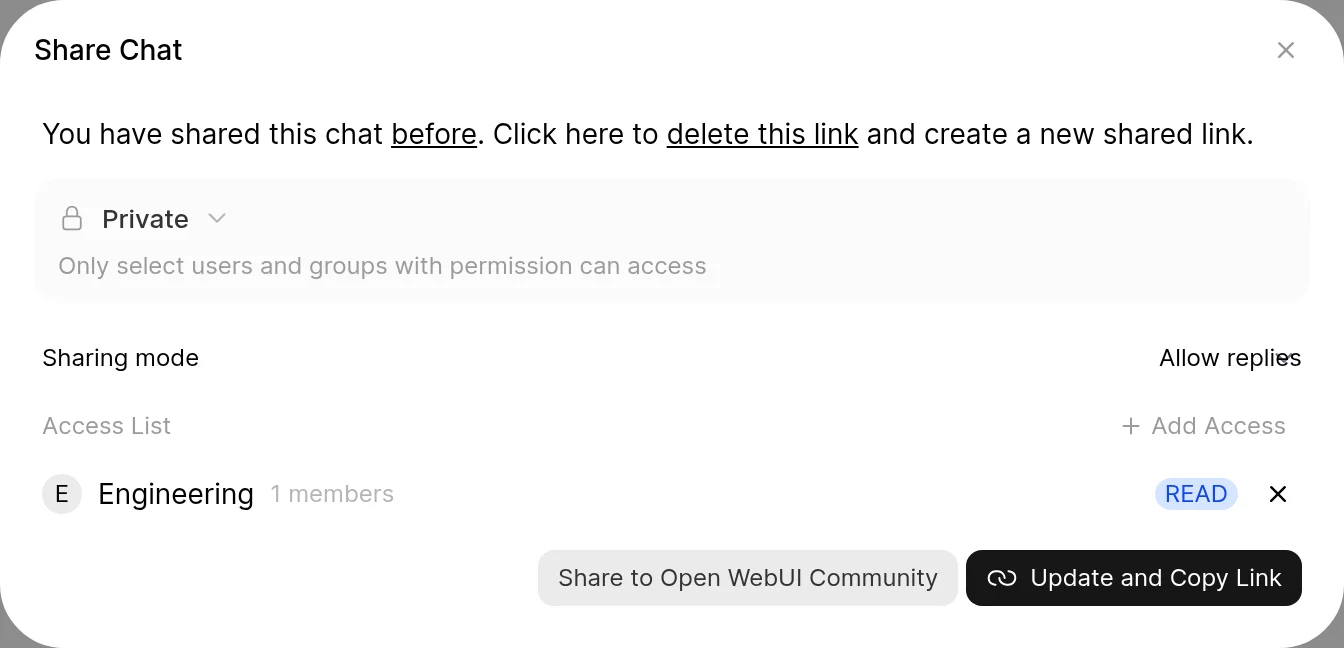
Once at least one person or group has access, the modal also shows a Sharing mode:
- Clone only (default): people open the link and see the conversation as it was when the link was created or last updated. To continue it, they clone or fork it into their own chats (see Cloning or Forking a Shared Chat).
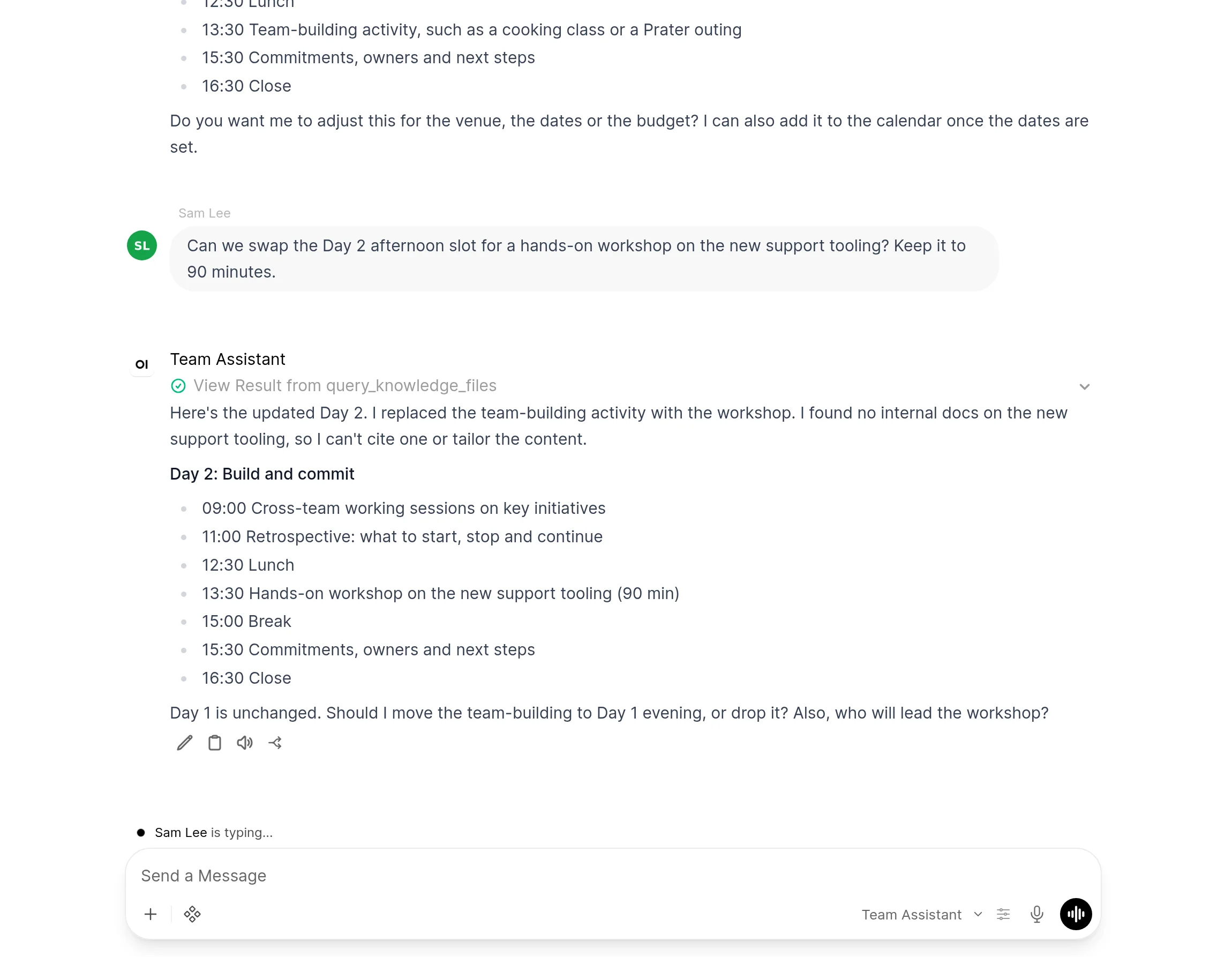
- Allow replies: everyone with access by name, through a group or through Public can write into the same chat. Opening the link takes them straight to the live conversation, and everyone in it sees new messages and replies as they arrive.
In a chat with replies allowed:
- In the bubble layout, messages from other people sit on the left with their name and profile picture, and your own sit on the right without them. With Chat Bubble UI off in Settings > Interface, every message shows its sender's name and picture.
- A line above the message input shows who is typing.
- The chat's top bar shows the other people who have the chat open right now, up to three profile pictures followed by a count such as +2. Click the count for the Collaborators list, and hover or click a picture to open that person's profile card.
- Anyone who can write into the chat and has the Allow Regenerate Response permission can Regenerate any reply. The new version belongs to the person who generated it. Each person continues, stops and rates only the reply versions they generated.
- Anyone who can write into the chat and has the Allow Chat Edit permission can edit any prompt. The editor offers Send, which adds the edited prompt as a new branch with a new reply and leaves the original as it was. Other people in the chat stay on the branch they had selected.
- Only the owner can edit replies and save an edit in place, and only on their own messages and the reply versions they generated. Opening the editor on someone else's message offers Send on a prompt and Save As Copy on a reply, which add a new message and leave the original as it was.
- Delete on a reply shows only to the owner, on reply versions the owner generated, once the reply has more than one version.
- Only the owner's messages generate titles and tags or change the chat's selected models, attached files and chat variables. Other people's turns run without the chat's variables.
- Someone who reaches the chat only through an Open link, with no access by name, group or Public, sees the snapshot.
- When someone loses access, the chat closes for them at once and they stop getting its updates.
Switching back to Clone only refreshes the snapshot behind the link, so it then shows the conversation as it stands at that moment, replies included. The Allow Chat Share permission controls who can share a chat, and the access options follow the same permissions as for any share link. Shared folders have the same Sharing mode, applied to the chats directly in the folder. Each subfolder has its own.
Viewing Shared Chats
To view a shared chat:
- Ensure you are signed in to an account on the Open WebUI instance where the chat was shared. This step does not apply to a chat shared as Open, which anyone can read without an account.
- Click on the shared link provided to you.
- The chat will be displayed in a read-only format. With Allow replies, you are taken to the chat itself and can write into it.
- If the Admin of the Open WebUI instance from which the shared link was shared has Text-to-Speech set up, there may be an audio button for messages to be read aloud to you (situational).
A chat that belongs to someone else is shown under its author: each message carries the name and profile picture of the person who sent it. This holds wherever you opened it, whether through the share link, from a folder shared with you or as an admin from Admin Panel > Users. Opened inside the app, the chat's Overview window labels its message nodes the same way.
Anyone other than the owner gets the conversation only: the owner's advanced parameters, selected tools, tool servers and filters, chat variables and per-message settings stay with the owner.
Cloning or Forking a Shared Chat
You can copy a chat that belongs to someone else into your own chats whenever you can read it: through a share link, a share granted to you, a folder shared with you or, for admins, Admin Panel > Users. There are two ways:
- Clone Chat, the button at the bottom of the chat, copies the conversation into your own chats, outside any folder. It shows when the chat is read-only for you; in a chat with replies allowed, use Fork chat.
- Fork chat, the action under each finished reply, copies the conversation from the start up to that reply into a new chat titled
<original title> (fork).
Both need you to be signed in and to have the Allow Chat Import permission (admins always have it). A fork made from a share link holds only what the link shows, so messages added to the original after the link was last updated stay out of it. A fork of someone else's chat goes into your own chats outside any folder and leaves out the owner's pin, tags, chat settings and chat variables.
In the copy, the original owner's prompts and replies become yours, so you can edit them and use Regenerate and Continue Response on them like in any chat of your own. Messages that other people wrote into a chat with replies allowed keep their authors.
Using a Shared Chat as Context
Read access to a chat also lets you attach that conversation to a chat of your own, so a model can work from it. This covers a share granted to you by name, one granted to a group you belong to, one set to Public and a chat sitting in a folder shared with you. The model receives the conversation as it stands now, so messages added since the link was generated are included even though the link itself still serves the older snapshot. Only the branch the conversation is currently following is passed along. The text goes in verbatim, with no chunking and no vector search.
Updating Shared Chats
To update a shared chat:
- Select the chat conversation you want to share.
- Click on the 3-dots that appear when hovering the mouse pointer above the desired chat. On a touchscreen the 3-dots are always shown, so tap them directly.
- Click on the Share option.
- The Share Chat Modal should look different if you've shared a chat before.
The Share Chat Modal includes the following options:
- before: Opens a new tab to view the previously shared chat from the share link.
- delete this link: Deletes the shared link of the chat and presents the initial share chat modal.
- Share to Open WebUI Community: Opens a new tab for https://openwebui.com/chats/upload with the chat ready to be shared as a snapshot.
- Update and Copy Link: Updates the snapshot of the chat of the previously shared chat link and copies it to your device's clipboard.
Deleting Shared Chats
To delete a shared chat link:
- Select the chat conversation you want to delete the shared link for.
- Click on the 3-dots that appear when hovering the mouse pointer above the desired chat. On a touchscreen the 3-dots are always shown, so tap them directly.
- Click on the Share option.
- The Share Chat Modal should look different if you've shared a chat before.
- Click on delete this link.
Once deleted, the shared link will no longer be valid, and users will not be able to view the shared chat.
Note: Chats shared to the community platform cannot be deleted. To change the access level of a chat shared to the community platform:
- Log in to your Open WebUI account on openwebui.com.
- Click on your account username at the top right of the website.
- Click on Chats.
- Click on the chat you wish to change permission access for.
- Scroll to the bottom of the chat and update its permission level.
- Click the Update Chat button.
Managing Shared Chats
Open WebUI provides a centralized dashboard to manage every chat conversation you have shared. From there you can search through your shared history, re-copy links, or revoke access instantly.
For details on the management dashboard, see Shared Chats Management.