What are Tools?
Workspace Tools and Functions execute arbitrary Python code on your server. Only install from trusted sources, review code before importing, and restrict Workspace access to trusted administrators only. Granting a user the ability to create or import Tools is equivalent to giving them shell access to the server. For full details, see the Plugin Security Warning.
⚙️ Tools are the various ways you can extend an LLM's capabilities beyond simple text generation. When enabled, they allow your chatbot to do amazing things — like search the web, scrape data, generate images, talk back using AI voices, and more.
Because there are several ways to integrate "Tools" in Open WebUI, it's important to understand which type you are using.
Tooling Taxonomy: Which "Tool" are you using?
🧩 Users often encounter the term "Tools" in different contexts. Here is how to distinguish them:
| Type | Location in UI | Best For... | Source |
|---|---|---|---|
| Native Features | Admin/Settings | Core platform functionality | Built-in to Open WebUI |
| Workspace Tools | Workspace > Tools | User-created or community Python scripts | Community Library |
| Native MCP (HTTP) | Settings > Connections | Standard MCP servers reachable via HTTP/SSE | External MCP Servers |
| MCP via Proxy (MCPO) | Settings > Connections | Local stdio-based MCP servers (e.g., Claude Desktop tools) | MCPO Adapter |
| OpenAPI Servers | Settings > Connections | Standard REST/OpenAPI web services | External Web APIs |
| Open Terminal | Settings > Integrations | Full shell access in an isolated Docker container (always-on) | Open Terminal |
1. Native Features (Built-in)
These are deeply integrated into Open WebUI and generally don't require external scripts.
- Web Search: Integrated via engines like SearXNG, Google, or Tavily.
- URL Fetching: Extract text content directly from websites using
#or native tools. - Image Generation: Integrated with DALL-E, ComfyUI, or Automatic1111.
- Memory: The ability for models to remember facts about you across chats.
- RAG (Knowledge): The ability to query uploaded documents (
#).
In Native Mode, these features are exposed as Tools that the model can call independently.
2. Workspace Tools (Custom Plugins)
These are Python scripts that run directly within the Open WebUI environment.
- Capability: Can do anything Python can do (web scraping, complex math, API calls).
- Access: Managed via the
Workspacemenu. - Safety: Always review code before importing, as these run on your server.
- ⚠️ Security Warning: Normal or untrusted users should not be given permission to access the Workspace Tools section. This access allows a user to upload and execute arbitrary Python code on your server, which could lead to a full system compromise.
3. MCP (Model Context Protocol)
🔌 MCP is an open standard that allows LLMs to interact with external data and tools.
- Native HTTP MCP: Open WebUI can connect directly to any MCP server that exposes an HTTP/SSE endpoint.
- MCPO (Proxy): Most community MCP servers use
stdio(local command line). To use these in Open WebUI, you use the MCPO Proxy to bridge the connection.
4. OpenAPI / Function Calling Servers
Generic web servers that provide an OpenAPI (.json or .yaml) specification. Open WebUI can ingest these specs and treat every endpoint as a tool.
How to Install & Manage Workspace Tools
📦 Workspace Tools are the most common way to extend your instance with community features.
- Go to Community Tool Library
- Choose a Tool, then click the Get button.
- Enter your Open WebUI instance’s URL (e.g.
http://localhost:3000). - Click Import to WebUI.
Never import a Tool you don’t recognize or trust. These are Python scripts and might run unsafe code on your host system. Crucially, ensure you only grant "Tool" permissions to trusted users, as the ability to create or import tools is equivalent to the ability to run arbitrary code on the server.
How to Use Tools in Chat
🔧 Once installed or connected, here’s how to enable them for your conversations:
Option 1: Enable on-the-fly (Specific Chat)
While chatting, click the ➕ (plus) icon in the input area. You’ll see a list of available Tools — you can enable them specifically for that session.
Option 2: Enable by Default (Global/Model Level)
- Go to Workspace ➡️ Models.
- Choose the model you’re using and click the ✏️ edit icon.
- Scroll to the Tools section.
- ✅ Check the Tools you want this model to always have access to by default.
- Click Save.
For models that support it, Native tool calling mode (see Tool Calling Modes below) lets the model itself decide which of the attached tools to call on each turn. This replaces the older prompt-injection "auto-tool" filter approach and is the recommended way to let the model auto-select tools.
Attaching a workspace tool to a model does not bypass access control. When a user chats with the model, Open WebUI checks whether that specific user has read access to each attached tool. Tools the user cannot access are silently skipped — the model won't be able to call them.
Example scenario: An admin creates a private tool and attaches it to a model shared with all users. Regular users chatting with this model will not have the tool available because they don't have read access to the tool itself.
Solution: Make sure users who need the model's tools also have read access to each tool (via access grants, group permissions, or by making the tool public). The "Workspace → Tools" permission controls whether users can create and manage tools — it does not affect whether model-attached tools work for them.
Tool Calling Modes: Default vs. Native
All models should be configured for Native (Agentic) Mode. Default Mode is a legacy prompt-injection fallback that predates widespread native function-calling support in LLMs. It is no longer supported: it will not receive feature work, bug fixes, or built-in system tools, and it is incompatible with modern Open WebUI features (Agentic Research, Interleaved Thinking, built-in Memory/Notes/Knowledge/Channels tools, web-search/image-gen/code-interpreter tool injection).
Default Mode still exists in the dropdown only so that instances with older tool code paths keep running while admins migrate. If your deployment is still on Default Mode, switch every model to Native Mode (see How to Enable Native Mode below). If a specific model has trouble with Native Mode, the correct fix is to pick a better model for tool calling — not to fall back to Default.
Open WebUI exposes two modes in Model Settings → Advanced Params → Function Calling: Native Mode (Agentic Mode) — the only supported mode — and Default Mode, kept in the UI for backwards compatibility only.
🔴 Default Mode (Prompt-based) — Legacy / Unsupported
Default Mode is legacy and no longer supported. It is documented here for reference only. New deployments must use Native Mode; existing deployments should migrate. Bug reports, feature requests, and support questions about Default Mode behavior will not be actioned.
In Default Mode, Open WebUI manages tool selection by injecting a long prompt template that guides the model to output a tool request in a bespoke format. It was a reasonable approach in 2023; it has been obsolete since mainstream providers and open-weights models gained proper function-calling APIs.
Why it is legacy:
- Breaks KV cache. The injected prompt changes every turn, preventing LLM engines from reusing cached key-value pairs. Every message pays the full prefill cost again.
- Higher latency and token cost. Bulky tool-description prompts on every turn.
- Unreliable for multi-step chaining. Parsing natural-language tool requests is fragile compared to structured tool calls.
- Cannot access built-in system tools. Memory, Notes, Knowledge, Channels, Agentic Research, Interleaved Thinking, and the tool-injected Web Search / Image Generation / Code Interpreter features are Native-only.
- Does not support modern capabilities. Every new feature shipped since 2024 targets Native Mode.
🟢 Native Mode (Agentic Mode / System Function Calling) — The Only Supported Mode
Native Mode (also called Agentic Mode) leverages the model's built-in capability to handle tool definitions and return structured tool calls (JSON). This is the recommended mode for all models that support it — which includes the vast majority of modern models (2024+).
Agentic tool calling requires high-quality models to work reliably. While small local models may technically support function calling, they often struggle with the complex reasoning required for multi-step tool usage. For best results, use frontier models like GPT-5, Claude 4.5 Sonnet, Gemini 3 Flash, or MiniMax M2.5. Small local models may produce malformed JSON or fail to follow the strict state management required for agentic behavior.
Why use Native Mode (Agentic Mode)?
- Speed & Efficiency: Lower latency as it avoids bulky prompt-based tool selection.
- KV Cache Friendly: Tool definitions are sent as structured parameters (not injected into the prompt), so they don't invalidate the KV cache between turns. This can significantly reduce latency and token costs.
- Reliability: Higher accuracy in following tool schemas (with quality models).
- Multi-step Chaining: Essential for Agentic Research and Interleaved Thinking where a model needs to call multiple tools in succession.
- Autonomous Decision-Making: Models can decide when to search, which tools to use, and how to combine results.
- System Tools: Only Native Mode unlocks the built-in system tools (memory, notes, knowledge, channels, etc.).
How to Enable Native Mode (Agentic Mode)
Native Mode can be enabled at two levels:
- Universal Default for Every Model (Fastest — Recommended):
- Navigate to Admin Panel → Settings → Models.
- Click the Settings button at the top right of the models list — this opens global model parameters, which apply to every model in your instance (current and future) unless a specific model overrides them.
- Under Model Parameters, set Function Calling to
Native. - Save. All existing models that haven't explicitly set their own value, and all models you add later, inherit
Native. You do not need to edit them one by one.
- Per-Model Override:
- In Admin Panel → Settings → Models, pick a specific model and click its edit button.
- Under Model Parameters, set Function Calling to
Native. This value overrides the global default for that model only. - Use this when a specific model needs different parameters — otherwise prefer the global setting.
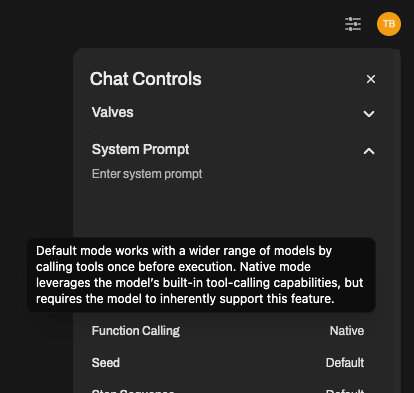
- Per-Chat Override:
- Inside a chat, open Chat Controls (right sidebar).
- Under Advanced Params, set Function Calling to
Native. Applies to that chat only.
Tired of switching every model to Native one at a time? The global model parameters panel (the Settings button at the top right of Admin Panel → Settings → Models) lets you configure any model parameter — function_calling, temperature, top_p, max_tokens, etc. — once, for every model in your Open WebUI instance. Values set there become the default for every existing model that hasn't overridden them and every model you add later. Set Function Calling = Native there, save, done.
Model Requirements & Caveats
For reliable agentic tool calling, use high-tier frontier models:
- GPT-5 (OpenAI)
- Claude 4.5 Sonnet (Anthropic)
- Gemini 3 Flash (Google)
- MiniMax M2.5
These models excel at multi-step reasoning, proper JSON formatting, and autonomous tool selection.
- Large Local Models: Large local models (e.g., Qwen 3 32B, Llama 3.3 70B, DeepSeek V3/R1) work well with Native Mode; results scale with model quality.
- Small Local Models: Small local models (under ~30B parameters) often produce malformed JSON or fail multi-step tool chains even in Native Mode. The fix is to use a stronger model for tool-calling workloads, not to fall back to Default Mode — Default is legacy and unsupported. If your hardware forces you to use a small model, accept that tool calling will be unreliable at this tier, or offload only tool-using conversations to a cloud model.
Known Model-Specific Issues
DeepSeek V3.2 has known issues with native function calling that cause reproducible failures. Despite being a 600B+ parameter model, it often outputs malformed tool calls.
The Problem: DeepSeek V3.2 was trained using a proprietary format called DSML (DeepSeek Markup Language) for tool calls. When using native function calling, the model sometimes outputs raw DSML/XML-like syntax instead of proper JSON:
<functionInvoke name="fetch_url">instead of valid JSON<function_calls>/</function_calls>tags in content- Garbled hybrid text like
prominentfunction_cinvoke name="search_parameter
Why it happens: This is heavily model-dependent behavior induced during DeepSeek's fine-tuning process. DeepSeek chose to train their model on DSML rather than standard OpenAI-style JSON tool calls. While inference providers (VertexAI, OpenRouter, etc.) attempt to intercept DSML blocks and convert them to OpenAI-style JSON, this translation layer is unreliable under certain conditions (streaming, high temperature, high concurrency, multi-turn conversations). The primary responsibility lies with DeepSeek for using a non-standard format that requires fragile translation.
Known contributing factors:
- Higher temperature values correlate with more malformed output
- Multi-round conversations (6-8+ turns) can cause the model to stop calling functions entirely
- Complex multi-step workflows (15-30 tool calls) may cause "schema drift" where argument formats degrade
Workarounds:
- Use a different model for agentic workloads. Claude 4.5 Sonnet, GPT-5, Gemini 3 Flash, and MiniMax M2.5 are all reliable in Native Mode and are the recommended choice when DeepSeek V3.2 misbehaves.
- Lower temperature when using tool calling with DeepSeek V3.2.
- Limit multi-round tool-calling sessions.
Default Mode is not a supported workaround even for DeepSeek — it is legacy and will not be extended to cover this case. This is a DeepSeek model/API issue, not an Open WebUI issue. Open WebUI correctly sends tools in standard OpenAI format; the malformed output originates from DeepSeek's non-standard internal DSML format.
| Feature | Default Mode (Legacy / Unsupported) | Native Mode (The Only Supported Mode) |
|---|---|---|
| Status | ❌ Legacy, no longer supported | ✅ Required — all models should use this |
| Latency | Medium/High | Low |
| KV Cache | ❌ Breaks cache on every turn | ✅ Cache-friendly |
| Model Compatibility | Any text model (obsolete concern) | Every mainstream model since 2024 |
| Logic | Prompt-injection parsed by Open WebUI | Structured tool calls via provider API |
| System Tools | ❌ Not available | ✅ Full access (Memory, Notes, Knowledge, Channels, Web Search, Image Gen, Code Interpreter) |
| Agentic Research / Interleaved Thinking | ❌ Unsupported | ✅ Supported |
| Complex Chaining | ⚠️ Unreliable | ✅ Excellent |
| Future development | ❌ None | ✅ All new features target this mode |
Built-in System Tools (Native/Agentic Mode)
🛠️ When Native Mode (Agentic Mode) is enabled, Open WebUI automatically injects powerful system tools. This unlocks truly agentic behaviors where capable models (like GPT-5, Claude 4.5 Sonnet, Gemini 3 Flash, or MiniMax M2.5) can perform multi-step research, explore knowledge bases, or manage user memory autonomously.
| Tool | Purpose |
|---|---|
| Search & Web | Requires ENABLE_WEB_SEARCH enabled AND per-chat "Web Search" toggle enabled. |
search_web | Search the public web for information. Best for current events, external references, or topics not covered in internal documents. |
fetch_url | Visits a URL and extracts text content via the Web Loader. |
| Knowledge Base | Requires per-model "Knowledge Base" category enabled (default: on). Which tools are injected depends on whether the model has attached knowledge — see note below. |
list_knowledge | List attached knowledge (KBs, files, notes). Start here when attachments exist. |
list_knowledge_bases | List accessible knowledge bases with file counts. |
query_knowledge_bases | Semantic search over KB names/descriptions to find the right KB. |
search_knowledge_bases | Text search over KB names/descriptions. |
query_knowledge_files | Search file contents via the RAG retrieval pipeline (hybrid + rerank when enabled). Main tool for finding answers in docs. |
search_knowledge_files | Search files by filename. |
view_file | Read a user-accessible file by ID with pagination (offset, max_chars). |
view_knowledge_file | Read a knowledge-base file by ID with pagination (offset, max_chars). |
| Image Gen | Requires image generation enabled (per-tool) AND per-chat "Image Generation" toggle enabled. |
generate_image | Generates a new image based on a prompt. Requires ENABLE_IMAGE_GENERATION. |
edit_image | Edits existing images based on a prompt and image URLs. Requires ENABLE_IMAGE_EDIT. |
| Code Interpreter | Requires ENABLE_CODE_INTERPRETER enabled (default: on) AND per-chat "Code Interpreter" toggle enabled. |
execute_code | Executes code in a sandboxed environment and returns the output. |
| Memory | Requires Memory feature enabled AND per-model "Memory" category enabled (default: on). |
search_memories | Searches the user's personal memory/personalization bank. |
add_memory | Stores a new fact in the user's personalization memory. |
replace_memory_content | Updates an existing memory record by its unique ID. |
delete_memory | Deletes a memory by its ID. |
list_memories | Lists all stored memories for the user with content and dates. |
| Notes | Requires ENABLE_NOTES AND per-model "Notes" category enabled (default: on). |
search_notes | Search the user's notes by title and content. |
view_note | Get the full markdown content of a specific note. |
write_note | Create a new private note for the user. |
replace_note_content | Update an existing note's content or title. |
| Chat History | Requires per-model "Chat History" category enabled (default: on). |
search_chats | Simple text search across chat titles and message content. Returns matching chat IDs and snippets. |
view_chat | Reads and returns the full message history of a specific chat by ID. |
| Channels | Requires ENABLE_CHANNELS AND per-model "Channels" category enabled (default: on). |
search_channels | Find public or accessible channels by name/description. |
search_channel_messages | Search for specific messages inside accessible channels. |
view_channel_message | View a specific message or its details in a channel. |
view_channel_thread | View a full message thread/replies in a channel. |
| Task Management | Requires per-model "Task Management" category enabled (default: on). |
create_tasks | Create a structured task checklist for the current chat. Called once at the start of multi-step work to define all steps. |
update_task | Update the status of a single task by id (pending, in_progress, completed, cancelled). Called after finishing each step. |
| Automations | Requires per-model "Automations" category enabled (default: on) AND ENABLE_AUTOMATIONS enabled AND user has features.automations permission (admins always pass). |
create_automation | Create a scheduled automation with a name, prompt, and RRULE schedule. Uses the current chat model. |
update_automation | Update an existing automation's name, prompt, schedule, or model. |
list_automations | List the user's scheduled automations with status, schedule, and next runs. |
toggle_automation | Pause or resume a scheduled automation. |
delete_automation | Delete a scheduled automation and all its run history. |
| Calendar | Requires per-model "Calendar" category enabled (default: on) AND ENABLE_CALENDAR enabled AND user has features.calendar permission (admins always pass). |
search_calendar_events | Search calendar events by text and/or date range across all accessible calendars. |
create_calendar_event | Create a new event on the user's default or specified calendar. |
update_calendar_event | Update an existing event's title, time, description, location, or cancel it. |
delete_calendar_event | Delete a calendar event permanently. |
| Skills | Requires at least one skill to be attached to the model via Workspace/Admin Panel → Models → Edit → Skills. The model receives a summary of attached skills in its system prompt and can call view_skill to load full instructions on demand. No separate builtin tools category checkbox is needed — attaching a skill is the only requirement. |
view_skill | Load the full instructions of a skill by name. The tool is injected when skills are attached; resolving a skill still follows normal ownership/access-grant checks. |
| Time Tools | Requires per-model "Time & Calculation" category enabled (default: on). |
get_current_timestamp | Get the current UTC Unix timestamp and ISO date. |
calculate_timestamp | Calculate relative timestamps (e.g., "3 days ago"). |
Knowledge Tool Availability (At a Glance)
Use this quick matrix instead of memorizing per-row caveats.
| Tool | Model has attached knowledge | Model has no attached knowledge |
|---|---|---|
list_knowledge | ✅ | ❌ |
list_knowledge_bases | ❌ | ✅ |
search_knowledge_bases | ❌ | ✅ |
query_knowledge_bases | ❌ | ✅ |
search_knowledge_files | ✅ (auto-scoped) | ✅ (all accessible KBs) |
query_knowledge_files | ✅ (auto-scoped) | ✅ |
view_file | ✅ (when attached items include files/collections) | ❌ |
view_knowledge_file | ✅ (when attached items include files/collections) | ✅ |
view_note | ✅ (when attached items include notes) | ❌ |
Quick rule: list_knowledge and list_knowledge_bases are mutually exclusive.
Tool Reference
| Tool | Parameters | Output |
|---|---|---|
| Search & Web | ||
search_web | query (required), count (default: admin-configured WEB_SEARCH_RESULT_COUNT; capped at admin maximum when provided) | Array of {title, link, snippet} |
fetch_url | url (required) | Plain text content (max 50,000 chars) |
| Knowledge Base | ||
list_knowledge | None | {knowledge_bases: [{id, name, description, file_count, files: [{id, filename}]}], files: [{id, filename}], notes: [{id, title}]} |
list_knowledge_bases | count (default: 10), skip (default: 0) | Array of {id, name, description, file_count} |
query_knowledge_bases | query (required), count (default: 5) | Array of {id, name, description} by similarity |
search_knowledge_bases | query (required), count (default: 5), skip (default: 0) | Array of {id, name, description, file_count} |
query_knowledge_files | query (required), knowledge_ids (optional), count (default: 5) | Array of chunks like {content, source, file_id, distance?}; note hits include {note_id, type: "note"} |
search_knowledge_files | query (required), knowledge_id (optional), count (default: 5), skip (default: 0) | Array of {id, filename, knowledge_id, knowledge_name} |
view_file | file_id (required), offset (default: 0), max_chars (default: 10000, cap: 100000) | {id, filename, content, updated_at, created_at} — includes truncated, total_chars, next_offset when paginated |
view_knowledge_file | file_id (required), offset (default: 0), max_chars (default: 10000, cap: 100000) | {id, filename, content, knowledge_id, knowledge_name} — includes pagination metadata when truncated |
| Image Gen | ||
generate_image | prompt (required) | {status, message, images} — auto-displayed |
edit_image | prompt (required), image_urls (required) | {status, message, images} — auto-displayed |
| Code Interpreter | ||
execute_code | code (required) | {status, stdout, stderr, result} |
| Memory | ||
search_memories | query (required), count (default: 5) | Array of {id, date, content} |
add_memory | content (required) | {status: "success", id} |
replace_memory_content | memory_id (required), content (required) | {status: "success", id, content} |
delete_memory | memory_id (required) | {status: "success", message} |
list_memories | None | Array of {id, content, created_at, updated_at} |
| Notes | ||
search_notes | query (required), count (default: 5), start_timestamp, end_timestamp | Array of {id, title, snippet, updated_at} |
view_note | note_id (required) | {id, title, content, updated_at, created_at} |
write_note | title (required), content (required) | {status: "success", id} |
replace_note_content | note_id (required), content (required), title (optional) | {status: "success", id, title} |
| Chat History | ||
search_chats | query (required), count (default: 5), start_timestamp, end_timestamp | Array of {id, title, snippet, updated_at} |
view_chat | chat_id (required) | {id, title, messages: [{role, content}]} |
| Channels | ||
search_channels | query (required), count (default: 5) | Array of {id, name, description, type} |
search_channel_messages | query (required), count (default: 10), start_timestamp, end_timestamp | Array of {channel_id, channel_name, message_id, content_snippet, is_thread_reply, parent_id, created_at} |
view_channel_message | message_id (required) | {id, content, user_name, created_at, reply_count} |
view_channel_thread | parent_message_id (required) | {channel_id, channel_name, thread_id, message_count, messages: [...]} |
| Task Management | ||
create_tasks | tasks (required): list of {content (required), status (default: pending), id (optional, auto-generated)} | {tasks: [...], summary: {total, pending, in_progress, completed, cancelled}} |
update_task | id (required), status (default: completed; one of pending, in_progress, completed, cancelled) | {tasks: [...], summary: {total, pending, in_progress, completed, cancelled}} |
| Automations | ||
create_automation | name (required), prompt (required), rrule (required) | {status, id, name, model_id, is_active, next_runs} |
update_automation | automation_id (required), name, prompt, rrule, model_id (all optional — only provided fields are changed) | {status, id, name, model_id, is_active, next_runs} |
list_automations | status (optional: "active", "paused", or omit for all), count (default: 10) | {automations: [{id, name, prompt_snippet, model_id, rrule, is_active, last_run_at, next_runs}], total} |
toggle_automation | automation_id (required) | {status, id, name, is_active} |
delete_automation | automation_id (required) | {status, message} |
| Calendar | ||
search_calendar_events | query (optional), start (optional datetime string, e.g. "2026-04-20 00:00"), end (optional datetime string), count (default: 10) | {events: [{id, calendar_id, title, description, start, end, all_day, location, color, is_cancelled}], total} |
create_calendar_event | title (required), start (required datetime string), end (optional), description (optional), calendar_id (optional — uses default calendar), all_day (default: false), location (optional) | {status, id, calendar_id, title, start, end, ...} |
update_calendar_event | event_id (required), title, description, start, end, all_day, location, is_cancelled (all optional — only provided fields are changed) | {status, id, title, start, end, ...} |
delete_calendar_event | event_id (required) | {status, message} |
| Skills | ||
view_skill | name (required) | {name, content} |
| Time Tools | ||
get_current_timestamp | None | {current_timestamp, current_iso} |
calculate_timestamp | days_ago, weeks_ago, months_ago, years_ago (all default: 0) | {current_timestamp, current_iso, calculated_timestamp, calculated_iso} |
Open WebUI automatically detects and stores your timezone when you log in. This allows time-related tools and features to provide accurate local times without any manual configuration. Your timezone is determined from your browser settings.
Knowledge tool availability changes based on whether the model has attached knowledge. Use the Knowledge Tool Availability matrix above as the source of truth.
- With attachments: the model gets scoped knowledge tools.
- Without attachments: the model gets KB discovery tools.
list_knowledgeandlist_knowledge_basesare mutually exclusive.
Attaching a knowledge base to a custom model does not bypass access control. When a user chats with the model, query_knowledge_files checks whether that specific user has permission to access each attached knowledge item. Items the user cannot access are silently excluded from search results.
Access requirements by knowledge type:
| Attached Type | User Needs |
|---|---|
| Knowledge Base (collection) | Owner, admin, or explicit read access grant |
| Individual File | Owner or admin only (no access grants) |
| Note | Owner, admin, or explicit read access grant |
Example scenario: An admin creates a private knowledge base and attaches it to a custom model shared with all users. Regular users chatting with this model will get empty results from query_knowledge_files because they don't have read access to the KB itself — even though they can use the model.
Solution: Make sure users who need access to the model's knowledge also have read access to the underlying knowledge base (via access grants or group permissions in the Knowledge settings).
With attached knowledge:
- First call
list_knowledgeto discover attached KBs, files, and notes - Use
query_knowledge_filesto search file contents (auto-scoped to attachments) - Use
view_fileorview_knowledge_fileto read specific files — useoffsetandmax_charsfor large files
Without attached knowledge:
- First call
list_knowledge_basesto discover what knowledge is available - Then use
query_knowledge_filesto search file contents within relevant KBs - If still empty, the files may not be embedded yet, or you may have Full Context mode enabled which bypasses the vector store
Do NOT use Full Context mode with knowledge tools — Full Context injects file content directly and doesn't store embeddings, so query_knowledge_files will return empty. Use Focused Retrieval (default) for tool-based access.
The native query_knowledge_files tool uses hybrid search + reranking when ENABLE_RAG_HYBRID_SEARCH is enabled in admin settings, giving you the same search quality as the standard RAG pipeline. When hybrid search is disabled, it falls back to simple vector search.
Important: When using Native Function Calling, attached knowledge is not automatically injected into the conversation. The model must actively call knowledge tools to search and retrieve information.
If your model isn't using attached knowledge:
- Add instructions to your system prompt telling the model to discover and query knowledge bases. Example: "When users ask questions, first use list_knowledge to see what knowledge is available, then use query_knowledge_files to search the relevant knowledge base before answering. If no knowledge is attached to this model, use list_knowledge_bases first to discover available KBs."
- Or disable Native Function Calling for that model to restore automatic RAG injection.
- Or use "Full Context" mode for attached knowledge (click on the attachment and select "Use Entire Document") which always injects the full content.
See Knowledge Scoping with Native Function Calling for more details.
Why use these? It allows for Deep Research (searching the web multiple times, or querying knowledge bases), Contextual Awareness (looking up previous chats or notes), Dynamic Personalization (saving facts), and Precise Automation (generating content based on existing notes or documents).
Disabling Builtin Tools (Per-Model)
The Builtin Tools capability can be toggled on or off for each model in the Workspace > Models editor under Capabilities. When enabled (the default), all the system tools listed above are automatically injected when using Native Mode.
When to disable Builtin Tools:
| Scenario | Reason to Disable |
|---|---|
| Model doesn't support function calling | Smaller or older models may not handle the tools parameter correctly |
| Simpler/predictable behavior needed | You want the model to work only with pre-injected context, no autonomous tool calls |
| Security/control concerns | Prevents the model from actively querying knowledge bases, searching chats, accessing memories, etc. |
| Token efficiency | Tool specifications consume tokens; disabling saves context window space |
What happens when Builtin Tools is disabled:
- No tool injection: The model won't receive any of the built-in system tools, even in Native Mode.
- RAG still works (if File Context is enabled): Attached files are still processed via RAG and injected as context.
- No autonomous retrieval: The model cannot decide to search knowledge bases or fetch additional information—it works only with what's provided upfront.
Granular Builtin Tool Categories (Per-Model)
When the Builtin Tools capability is enabled, you can further control which categories of builtin tools are available to the model. This appears in the Model Editor as a set of checkboxes under Builtin Tools.

| Category | Tools Included | Description |
|---|---|---|
| Time & Calculation | get_current_timestamp, calculate_timestamp | Get current time and perform date/time calculations |
| Memory | search_memories, add_memory, replace_memory_content, delete_memory, list_memories | Search and manage user memories |
| Chat History | search_chats, view_chat | Search and view user chat history |
| Notes | search_notes, view_note, write_note, replace_note_content | Search, view, and manage user notes |
| Knowledge Base | list_knowledge, list_knowledge_bases, search_knowledge_bases, query_knowledge_bases, search_knowledge_files, query_knowledge_files, view_file, view_knowledge_file | Browse and query knowledge bases |
| Web Search | search_web, fetch_url | Search the web and fetch URL content |
| Image Generation | generate_image, edit_image | Generate and edit images |
| Code Interpreter | execute_code | Execute code in a sandboxed environment |
| Channels | search_channels, search_channel_messages, view_channel_message, view_channel_thread | Search channels and channel messages |
| Task Management | create_tasks, update_task | Create a structured task/todo list and update individual task statuses in the active chat |
| Automations | create_automation, update_automation, list_automations, toggle_automation, delete_automation | Create and manage scheduled automations from chat |
| Calendar | search_calendar_events, create_calendar_event, update_calendar_event, delete_calendar_event | Search, create, update, and delete calendar events |
All categories are enabled by default. Disabling a category prevents those specific tools from being injected, while keeping other categories active.
The view_skill tool does not appear in the Builtin Tools category checkboxes. It is injected when at least one skill is attached to the model via Workspace → Models → Edit → Skills. When skills are attached:
- The model receives a summary of each attached skill (name + description) in its system prompt via
<available_skills>tags - The
view_skilltool is injected so the model can load full instructions on demand - If no skills are attached,
view_skillis not available
Users can also select skills per-chat (via the chat input bar), which injects the skill's full content directly into the system prompt instead of requiring a view_skill call.
Use cases for granular control:
| Scenario | Recommended Configuration |
|---|---|
| Privacy-focused model | Disable Memory and Chat History to prevent access to personal data |
| Read-only assistant | Disable Notes (prevents creating/modifying notes) but keep Knowledge Base enabled |
| Minimal token usage | Enable only the categories the model actually needs |
| Knowledge-centric bot | Disable everything except Knowledge Base and Time |
These per-category toggles only appear when the main Builtin Tools capability is enabled. If you disable Builtin Tools entirely, no tools are injected regardless of category settings.
Enabling a per-model category toggle does not override global feature flags. For example, if ENABLE_NOTES is disabled globally (Admin Panel), Notes tools will not be available even if the "Notes" category is enabled for the model. The per-model toggles only allow you to further restrict what's already available—they cannot enable features that are disabled at the global level.
Builtin tools that correspond to an RBAC feature permission are also gated by the user's Features permissions. Even if a tool category is enabled on the model and the global feature flag is on, the tool will not be injected if the user lacks the corresponding features.* permission. Admins always pass these checks.
| Tool Category | Required features.* Permission |
|---|---|
| Memory | features.memories |
| Web Search | features.web_search |
| Image Generation | features.image_generation |
| Code Interpreter | features.code_interpreter |
| Notes | features.notes |
| Channels | features.channels |
| Automations | features.automations |
| Calendar | features.calendar |
This ensures that RBAC permissions are respected end-to-end — disabling a feature for a user prevents the model from calling those tools on their behalf, not just hiding the UI.
Web Search, Image Generation, and Code Interpreter built-in tools have an additional layer of control: the per-chat feature toggle in the chat input bar. For these tools to be injected in Native Mode, all three conditions must be met:
- Global config enabled — the feature is turned on in Admin Panel (e.g.,
ENABLE_WEB_SEARCH) - Model capability enabled — the model has the capability checked in Workspace > Models (e.g., "Web Search")
- Per-chat toggle enabled — the user has activated the feature for this specific chat via the chat input bar toggles
This means users can disable web search (or image generation, or code interpreter) on a per-conversation basis, even if it's enabled globally and on the model. This is useful for chats where information must stay offline or where you want to prevent unintended tool usage.
For the best out-of-the-box agentic experience, administrators can enable Web Search, Image Generation, and Code Interpreter as default features for a model. In the Admin Panel > Settings > Models, find the Model Specific Settings for your target model and toggle these three on under Default Features. This ensures they are active in every new chat by default, so users get the full tool-calling experience without manually enabling each toggle. Users can still turn them off per-chat if needed.
Builtin Tools controls whether the model gets tools for autonomous retrieval. It does not control whether file content is injected via RAG—that's controlled by the separate File Context capability.
- File Context = Whether Open WebUI extracts and injects file content (RAG processing)
- Builtin Tools = Whether the model gets tools to autonomously search/retrieve additional content
See File Context vs Builtin Tools for a detailed comparison.
Interleaved Thinking
🧠 When using Native Mode (Agentic Mode), high-tier models can engage in Interleaved Thinking. This is a powerful "Thought → Action → Thought → Action → Thought → ..." loop where the model can reason about a task, execute one or more tools, evaluate the results, and then decide on its next move.
Interleaved thinking requires models with strong reasoning capabilities. This feature works best with frontier models (GPT-5, Claude 4.5+, Gemini 3+) that can maintain context across multiple tool calls and make intelligent decisions about which tools to use when.
This is fundamentally different from a single-shot tool call. In an interleaved workflow, the model follows a cycle:
- Reason: Analyze the user's intent and identify information gaps.
- Act: Call a tool (e.g.,
query_knowledge_filesfor internal docs orsearch_webandfetch_urlfor web research). - Think: Read the tool's output and update its internal understanding.
- Iterate: If the answer isn't clear, call another tool (e.g.,
view_knowledge_fileto read a specific document orfetch_urlto read a specific page) or refine the search. - Finalize: Only after completing this "Deep Research" cycle does the model provide a final, grounded answer.
This behavior is what transforms a standard chatbot into an Agentic AI capable of solving complex, multi-step problems autonomously.
For long-running workflows, combine interleaved tool use with create_tasks (to lay out the plan upfront) and update_task (to mark each step done as work progresses) so the model can plan explicitly, track progress, and keep users aligned on next actions.
🚀 Summary & Next Steps
Tools bring your AI to life by giving it hands to interact with the world.
- Browse Tools: openwebui.com/search
- Advanced Setup: Learn more about MCP Support
- Development: Writing your own Custom Toolkits