What are Tools?
Workspace Tools and Functions execute arbitrary Python code on your server. Only install from trusted sources, review code before importing, and restrict Workspace access to trusted administrators only. Granting a user the ability to create or import Tools is equivalent to giving them shell access to the server. For full details, see the Plugin Security Warning.
⚙️ Tools are the various ways you can extend an LLM's capabilities beyond simple text generation. When enabled, they allow your chatbot to do amazing things like search the web, scrape data, generate images, talk back using AI voices, and more.
Because there are several ways to integrate "Tools" in Open WebUI, it's important to understand which type you are using.
Tooling Taxonomy: Which "Tool" are you using?
🧩 Users often encounter the term "Tools" in different contexts. Here is how to distinguish them:
| Type | Location in UI | Best For... | Source |
|---|---|---|---|
| Native Features | Admin/Settings | Core platform functionality (these are the built-in system tools) | Built-in to Open WebUI |
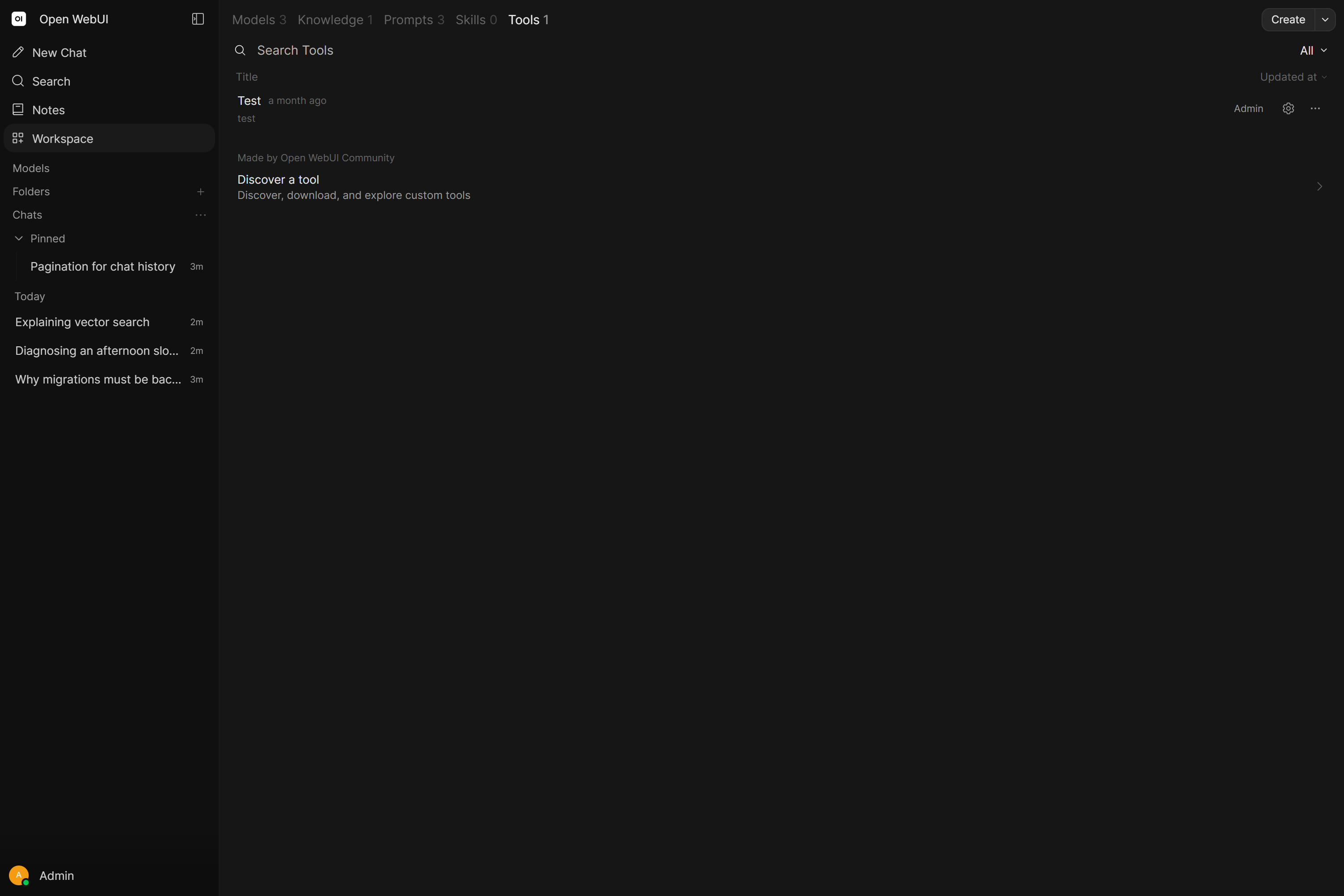
| Workspace Tools | Workspace > Tools | User-created or community Python scripts, the most powerful, least restricted option | Community Library |
| Native MCP (HTTP) | Settings > Connections | Standard MCP servers reachable via HTTP/SSE | External tool server |
| MCP via Proxy (MCPO) | Settings > Connections | Local stdio-based MCP servers (e.g., Claude Desktop tools) | External tool server (via MCPO Adapter) |
| OpenAPI Servers | Settings > Connections | Standard REST/OpenAPI web services | External tool server |
The last three (MCP HTTP, MCPO, OpenAPI) are all external tool servers: the tool code runs on a separate process or machine and Open WebUI calls it over HTTP. Native Features are the built-in system tools that ship with Open WebUI. Workspace Tools are Python that runs in-process; for the most demanding use cases they are by far the most capable option with the fewest limitations (see below).
1. Native Features (Built-in)
These are deeply integrated into Open WebUI and generally don't require external scripts.
- Web Search: Integrated via engines like SearXNG, Google, or Tavily.
- URL Fetching: Extract text content directly from websites using
#or native tools. - Image Generation: Integrated with the OpenAI images API, ComfyUI, or Automatic1111.
- Memory: The ability for models to remember facts about you across chats.
- RAG (Knowledge): The ability to query uploaded documents (
#).
In Native Mode, these features are exposed as Tools that the model can call independently.
2. Workspace Tools (Custom Plugins)
These are Python scripts that run directly within the Open WebUI environment. For the most demanding use cases, Workspace Tools are by far the most powerful option with the fewest limitations: they run in-process with full access to Python, the open_webui codebase, and the request context, so there is very little they can't do (see Under the Hood for the full extent). The external tool servers above are more constrained: they only see what you pass over HTTP and can't reach into Open WebUI itself.
- Capability: Can do anything Python can do (web scraping, complex math, API calls), and hold secrets (API keys) entirely server-side so neither the user nor the model can read them.
- Access: Managed via the
Workspacemenu. - Safety: Always review code before importing, as these run on your server.
- ⚠️ Security Warning: Normal or untrusted users should not be given permission to access the Workspace Tools section. This access allows a user to upload and execute arbitrary Python code on your server, which could lead to a full system compromise.
3. MCP (Model Context Protocol)
🔌 MCP is an open standard that allows LLMs to interact with external data and tools.
- Native HTTP MCP: Open WebUI can connect directly to any MCP server that exposes an HTTP/SSE endpoint.
- MCPO (Proxy): Most community MCP servers use
stdio(local command line). To use these in Open WebUI, you use the MCPO Proxy to bridge the connection.
4. OpenAPI / Function Calling Servers
Generic web servers that provide an OpenAPI (.json or .yaml) specification. Open WebUI can ingest these specs and treat every endpoint as a tool.
Beyond the tool types above, Open WebUI also integrates with Open Terminal: an always-on, isolated Docker container that gives a model a real shell and filesystem. Once connected, it exposes its own set of built-in tools (run_command, read_file, write_file, grep_search, glob_search, process management, and more) that the model can call directly, effectively a sandboxed code-execution and file-handling environment, distinct from the per-message Code Interpreter tool. See the Open Terminal documentation for setup, multi-user, and security considerations.
How to Install & Manage Workspace Tools
📦 Workspace Tools are the most common way to extend your instance with community features. They need ENABLE_TOOLS, which is on by default.
- Go to Community Tool Library
- Choose a Tool, then click the Get button.
- Enter your Open WebUI instance’s URL (e.g.
http://localhost:3000). - Click Import to WebUI.
Never import a Tool you don’t recognize or trust. These are Python scripts and might run unsafe code on your host system. Crucially, ensure you only grant "Tool" permissions to trusted users, as the ability to create or import tools is equivalent to the ability to run arbitrary code on the server.
Turning a tool off
The switch on a tool's row in Workspace > Tools turns it on or off. It appears on tools you can edit. A disabled tool is left out of chats, including chats that already have it selected, and its Python requirements are not installed.
Sharing a tool
The ⋯ menu on a tool in Workspace > Tools has an Access entry that opens the tool's access settings straight from the list, without opening the editor. It appears on tools you can edit, and for anyone but an admin only with the Tools Sharing permission. The Access button in the tool editor follows the same permission.
Version history
Every save that changes a tool's name, description, translations or code is kept as a version, together with the text typed into Describe this change beside Save. The version picker next to Back at the top of the tool editor starts on Production, the version chats use. Open it to list the saved versions, newest first and 20 per page, each with its author and its description (or a short version ID when the description was left empty). Anyone who can edit the tool can use it.
- Open a version by picking it. The editor shows its name, description, translations and code read-only.
- Compare to current shows what differs between that version and Production: changed fields side by side, then the code as a diff. The layout menu switches between Split and Unified, and the browser remembers the choice. A change that touches only line endings is reported as Only line endings changed.
- Set as Production makes the opened version the one chats use. Its code is loaded and checked the same way as a save. If the editor holds unsaved changes, you are asked to confirm first, since they are discarded.
- Delete in a version's ⋯ menu removes it. The Production version cannot be deleted. Versions saved on top of a deleted one are relinked to its parent, so the chain stays complete.
A version holds the name, description, translations and code. Valves and access settings belong to the tool itself and keep their current values when you change versions. Setting a version as Production is refused when:
- the current Valves do not fit that version's code (Current Valves are incompatible with this code). Adjust the Valves first (see Changing Valves in Existing Code).
- the version's code differs from Production and you have neither the Tools Access nor the Import Tools permission. Without either permission, write access covers only a tool's name, description and translations, for saves and version changes alike.
Every existing tool starts with one version, created by the upgrade.
The same actions are available over the API: GET /api/v1/tools/id/{id}/history (paged with ?page=), GET /api/v1/tools/id/{id}/history/{history_id}, GET /api/v1/tools/id/{id}/history/diff?from_id=...&to_id=..., DELETE /api/v1/tools/id/{id}/history/{history_id} and POST /api/v1/tools/id/{id}/update/version with {"version_id": "..."}. A save through POST /api/v1/tools/id/{id}/update accepts an optional commit_message.
Translating a tool
The globe selector in the tool editor stores a name, a description and valve labels per language. User valve labels are the ones worth translating first, since those are what ordinary users see under Controls in the Model controls menu. See Translations.
How to Use Tools in Chat
🔧 Once installed or connected, here’s how to enable them for your conversations:
Option 1: Enable on-the-fly (Specific Chat)
While chatting, click the Integrations icon in the input area (the four-diamond icon next to the ➕ button), then select Tools. You’ll see a list of available Tools, and you can toggle them on specifically for that session.
Option 2: Enable by Default (Global/Model Level)
- Go to Workspace ➡️ Models.
- Choose the model you’re using and click the ✏️ edit icon.
- Open the Tools row and pick the tools you want this model to always have access to by default.
- Click Save.
For models that support it, Native tool calling mode (see Tool Calling Modes below) lets the model itself decide which of the attached tools to call on each turn. This replaces the older prompt-injection "auto-tool" filter approach and is the recommended way to let the model auto-select tools.
Attaching a workspace tool to a model does not bypass access control. When a user chats with the model, Open WebUI checks whether that specific user has read access to each attached tool. Tools the user cannot access are silently skipped, so the model won't be able to call them.
Example scenario: An admin creates a private tool and attaches it to a model shared with all users. Regular users chatting with this model will not have the tool available because they don't have read access to the tool itself.
Solution: Make sure users who need the model's tools also have read access to each tool (via access grants, group permissions, or by making the tool public). The "Workspace > Tools" permission controls whether users can create and manage tools; it does not affect whether model-attached tools work for them.
Tool Calling Modes: Native vs. Legacy
Native (Agentic) Mode is the default. Every chat and model that has not explicitly chosen a tool-calling mode runs Native, which relies on the model's built-in function-calling support. The prompt-injection approach, Legacy, is the explicit opt-out and remains unsupported: no feature work, no bug fixes, no built-in system tools, and incompatible with modern Open WebUI features (Agentic Research, Interleaved Thinking, the built-in Memory/Notes/Knowledge/Channels tools, and web-search/image-gen/code-interpreter tool injection).
Breaking change: if any of your models depended on the old prompt-based behavior, they now run Native unless you switch them back to Legacy, per chat, per model, or globally in your default model parameters. If a model struggles with Native, the right fix is a stronger tool-calling model, not falling back to Legacy.
Open WebUI exposes the setting in Model Settings → Advanced Params → Function Calling: Native Mode (Agentic Mode), the default and only supported mode, and Legacy Mode (formerly Default), the prompt-based opt-out kept only for backward compatibility.
🔴 Legacy Mode (Prompt-based, formerly "Default")
Legacy Mode (the option previously labeled Default) is no longer supported. It is documented here for reference only. New and existing deployments should use Native Mode. Bug reports, feature requests, and support questions about Legacy Mode behavior will not be actioned.
In Legacy Mode, Open WebUI manages tool selection by injecting a long prompt template that guides the model to output a tool request in a bespoke format. It was a reasonable approach in 2023; it has been obsolete since mainstream providers and open-weights models gained proper function-calling APIs.
Why it is legacy:
- Breaks KV cache. The injected prompt changes every turn, preventing LLM engines from reusing cached key-value pairs. Every message pays the full prefill cost again.
- Higher latency and token cost. Bulky tool-description prompts on every turn.
- Unreliable for multi-step chaining. Parsing natural-language tool requests is fragile compared to structured tool calls.
- Cannot access built-in system tools. Memory, Notes, Knowledge, Channels, Agentic Research, Interleaved Thinking, and the tool-injected Web Search / Image Generation / Code Interpreter features are Native-only.
- Does not support modern capabilities. Every new feature shipped since 2024 targets Native Mode.
How to switch all models to Legacy
Native is the default, so you never need to "turn Native on". The only tool-calling switch you might need to make is the reverse: forcing Legacy back on for models that depended on the old prompt-injection behavior and cannot be moved to a stronger Native-capable model. Set Function Calling to Legacy at whichever scope you need (mirrors the Native controls below):
- Every model at once (global default, fastest):
- Navigate to Settings → Admin → Models.
- Click the Model Defaults button at the top of the models list to open global model parameters (they apply to every model, current and future, unless a specific model overrides them).
- There, set Function Calling to
Legacy, then Save. Every model that has not set its own value now runs Legacy. You do not need to edit them one by one.
- Per-Model Override: edit a specific model in Settings → Admin → Models and open the Advanced Params row and set Function Calling to
Legacy. Overrides the global default for that model only. - Per-Chat Override: inside a chat, open the Model controls menu next to the message input, then Controls → Advanced Params, and set Function Calling to
Legacyfor that chat only.
DEFAULT_MODEL_PARAMSTo move an entire instance to Legacy through env vars, set the same global default with:
DEFAULT_MODEL_PARAMS: '{"function_calling": "legacy"}'function_calling is a key inside DEFAULT_MODEL_PARAMS; there is no standalone FUNCTION_CALLING_MODE (or similar) variable. The only value that changes behavior is "legacy"; leaving it unset (or "native") keeps the default, Native.
🟢 Native Mode (Agentic Mode / System Function Calling): The Only Supported Mode
Native Mode (also called Agentic Mode) leverages the model's built-in capability to handle tool definitions and return structured tool calls (JSON). It is the default and the recommended mode for all models that support it, which includes the vast majority of modern models (2024+).
Agentic tool calling needs a model that is current, not one that is expensive. Very small or older models often struggle with the multi-step reasoning and strict state management involved, and may produce malformed JSON. A cheap, fast, current model is plenty: GPT-5.6 Luna, Gemini 3.5 Flash-Lite, MiniMax M3, DeepSeek V4 Flash, or locally Qwen 3.6 27B or Muse Glimmer 30B.
Why use Native Mode (Agentic Mode)?
- Speed & Efficiency: Lower latency as it avoids bulky prompt-based tool selection.
- KV Cache Friendly: Tool definitions are sent as structured parameters (not injected into the prompt), so they don't invalidate the KV cache between turns. This can significantly reduce latency and token costs.
- Reliability: Higher accuracy in following tool schemas (with quality models).
- Multi-step Chaining: Essential for Agentic Research and Interleaved Thinking where a model needs to call multiple tools in succession.
- Autonomous Decision-Making: Models can decide when to search, which tools to use, and how to combine results.
- System Tools: Only Native Mode unlocks the built-in system tools (memory, notes, knowledge, channels, etc.).
How to Enable Native Mode (Agentic Mode)
Native Mode is the default, so new and existing models use it unless they are explicitly set to Legacy. You can still set Function Calling explicitly (to pin Native, or to switch a model to Legacy) at these levels:
- Pin Native for Every Model (optional, since Native is already the default):
- Navigate to Settings → Admin → Models.
- Click the Model Defaults button at the top of the models list. This opens global model parameters, which apply to every model in your instance (current and future) unless a specific model overrides them.
- Under Model Parameters, set Function Calling to
Native. - Save. This only re-asserts the existing default; you would normally leave it unset. Use it if you want the value pinned explicitly rather than relying on the default.
- Per-Model Override:
- In Settings → Admin → Models, pick a specific model and click its edit button.
- Open the Advanced Params row and set Function Calling to
Native. This value overrides the global default for that model only. - Use this when a specific model needs different parameters; otherwise prefer the global setting.
- Per-Chat Override:
- Inside a chat, open the Model controls menu next to the message input and expand Controls.
- Under Advanced Params, set Function Calling to
Native. Applies to that chat only.
The global model parameters panel (the Model Defaults button in Settings → Admin → Models) lets you configure any model parameter (function_calling, temperature, top_p, max_tokens, etc.) once, for every model in your Open WebUI instance, current and future, unless a specific model overrides it. For tool calling specifically you rarely need it: Native is already the default. The one tool-calling switch you would set here is Function Calling = Legacy, to move a whole instance back to Legacy (see How to switch all models to Legacy).
DEFAULT_MODEL_PARAMSIf you configure your instance entirely through env vars, DEFAULT_MODEL_PARAMS sets the same global defaults. function_calling is a key inside it; there is no standalone FUNCTION_CALLING_MODE (or similar) variable. Because Native is the default, the only value worth setting here is "legacy" (to move the whole instance to Legacy, per above):
DEFAULT_MODEL_PARAMS: '{"function_calling": "legacy"}'Leaving function_calling unset (or "native") keeps the default, Native.
Model Requirements & Caveats
Reliable agentic tool calling does not require a frontier model — it requires a current one. Any of these is a solid minimum, each verified working at the time of writing:
- GPT-5.6 Luna (OpenAI) — cheap, fast, and genuinely strong at tool calling
- Gemini 3.5 Flash-Lite or Gemini 3.1 Flash-Lite (Google)
- MiniMax M3
- DeepSeek V4 Flash
- Muse Glimmer 30B or Qwen 3.6 27B (local, open-weight)
This list is not continuously updated — chasing every model release is impossible and adds no value. Use whatever current model your provider offers; you don't need the latest and greatest, just something recent.
- Capable Local Models: Open-weight models built for agentic work (e.g., Muse Glimmer 30B, Qwen 3.6 27B, Gemma 4 12B, gpt-oss 120B) work well with Native Mode. Muse Glimmer in particular is Apache 2.0, runs agentic loops reliably on a single 24 GB GPU, and is a good default for local tool calling.
- Small Local Models: Small local models (under ~30B parameters) often produce malformed JSON or fail multi-step tool chains even in Native Mode. The fix is to use a stronger model for tool-calling workloads, not to fall back to Legacy Mode (Legacy is unsupported). If your hardware forces you to use a small model, accept that tool calling will be unreliable at this tier, or offload only tool-using conversations to a cloud model.
Known Model-Specific Issues
DeepSeek V3.2 has known issues with native function calling that cause reproducible failures. Despite being a 600B+ parameter model, it often outputs malformed tool calls.
The Problem: DeepSeek V3.2 was trained using a proprietary format called DSML (DeepSeek Markup Language) for tool calls. When using native function calling, the model sometimes outputs raw DSML/XML-like syntax instead of proper JSON:
<functionInvoke name="fetch_url">instead of valid JSON<function_calls>/</function_calls>tags in content- Garbled hybrid text like
prominentfunction_cinvoke name="search_parameter
Why it happens: This is heavily model-dependent behavior induced during DeepSeek's fine-tuning process. DeepSeek chose to train their model on DSML rather than standard OpenAI-style JSON tool calls. While inference providers (VertexAI, OpenRouter, etc.) attempt to intercept DSML blocks and convert them to OpenAI-style JSON, this translation layer is unreliable under certain conditions (streaming, high temperature, high concurrency, multi-turn conversations). The primary responsibility lies with DeepSeek for using a non-standard format that requires fragile translation.
Known contributing factors:
- Higher temperature values correlate with more malformed output
- Multi-round conversations (6-8+ turns) can cause the model to stop calling functions entirely
- Complex multi-step workflows (15-30 tool calls) may cause "schema drift" where argument formats degrade
Workarounds:
- Use a different model for agentic workloads. GPT-5.6 Luna, Claude Sonnet 5, Gemini 3.5 Flash-Lite, MiniMax M3, and DeepSeek V4 Flash are all reliable in Native Mode and are the recommended choice when DeepSeek V3.2 misbehaves.
- Lower temperature when using tool calling with DeepSeek V3.2.
- Limit multi-round tool-calling sessions.
Legacy Mode is not a supported workaround even for DeepSeek; it is unsupported and will not be extended to cover this case. This is a DeepSeek model/API issue, not an Open WebUI issue. Open WebUI correctly sends tools in standard OpenAI format; the malformed output originates from DeepSeek's non-standard internal DSML format.
| Feature | Legacy Mode (formerly Default) | Native Mode (Default, Only Supported) |
|---|---|---|
| Status | ❌ Legacy, no longer supported | ✅ Required, all models should use this |
| Latency | Medium/High | Low |
| KV Cache | ❌ Breaks cache on every turn | ✅ Cache-friendly |
| Model Compatibility | Any text model (obsolete concern) | Every mainstream model since 2024 |
| Logic | Prompt-injection parsed by Open WebUI | Structured tool calls via provider API |
| System Tools | ❌ Not available | ✅ Full access (Memory, Notes, Knowledge, Channels, Web Search, Image Gen, Code Interpreter) |
| Agentic Research / Interleaved Thinking | ❌ Unsupported | ✅ Supported |
| Complex Chaining | ⚠️ Unreliable | ✅ Excellent |
| Future development | ❌ None | ✅ All new features target this mode |
Tool Approval
By default a model runs its tool calls as soon as it makes them. An administrator can offer a second mode by turning on Tool Permissions in Settings > Admin > Interface (ENABLE_TOOL_PERMISSIONS). The feature is experimental and off by default.
Once it is on, the chat input's ➕ menu gains a Tool Permissions entry with two choices:
| Mode | Behaviour |
|---|---|
| Full access (default) | Tool calls run immediately, as they always have. |
| Ask for approval | The reply stops at the first tool call. The pending call shows Allow and Deny in the message, and the model only continues once you answer. While it waits, the chat's sidebar entry shows a yellow dot labelled Waiting for approval. If the model asked for several tools at once you approve them one at a time; the rest wait their turn. |
You can answer from the keyboard as well: Allow tool call (Cmd+Alt+Enter) and Deny tool call (Cmd+Alt+Backspace), both rebindable under keyboard shortcuts.
Your choice is saved to your user settings, so it carries over to new chats until you change it back. It is also stored on the chat, so reopening that chat keeps its mode. A denied call is reported back to the model as an error, so the model can react to it, and the tool call is marked as denied in the message. Pressing Stop on a reply that is waiting for approval finalizes it, denying whatever is still pending.
Two cases always run with full access regardless of the setting: automations, which run on a schedule with nobody watching, and channel replies.
In a saved chat the pending call is stored on the assistant message, so approval prompts survive a page reload. In a temporary chat each call opens a live Tool Permissions dialog showing the tool name and its arguments, with Allow and Deny. The call is denied at once when that chat is not the one open in the tab. It is also denied when the browser tab is gone or nobody answers within 120 seconds, or within WEBSOCKET_EVENT_CALLER_TIMEOUT when that is set lower.
Tool Search
With many tools enabled, their definitions alone can fill a large part of every request. Tool Search keeps large tool definitions out of the request until the model asks for them. The feature is experimental, off by default and applies to chats in Native Mode.
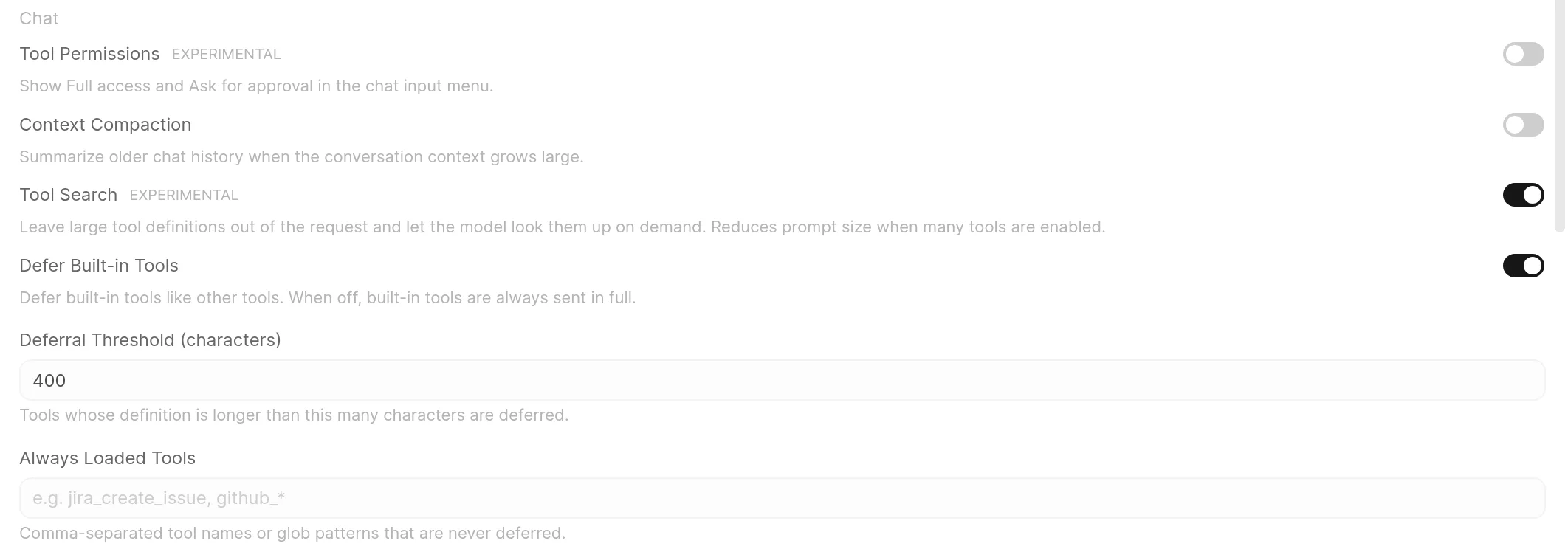
An administrator turns it on in Settings > Admin > Interface, in the Chat section. The settings apply to every model and every user:
| Setting | Default | What it does |
|---|---|---|
Tool Search (ENABLE_TOOL_SEARCH) | Off | Turns the feature on. The three settings below appear once it is on. |
Defer Built-in Tools (TOOL_SEARCH_DEFER_BUILTIN_TOOLS) | On | Treats built-in tools like any other tool. Turn it off to always send built-in tools in full. |
Deferral Threshold (characters) (TOOL_SEARCH_DEFER_THRESHOLD) | 400 | A tool whose definition (name, description and parameter schema, as JSON) is longer than this many characters is deferred. 0 defers every tool. |
Always Loaded Tools (TOOL_SEARCH_ALWAYS_LOADED) | Empty | Comma-separated tool names or glob patterns, such as jira_create_issue, github_*, that are always sent in full. Matching is case-sensitive. |
How it works:
- Which tools are deferred. Every tool enabled for the chat is checked on each request: workspace tools, MCP and OpenAPI tool servers, Open Terminal tools and built-in tools. A tool is deferred when its definition is longer than the threshold and it matches no Always Loaded pattern. Built-in tools are only deferred while Defer Built-in Tools is on. Smaller tools are sent in full as usual, and a request where no tool qualifies is sent exactly as before.
- What the model sees. Deferred tools are listed in an
<available_tools>block at the end of the system prompt, each with its name and a description shortened to 100 characters. Two built-in tools are added to the tool list:search_toolsandcall_tool. - How the model loads a tool. The model calls
search_toolswith a few keywords or an exact tool name, plus an optionalcount(default5, at most20). It gets back the full definitions of the best matches. An exact tool name returns that tool alone. Otherwise each deferred tool is ranked by how well the query matches its name, description and parameter names. To run a tool it found, the model callscall_toolwithtool_nameset to the tool's exact name andparamsset to the tool's arguments as a JSON-encoded object string, for examplecall_tool(tool_name="get_weather", params='{"city":"Dubai"}'). Open WebUI runs the named tool as if the model had called it directly, so approvals, citations and the tool's behaviour are the same. - Prompt caching. Loading a tool through search leaves the tool list sent to the provider as it was. The tool list and the
<available_tools>block only change when the set of enabled tools changes, so the cached prefix holds across tool rounds and turns. See Prompt Caching. - Tool approval. With Ask for approval on,
search_toolsasks for approval like any other tool, so using a deferred tool typically takes two approvals: one for the search and one for the tool itself. The approval for acall_toolcall names the tool it runs. - Backend support. Every call the model makes goes to a tool in the list sent to the provider, so Tool Search also works on backends that only accept calls to listed tools, such as the OpenAI API (both Chat Completions and Responses), xAI and the llama.cpp server.
Write Always Loaded patterns against the tool names the model sees. MCP tools carry their server's ID as a prefix (a get_issue tool on a server with the ID github is named github_get_issue), so github_* keeps every tool of that server loaded.
Built-in System Tools (Native/Agentic Mode)
🛠️ These are the Builtin Tools (the capability name shown in the Model Editor). When Native Mode (Agentic Mode) is enabled, Open WebUI automatically injects powerful system tools. This unlocks truly agentic behaviors where any current tool-calling model (GPT-5.6 Luna, Claude Sonnet 5, Gemini 3.5 Flash-Lite, MiniMax M3, or Muse Glimmer 30B locally) can perform multi-step research, explore knowledge bases, or manage user memory autonomously.
| Tool | Purpose |
|---|---|
| Search & Web | Requires ENABLE_WEB_SEARCH enabled AND per-chat "Web Search" toggle enabled. |
search_web | Search the public web for information. Best for current events, external references, or topics not covered in internal documents. |
fetch_url | Visits a URL and extracts text content via the Web Loader. |
| Knowledge Base | Requires per-model "Knowledge Base" category enabled (default: on). Which tools are injected depends on whether the model has attached knowledge; see note below. |
list_knowledge | List attached knowledge (KBs, files, notes). Start here when attachments exist. |
list_knowledge_bases | List accessible knowledge bases with file counts. |
query_knowledge_bases | Semantic search over KB names/descriptions to find the right KB. |
search_knowledge_bases | Text search over KB names/descriptions. |
query_knowledge_files | Search file contents via the RAG retrieval pipeline (hybrid + rerank when enabled). Main tool for finding answers in docs. |
search_knowledge_files | Search files by filename. |
grep_knowledge_files | Exact text / regex search across knowledge file content. Returns matching lines with line numbers. Complements query_knowledge_files (semantic) when you need literal matches. |
view_file | Read a user-accessible file by ID with character pagination (offset, max_chars) or line range (start_line, end_line, always numbered); line_numbers numbers character pages. |
view_knowledge_file | Read a knowledge-base file by ID with character pagination (offset, max_chars) or line range (start_line, end_line, always numbered); line_numbers numbers character pages. |
display_file | Show a knowledge-base file to the user inline in the chat, optionally opened at a page or slide. |
kb_exec (opt-in) | Filesystem-style command interface for knowledge bases (ls, tree, cat, head, tail, sed, grep, find, wc, stat, with pipe support). Directory-aware: ls docs/, tree, grep "x" docs/, and path-based file refs (docs/api/auth.md). Replaces the discovery/read tools above when ENABLE_KB_EXEC is set. |
| Files | Requires per-model "Files" category enabled, the model's File Upload capability on with File Context off, the user's chat.file_upload permission, and at least one file attached to the current chat. Covers files the user attached to the conversation, not knowledge bases. Turning File Context off for this is also the setup that keeps the prompt prefix cacheable, so turn Citations off alongside it and put your citation rules in the system prompt instead; see prompt caching. |
list_chat_files | List the files attached to the current chat, with each file's ID, filename, content type and size. |
query_chat_files | Semantic / RAG search across the attached files, or one file when given its ID. Results are returned as cited chunks. |
grep_chat_files | Exact text / regex search across the attached files, returning matching lines with file IDs and line numbers, or just per-file counts. Capped at 50 matches by default, the same KNOWLEDGE_GREP_MAX_MATCHES limit the knowledge greps use. |
view_file | Read one of the attached files by ID, with character pagination or a line range. Same tool, and the same VIEW_FILE_DEFAULT_MAX_CHARS / VIEW_FILE_MAX_CHARS sizing, as when it reads a knowledge file. |
display_file | Show one of the attached files to the user inline in the chat. |
| Image Gen | Requires image generation enabled (per-tool) AND per-chat "Image Generation" toggle enabled. |
generate_image | Generates a new image based on a prompt. Requires ENABLE_IMAGE_GENERATION. |
edit_image | Edits existing images based on a prompt and image URLs. Requires ENABLE_IMAGE_EDIT. |
| Code Interpreter | Requires ENABLE_CODE_INTERPRETER enabled (default: on) AND per-chat "Code Interpreter" toggle enabled. |
execute_code | Executes code in a sandboxed environment and returns the output. |
| Memory | Requires Memory feature enabled AND per-model "Memory" category enabled (default: on). |
search_memories | Searches the user's personal memory/personalization bank. |
list_memory_paths | Lists the paths memories are filed under. |
read_memory_path | Reads the memories stored under one path. |
list_memories | Lists all stored memories for the user. |
update_memory | Applies a batch of add, replace, move or remove operations. |
add_memory | Stores a new fact in the user's personalization memory. |
replace_memory_content | Updates an existing memory record by its unique ID. |
delete_memory | Deletes a memory by its ID. |
| Notes | Requires ENABLE_NOTES AND per-model "Notes" category enabled (default: on) AND the user's features.notes permission. Inside a note-attached chat these three checks are skipped and the note tools are always injected; see the note below. |
search_notes | Search the user's notes by title and content. |
view_note | Read one page of a note, or the whole note with its list of pages. |
write_note | Create a new private note for the user. |
replace_note_content | Update one page of an existing note, replacing its whole content or editing part of it by exact text or by character range. |
| Chat History | Requires per-model "Chat History" category enabled (default: on). |
search_chats | Text search across chat titles and message content, skipping the chat the model is currently in. A multi-word query matches chats containing all of the words in any order, with exact phrase matches ranked first. Returns matching chat IDs and snippets. |
view_chat | Reads and returns the full message history of a specific chat by ID. |
| Channels | Requires ENABLE_CHANNELS AND per-model "Channels" category enabled (default: on). |
search_channels | Find public or accessible channels by name/description. |
search_channel_messages | Search for specific messages inside accessible channels. |
view_channel_message | View a specific message or its details in a channel. |
view_channel_thread | View a full message thread/replies in a channel. |
| Task Management | Requires per-model "Task Management" category enabled (default: on) AND a saved chat, since the checklist is stored on the chat. Not available in a temporary chat. |
create_tasks | Create a structured task checklist for the current chat. Called once at the start of multi-step work to define all steps. |
update_task | Update the status of a single task by id (pending, in_progress, completed, cancelled). Called after finishing each step. |
| Automations | Requires per-model "Automations" category enabled (default: on) AND ENABLE_AUTOMATIONS enabled AND user has features.automations permission (admins always pass). |
create_automation | Create a scheduled automation with a name, prompt, and RRULE schedule, optionally filed into a folder. Uses the current chat model. |
update_automation | Update an existing automation's name, prompt, schedule, folder, or model. |
list_automations | List the user's scheduled automations with status, schedule, and next runs. |
toggle_automation | Pause or resume a scheduled automation. |
delete_automation | Delete a scheduled automation and all its run history. |
| Calendar | Requires per-model "Calendar" category enabled (default: on) AND ENABLE_CALENDAR enabled AND user has features.calendar permission (admins always pass). |
search_calendar_events | Search calendar events by text and/or date range across all accessible calendars. |
create_calendar_event | Create a new event on the user's default or specified calendar. |
update_calendar_event | Update an existing event's title, time, description, location, or cancel it. |
delete_calendar_event | Delete a calendar event permanently. |
| Skills | Requires built-in tools to be active for the chat AND per-model "Skills" category enabled (default: on). Selected skills send their instructions with each message. The model gets a summary of every other skill the user can read and loads it on demand. See Skills. |
view_skill | Load a skill's SKILL.md and the list of its supporting files by skill id. Resolving a skill follows normal ownership/access-grant checks. |
read_skill_file | Read one file of a skill by path, paging through long text. |
grep_skill_files | Search a skill's text files for literal text or a regular expression and return bounded excerpts around the matches. |
update_skill_files | Save file changes (write, move, delete) to a skill the user can edit, as a new version. Text writes only. |
create_skill | Create a private workspace skill from SKILL.md text and optional text files. |
| Tool Creation | Requires ENABLE_TOOLS AND per-model "Tool Creation" category enabled (default: on) AND the user's Tools Access permission (admins always pass). |
create_tool | Create a private Python workspace tool from chat. Saving runs the module on the server, like any workspace tool. |
| Time Tools | Requires per-model "Time & Calculation" category enabled (default: on). |
get_current_timestamp | Get the current UTC Unix timestamp and ISO date. |
calculate_timestamp | Calculate relative timestamps (e.g., "3 days ago"). |
| Ask User | Requires per-model "Ask User" category enabled (default: on). In a saved chat the pending question is stored on the assistant message; in a temporary chat it opens as a live dialog. Not available in channels, which have no browser tab to ask in. |
ask_user | Pause the reply and put a question card above the message box, then continue once the user answers. It must be the only tool call in that turn, and only one ask_user per turn; anything else comes back to the model as an error. The pending question survives a page reload. |
| Sub-agents | Requires ENABLE_SUBAGENTS enabled (default: off) AND per-model "Sub-agents" category enabled (default: on). Never injected into a sub-agent itself, or for direct connections. This category gates timer as well; there is no separate Timers category. |
delegate_task | Delegate a focused task to a parallel sub-agent running the same tools, and return its result. See Sub-agents. |
timer | Set a one-shot timer that sends a prompt back into this chat when it fires, producing a new reply. See Timers. |
| Notifications | Requires ENABLE_USER_WEBHOOKS enabled (default: off) AND the user holding the features.webhooks permission (admins always pass) AND per-model "Notifications" category enabled (default: on). |
notify | Send a notification to one of the user's configured webhook targets. See Notifications. |
| Voice Avatar | Only during a voice call with a model whose voice avatar has named gestures, AND the user holding the Allow Call permission (admins always pass). No per-model category of its own. |
play_animation | Play one of the avatar's named gestures on the call screen. In a Realtime call the voice model plays the gestures, so this tool returns unavailable to the chat model. |
| Tool Search | Requires Tool Search turned on AND at least one tool deferred in the request. Added even when the model's Builtin Tools capability is off. No per-model category of its own. |
search_tools | Find deferred tools by keywords or exact name and return their full definitions. |
call_tool | Run a tool found with search_tools, given its tool_name and its arguments as a JSON-encoded object string in params. |
Attached Chat Files
The Files category is the agentic alternative to putting an uploaded file's text straight into the prompt. It is injected only when the model uploads files but does not use file context, when file context is on, the content is already in the conversation and the tools would be redundant, and only while the chat actually has attachments.
The model then works the file the way it works a knowledge base: list_chat_files to see what is there, query_chat_files for meaning, grep_chat_files for literal strings and line numbers, view_file to read a passage. Chunks returned by query_chat_files are rendered as citations, the same as knowledge results. Every file is still re-checked against the user's own access before it is read, so an attachment they can no longer open is skipped rather than searched.
Images in Tool Results
A tool can return images as well as text, generate_image and edit_image do, and so can a custom tool. How that reaches the model depends on the provider:
- On the Responses API, the image rides along inside the tool result, where it belongs.
- On Chat Completions, a tool message may only carry text. The image is therefore split off: the tool result is delivered as plain text, and the images that came with it follow in a short user message that hands them to the model for analysis.
The effect is that a model on a Chat Completions provider can actually look at what a tool produced, generate an image and then critique or edit it, instead of receiving a result it cannot open. Nothing extra is shown in the conversation; the images were already rendered from the tool result itself.
Knowledge Tool Availability (At a Glance)
Use this quick matrix instead of memorizing per-row caveats.
| Tool | Model has attached knowledge | Model has no attached knowledge |
|---|---|---|
list_knowledge | ✅ | ❌ |
list_knowledge_bases | ❌ | ✅ |
search_knowledge_bases | ❌ | ✅ |
query_knowledge_bases | ❌ | ✅ |
search_knowledge_files | ✅ (auto-scoped) | ✅ (all accessible KBs) |
query_knowledge_files | ✅ (auto-scoped) | ✅ |
grep_knowledge_files | ✅ (auto-scoped) | ✅ |
view_file | ✅ (when attached items include files/collections) | ❌ |
view_knowledge_file | ✅ (when attached items include files/collections) | ✅ |
display_file | ✅ (when attached items include files/collections) | ✅ |
view_note | ✅ (when attached items include notes) | ❌ |
Quick rule: list_knowledge and list_knowledge_bases are mutually exclusive.
"Attached knowledge" is not only what the model carries. Three sources are pooled, de-duplicated, and treated the same by the matrix above:
- knowledge attached to the model in its editor,
- knowledge attached to the folder the chat sits in,
- knowledge bases and notes attached to the chat itself, counted only when the model's File Context capability is off, since with it on the content is already in the conversation.
When the Knowledge Base category is enabled and any of these are present, the model's system prompt gains an <attached_knowledge> block listing each item's type, ID, name, and which of the three it came from. This is a table of contents, not the content: it tells the model what it may reach for and gives it the IDs to pass to query_knowledge_files and friends, so it can scope a search to one knowledge base instead of guessing or searching everything.
kb_exec replaces the matrix when enabledWhen ENABLE_KB_EXEC is set, Open WebUI replaces the file-oriented tools listed above with kb_exec. Still injected alongside it: query_knowledge_files and display_file (always), view_note (when notes are attached), and query_knowledge_bases + search_knowledge_bases (when no KB is attached). The model interacts with files through familiar shell commands. See the Knowledge feature page for details.
Tool Reference
| Tool | Parameters | Output |
|---|---|---|
| Search & Web | ||
search_web | query (required), count (default: admin-configured WEB_SEARCH_RESULT_COUNT; capped at admin maximum when provided) | Array of {title, link, snippet} |
fetch_url | url (required) | Plain text content, untruncated unless the admin sets WEB_FETCH_MAX_CONTENT_LENGTH |
| Knowledge Base | ||
list_knowledge | knowledge_id (optional, pages into one base's files), skip (default: 0), count (default: 50, capped at 200) | {knowledge_bases: [{id, name, description, file_count, files: [{id, filename}]}], files: [{id, filename, updated_at}], notes: [{id, title}]}, and with knowledge_id set the base also carries files_skip, files_count, files_total and has_more |
list_knowledge_bases | count (default: 10), skip (default: 0) | Array of {id, name, description, file_count} |
query_knowledge_bases | query (required), count (default: 5) | Array of {id, name, description} by similarity |
search_knowledge_bases | query (required), count (default: 5), skip (default: 0) | Array of {id, name, description, file_count} |
query_knowledge_files | query (required), knowledge_ids (optional, picks the bases to search when the model has no attached knowledge; with attached knowledge the search covers that attached set), count (default: 5) | Array of chunks like {content, source, file_id, distance?}; note hits include {note_id, type: "note"} |
search_knowledge_files | query (required), knowledge_id (optional), count (default: 5), skip (default: 0) | Array of {id, filename, knowledge_id, knowledge_name} |
grep_knowledge_files | pattern (required; regex auto-detected), file_id (optional, single-file mode), case_insensitive (default: false), count_only (default: false) | Matching lines with file IDs, filenames, and 1-indexed line numbers (capped at 50 matches by default, see KNOWLEDGE_GREP_MAX_MATCHES) |
view_file | file_id (required), offset (default: 0), max_chars (default: 10000, cap: 100000; both configurable), line_numbers (default: false), start_line / end_line (optional; line-based addressing overrides offset/max_chars) | {id, filename, content, updated_at, created_at}, includes truncated, total_chars, next_offset when paginated, or total_lines, showing_lines, next_start_line in line mode |
view_knowledge_file | Same parameters as view_file | {id, filename, content, updated_at, created_at, knowledge_id, knowledge_name}, with the same pagination and line-mode fields as view_file |
display_file | path (required; a file_id or /api/v1/files/<file_id>/content), page (optional; 1-based page or slide for PDF, DOCX and PPTX previews) | {type, source, exists, displayed, path, name, content_type}; the file is shown inline in the chat |
kb_exec | command (required), a filesystem-style command: ls (root) / ls <dir>/ / ls -a (flat with paths), sorted by path unless -t (newest), -S (largest) or -r (reverse) is given, tree / tree <dir>/, cat -n <file>, head -N <file>, tail -N <file>, sed -n '<a>,<b>p' <file>, grep [-i|-l|-c] "<pattern>" [<dir>/|<file>|*.ext], find [<dir>/] "<glob>", wc <file>, stat <file>; supports pipes (grep "auth" | head -5); files referenced by path (docs/api/auth.md), filename, or file ID | Plain text command output (matches/listing/tree/file content as appropriate) |
| Image Gen | ||
generate_image | prompt (required), size (optional, WIDTHxHEIGHT such as 1536x1024; omit for the configured default) | {status, message, images}, auto-displayed. With a terminal selected, each image also carries terminal_path |
edit_image | prompt (required), image_urls (required), size (optional, WIDTHxHEIGHT such as 1536x1024; omit for the configured default) | {status, message, images}, auto-displayed. With a terminal selected, each image also carries terminal_path |
| Code Interpreter | ||
execute_code | code (required) | {status, stdout, stderr, result} |
| Memory | ||
search_memories | query (default: ""), count (default: 5), type (default: all), path, memory_id | Array of {id, type, path, content, created_at, updated_at} |
list_memory_paths | query (default: ""), count (default: 100), type (default: all) | The paths memories are filed under |
read_memory_path | path (required), count (default: 50), type (default: all), include_children (default: true) | The memories stored under that path |
update_memory | operations (required, a list of add, replace, move or remove entries) | Per-operation results |
add_memory | content (required), type (default: user), path | {status: "success", id, type, path} |
replace_memory_content | memory_id (required), content (required), type, path | {status: "success", id, type, path, content} |
delete_memory | memory_id (required) | {status: "success", message} |
list_memories | None | Array of {id, type, path, content, created_at, updated_at} |
| Notes | ||
search_notes | query (required), count (default: 5), start_timestamp, end_timestamp | Array of {id, title, snippet, page_id, page_title, url, updated_at}, where the snippet and link come from the best matching page |
view_note | note_id (required), page_id (optional; omit it to read the whole note) | {id, title, content, page_id, page_title, pages: [{id, title, parent_id}], updated_at, created_at}. Without page_id, content holds every page under its own heading |
write_note | title (required), content (required; markdown text. A JSON object or array is stored as a fenced json code block rather than left in the note as structured data) | {status: "success", id} |
replace_note_content | note_id (required), page_id (required on notes with several pages), content (optional; the new markdown for the whole page. A JSON object or array is stored as a fenced json code block), operations (optional; each {"action": "replace", "content": ...}, {"action": "replace_text", "find", "content", "occurrence", "replace_all"} or {"action": "replace_text", "start", "end", "content", "expected"}. find is literal and case sensitive. With several matches, occurrence picks one (0-indexed) and replace_all: true replaces all of them; with neither set, nothing changes and the error lists every match. replace_range is a deprecated alias of the start/end form), title (optional) | {status: "success", id, page_id, title, updated_at, applied_operation_count, applied_ranges}. Errors carry a machine-readable code (not_found, write_access_denied, read_required (the page was not read with view_note earlier in the same reply), page_conflict (no page_id on a note with several pages, the page is gone or it changed since it was read), text_not_found, ambiguous_match, invalid_find, invalid_occurrence, invalid_range, range_out_of_bounds, expected_mismatch, overlapping_operations, content_required, …). An ambiguous_match error carries matches, each with start, end and context (the match with up to 50 characters on either side) |
| Chat History | ||
search_chats | query (required; an exact phrase or a set of keywords), count (default: 5), start_timestamp, end_timestamp | Array of {id, title, snippet, updated_at}. snippet is Title match: <title> when the query was found in the title but not in any message |
view_chat | chat_id (required) | {id, title, messages: [{role, content}]} |
| Channels | ||
search_channels | query (required), count (default: 5) | Array of {id, name, description, type} |
search_channel_messages | query (required), count (default: 10), start_timestamp, end_timestamp | Array of {channel_id, channel_name, message_id, content_snippet, is_thread_reply, parent_id, created_at} |
view_channel_message | message_id (required) | {id, content, user_name, created_at, reply_count} |
view_channel_thread | parent_message_id (required) | {channel_id, channel_name, thread_id, message_count, messages: [...]} |
| Task Management | ||
create_tasks | tasks (required): list of {content (required), status (default: pending), id (optional, auto-generated)} | {tasks: [...], summary: {total, pending, in_progress, completed, cancelled}} |
update_task | id (required), status (default: completed; one of pending, in_progress, completed, cancelled) | {tasks: [...], summary: {total, pending, in_progress, completed, cancelled}} |
| Automations | ||
create_automation | name (required), prompt (required), rrule (required), folder_id (optional, files the generated chats into one of the user's folders) | {status, id, name, model_id, folder_id, is_active, next_runs} |
update_automation | automation_id (required), name, prompt, rrule, model_id, folder_id (all optional; only provided fields are changed). A blank model_id or folder_id keeps the current value; folder_id: null clears the folder | {status, id, name, model_id, folder_id, is_active, next_runs} |
list_automations | status (optional: "active", "paused", or omit for all), folder_id (optional; one of the user's own folders, an empty string or omitting it lists across all folders), count (default: 10) | {automations: [{id, name, folder_id, prompt_snippet, model_id, rrule, is_active, last_run_at, next_runs}], total} |
toggle_automation | automation_id (required) | {status, id, name, is_active} |
delete_automation | automation_id (required) | {status, message} |
| Calendar | ||
search_calendar_events | query (optional), start (optional datetime string, e.g. "2026-04-20 00:00"), end (optional datetime string), count (default: 10) | {events: [{id, calendar_id, title, description, start, end, all_day, location, color, is_cancelled}], total} |
create_calendar_event | title (required), start (required datetime string), end (optional), description (optional), calendar_id (optional; uses default calendar), all_day (default: false), location (optional) | {status, id, calendar_id, title, start, end, ...} |
update_calendar_event | event_id (required), title, description, start, end, all_day, location, is_cancelled (all optional; only provided fields are changed) | {status, id, title, start, end, ...} |
delete_calendar_event | event_id (required) | {status, message} |
| Skills | ||
view_skill | id (required) | {id, name, content, next_offset, files: [{path, size, encoding}]}, plus notice when the file list was shortened. content holds the whole SKILL.md up to the Skill Read Limit (20,000 characters by default). A longer one returns its first Skill Preview Length characters (5,000 by default), with next_offset set to where read_skill_file continues. A terminal skill returns {name, description, directory, content, next_offset, resources} with the same preview rules |
read_skill_file | id (required), path (required), offset (default: 0), max_chars (default: 10000, at most the Skill Read Limit, 20000 by default) | {path, content, next_offset}; for a binary file {path, size, encoding, url} with a link into the skill editor. A terminal skill supports path: "SKILL.md" only |
grep_skill_files | id (required), pattern (required; literal text or an RE2 regex, detected automatically; up to 4,096 characters), path (optional; one exact file, otherwise every text file), case_insensitive (default: true), max_results (default: 10, 1-30) | {matches: [{path, offset, match_length, section, section_offset, excerpt}], total_matches, truncated}, at most 6,000 characters. When excerpts were left out it adds notice, omitted_matches ([{path, offset, section}]) and omitted_matches_truncated. A terminal skill supports SKILL.md only. Never creates a skill version |
update_skill_files | id (required), operations (required; each {op: "put", path, content}, {op: "move", path, destination} or {op: "delete", path}), commit_message (optional) | {id}. When the skill changed after the model read it, {error: {code: "version_conflict", message}} asks the model to call view_skill again and reapply the edit |
create_skill | id (required), name (required), content (required; the complete SKILL.md including name and description frontmatter), files (optional; text files as {path, content}), commit_message (optional) | {id, url} |
| Tool Creation | ||
create_tool | id (required; lowercase Python identifier), name (required), description (required), content (required; the complete Python source with a Tools class) | {id, url}, or {error} |
| Time Tools | ||
get_current_timestamp | None | {current_timestamp, current_iso} |
calculate_timestamp | days_ago, weeks_ago, months_ago, years_ago (all default: 0) | {current_timestamp, current_iso, calculated_timestamp, calculated_iso} |
| Ask User | ||
ask_user | questions (required, 1-3 objects of {id, header, question, options} where options is 2-3 {label, description} pairs and an optional per-question allow_other), allow_other (default: true), timeout_ms (default: 120000, clamped to 60000-240000) | {status: "answered", answers} keyed by question id, or {status: "cancelled", answers: {}} when the card times out. Dismissing the card returns a rejection error instead |
| Sub-agents | ||
delegate_task | task (required), context (optional; decisions, findings or file paths to carry across), file_ids (optional list; attachments from the parent chat to hand to the sub-agent, which otherwise receives no files at all. An ID that is not attached to the parent chat fails the call before anything runs), model_id (optional; one of the model's sub-agent models, offered only when some are set; omitted, the current model runs), background (default: false; the parameter is removed from the schema entirely unless SUBAGENTS_BACKGROUND_ENABLED is on) | Foreground: the sub-agent's final answer as text, truncated at SUBAGENTS_MAX_OUTPUT. Background: a JSON handle {status: "dispatched", delegation_id, subagent_chat_id, mode, task}, with the result posted into the parent chat later. Errors are returned as an Error: ... string rather than raised |
timer | prompt (required; sent back into the chat when the timer fires), at (required; a relative offset such as 10s, 5m, 1h, 2d, +10s or in 10 seconds, or an RFC 3339 timestamp that must carry an explicit timezone; must be in the future), cancel_on (optional list of chat.read, chat.user_message) | {"status": "set", "at": "<RFC 3339 UTC>", "cancel_on": [...]} as a JSON string. Errors are returned as a plain Error: ... string, not JSON |
| Notifications | ||
notify | message (required; the notification body), target (optional target id; empty uses the default target), title (optional) | Notification sent to {target_id}., or Notification failed: {reason} |
| Tool Search | ||
search_tools | query (required; keywords or an exact tool name), count (default: 5, at most 20) | {"tools": [...]} with the full definitions, or {"tools": [], "message": ...} when nothing matches |
call_tool | tool_name (required; exact name), params (required; the tool's arguments as a JSON-encoded object string, "{}" for none) | The named tool's own result, or an Error: ... string when the call is malformed or the tool is not available |
In view_file and view_knowledge_file line mode, end_line without start_line reads from line 1, and start_line without end_line returns 100 lines. Character paging with line_numbers on returns every character exactly once: following next_offset page after page reads the whole file with no gaps.
The chat opened from a note is an internal chat of type note, and builtin tools are gated differently there. Two separate overrides apply:
The note tools are always injected. search_notes, view_note, write_note and replace_note_content load regardless of the notes.enable config, the model's Notes category, and the user's features.notes permission. Turning notes off by any of those three controls does not remove them there.
The whole builtin-tool surface is force-enabled. A note chat activates builtin tools even when the request would not normally qualify: without a UI session, with function_calling set to legacy, and even when the model's builtin_tools capability is switched off. So a model an administrator deliberately configured without builtin tools still receives them (memory, web search, code interpreter, image generation and the rest, subject to each category's own gate) inside a note chat. If you rely on that capability toggle to keep tools away from a model, it does not hold in this one context.
Separately, view_note and replace_note_content short-circuit access control for admins: an admin reads or rewrites any note without the owner or grant check other users are subject to. Consistent with admins being root-equivalent elsewhere, but worth knowing if you relied on the previous behaviour, where admins were checked like everyone else.
Note attachments are also injected: every file on the page the user has open is added as retrieval context on every message in that chat.
Open WebUI automatically detects and stores your timezone when you log in. This allows time-related tools and features to provide accurate local times without any manual configuration. Your timezone is determined from your browser settings.
Knowledge tool availability changes based on whether the model has attached knowledge. Use the Knowledge Tool Availability matrix above as the source of truth.
- With attachments: the model gets scoped knowledge tools.
- Without attachments: the model gets KB discovery tools.
list_knowledgeandlist_knowledge_basesare mutually exclusive.
Attaching a knowledge base or note to a custom model does not bypass access control. When a user chats with the model, query_knowledge_files checks whether that specific user has permission to access each attached knowledge base and note. Items the user cannot access are silently excluded from search results. Individual files are different: a file attached directly to the model is shared with everyone who can use the model, and the model's author must be able to read it when attaching it.
Access requirements by knowledge type:
| Attached Type | User Needs |
|---|---|
| Knowledge Base (collection) | Owner, admin, or explicit read access grant |
| Individual File | Anyone who can use the model (checked against the model's author when attached) |
| Note | Owner, admin, or explicit read access grant |
Example scenario: An admin creates a private knowledge base and attaches it to a custom model shared with all users. Regular users chatting with this model will get empty results from query_knowledge_files because they don't have read access to the KB itself, even though they can use the model.
Solution: Make sure users who need access to the model's knowledge also have read access to the underlying knowledge base (via access grants or group permissions in the Knowledge settings).
With attached knowledge:
- First call
list_knowledgeto discover attached KBs, files, and notes - Use
query_knowledge_filesto search file contents (auto-scoped to attachments) - Use
view_fileorview_knowledge_fileto read specific files; useoffsetandmax_charsfor large files
Without attached knowledge:
- First call
list_knowledge_basesto discover what knowledge is available - Then use
query_knowledge_filesto search file contents within relevant KBs - If still empty, the files may not be embedded yet, or you may have Full Context mode enabled which bypasses the vector store
Do NOT use Full Context mode with knowledge tools. Full Context injects file content directly and doesn't store embeddings, so query_knowledge_files will return empty. Use Focused Retrieval (default) for tool-based access.
The native query_knowledge_files tool uses hybrid search + reranking when ENABLE_RAG_HYBRID_SEARCH is enabled in admin settings, giving you the same search quality as the standard RAG pipeline. When hybrid search is disabled, it falls back to simple vector search.
Important: When using Native Function Calling, attached knowledge is not automatically injected into the conversation. The model must actively call knowledge tools to search and retrieve information.
If your model isn't using attached knowledge:
- Add instructions to your system prompt telling the model to discover and query knowledge bases. Example: "When users ask questions, first use list_knowledge to see what knowledge is available, then use query_knowledge_files to search the relevant knowledge base before answering. If no knowledge is attached to this model, use list_knowledge_bases first to discover available KBs."
- Or disable Native Function Calling for that model to restore automatic RAG injection.
- Or use "Full Context" mode for attached knowledge (click on the attachment and select "Use Entire Document") which always injects the full content.
See Knowledge Scoping with Native Function Calling for more details.
Why use these? It allows for Deep Research (searching the web multiple times, or querying knowledge bases), Contextual Awareness (looking up previous chats or notes), Dynamic Personalization (saving facts), and Precise Automation (generating content based on existing notes or documents).
Disabling Builtin Tools (Per-Model)
The Builtin Tools capability can be toggled on or off for each model in the Workspace > Models editor under Capabilities. When enabled (the default), all the system tools listed above are automatically injected when using Native Mode.
When to disable Builtin Tools:
| Scenario | Reason to Disable |
|---|---|
| Model doesn't support function calling | Smaller or older models may not handle the tools parameter correctly |
| Simpler/predictable behavior needed | You want the model to work only with pre-injected context, no autonomous tool calls |
| Security/control concerns | Prevents the model from actively querying knowledge bases, searching chats, accessing memories, etc. |
| Token efficiency | Tool specifications consume tokens; disabling saves context window space |
What happens when Builtin Tools is disabled:
- No tool injection: The model won't receive any of the built-in system tools, even in Native Mode.
- RAG still works (if File Context is enabled): Attached files are still processed via RAG and injected as context.
- No autonomous retrieval: The model cannot decide to search knowledge bases or fetch additional information; it works only with what's provided upfront.
Granular Builtin Tool Categories (Per-Model)
When the Builtin Tools capability is enabled, you can further control which categories of built-in tools are available to the model. This appears in the Model Editor as a Builtin Tools row with one switch per category.

| Category | Tools Included | Description |
|---|---|---|
| Time & Calculation | get_current_timestamp, calculate_timestamp | Get current time and perform date/time calculations |
| Ask User | ask_user | Pause a response to ask the user a clarifying question |
| Memory | search_memories, list_memory_paths, read_memory_path, list_memories, update_memory, add_memory, replace_memory_content, delete_memory | Search and manage user memories |
| Chat History | search_chats, view_chat | Search and view user chat history |
| Notes | search_notes, view_note, write_note, replace_note_content | Search, view, and manage user notes |
| Knowledge Base | list_knowledge, list_knowledge_bases, search_knowledge_bases, query_knowledge_bases, search_knowledge_files, query_knowledge_files, grep_knowledge_files, view_file, view_knowledge_file, display_file (or kb_exec + query_knowledge_files + display_file + view_note/query_knowledge_bases/search_knowledge_bases as applicable when ENABLE_KB_EXEC is set) | Browse and query knowledge bases |
| Web Search | search_web, fetch_url | Search the web and fetch URL content |
| Image Generation | generate_image, edit_image | Generate and edit images |
| Code Interpreter | execute_code | Execute code in a sandboxed environment |
| Channels | search_channels, search_channel_messages, view_channel_message, view_channel_thread | Search channels and channel messages |
| Task Management | create_tasks, update_task | Create a structured task/todo list and update individual task statuses in the active chat |
| Automations | create_automation, update_automation, list_automations, toggle_automation, delete_automation | Create and manage scheduled automations from chat |
| Calendar | search_calendar_events, create_calendar_event, update_calendar_event, delete_calendar_event | Search, create, update, and delete calendar events |
| Skills | view_skill, read_skill_file, grep_skill_files, update_skill_files, create_skill | Find, read, search, edit and create skills |
| Tool Creation | create_tool | Create Python workspace tools from chat. Needs ENABLE_TOOLS and, for non-admins, the Tools Access permission |
All categories are enabled by default. Disabling a category prevents those specific tools from being injected, while keeping other categories active.
While built-in tools are active for the chat and the model's Skills category is on:
- Skills selected for the chat send their instructions with each message. Every new chat pre-selects the model's skills
- The model receives a summary (name + description) of every other active skill the user can read in its system prompt via
<available_skills>tags, including skills that are not attached to the model and skills the user switched off in the chat view_skill,read_skill_fileandgrep_skill_filesare injected while at least one skill is listed, so the model can load, read and search instructions and files on demand.update_skill_filesis injected while at least one workspace skill is listed, to edit skills the user can write to, pluscreate_skillfor admins and users with the Skills Access permission- When the user can read no active skill, the
<available_skills>block is left out
Long SKILL.md files are cut at the Skill Read Limit, and the model reads on with read_skill_file. Without the skill tools, selected skills are injected up to their first 100,000 characters. See Skills.
When the chat has no system prompt, the skill summary is sent as a new system message. A custom backend that only adds its own system prompt when the request carries none needs to merge its prompt into the incoming system message, or its prompt is lost for every user with skill access.
Use cases for granular control:
| Scenario | Recommended Configuration |
|---|---|
| Privacy-focused model | Disable Memory and Chat History to prevent access to personal data |
| Read-only assistant | Disable Notes (prevents creating/modifying notes) but keep Knowledge Base enabled |
| Minimal token usage | Enable only the categories the model actually needs |
| Knowledge-centric bot | Disable everything except Knowledge Base and Time |
These per-category toggles only appear when the main Builtin Tools capability is enabled. If you disable Builtin Tools entirely, no tools are injected regardless of category settings.
Enabling a per-model category toggle does not override global feature flags. For example, if ENABLE_NOTES is disabled globally (Admin Panel), Notes tools will not be available even if the "Notes" category is enabled for the model. The per-model toggles only allow you to further restrict what's already available; they cannot enable features that are disabled at the global level.
Builtin tools that correspond to an RBAC feature permission are also gated by the user's Features permissions. Even if a tool category is enabled on the model and the global feature flag is on, the tool will not be injected if the user lacks the corresponding features.* permission. Admins always pass these checks.
| Tool Category | Required features.* Permission |
|---|---|
| Memory | features.memories |
| Web Search | features.web_search |
| Image Generation | features.image_generation |
| Code Interpreter | features.code_interpreter |
| Notes | features.notes |
| Channels | features.channels |
| Automations | features.automations |
| Calendar | features.calendar |
This ensures that RBAC permissions are respected end-to-end: disabling a feature for a user prevents the model from calling those tools on their behalf, not just hiding the UI.
features.memories reaches beyond the tool list. It also gates the memory system context, so a user without the permission gets no stored memories injected into their prompt either, whatever the chat request asks for.
Web Search, Image Generation, and Code Interpreter built-in tools have an additional layer of control: the per-chat feature toggle in the chat input bar. For these tools to be injected in Native Mode, all three conditions must be met:
- Global config enabled: the feature is turned on in Admin Panel (e.g.,
ENABLE_WEB_SEARCH) - Model capability enabled: the model has the capability checked in Workspace > Models (e.g., "Web Search")
- Per-chat toggle enabled: the user has activated the feature for this specific chat via the chat input bar toggles
This means users can disable web search (or image generation, or code interpreter) on a per-conversation basis, even if it's enabled globally and on the model. This is useful for chats where information must stay offline or where you want to prevent unintended tool usage.
For the best out-of-the-box agentic experience, administrators can enable Web Search, Image Generation, and Code Interpreter as default features for a model. In Settings > Admin > Models, click the pencil (Edit) on your target model and toggle these three on under Default Features. This ensures they are active in every new chat by default, so users get the full tool-calling experience without manually enabling each toggle. Users can still turn them off per-chat if needed.
Builtin Tools controls whether the model gets tools for autonomous retrieval. It does not control whether file content is injected via RAG; that's controlled by the separate File Context capability.
- File Context = Whether Open WebUI extracts and injects file content (RAG processing)
- Builtin Tools = Whether the model gets tools to autonomously search/retrieve additional content
See File Context vs Builtin Tools for a detailed comparison.
Interleaved Thinking
🧠 When using Native Mode (Agentic Mode), high-tier models can engage in Interleaved Thinking. This is a powerful "Thought → Action → Thought → Action → Thought → ..." loop where the model can reason about a task, execute one or more tools, evaluate the results, and then decide on its next move.
Interleaved thinking requires a model that can maintain context across multiple tool calls and choose tools sensibly. Current reasoning-capable models handle this — GPT-5.6, Claude Sonnet 5, Gemini 3.6 Flash, or MiniMax M3 are a reasonable minimum. Older or very small models will not.
This is fundamentally different from a single-shot tool call. In an interleaved workflow, the model follows a cycle:
- Reason: Analyze the user's intent and identify information gaps.
- Act: Call a tool (e.g.,
query_knowledge_filesfor internal docs orsearch_webandfetch_urlfor web research). - Think: Read the tool's output and update its internal understanding.
- Iterate: If the answer isn't clear, call another tool (e.g.,
view_knowledge_fileto read a specific document orfetch_urlto read a specific page) or refine the search. - Finalize: Only after completing this "Deep Research" cycle does the model provide a final, grounded answer.
This behavior is what transforms a standard chatbot into an Agentic AI capable of solving complex, multi-step problems autonomously.
For long-running workflows, combine interleaved tool use with create_tasks (to lay out the plan upfront) and update_task (to mark each step done as work progresses) so the model can plan explicitly, track progress, and keep users aligned on next actions.
🚀 Summary & Next Steps
Tools bring your AI to life by giving it hands to interact with the world.
- Browse Tools: openwebui.com/search
- Advanced Setup: Learn more about MCP Support
- Development: Writing your own Custom Toolkits