Chat Features Overview
Open WebUI provides a comprehensive set of chat features designed to enhance your interactions with AI models. This page provides an overview of the key chat capabilities, with links to dedicated pages for more detailed information.
Core Chat Features
-
📁 Folders & Projects: Transform folders into powerful project workspaces with a default model, custom system prompts and attached knowledge bases.
-
🔗 URL Parameters: Configure chat sessions through URL parameters, enabling quick setup of models, tools, and other features.
-
⚙️ Chat Parameters: Control system prompts and advanced parameters at different levels (per-chat, per-account or per-model), fill placeholders in a shared system prompt with chat or user variables and pick model controls.
-
✨ Autocomplete: AI-powered text prediction that helps you write prompts faster using a task model.
-
🗨️ Chat Sharing: Share conversations locally or via the Open WebUI Community platform with controllable privacy settings. With Allow replies, the people you share a chat with can write into the same chat.
-
⬇️ Response Auto-Scroll: The view follows a response down the page as it is generated. Turn it off with Response Auto-Scroll in Settings > Interface to keep the scroll position where you put it, which is useful when you want to read earlier parts of a long answer while the rest is still streaming.
-
📎 Default Upload Mode: How a file you attach in a chat is handled before you touch anything. Settings > Interface > File > Default Upload Mode switches between Using Focused Retrieval, the default, where the file is chunked and searched by relevance, and Using Entire Document, where its whole content goes into the conversation. It sets the starting point for each new attachment; you can still change an individual file's mode by clicking it after it is attached. See Retrieval Modes for what the two modes mean.
-
💬 Reference Chats: Attach another conversation to the current one, so the model can work from what was said there. Pick it from + > Reference Chats, which lists your own chats, or drag a chat out of the sidebar and drop it on the message input, which also works for a chat that is not yours. The conversation goes in whole, as plain text, with no chunking and no vector search. Any chat you are allowed to read can be attached, including one shared with you and one sitting in a folder shared with you.
-
🍴 Fork a Chat: Branch a conversation into an independent copy from any assistant response. The Fork chat action on a message copies the history from the start of the conversation up to that point into a new chat titled
<original title> (fork), so you can take a different direction without touching the original. A fork of your own chat keeps its folder, pin, tags and chat variables. Shared and read-only chats can be forked too; see Cloning or Forking a Shared Chat. Forking requires the Chat Import permission (chat.import, allowed by default; admins always pass). Without it the Fork chat action is not shown on a message at all. Forking is also unavailable while a response is still streaming, and in a temporary chat, which is never stored. -
🗺️ Chat Overview: A map of the whole conversation in a full-screen window. Open it with Overview in the chat's ... menu, listed as soon as the chat has a message in it. A message where older messages were summarized by context compaction carries a Context compacted tag on the map.
-
🔍 History & Search: Navigate and search your previous conversations, or allow models to search them autonomously via native tools.
-
👁️ Sidebar Hover Previews: Resting the pointer on a chat in the sidebar opens a small preview of its most recent messages, scrolled to the end, so you can identify a conversation without opening it. Its header shows the number of turns. Only one preview is shown at a time, and moving to another row replaces it. Turn it off with Chat Hover Previews in Settings > Interface > Chat if you want a quieter sidebar, are sharing your screen or are on a connection slow enough that the previews lag. Previews need a pointer, so they do not appear on a touchscreen.
-
📱 Swipe the Sidebar: On a phone or tablet, drag right with one finger to pull the sidebar in and left to push it away. It tracks your finger and dims the conversation behind it as it moves, a quick flick settles it either way, and every chat row carries an always-visible three-dot menu (⋯) so its actions are reachable without a hover. On a phone, swipe left across the conversation to open the side panel, and right to close it.
-
🕒 Temporal Awareness: How models understand time and date, including native tools for precise time calculations.
-
🎙️ Voice Mode: Start a hands-free voice conversation with your model using the Voice mode button, either through the configured speech engines or as a Realtime call with an OpenAI-compatible realtime voice model. The overlay includes a mute/unmute toggle to temporarily silence your microphone without ending the session, useful in noisy or public environments.
-
🧠 Reasoning & Thinking Models: Specialized support for models that generate internal chains of thought using thinking tags.
-
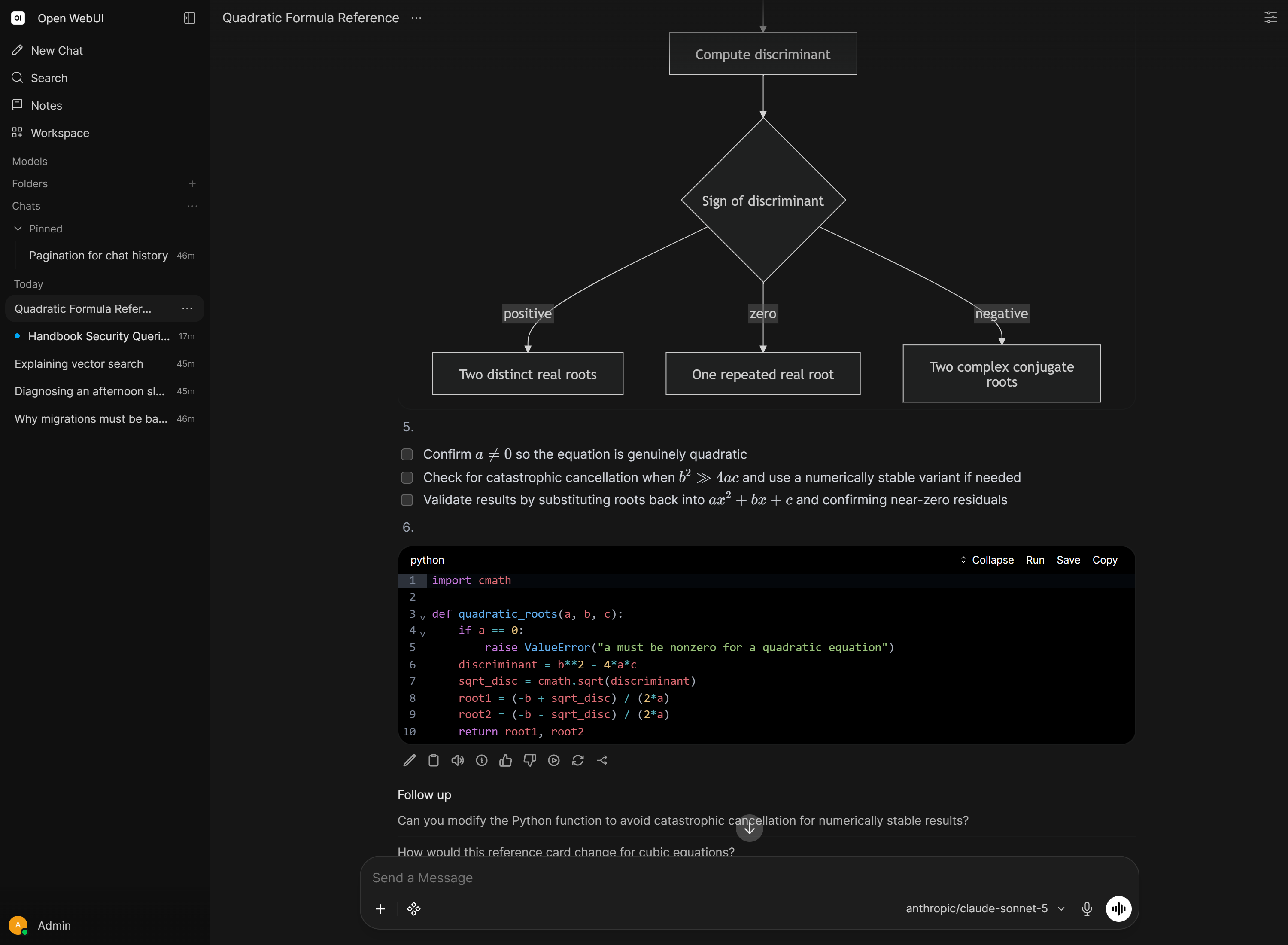
💬 Follow-Up Prompts: Suggested follow-up messages, requests or questions, after each model response.
-
⏱️ Automations: Schedule prompts to run automatically (hourly/daily/weekly/monthly/custom RRULE) and manage recurring runs.
-
✅ Task Management: Let agentic models keep a structured task/todo list in chat for multi-step workflows and transparent progress tracking.
-
🤖 Sub-agents: Let a model delegate focused work to parallel sub-agents that run with the same tools, and report back.
-
⏰ Timers: One-shot timers that send a prompt back into the chat when they fire, so a model can pick something up later.
-
💭 Comments: Discuss chats, notes and workspace items with the people who can see them, including comments on a selected passage.
-
🔔 Notifications: Per-user webhook targets that notify you when a chat finishes or fails, a channel message arrives, or a calendar alert triggers, plus a
notifytool the model can call. -
⌨️ Keyboard Shortcuts: Rebindable shortcuts for the common actions, managed in Settings > Keyboard.
-
Expand the Message Box: As soon as your prompt runs onto a second line, a button appears in the top right of the message box. It opens Input, a full-height editor that shows the whole prompt at once, with the same rich text and formatting toolbar behaviour you have set for the message box. What you write there goes into the message box as you type, so close the editor with the ✕ in its header,
Escor a click outside and the text is sitting in the message box ready to send. A single long line that only wraps does not bring the button out. -
🔀 Compare Text: Compare text in the chat input's + menu, or the
/comparecommand, opens your current prompt next to an empty Proposed revision pane. Paste a revised version there, for example one a model wrote, and click Compare to see the two side by side with the changes marked. Step through them with the arrows, copy a change into either side with Original → and ← Proposed revision, put both versions of a replaced passage into the right-hand pane with Keep both (original first) or edit either pane directly. Undo steps back through your edits in both panes, newest first. Changed lines are lined up and marked with a colored bar, and the panes scroll together. The Comparison options menu (...) has Ignore whitespace, Ignore emphasis markers, which skips changes that only add or remove*and_, and Only show changes, which folds long runs of unchanged lines. Click a fold to show its lines again. Use in prompt puts the right-hand pane into the message box. The same view opens from Compare revision in the skill and prompt editors and on the model editor's system prompt, where Apply to draft puts the right-hand pane into the editor and you still save it yourself. -
🙈 Controls Hidden by the Admin: An admin can hide single chat controls, such as Fork chat or Attach Files, under Visible controls. The feature behind a hidden control keeps working.
-
Skill Mentions: Use
$in the chat input to mention and activate Skills on-the-fly, injecting their instructions into the conversation. -
Chat Input Commands: Typing a trigger character in the chat input opens a suggestion menu:
Trigger Offers /Built-in commands (below), plus your Prompts and Skills @Models to switch to, plus attachable context: knowledge bases, collections, files, folders, and web or YouTube URLs #Attach knowledge and files $Mention and activate skills :Emoji -
Built-in Slash Commands: these act on the chat or the interface rather than being sent to the model:
Command What it does /compactCompacts the conversation now, without waiting for it to cross the threshold. Only offered when Context Compaction is enabled, and not while a response is generating. A Context compacted line marks where older messages were summarized; click it to read the summary. A skipped run says why: the chat is too short, empty or compaction is disabled. /statusOpens a status panel for the chat showing Context usage, Queued messages, Tasks currently running, and the Chat ID. /forkCopies the conversation up to the current message into a new chat, so you can branch off without disturbing the original. /sideOpens a side chat on the current conversation. /btwdoes the same. Text after the command becomes its first message./commentsOpens the chat's Comments tab in the side panel. Offered in a saved chat when comments are turned on. /modelOn its own, reports which model the chat is on, listing all of them in a multi-model chat. Followed by a model id, /model gpt-5.1for example, it switches the chat to that model./settingsOpens the Settings dialog. /compareOpens Compare text for the current prompt, the same as the entry in the + menu. See Compare Text above. /skills:createTurns the conversation into a reusable skill, saved privately to your Skills workspace. Offered once the chat has content and you hold the Skills Access permission; the model needs built-in tools with the Skills category switched on. Anything you type after it steers what the skill covers. /temporaryTurns temporary chat on or off for the chat you are about to start. The menu entry shows the current state beside it, On or Off. /compact,/status,/forkand/sideonly show up once the chat has messages, and all but/sideare typed on their own with nothing after them./model,/settingsand/compareare offered in an empty chat too, unless an admin has hidden them, and/modelis the only one of these that takes anything after it./temporaryis the mirror image: it appears only before a chat exists, since the setting cannot change once messages are saved. It is also left out when the Temporary Chat permission is withheld, and when an administrator has enforced temporary chat, because in that case there is nothing left to toggle. Turning it on switches you to a new temporary chat and marks the URL with?temporary-chat=true./forkrequires the Chat Import permission (chat.import, allowed by default; admins always pass). Without it the command is left out of the/menu, alongside the Fork chat action on a message. Typing/forkout by hand and sending it still runs the built-in command, which reports Access prohibited. Temporary chats cannot be forked.Choosing Model from the
/menu opens the model picker rather than running the command, with the search box focused (on desktop), so you can change model from the keyboard alone. Typing an id matches a model's id exactly, never its display name, and an id you do not have reportsModel not found: <id>and changes nothing. A successful switch replaces the current selection outright, so a multi-model chat drops back to the single model you named. -
🔗 Link Rendering: Links in responses, citations and web search results become clickable only for
http,https,mailto,teland relative URLs. Any other scheme,ftp:,sms:and application deep links such asobsidian://orvscode://, renders as plain text with its label intact, so a model cannot hand you a one-click jump into a local application. -
Writing & Content Blocks: Responses from models that include colon-fence blocks (e.g.,
:::writing,:::code_execution,:::search_results) are automatically rendered as formatted content in a styled container with a copy button. This is commonly used by newer OpenAI models to distinguish different types of output (prose, code results, search results) from the main response text.Each block is headed by its type (Writing, Code Execution), unless the model put attributes in braces on the opening line, as in
:::writing{variant="email" subject="Short question" recipient="[email protected]"}. Thensubjectbecomes the heading andrecipientfollows it, so a chat holding several drafted emails shows their subjects instead of one identical Writing heading after another. A heading too wide for the row is cut short and shown in full when you rest the pointer on it. The recipient is plain text: it is not a link, and there is no send action. Attributes are read only from between the braces, so akey="value"written in ordinary prose on that opening line is ignored, as is a brace that is never closed, and a block with no attributes looks exactly as it did before. -
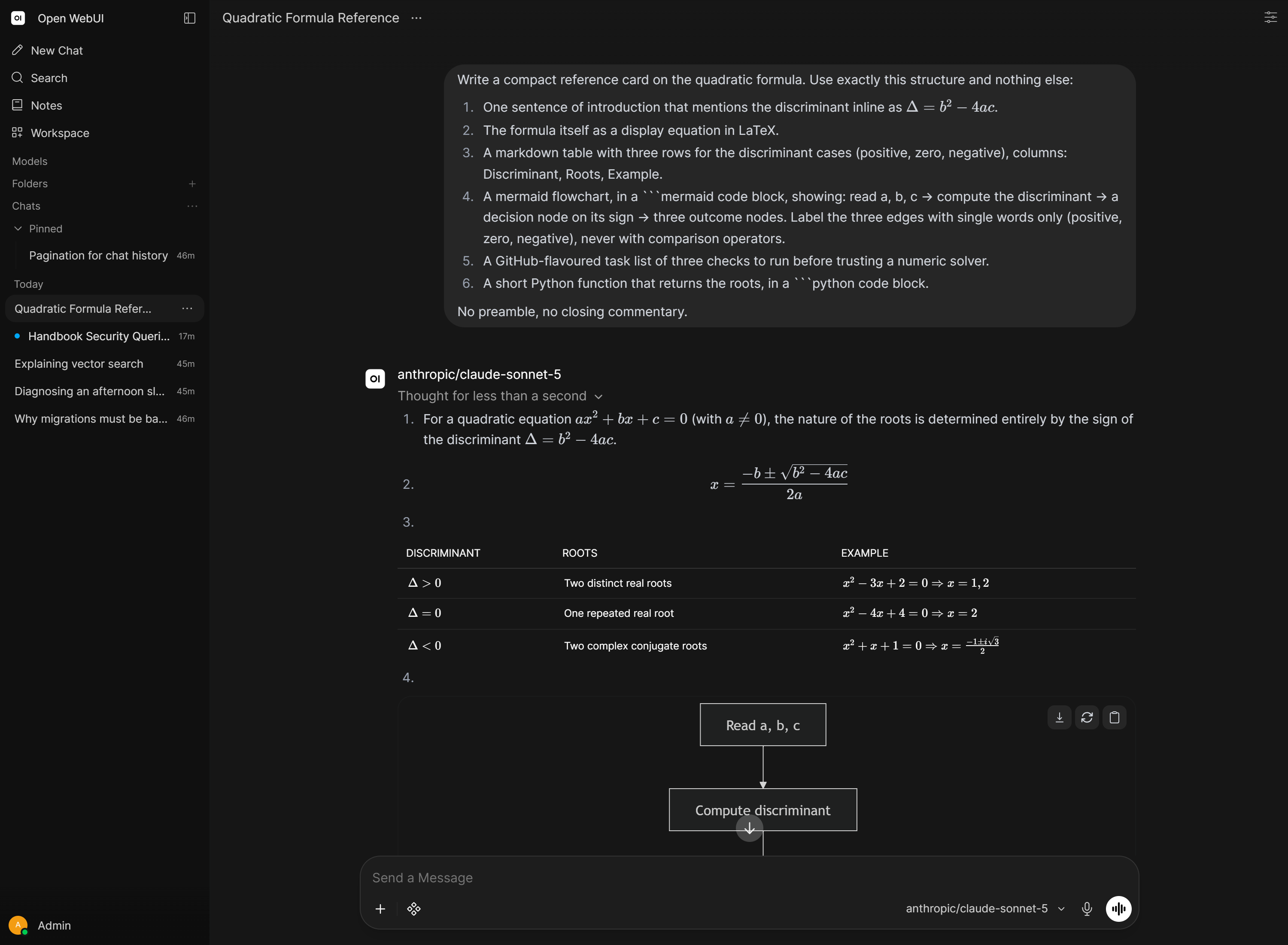
Structured Response Editing: Clicking the edit icon on an assistant response that contains tool calls, reasoning blocks, or code-interpreter output opens a structured editor instead of a plain textarea. Each output item (text, thought, tool call, code block, web/file/computer search) becomes its own collapsible field, and a JSON toggle exposes the underlying OpenAI Responses API payload for direct editing. Reasoning/thinking blocks are editable here too. The previous textarea editor reduced them to a non-editable
<details>placeholder. Plain text-only responses keep the original textarea behavior. Editing rewrites the message'soutputarray; Open WebUI re-derives the displayedcontent(including<details>blocks for thoughts and tool calls) on save, so the rendered message stays consistent.
Tabs Side Panel
The Tabs button (split panel icon) in the top bar opens a side panel next to the chat.
The panel holds these tabs when they apply: Files for the Open Terminal or Code Interpreter files, Artifacts, Preview for embeds and opened citations, Voice for a running voice call and Comments for a saved chat with comments turned on.
Side chat in the + menu, or /side in the chat input, opens a temporary chat tab that starts from the current conversation, so you can ask something on the side without adding to the chat. Each use opens another numbered tab, so you can keep several open. It needs exactly one selected model and the Allow Side Chat permission. Its messages disappear when you close the tab.
With a terminal selected, the + menu adds New File, a file you write and store in the terminal with Save As, and New Terminal, another shell next to the ones already open. Browser and Desktop show on terminals that support them, see The Browser tab. A file opened from the file browser gets its own tab, with a dot for unsaved changes. Drag tabs to reorder them, or press Alt+Shift+Left/Right on a selected tab, and close one with its x.
On a wide screen, the Use full-width tabs button in the tab strip makes the chat itself the first tab, so each tab fills the whole window. The chat tab shows the chat title and its actions menu and cannot be closed. Use side tabs switches back, and your browser remembers the choice.