Model Context Protocol (MCP)
Open WebUI natively supports MCP (Model Context Protocol) starting in v0.6.31. This page shows how to enable it quickly, harden it for production, and troubleshoot common snags.
Requires Open WebUI v0.6.31+.
MCP connects Open WebUI to your tools; it does not improve the model's ability to use them. Even with a working connection, a model may ignore tools, send incorrect arguments, or fail to complete a multi-step task. Try a stronger model with reliable native tool calling if this happens. Poor tool use alone does not mean Open WebUI or the MCP integration is broken. See troubleshooting model tool use.
You MUST set the WEBUI_SECRET_KEY environment variable in your Docker setup. Without it, OAuth-connected MCP tools (like Notion) will break every time you restart or recreate the container (Error: Error decrypting tokens), forcing you to re-authenticate everything.
Quick start
- Open Settings > Integrations (admin section).
- Under External Tool Servers, click + Add Connection. The Integrations page holds several sections, so make sure it is that one.
- Set Type to MCP (Streamable HTTP).
- Enter your Server URL and Auth details (OAuth 2.1, if required).
- Save. If prompted, restart Open WebUI.
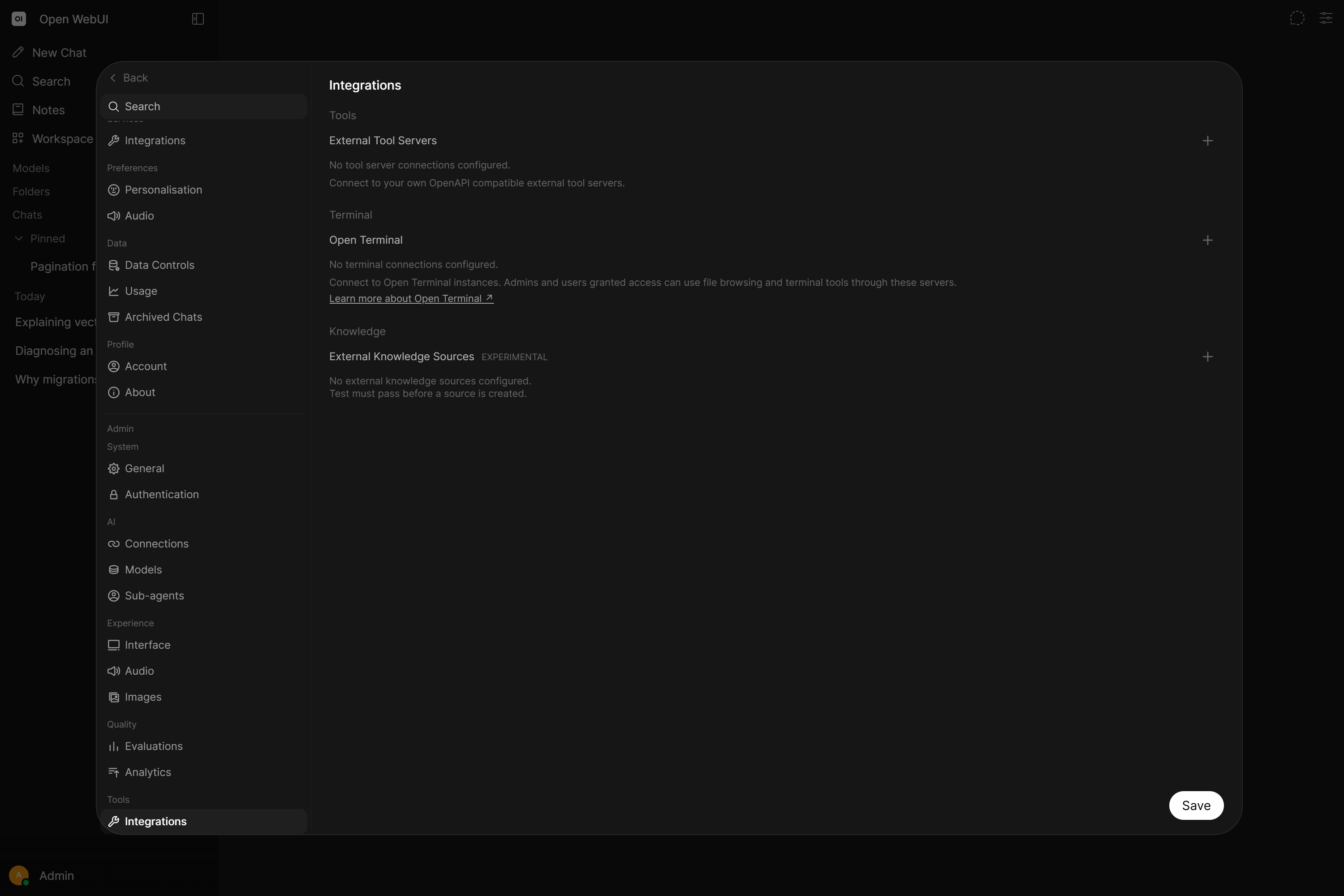
You can now call tools exposed by your MCP server from Open WebUI.
Open WebUI connects to servers on the stateless 2026-07-28 protocol revision and on older revisions. It follows a redirect only when it stays on the same origin.
The External Tool Servers section is greyed out when ENABLE_TOOL_SERVERS is set to False.
If you are adding an MCP server, make sure Type is set to MCP (Streamable HTTP), not OpenAPI.
Entering MCP-style configuration (with mcpServers in JSON) into an OpenAPI connection will cause the UI to crash or display an infinite loading screen. If you encounter this:
- Disable the problematic tool connection via Settings > Integrations (admin section)
- Re-add it with the correct Type set to MCP
MCP servers are admin-only
MCP servers can only be added to the instance by administrators, under Settings > Integrations (admin section). Regular users cannot register them on the instance, by design.
An MCP server is far more powerful than an OpenAPI server, which is a stateless HTTP URL exposing a fixed set of declared endpoints. It is stateful and capability-rich (sampling, elicitation, persistent sessions and arbitrary host command execution over stdio transports), and it runs inside Open WebUI's trust boundary with the connecting user's full scope. In practice a malicious or compromised MCP server could execute code and read or exfiltrate data with that user's access, so the capability stays admin-gated. Open WebUI's own MCP support is Streamable HTTP only, but the protocol's privileged nature is why adding one is reserved for admins.
To give users an MCP-backed capability without server-configuration rights, an admin adds the server once and scopes it with Access Control to the right users or groups. Users can also add MCP servers for themselves in the Tether app.
When to use MCP vs OpenAPI
For most deployments, OpenAPI remains the preferred integration path.
Choose OpenAPI if you want:
- Enterprise readiness: deep SSO, API gateways, audit, quotas, typed SDKs.
- Operational resilience: standard HTTP verbs, idempotency, caching, rich error codes.
- Observability: first-class tracing and policy integration.
Choose MCP (Streamable HTTP) if you need:
- A common tool protocol already used by your MCP servers/clients.
- Streamed protocol communication over HTTP (Note: This refers to MCP's transport-level streaming, not Open WebUI's UI event system which is only available for native Python tools).
You don’t have to pick one: many teams expose OpenAPI internally and wrap MCP at the edge for specific clients.
Browser-based, multi-user deployments increase the surface area (CORS/CSRF, per-user isolation, reconnects). Review your org’s auth, proxy, and rate-limiting policies before exposing MCP externally.
Configuration Best Practices
Authentication Modes
- None: Use this for local MCP servers or internal networks where no token is required.
- Important: Default to "None" unless your server strictly requires a token. Selecting "Bearer" without providing a key sends an empty Authorization header (
Authorization: Bearer), which causes many servers to reject the connection immediately.
- Important: Default to "None" unless your server strictly requires a token. Selecting "Bearer" without providing a key sends an empty Authorization header (
- Bearer: Use this only if your MCP server requires a specific API token. You must populate the "Key" field.
- Session: Sends the user's own Open WebUI session token as a bearer token. For servers that authenticate against Open WebUI itself.
- OAuth: Sends the access token from the user's Open WebUI SSO sign-in as a bearer token. Works only when users sign in to Open WebUI through that same OAuth provider and their token carries the scopes the MCP server needs.
- OAuth 2.1: Uses Dynamic Client Registration (DCR). Best when your MCP server supports registering OAuth clients automatically.
- OAuth 2.1 (Static): Uses a pre-created client ID/client secret. Best when your provider does not support DCR, or when your security team requires manually managed credentials.
With OAuth 2.1 or OAuth 2.1 (Static), an OAuth Resource Parameter setting appears. It controls whether Open WebUI sends the OAuth resource parameter (RFC 8707 resource indicators) on the authorization and token requests:
- Automatic (default): Open WebUI decides based on what the server advertises.
- Include: always send the
resourceparameter. Use this if your provider requires it. - Omit: never send it. Use this if your provider rejects the request when the
resourceparameter is present.
Leave it on Automatic unless OAuth fails and the provider's error or documentation points at the resource parameter.
With OAuth 2.1 or OAuth 2.1 (Static), an OAuth Scopes setting controls which scopes Open WebUI requests from the server's authorization server:
- Use discovered scopes (default): request the scopes advertised in the server's OAuth metadata.
- Custom scopes: provide an explicit, space- or comma-separated list to override the discovered scopes, for example to request a narrower set than the server advertises, or when the server's metadata does not list usable scopes.
Open WebUI finds the authorization server through the OAuth discovery documents the server publishes. Some MCP servers publish none. When no discovery document is found and the server's protected resource metadata names no authorization server, Open WebUI uses the default endpoints the MCP 2025-03-26 authorization spec defines for that case: /authorize, /token and /register at the origin of the MCP URL, or of the OAuth Server URL when one is set. For https://mcp.example.com/v1/mcp that means https://mcp.example.com/authorize, https://mcp.example.com/token and https://mcp.example.com/register. Sign-in and token refresh use /authorize and /token, and OAuth 2.1 registers its client at /register.
When the protected resource metadata names an authorization server and no discovery document can be fetched, Register Client fails with an error.
On an MCP connection using OAuth 2.1 or OAuth 2.1 (Static), the verify button beside the URL reads Check OAuth Discovery, and a green result reports "OAuth discovery successful". It reads the server's protected resource metadata, then fetches the OAuth discovery document and parses it, and that is the whole of what it does. It lists no tools and calls none, so a passing check tells you the authorization server was found and tells you nothing about whether tool calls will work.
The check succeeds only when a discovery document is found. A server that publishes none fails it, and Register Client still works for that server through the default endpoints described above.
With OAuth 2.1 (Static), the check runs against the OAuth Server URL when one is set, and against the MCP URL when it is left empty.
- Start with OAuth 2.1 if your server supports DCR.
- Use OAuth 2.1 (Static) when you already have credentials from your IdP and want Open WebUI to use those directly.
Connecting an account
An admin registers the MCP server once. Each user then connects their own account to it: the first time someone enables an OAuth 2.1 tool from the + menu in a chat, Open WebUI sends them to the provider, and the access they grant is stored against their account alone. Nobody else inherits it.
The authorization is bound to the account that started it and to the browser session it started in, so it has to be finished in that same browser, signed in as that same person, at the address in WEBUI_URL. Signing out cancels one still in progress. Anything else leaves the browser back on Open WebUI with a notification saying why; enable the tool again to retry.
An admin can also start the flow from the connection itself. Once the OAuth client is registered and the connection has been saved, reopening it under Settings > Integrations (admin section) shows an Authorize OAuth button beside Register Client. It sends the same authorization request that enabling the tool in a chat sends, on the same terms: the grant is stored against the admin's own account and nobody else inherits it. The button appears only once a client is registered, and stays greyed out until the connection has been saved at least once.
The provider returns the browser to the Open WebUI home page when the flow finishes, so reopen Settings > Integrations (admin section) to carry on editing the connection.
OAuth 2.1 (Static) Setup
Use this when you already have a client ID/client secret from your identity provider.
The OAuth client at your identity provider must allow this redirect URI:
<WebUI URL>/oauth/clients/mcp:<Connection ID>/callbackFor an instance at https://ai.example.com and a connection whose Connection ID is notion, that is https://ai.example.com/oauth/clients/mcp:notion/callback. <WebUI URL> is the WebUI URL field in Admin Panel > Settings > General (WEBUI_URL). Set it to the public address users reach Open WebUI at before you click Register Client. When it is empty, Open WebUI uses the address of the request that registered the client.
Register Client builds the redirect URI from the WebUI URL and Connection ID it sees at that moment, and the saved connection keeps it. After you change WebUI URL or the Connection ID, click Register Client again, click Save, and update the redirect URI at your identity provider. OAuth 2.1 sends the same redirect URI during dynamic client registration, so you do not enter it anywhere.
- Open Settings > Integrations (admin section).
- Under External Tool Servers, click + Add Connection. The Integrations page holds several sections, so make sure it is that one.
- Set Type to MCP (Streamable HTTP).
- Enter your MCP server URL.
- In Auth, select OAuth 2.1 (Static).
- Enter Client ID and Client Secret.
- (Optional) Enter an OAuth Server URL if your identity provider lives on a different host than the MCP resource server. When empty, Open WebUI fetches the OAuth discovery document from the MCP URL; when set, discovery and the static-credentials registration both run against this URL instead. Useful for setups where the MCP server proxies a corporate IdP at a separate origin.
- Click Register Client.
- Click Save.
After saving:
- Open a chat.
- Click + > Tools.
- Enable your MCP tool.
- Complete the OAuth consent/authorization flow in the browser redirect.
The redirect brings you back to a new chat with the MCP tool switched on, next to any tools the model enables by default.
Reopening the connection and clicking Authorize OAuth does the same thing for your own account without opening a chat. See Connecting an account.
Register Client is required for both oauth_2.1 and oauth_2.1_static. With static auth, Open WebUI uses your provided credentials and server metadata discovery (no dynamic client registration).
Static auth sends the client secret in the request body (client_secret_post), or as an HTTP Basic header (client_secret_basic) when the server only lists that.
If the MCP server publishes a resource field in its RFC 9728 Protected Resource Metadata document (/.well-known/oauth-protected-resource), Open WebUI captures it during discovery and forwards it as the resource parameter on the authorization redirect, on the token exchange, and on every refresh-token call. This sets the aud claim correctly on issued tokens and is required by identity providers that validate audiences strictly per RFC 8707.
No configuration is needed on the Open WebUI side: the resource indicator is discovered automatically. If your IdP rejects MCP tool calls with invalid_audience or similar errors, confirm that your MCP server's protected-resource metadata document advertises the correct resource URL.
Do not set OAuth 2.1 MCP tools as default/pre-enabled tools on a model. The OAuth 2.1 authorization flow requires an interactive browser redirect (user consent, callback) that cannot happen transparently during a chat completion request.
If an OAuth 2.1 tool is set as a default and the user hasn't previously authenticated (or their refresh token has expired), the tool call will fail with "Failed to connect to MCP server" because the backend cannot initiate the browser-based auth flow mid-request.
Workaround: Users should manually enable OAuth 2.1 tools per-chat via the + menu in the chat input area. This triggers the auth flow before the tool is ever invoked. Token refresh works automatically once the initial authentication is complete. A temporary provider error during refresh (rate limit, server error or unreachable provider) keeps the stored sign-in, and the next call tries again. A refresh the provider rejects removes the stored sign-in, and you sign in again.
Connection URLs
The Open WebUI backend opens the connection, so the URL must be reachable from the backend, not from your browser. The URL must point at the server's Streamable HTTP endpoint. An SSE endpoint does not work, see An SSE URL does not connect.
If you are running Open WebUI in Docker and your MCP server is on the host machine:
- Use
http://host.docker.internal:<port>(e.g.,http://host.docker.internal:3000/mcp) instead oflocalhost.
If your MCP server runs in another container on the same Docker network as Open WebUI:
- Use the container's service name and the port the server listens on inside its container (e.g.,
http://mcp-server:8000/mcp).localhostand the port published on the host do not reach it from inside the Open WebUI container. See Docker's Networking in Compose.
Custom Headers
Both MCP and OpenAPI tool-server connections accept a free-form Headers field (JSON object) that is merged into every outbound request. Header values support template placeholders such as {{USER_ID}}, {{USER_EMAIL}}, {{USER_GROUPS}}, {{CHAT_ID}}, {{MESSAGE_ID}}, {{MODEL_ID}} and {{USER_IP}}, which Open WebUI expands at request time. This routes one connection to per-user, per-chat or per-message backend logic without separate connections, and lets a tool server authorize by group instead of by individual user.
Custom Forwarded Headers lists every placeholder and what it holds. Placeholders with no value for the request, such as {{CHAT_ID}} and {{USER_IP}} on the Verify Connection button, become empty strings. Unknown placeholders pass through as literal text, and non-string header values are converted to strings before substitution. Custom headers on OpenAI-compatible model connections in Settings > Connections (admin section) expand the same way.
Function Name Filter List
This field restricts which tools are exposed to the LLM.
- Default: Leave empty to expose all tools (in most cases).
- Workaround: If you encounter connection errors with an empty list, try adding a single comma (
,) to this field. This forces the system to treat it as a valid (but empty) filter, potentially bypassing some parsing issues.
Tool Names the Model Sees
Open WebUI offers each MCP tool to the model as <server ID>_<tool name>. Some providers, such as the OpenAI API and AWS Bedrock, reject a request whose tool names run past 64 characters, so a longer name is shortened to its first 55 characters, an underscore and an 8-character hash. The same tool always gets the same shortened name, and the MCP server is still called with the original tool name.
With many MCP tools enabled, Tool Search keeps large tool definitions out of each request until the model looks them up. Its Always Loaded Tools patterns match these names, so github_* keeps every tool of a server with the ID github loaded.
What an MCP tool receives
When the model calls an MCP tool, Open WebUI sends the MCP server the tool name and the arguments the model wrote, and nothing else. The reserved arguments that workspace Python tools get, such as __user__, __metadata__ and __files__, are never passed to an MCP tool, so files attached to the chat do not reach it. Tools on an OpenAPI tool server get the same treatment: Open WebUI drops every argument the operation does not declare and sends the rest as path, query and body parameters.
The server learns who is calling from the request headers:
- The token the Auth setting selects, see Authentication Modes. Session, OAuth and OAuth 2.1 send a token that belongs to the user, while Bearer sends the same key for everyone.
- Your custom headers, with placeholders such as
{{USER_ID}}and{{CHAT_ID}}filled in. - With
ENABLE_FORWARD_USER_INFO_HEADERSset totrue, the user's name, ID, email and role inX-OpenWebUI-User-*headers (or one signed JWT whenFORWARD_USER_INFO_HEADER_JWT_SECRETis set), plusX-OpenWebUI-Chat-IdandX-OpenWebUI-Message-Id.
To get a chat file to an MCP or OpenAPI tool:
- Pass the content or a URL. Give the tool a parameter for the text or for a URL the server can download, and let the model fill it in.
- Pass the file ID. When Function Calling is not set to Legacy and the model's Builtin Tools capability is on, each user message reaches the model with an
<attached_files>block that lists every attached file'sid. Give the tool a file ID parameter, and have the server download the file from/api/v1/files/<id>/contenton your Open WebUI instance with the token it received. With Session auth that is the user's own Open WebUI token, which works for files the user can read. - Use a workspace Python tool. A tool written in Workspace > Tools receives the attached files in
__files__and can forward them to your service itself.
Structured Tool Results
An MCP tool can return structured data (structuredContent) alongside its regular content. Open WebUI adds that data as JSON text to the tool result the model sees. When one of the tool's text results already holds the same JSON, the result goes to the model unchanged, so the data appears once. The same happens when the structured data is only a result field whose values match the text results one for one, which is how servers built with the official MCP Python SDK return plain values and lists.
Server Instructions
An MCP server can send instructions when Open WebUI connects to it. Open WebUI appends them to the system prompt under the line MCP server "<server ID>" instructions:, so the model learns how the server expects its tools to be used.
Requests for Your Input
An MCP server can ask you for input in the middle of a tool call (MCP elicitation). Open WebUI shows a dialog with the server ID and the server's message:
- Form requests show a form with the fields the server asks for. Submit sends your answers. Open WebUI checks them against the server's schema and only sends answers that match it.
- Link requests show a link to open. Opening it tells the server that you went ahead. A link that does not start with
http://orhttps://, or that contains a user name or password, is cancelled before any dialog appears.
Decline refuses the request and Cancel dismisses it, and the server decides how the tool call goes on. The dialog waits up to 120 seconds, or WEBSOCKET_EVENT_CALLER_TIMEOUT when that is lower, and then cancels the request. The dialog appears only while that chat is the one open in a browser tab; otherwise the request is cancelled at once.
MCP Apps
An MCP tool can come with an interactive app (MCP Apps). When the tool's _meta.ui.resourceUri points to a ui:// resource of type text/html;profile=mcp-app (up to 5 MB), Open WebUI shows that app inline in the chat after the tool runs.
The app runs in a sandboxed iframe that may run scripts, download files and open popups, with no access to Open WebUI's origin. Its Content-Security-Policy comes from the resource's csp metadata (resourceDomains, connectDomains, frameDomains, baseUriDomains), and IFRAME_CSP applies on top. The app can read and list the server's resources, open http and https links in a new tab, call the server's tools and send messages to the chat. Each tool call from the app asks you to confirm it first in a Tool call dialog. A message from the app shows its text in a Confirm Prompt from Embed dialog and is sent as your next chat message once you confirm. Apps can send text only, so images and files in a message are left out. An app can also offer files to download. A Download dialog lists the files and links first. Once you confirm, each file is saved and an http or https link opens in a new tab.
A tool's _meta.ui.visibility decides who can use it: a tool without model is hidden from the model, and a tool without app cannot be called by apps. MCP Apps need a stable WEBUI_SECRET_KEY.
Troubleshooting
"Failed to connect to MCP server"
Symptom: The chat shows "Failed to connect to MCP server" when using a tool, even if the verify button in settings reported success. On a connection using either OAuth 2.1 mode that button reads Check OAuth Discovery, and it confirms only that the authorization server's discovery document was found and could be parsed.
The server log records each failure at error level as Failed to connect to MCP server '<id>', followed by the cause, so check it first. A server that becomes unreachable during a chat fails only that tool call: the model gets the connection error as the tool result and finishes its reply.
Solutions:
- Check Authentication: Ensure you haven't selected
Bearerwithout a key. Switch toNoneif no token is needed. - Filter List Bug: If the "Function Name Filter List" is empty, try adding a comma (
,) to it. - OAuth 2.1 Default Tool: If the failing tool uses OAuth 2.1 and is set as a default tool on the model, this is a known limitation. Remove it from the model's default tools and have users enable it manually per-chat.
- Slow handshake: If the server cold-starts slowly or exposes many tools, connecting, listing its tools or reading a resource can exceed its timeout. Raise
MCP_INITIALIZE_TIMEOUT(default10seconds). Tool calls useAIOHTTP_CLIENT_TIMEOUT_TOOL_SERVERinstead.
{"detail":"Not Found"} after the OAuth sign-in
Symptom: After you approve access at the provider, the browser lands on /oauth/clients/mcp:<Connection ID>/callback and shows only {"detail":"Not Found"}.
Cause: Open WebUI has no OAuth client stored under the Connection ID in that URL. The redirect URI keeps the Connection ID it had when you clicked Register Client, so this happens when the Connection ID was changed afterwards, or when the connection was deleted or never saved.
Solution: Open the connection under Settings > Integrations (admin section), click Register Client with the current Connection ID, and click Save. With OAuth 2.1 (Static), update the redirect URI at your identity provider to match, see OAuth 2.1 (Static) Setup. Then enable the tool in a chat again.
An SSE URL does not connect
Symptom:
A connection whose URL points at a server's SSE endpoint, usually a URL ending in /sse, fails. The chat shows "Failed to connect to MCP server".
Cause: Open WebUI connects to MCP servers over Streamable HTTP only. It never opens an SSE connection, so an SSE endpoint cannot answer its requests.
Solutions:
- Use the Streamable HTTP path: If the server also offers Streamable HTTP, enter that endpoint as the URL. The server's documentation names the path.
- Bridge SSE with mcpo: If the server offers SSE only, run it behind mcpo, for example
mcpo --port 8000 --server-type "sse" -- http://127.0.0.1:8001/sse, and add the mcpo URL as an OpenAPI connection. See MCP Support.
"Maximum tools limit reached"
The error Maximum tools limit reached. <n> tools have been provided but the maximum is <m> comes from the model provider or a proxy in front of it, not from Open WebUI. The request held more tool definitions than that endpoint accepts. Open WebUI sends every tool of each MCP server enabled for the chat that passes its Function Name Filter List, plus the built-in tools in Native Mode.
To send fewer tools:
- Turn on Tool Search. Deferred tools are left out of the tool list sent to the provider, which then holds the tools that stay loaded plus
search_toolsandcall_tool. Only tools whose definition is longer than the Deferral Threshold (characters) are deferred. Set it to0to defer every tool. - List only the tools you need in each server's Function Name Filter List.
- Enable fewer MCP servers in the chat, or turn off the Builtin Tools categories the model does not need.
Infinite loading screen after adding External Tool
Symptom:
After adding an External Tool connection, the frontend gets stuck on a loading spinner. The browser console shows an error like Cannot convert undefined or null to object at Object.entries.
Cause:
You likely configured an MCP server using the OpenAPI connection type, or entered MCP-style JSON (containing mcpServers) into an OpenAPI connection.
Solution:
- Open Settings > Integrations (admin section) (the sidebar still loads)
- Disable or delete the problematic tool connection
- Refresh the page (Ctrl+F5)
- Re-add the connection with the correct Type set to MCP (Streamable HTTP)
FAQ
Do you support stdio or SSE transports?
Native MCP support in Open WebUI is Streamable HTTP only. This design choice reflects our architecture: Open WebUI is a web-based, multi-tenant environment, not a local desktop process.
Browsers operate within strict sandboxed and event-driven HTTP constraints, making long-lived stdio or SSE connections difficult to maintain securely across users and sessions.
Users who run Tether can start a stdio MCP server as a local command on their own computer, see Tether. To bridge those other MCP transports for the whole instance, check out mcpo, an open-source proxy that translates stdio or SSE-based MCP servers into OpenAPI-compatible endpoints. It effectively lets you run traditional MCP tools inside Open WebUI without modifying their transport layer.
Is MCP considered stable here?
Supported and improving. The broader ecosystem is still evolving; expect occasional breaking changes.
Can I mix OpenAPI and MCP tools?
Yes. Many deployments do both.
Can users add their own MCP servers?
Only for themselves, through the Tether app, see Bring Your Own Models and Tools. Adding MCP servers to the instance is admin-only (Settings > Integrations (admin section)). See MCP servers are admin-only for the reasoning.