Google PSE
New Google PSE projects are no longer supported. Google has restricted the legacy JSON API to existing customers only. New users attempting to use Google PSE will receive a 403 Forbidden error.
This tutorial is a community contribution and is not supported by the Open WebUI team. It serves only as a demonstration on how to customize Open WebUI for your specific use case. Want to contribute? Check out the contributing tutorial.
For a comprehensive list of all environment variables related to Web Search (including concurrency settings, result counts, and more), please refer to the Environment Configuration documentation.
Having issues with web search? Check out the Web Search Troubleshooting Guide for solutions to common problems like proxy configuration, connection timeouts, and empty content.
Google PSE API
Setup
- Go to Google Developers, use Programmable Search Engine, and log on or create account.
- Go to control panel and click
Addbutton - Enter a search engine name, set the other properties to suit your needs, verify you're not a robot and click
Createbutton. - Generate
API keyand get theSearch engine ID. (Available after the engine is created) - With
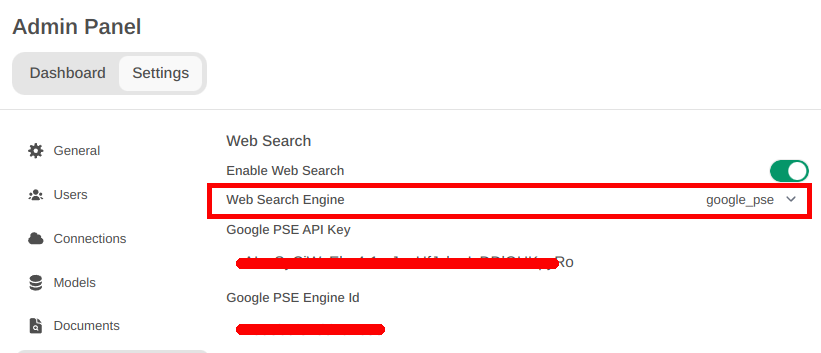
API keyandSearch engine ID, openOpen WebUI Admin paneland clickSettingstab, and then clickWeb Search - Enable
Web searchand SetWeb Search Enginetogoogle_pse - Fill
Google PSE API Keywith theAPI keyandGoogle PSE Engine Id(# 4) - Click
Save
Note
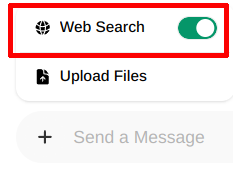
You have to enable Web search in the prompt field, using plus (+) button.
Search the web ;-)