SearXNG
This tutorial is a community contribution and is not supported by the Open WebUI team. It serves only as a demonstration on how to customize Open WebUI for your specific use case. Want to contribute? Check out the contributing tutorial.
For a comprehensive list of all environment variables related to Web Search (including concurrency settings, result counts, and more), please refer to the Environment Configuration documentation.
This guide provides instructions on how to set up web search capabilities in Open WebUI using SearXNG in Docker.
SearXNG (Docker)
"SearXNG is a free internet metasearch engine which aggregates results from various search services and databases. Users are neither tracked nor profiled."
1. SearXNG Configuration
To configure SearXNG optimally for use with Open WebUI, follow these steps:
Step 1: git clone SearXNG Docker and navigate to the folder:
- Clone the repository
searxng-docker
Clone the searxng-docker repository. This will create a new directory called searxng-docker, which will contain your SearXNG configuration files. Refer to the SearXNG documentation for configuration instructions.
git clone https://github.com/searxng/searxng-docker.git
Navigate to the searxng-docker repository, and run all commands from there:
cd searxng-docker
Step 2: Locate and and modify the .env file:
- Uncomment
SEARXNG_HOSTNAMEfrom the.envfile and set it accordingly:
# By default listen on https://localhost

# To change this:

# * uncomment SEARXNG_HOSTNAME, and replace <host> by the SearXNG hostname

# * uncomment LETSENCRYPT_EMAIL, and replace <email> by your email (require to create a Let's Encrypt certificate)

SEARXNG_HOSTNAME=localhost

# LETSENCRYPT_EMAIL=<email>

# Optional:

# If you run a very small or a very large instance, you might want to change the amount of used uwsgi workers and threads per worker

# More workers (= processes) means that more search requests can be handled at the same time, but it also causes more resource usage

# SEARXNG_UWSGI_WORKERS=4

# SEARXNG_UWSGI_THREADS=4
Step 3: Modify the docker-compose.yaml file
- Remove the
localhostrestriction by modifying thedocker-compose.yamlfile:
If port 8080 is already in use, change 0.0.0.0:8080 to 0.0.0.0:[available port] in the command before running it.
Run the appropriate command for your operating system:
- Linux
sed -i 's/127.0.0.1:8080/0.0.0.0:8080/' docker-compose.yaml
- macOS:
sed -i '' 's/127.0.0.1:8080/0.0.0.0:8080/' docker-compose.yaml
Step 4: Grant Necessary Permissions
- Allow the container to create new config files by running the following command in the root directory:
sudo chmod a+rwx searxng
Step 5: Create a Non-Restrictive limiter.toml File
- Create a non-restrictive
searxng-docker/searxng/limiter.tomlconfig file:
If the file already exists, append the missing lines to it.
searxng-docker/searxng/limiter.toml
# This configuration file updates the default configuration file

# See https://github.com/searxng/searxng/blob/master/searx/botdetection/limiter.toml

[botdetection.ip_limit]

# activate link_token method in the ip_limit method
link_token = false

[botdetection.ip_lists]
block_ip = []
pass_ip = []
Step 6: Remove the Default settings.yml File
- Delete the default
searxng-docker/searxng/settings.ymlfile if it exists, as it will be regenerated on the first launch of SearXNG:
rm searxng/settings.yml
Step 7: Create a Fresh settings.yml File
- Bring up the container momentarily to generate a fresh settings.yml file:
If you have multiple containers running with the same name, such as caddy, redis, or searxng, you need to rename them in the docker-compose.yaml file to avoid conflicts.
docker compose up -d ; sleep 10 ; docker compose down
After the initial run, add cap_drop: - ALL to the docker-compose.yaml file for security reasons.
If Open WebUI is running in the same Docker network as Searxng, you may remove the 0.0.0.0 and only specify the port mapping. In this case, Open WebUI can access Searxng directly using the container name.
docker-compose.yaml
searxng:
    container_name: searxng
    image: docker.io/searxng/searxng:latest
    restart: unless-stopped
    networks:
      - searxng
    ports:
      - "0.0.0.0:8080:8080" # use 8080:8080 if containers are in the same Docker network
    volumes:
      - ./searxng:/etc/searxng:rw
      - searxng-data:/var/cache/searxng:rw
    environment:
      - SEARXNG_BASE_URL=https://${SEARXNG_HOSTNAME:-localhost}/
    logging:
      driver: "json-file"
      options:
        max-size: "1m"
        max-file: "1"
    cap_drop:
      - ALL
Step 8: Add Formats
- Add HTML and JSON formats to the
searxng-docker/searxng/settings.ymlfile:
- Linux
sed -i 's/- html/- html\n - json/' searxng/settings.yml
- macOS
sed -i '' 's/- html/- html\n - json/' searxng/settings.yml
Step 9: Run the Server
- Start the container with the following command:
docker compose up -d
The searXNG will be available at http://localhost:8080 (or the port number you set earlier).
2. Alternative Setup
Alternatively, if you don't want to modify the default configuration, you can simply create an empty searxng-docker folder and follow the rest of the setup instructions.
Docker Compose Setup
Add the following environment variables to your Open WebUI docker-compose.yaml file:
services:
  open-webui:
    environment:
      ENABLE_RAG_WEB_SEARCH: True
      RAG_WEB_SEARCH_ENGINE: "searxng"
      RAG_WEB_SEARCH_RESULT_COUNT: 3
      RAG_WEB_SEARCH_CONCURRENT_REQUESTS: 10
      SEARXNG_QUERY_URL: "http://searxng:8080/search?q=<query>"
Create a .env file for SearXNG:
# SearXNG
SEARXNG_HOSTNAME=localhost:8080/
Next, add the following to SearXNG's docker-compose.yaml file:
services:
  searxng:
    container_name: searxng
    image: searxng/searxng:latest
    ports:
      - "8080:8080"
    volumes:
      - ./searxng:/etc/searxng:rw
    env_file:
      - .env
    restart: unless-stopped
    cap_drop:
      - ALL
    cap_add:
      - CHOWN
      - SETGID
      - SETUID
      - DAC_OVERRIDE
    logging:
      driver: "json-file"
      options:
        max-size: "1m"
        max-file: "1"
Your stack is ready to be launched with:
docker compose up -d
On the first run, you must remove cap_drop: - ALL from the docker-compose.yaml file for the searxng service to successfully create /etc/searxng/uwsgi.ini. This is necessary because the cap_drop: - ALL directive removes all capabilities, including those required for the creation of the uwsgi.ini file. After the first run, you should re-add cap_drop: - ALL to the docker-compose.yaml file for security reasons.
Configure SearXNG for Open WebUI Integration
After starting the container, you need to configure SearXNG to support JSON format queries from Open WebUI:
- Stop the container after about 30 seconds to allow initial configuration files to be generated:
docker compose down
- Navigate to the
./searxngfolder and edit thesettings.ymlfile:
cd searxng
- Open the
settings.ymlfile in your preferred text editor and locate thesearchsection. Addjsonto the formats list:
search:
  safe_search: 0
  autocomplete: ""
  default_lang: ""
  formats:
    - html
    - json  # Add this line to enable JSON format support for Open WebUI
Alternatively, you can use the following command to automatically add JSON support:
sed -i '/formats:/,/]/s/html/html\n - json/' searxng/settings.yml
- Save the file and restart the container:
docker compose up -d
Without adding JSON format support, SearXNG will block queries from Open WebUI and you'll encounter 403 Client Error: Forbidden errors in your Open WebUI logs.
Alternatively, you can run SearXNG directly using docker run:
docker run --name searxng --env-file .env -v ./searxng:/etc/searxng:rw -p 8080:8080 --restart unless-stopped --cap-drop ALL --cap-add CHOWN --cap-add SETGID --cap-add SETUID --cap-add DAC_OVERRIDE --log-driver json-file --log-opt max-size=1m --log-opt max-file=1 searxng/searxng:latest
3. Confirm Connectivity
Confirm connectivity to SearXNG from your Open WebUI container instance in your command line interface:
docker exec -it open-webui curl http://host.docker.internal:8080/search?q=this+is+a+test+query&format=json
4. GUI Configuration
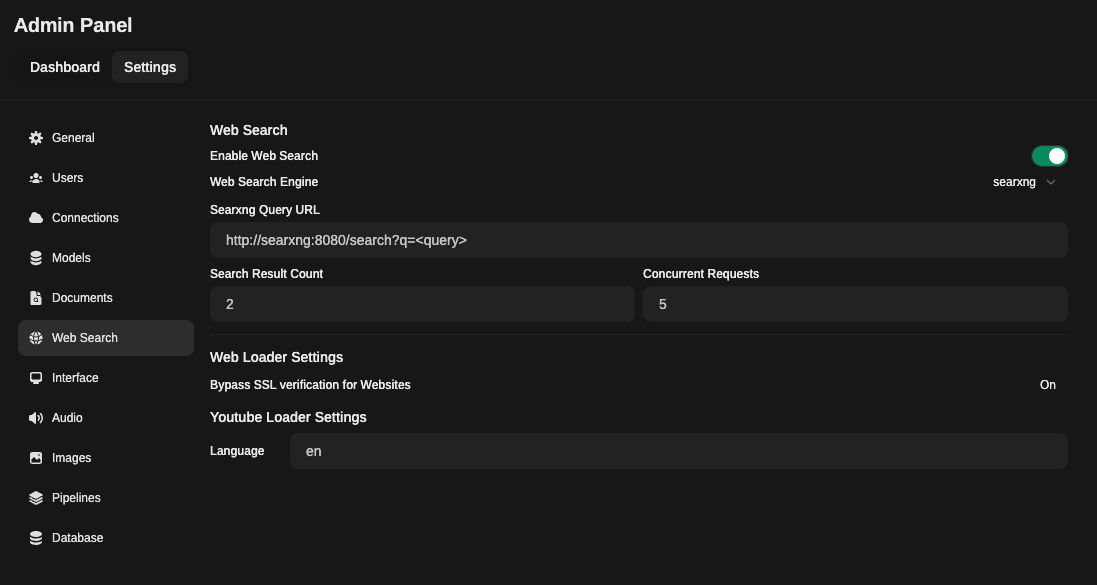
- Navigate to:
Admin Panel->Settings->Web Search - Toggle
Enable Web Search - Set
Web Search Enginefrom dropdown menu tosearxng - Set
Searxng Query URLto one of the following examples:
http://localhost:8080/search?q=<query>(using the host and host port, suitable for Docker-based setups)http://searxng:8080/search?q=<query>(using the container name and exposed port, suitable for Docker-based setups)http://host.docker.internal:8080/search?q=<query>(using thehost.docker.internalDNS name and the host port, suitable for Docker-based setups)http://<searxng.local>/search?q=<query>(using a local domain name, suitable for local network access)https://<search.domain.com>/search?q=<query>(using a custom domain name for a self-hosted SearXNG instance, suitable for public or private access)
Do note the /search?q=<query> part is mandatory.
- Adjust the
Search Result CountandConcurrent Requestsvalues accordingly - Save changes
Having issues with web search? Check out the Web Search Troubleshooting Guide for solutions to common problems, including proxy configuration, connection timeouts, and empty content issues.
5. Using Web Search in a Chat
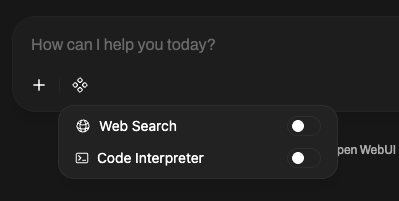
To access Web Search, Click the Integrations button next to the + icon.
Here you can toggle Web Search On/Off.
By following these steps, you will have successfully set up SearXNG with Open WebUI, enabling you to perform web searches using the SearXNG engine.
Note
You will have to explicitly toggle this On/Off in a chat.
This is enabled on a per session basis eg. reloading the page, changing to another chat will toggle off.