Channels
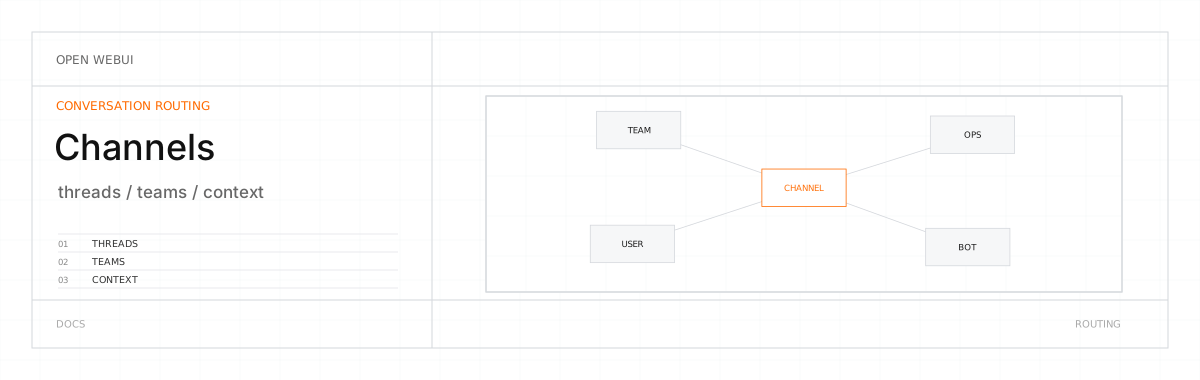
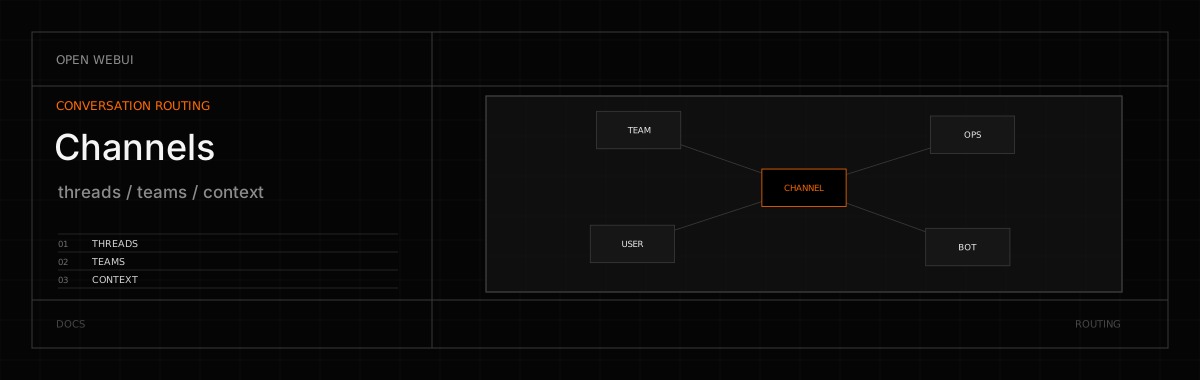
Where your team and AI think together, in real time.
Channels are persistent, shared spaces where humans and AI models participate in the same conversation. Unlike standard chats, which are personal and isolated, Channels let multiple users and multiple models interact in a single timeline. Every exchange, whether human or AI, becomes shared context that the whole team can build on.
Open WebUI is where knowledge is found, created, and shared. Channels make that collaborative.
Why Channels?
AI as a participant, not a separate tool
Tag @gpt-5.6 to draft a plan, then tag @claude to critique it. Your whole team sees both responses in the same timeline with full context. No tab-switching, no copy-pasting between tools.
Persistent shared context
Every message becomes part of the record. When someone asks a question next week, the AI can draw on everything discussed before. Channels are living knowledge bases, not disposable threads.
Multiple models, one conversation
Use one model for code review, another for writing, a third for data analysis, all in the same channel. Chain them together for richer answers than any single model could produce.
Real-time collaboration
Instant updates, emoji reactions, threaded replies, pinned messages, and unread indicators.
Key Features
🤖 @model tagging | Summon any AI model into the conversation on demand |
| 👥 Shared context | Every message, human or AI, builds the collective knowledge |
| 🧵 Threads & reactions | Keep discussions organized with replies, pins, and emoji reactions |
| 📎 File sharing | Drop images, documents, and code. AI can see and process them |
| 📝 Message queue | Keep sending while a message or file upload is still in progress: new messages queue above the input, can be edited or removed and go out in order |
| 🔒 Access control | Public, private, group-based, and direct message channels |
| 🧠 AI channel awareness | Models can search and synthesize across channels autonomously |
| 🧩 Apps | External services join channels, answer @mentions and post messages with buttons |
| 🔐 Encrypted chats | Temporary end-to-end encrypted conversations in direct messages and private groups, never saved on the server |
Channel Types
| Type | Best for |
|---|---|
| Standard | Topic-based rooms (#engineering, #marketing-strategy), public or private |
| Group | Team-scoped spaces with explicit membership and user-group sync |
| Direct Message | Private 1:1 or small-group conversations with online/offline status |
How It Works
Talking to AI
Channels are passive by default. AI doesn't jump into every conversation. When you need input from a model, just tag it:
You:
@gpt-5.6Here's our Q3 revenue data. What trends stand out?(GPT-5.6 analyzes the data and responds with key insights)
You:
@claudeDo you agree with that analysis? What's missing?
This means your team can discuss freely without AI interrupting, and call on exactly the right model when it's needed.
Where the reply appears
By default a model answering a top-level mention replies in a thread under your message, so a long answer does not push the channel's conversation off the screen. An administrator can change this in Settings > Admin > General (Model Response Mode, or CHANNEL_MODEL_RESPONSE_MODE): set it to Channel and the reply is posted into the timeline instead, where the team reads it without opening a thread. Mentioning a model from inside a thread always answers in that thread either way.
Full chat-completion pipeline
Mentioning a model in a channel runs through the same chat-completion pipeline as a standard chat. The reply is streamed in real time as the model generates it, and the model has access to the full set of capabilities its configuration grants:
| Capability | What it enables in a channel |
|---|---|
| Native and default function calling | Tool calls resolve and execute mid-message |
| Built-in tools | Web search, image generation, code interpreter, calendar |
| User tools and MCP tools | Whatever the model is configured to call, it can call |
| Filters | Inlet/outlet/stream filters apply just like in chats |
| Knowledge (RAG) | Knowledge bases attached to the model are queried and injected |
| Attached documents | Images and non-image files (PDF, DOCX, etc.) uploaded in the thread are forwarded into the model's context |
| Structured replies | The reply is rendered from the model's full output, so reasoning blocks, tool calls, generated images and code results appear in the channel as they do in a chat, rather than being flattened to plain text |
In other words, a channel-summoned model is a fully-equipped agent, not a one-shot completion.
Before v0.9.6, tagging a model in a channel only forwarded images from the thread. Uploaded PDFs, DOCX, and other non-image documents were ignored, so summarization and document-comparison prompts silently had nothing to work with. As of v0.9.6 these files are forwarded the same way they are in a direct chat, so document workflows behave identically in channels.
Tagging people and linking channels
Use @username to notify teammates. The suggestion list puts the channel's own members first, then anyone else on the instance whose name matches what you typed, so you can still tag someone who is not in the channel. A tag notifies only people who can read the channel. Use #channel-name to create clickable cross-references between conversations.
You can also type a mention out in full without picking from the list. When you paste or send, @name becomes a real mention if it matches the name of exactly one person, model or app, or a model's ID such as @gpt-5.6. #name becomes a channel link if it matches exactly one channel. Two matches with the same name need a pick from the list. Mentions pasted from another message keep pointing at the same person.
Point at someone's profile picture next to their messages or in the channel's member list, or at an @mention of them, to open their profile card. It shows their name, online state, status, bio, groups, local time and when they were last active. Local time follows the time zone of the browser they last used Open WebUI in. Every signed-in user can open any other user's card, and the same details, plus email address and role, are available to them through the API.
Message interactions
Hover any message to react with emoji, pin it for reference, reply inline, or start a threaded side conversation.
You can delete your own messages, and an admin can delete anyone's. Deleting a message that started a thread also deletes every reply in that thread, including replies other people wrote.
If you can only read a channel, messages show no hover actions and the reactions under them cannot be clicked. The message box reads You do not have permission to send messages in this channel.
Muting a channel
The ... menu of a channel or direct message, in the sidebar or in the channel header, has a Notifications setting. Mentions only mutes it for you: the channel is dimmed in the sidebar and shows no unread count. Only a message that @mentions you still sends a pop-up, browser notification or notification webhook; the unread count stays hidden for it too. All messages turns it back on. The setting is per member, so muting a channel changes nothing for anyone else.
Apps
External services can also join a channel as Apps. An admin installs them in Settings > Admin > Apps; the channel's creator or an admin then adds them to the channel. They show up in the member list with an App badge, answer when you @mention them and can post messages with buttons.
Direct messages
A direct message is a conversation between you and the people you pick, and there is one of them per set of participants. Start one from the Message button on someone's profile card in a channel, or from (+) in the sidebar's Channels section with Channel Type set to Direct Message. Messaging someone you have messaged before reopens the conversation you already have with them, with its history, instead of adding a second one beside it. A name is optional on a direct message; without one it is listed under the names of the other participants.
Membership is measured against the accounts that still exist. When someone's account is deleted, they stop counting towards the conversation: they are gone from the member list and from the member count next to the people icon in the header, and the participants who remain still land back in that same conversation when they message each other again. Group channels count their members the same way. Nothing merges two conversations that already exist for the same set of people, so where a duplicate was created it stays in the sidebar alongside the original, with the messages that were sent in it.
Encrypted chats
In a direct message or a private group channel, members with the Encrypted Channels permission can start a temporary encrypted chat from the conversation's ... menu with Encrypted Chat. Messages are end-to-end encrypted in the browser and never stored on the server. An administrator turns this on in Settings > Admin > General (Encrypted channels) and grants the permission, which is off by default.
AI Channel Awareness
With native function calling enabled, models can navigate your channels autonomously:
- Search channels by name or description
- Search messages across all accessible channels
- Read threads to understand full discussion context
You: What was decided in
#dev-teamabout the migration timeline?(The AI searches the channel, reads the relevant thread, and gives you a synthesized answer, all without you leaving your current chat.)
This removes the need to manually bridge information between private chats and shared channels. The AI does it for you.
If you want a one-click path from a chat message into a channel, the community Forward to Channel action adds a button to each assistant message that posts the reply (or a selection) into a channel of your choice. Useful for promoting good answers from private chats into team-visible spaces without copy-paste.
Getting Started
Channels must be enabled by an administrator before use.
- Navigate to Settings > Admin > General
- Toggle Channels on and save
- Channels appear in the sidebar. Click (+) to create your first one
Creating a standard channel is restricted to administrators. Someone with the Channels permission (USER_PERMISSIONS_FEATURES_CHANNELS) can create group channels and direct messages. Channels support granular permissions including read-only access, write access, and feature-level toggles via environment variables or group permissions.
A standard channel's Access sets who can read or write in it: specific users, groups or every user of the instance. Only the channel's creator or an admin can change it. In the channel settings, each Access change saves right away. Users who are not admins can share a channel only with specific users or groups, as far as their Allow Sharing With Users and Allow Sharing With Groups permissions allow. A change those permissions do not allow is refused with "You do not have permission to share with the requested audience". Channels can never be opened to people who are not signed in, by admins either. Group channels and direct messages have no Access setting; their members decide who can read them. Through the API, access changes go to POST /api/v1/channels/{id}/access/update; updating a channel's other settings leaves its access unchanged.
Use Cases
Team knowledge hub (#engineering)
Your team discusses architecture decisions throughout the week. Someone tags @claude to evaluate tradeoffs. The AI's analysis becomes part of the permanent record: searchable, referenceable, and available to every future conversation in that channel.
Multi-model war room (#incident-response)
Paste logs and error traces. Tag @gpt-5.6 to analyze the stack trace. Tag @qwen3.6 to suggest a fix. Tag @claude to draft the postmortem. Three models, one shared context, one timeline.
Project strategy (#product-launch)
Twenty messages of human brainstorming. Then: @gpt-5.6 Read the conversation above and create a prioritized action plan with owners and deadlines. The AI synthesizes everything discussed into a structured deliverable.
Creative collaboration (#story-mode)
Long-running narrative projects where multiple "character" models interact in the same timeline. Switch between personas without losing context.
Public channels are visible to all users on your instance. Do not share API keys, passwords, or sensitive data in public channels.