Optimization, Performance & RAM Usage
This guide provides a comprehensive overview of strategies to optimize Open WebUI. Your ideal configuration depends heavily on your specific deployment goals. Consider which of these scenarios describes you best:
-
Maximum Privacy on Weak Hardware (e.g., Raspberry Pi):
- Goal: keep everything local; minimize resource usage.
- Trade-off: You must use lightweight local models (SentenceTransformers) and disable heavy features to prevent crashes.
-
Maximum Quality for Single User (e.g., Desktop):
- Goal: Best possible experience with high speed and quality.
- Strategy: Leverage external APIs (OpenAI/Anthropic) for embeddings and task models to offload compute from your local machine.
-
High Scale for Many Users (e.g., Enterprise/Production):
- Goal: Stability and concurrency.
- Strategy: Requires dedicated Vector DBs (Milvus/Qdrant), increased thread pools, caching to handle load, and PostgreSQL instead of SQLite.
⚡ Performance Tuning (Speed & Responsiveness)
If Open WebUI feels slow or unresponsive, especially during chat generation or high concurrency, specialized optimizations can significantly improve the user experience.
1. Dedicated Task Models
By default, Open WebUI automates background tasks like title generation, tagging, and autocomplete. These run in the background and can slow down your main chat model if they share the same resources.
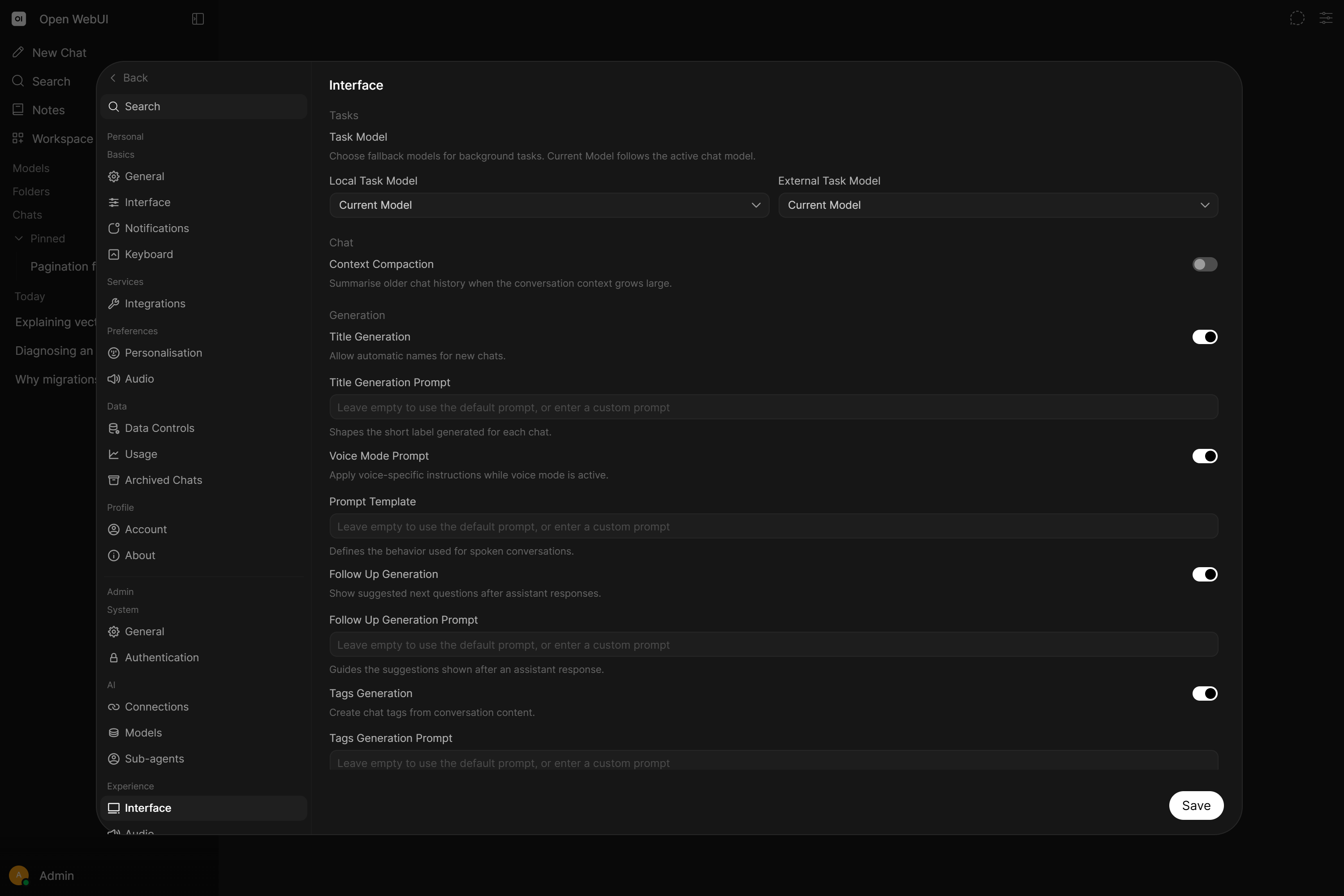
Recommendation: Use a very fast, small, and cheap NON-REASONING model for these tasks. Avoid a large reasoning model: it spends seconds thinking, and charges you for those thinking tokens, before producing a three word chat title. Every major provider offers a small tier that suits this far better than its flagship.
Good options:
- External/Cloud:
gpt-5.6-luna,gemini-3.5-flash-lite,claude-haiku-4-5-20251001(OpenAI, Google and Anthropic directly, or the same models through OpenRouter). - Local:
qwen3.5:2b,gemma4:e2b,llama3.2:3b.
Configuration: the two model pickers, the parameters those background requests are sent with, and the switches for turning individual tasks off are all in Settings > Admin > Interface. See Task Models for the walkthrough.
2. Caching & Latency Optimization
Configure these settings to reduce latency and external API usage.
Model Caching
Drastically reduces startup time and API calls to external providers.
If you are using OpenRouter or any provider with hundreds/thousands of models, enabling model caching is highly recommended. Without caching, initial page loads can take 10-15+ seconds as the application queries all available models. Enabling the cache reduces this to near-instant.
-
Admin Panel:
Settings > Admin > Connections > Cache Base Model List -
Env Var:
ENABLE_BASE_MODELS_CACHE=True- Note: Caches the list of models in memory. Only refreshes on App Restart or when clicking Save in Connections settings.
-
Env Var:
MODELS_CACHE_TTL=300- Note: Sets a 5-minute cache for external API responses.
Search Query Caching
Reuses the LLM-generated Web-Search search queries for RAG search within the same chat turn. This prevents redundant LLM calls when multiple retrieval features act on the same user prompt.
- Env Var:
ENABLE_QUERIES_CACHE=True- Note: If enabled, the same search query will be reused for RAG instead of generating new queries for RAG, saving on inference cost and API calls, thus improving performance.
📦 Database Optimization
For high-scale deployments, your database configuration is the single most critical factor for stability.
PostgreSQL (Mandatory for Scale)
For any multi-user or high-concurrency setup, PostgreSQL is mandatory. SQLite (the default) is not designed for high concurrency and will become a bottleneck (database locking errors).
- Variable:
DATABASE_URL - Example:
postgres://user:password@localhost:5432/webui
Chat Saving Strategy
By default, Open WebUI saves chats after generation is complete. While saving in real-time (token by token) is possible, it creates massive database write pressure and is strongly discouraged.
- Env Var:
ENABLE_REALTIME_CHAT_SAVE=False(Default) - Effect: Chats are saved only when the generation is complete (or periodically).
- Recommendation: DO NOT ENABLE
ENABLE_REALTIME_CHAT_SAVEin production. It is highly recommended to keep thisFalseto prevent database connection exhaustion and severe performance degradation under concurrent load. See the Environment Variable Configuration for details.
User Active-Status Write Throttling (set this on every deployment)
Open WebUI tracks online/"active" presence by writing each user's last_active_at timestamp to the database. Unthrottled, that means essentially every authenticated request issues its own UPDATE users SET last_active_at = ... plus a COMMIT, a continuous flood of tiny write transactions that amplifies database load and consumes connection-pool capacity for zero functional benefit, since presence only needs about minute granularity.
- Env Var:
DATABASE_USER_ACTIVE_STATUS_UPDATE_INTERVAL - Default:
60seconds, so the throttling is already in place - Recommendation:
120. It halves the presence writes again and still leaves a full minute of headroom inside the window, so an active user is never missed. The default of60is fine too if you would rather not set anything. Keep it below180: active presence counts users whose timestamp falls in the last 180 seconds, so an interval at or above that lets a user age out of the count between writes and the active-user figure oscillates instead of holding steady. Setting it to0disables throttling entirely and restores the per-request write. SeeDATABASE_USER_ACTIVE_STATUS_UPDATE_INTERVAL.
Database Session Sharing
Starting with v0.7.1, Open WebUI includes a database session sharing feature that can improve performance under high concurrency by reusing database sessions instead of creating new ones for each request.
- Env Var:
DATABASE_ENABLE_SESSION_SHARING - Default:
False
- SQLite: Keep this setting disabled (default). Enabling session sharing on SQLite with limited hardware resources may cause severe performance degradation or timeouts.
- PostgreSQL with adequate resources: Consider enabling this setting for improved performance, especially in multi-user or high-concurrency deployments.
If you upgraded to v0.7.0 and experienced slow admin page loads, API timeouts, or unresponsive UI, this was likely caused by database session sharing being enabled. Ensure DATABASE_ENABLE_SESSION_SHARING=False on low-spec hardware (Raspberry Pi, containers with limited CPU allocation like 250m or less).
Connection Pool Sizing
For high-concurrency PostgreSQL deployments, the default connection pool settings may be insufficient. If you experience QueuePool limit reached errors or connection timeouts, increase the pool size:
- Env Var:
DATABASE_POOL_SIZE=15(default: uses SQLAlchemy defaults) - Env Var:
DATABASE_POOL_MAX_OVERFLOW=20(default: 0)
Important: The combined total (DATABASE_POOL_SIZE + DATABASE_POOL_MAX_OVERFLOW) should remain well below your database's max_connections limit. PostgreSQL defaults to 100 max connections, so keep the combined total under 50-80 per Open WebUI instance to leave room for other clients and maintenance operations.
Vector Database (RAG)
For multi-user setups, the choice of Vector DB matters.
A knowledge base search runs without holding up the worker that issued it, so everyone else's responses keep streaming while it is in flight, and several collections are searched at the same time rather than one after another. A slow vector database therefore costs the chat that is searching rather than every user on that worker. It still has to cope with being reached by several workers or replicas at once, which is what the choices below are about.
- ChromaDB (Default): NOT SAFE for multi-worker (
UVICORN_WORKERS > 1) or multi-replica deployments. The default ChromaDB configuration uses a localPersistentClientbacked by SQLite. SQLite connections are not fork-safe: when uvicorn forks multiple workers, each process inherits the same database connection, and concurrent writes cause instant worker crashes (Child process died) or database corruption. This is a fundamental SQLite limitation, not a bug. See the Scaling & HA troubleshooting guide for the full crash sequence and solutions. - Recommendations:
- Milvus or Qdrant: Best for improved scale and performance, when run as servers. A server deployment is safe for multi-process access, because every worker talks to it over the network.
- Milvus Lite: for small single-worker deployments whose knowledge base is small and stays roughly the same size, where it uses less disk and less memory than local ChromaDB. Avoid it if you upload documents in bulk or keep adding files over time: the duplicate check Open WebUI runs before every upload scans the whole collection on Milvus Lite, so ingestion gets slower the more you have stored. See Swap ChromaDB for Milvus Lite for the measurements. A Milvus server remains the right choice for anything larger, and Milvus Lite is embedded, so it carries the same multi-process restriction as local ChromaDB. Point
MILVUS_URIat a Milvus server before raisingUVICORN_WORKERSor adding replicas. - PGVector: Excellent choice if you are already using PostgreSQL. Also fully multi-process safe.
- ChromaDB HTTP mode: If you want to keep using ChromaDB, run it as a separate server so Open WebUI connects via HTTP instead of local SQLite.
- Multitenancy: If using Milvus or Qdrant, enabling multitenancy offers better resource sharing.
ENABLE_MILVUS_MULTITENANCY_MODE=TrueENABLE_QDRANT_MULTITENANCY_MODE=True
Content Extraction Engine
The default content extraction engine uses Python libraries including pypdf, which are known to have persistent memory leaks during document ingestion. In production deployments with regular document uploads, this will cause Open WebUI's memory usage to grow continuously until the process is killed or the container is restarted.
This is the #1 cause of unexplained memory growth in production deployments.
Recommendation: Switch to an external content extraction engine for any deployment that processes documents regularly:
| Engine | Best For | Configuration |
|---|---|---|
| Apache Tika | General-purpose, widely used, handles most document types | CONTENT_EXTRACTION_ENGINE=tika + TIKA_SERVER_URL=http://tika:9998 |
| Docling | High-quality extraction with layout-aware parsing | CONTENT_EXTRACTION_ENGINE=docling |
| PaddleOCR-vl | OCR-heavy workloads (scanned PDFs, images, mixed layouts); self-hosted vision-language OCR | CONTENT_EXTRACTION_ENGINE=paddleocr_vl + PADDLEOCR_VL_BASE_URL=http://paddleocr-vl:8080 + PADDLEOCR_VL_TOKEN=... |
| Any other External Loader | Recommended for production and custom extraction pipelines | CONTENT_EXTRACTION_ENGINE=external + EXTERNAL_DOCUMENT_LOADER_URL=... |
Using an external extractor moves the memory-intensive parsing out of the Open WebUI process entirely, eliminating this class of memory leaks.
Embedding Engine
The default SentenceTransformers embedding engine (all-MiniLM-L6-v2) loads a machine learning model into the Open WebUI process memory. While lightweight enough for personal use, at scale this model:
- Consumes significant RAM (~500MB+ per worker process)
- Blocks the event loop during embedding operations on older versions
- Multiplies with workers: each Uvicorn worker loads its own copy of the model
For multi-user or production deployments, offload embeddings to an external service.
- Recommended: Use
RAG_EMBEDDING_ENGINE=openai(for cloud embeddings via OpenAI, Azure, or compatible APIs) orRAG_EMBEDDING_ENGINE=ollama(for self-hosted embedding via Ollama with models likenomic-embed-text). - Env Var:
RAG_EMBEDDING_ENGINE=openai - Effect: The embedding model is no longer loaded into the Open WebUI process, freeing hundreds of MB of RAM per worker.
Optimizing Document Chunking
The way your documents are chunked directly impacts both storage efficiency and retrieval quality.
- Use Markdown Header Splitting: This preserves the semantic structure of your documents.
- Set a Chunk Min Size Target: When using the markdown header splitter, tiny chunks (e.g., just a single sub-header) can be created. These are inefficient to store and poor for retrieval.
- Env Var:
CHUNK_MIN_SIZE_TARGET=1000(Example value) - Benefit: Intelligently merges small chunks with neighbors, significantly reducing the total vector count and improving RAG performance.
- Env Var:
📈 Scaling Infrastructure (Multi-Tenancy & Kubernetes)
If you are deploying for enterprise scale (hundreds of users), simple Docker Compose setups may not suffice. You will need to move to a clustered environment.
For a step-by-step walkthrough of the entire scaling journey (PostgreSQL, Redis, vector DB, storage, observability), see the Scaling Open WebUI guide.
- Kubernetes / Helm: For deploying on K8s with multiple replicas, see the Multi-Replica & High Availability Guide.
- Redis (Mandatory): When running multiple workers (
UVICORN_WORKERS > 1) or multiple replicas, Redis is required to handle WebSocket connections and session syncing. See Redis Integration. - Load Balancing: Ensure your Ingress controller supports Session Affinity (Sticky Sessions) for best performance.
- Reverse Proxy Caching: Configure your reverse proxy (e.g., Nginx, Caddy, Cloudflare) to cache static assets (JS, CSS, Images). This significantly reduces load on the application server. See Nginx Config or Caddy Config.
- Disable Proxy Buffering (Critical for Streaming): If using Nginx, you must disable
proxy_bufferingfor Open WebUI. Proxy buffering re-chunks SSE streams, causing garbled markdown and slow streaming. Addproxy_buffering off;andproxy_cache off;to your location block. See Streaming Troubleshooting.
⚡ High-Concurrency & Network Optimization
For setups with many simultaneous users, these settings are crucial to prevent bottlenecks.
Batch Streaming Tokens
By default, Open WebUI streams every single token arriving from the LLM. High-frequency streaming increases network IO and CPU usage on the server. If real-time saving is enabled (which is strongly discouraged), it also destroys database performance.
Increasing the chunk size buffers these updates, sending them to the client in larger groups. The only downside is a slightly choppier UI experience when streaming the response, but it can make a big difference in performance.
- Env Var:
CHAT_RESPONSE_STREAM_DELTA_CHUNK_SIZE=7- Recommendation: Set to 5-10 for high-concurrency instances.
HTTP Response Compression
By default, Open WebUI compresses HTTP responses (JSON API responses and the static JS/CSS assets of the web UI) with ZStd/Brotli/Gzip inside the application itself. This costs CPU on every worker: profiling (py-spy) of production deployments shows roughly 3–4% of worker CPU time spent in the compression middleware. Disabling it frees that CPU and slightly reduces response latency.
- What it does NOT affect: WebSocket (Socket.IO) traffic and streaming chat responses (SSE) are never compressed by this middleware, so the chat streaming hot path is unaffected either way. Only regular HTTP responses larger than 500 bytes with compressible content types are involved.
- When to disable: Your reverse proxy / load balancer / CDN already compresses responses (preferred: enable it there and turn it off in the app), or your users reach the instance over a fast/local network where the extra transfer size doesn't matter.
- When to keep it on: The backend is directly internet-facing with nothing in front of it that compresses, and users connect over slow or mobile links. Uncompressed, the first (uncached) page load transfers several megabytes more, and large payloads like long chat histories or big model lists grow 5–10×.
- Env Var:
ENABLE_COMPRESSION_MIDDLEWARE=false
- Recommended companion: When you disable app-side compression in favor of the proxy, also have the proxy cache the static assets aggressively. Open WebUI's JS/CSS bundles live under
/_app/immutable/with content-hashed filenames, so they can be cached withCache-Control: public, max-age=31536000, immutableand served from the proxy cache without ever hitting a worker, which eliminates the "larger first page load" downside for every visit after the first. See Scaling → Pair It with Static Asset Caching at the Proxy for a ready-made Nginx snippet.
See ENABLE_COMPRESSION_MIDDLEWARE for the full trade-off discussion.
Streamed Response Assembly
Open WebUI rebuilds a response's text on every chunk that arrives, copying everything received so far each time. The cost grows with the square of the answer length, and it is spent on the event loop, so one worker assembling a very long answer holds up every other stream it is serving. Growing the text in place instead removes the copying, and lowers peak memory with it, since a copy needs the old and the new string in memory at once.
- Env Var:
ENABLE_CHAT_RESPONSE_STREAM_INPLACE_APPEND=true
- Recommendation: turn it on wherever long answers are normal (agent transcripts, large code dumps, long tool output) and several of them stream at once. An ordinary chat answer is sub-millisecond either way, so a small instance will not notice.
- What you give up: if an append fails because memory is exhausted, that one message is left empty instead of holding the text collected so far. Getting there needs an allocation to be refused rather than the process being killed, which a container memory limit does not do, and the default path needs more memory at that point anyway.
See ENABLE_CHAT_RESPONSE_STREAM_INPLACE_APPEND for the full description.
WebSocket Frame Compression
The HTTP middleware above never touches WebSocket traffic, but the WebSocket server compresses frames on its own, and that is the one worth disabling under streaming load. Chat responses arrive as a very small frame per token, so each is compressed separately, for every subscriber, with almost nothing to gain at that size. Under heavy streaming this shows up as measurable worker CPU.
- Env Var:
UVICORN_WS_PER_MESSAGE_DEFLATE=false
- What you give up: the frames that did compress well are the rare large ones, a finished message or a set of sources, and even a very long reply is only a few hundred kilobytes uncompressed, which any network carries without a noticeable delay.
- Default: enabled, matching the behaviour before the setting existed, so nothing changes until you turn it off.
See UVICORN_WS_PER_MESSAGE_DEFLATE for the full description.
WebSocket Heartbeats
Every connected browser tells the server it is still there on a fixed interval, thirty seconds by default. That is one small message per open tab, so an instance holding thousands of idle tabs spends real time on messages that carry nothing.
- Env Var:
WEBSOCKET_HEARTBEAT_INTERVAL=60
- What it costs: the server holds a presence entry for four times the interval, or 120 seconds, whichever is larger, so a user who closes their laptop shows as active for longer before dropping out of the active-user count.
- Range: values are held between
5and90. The setting is sent to the browser, so it applies without rebuilding the frontend.
See WEBSOCKET_HEARTBEAT_INTERVAL.
JSON Encoder
Open WebUI encodes and decodes JSON constantly: every request body, every API response, every chat saved and opened again, every request sent on to a provider, every chunk of a streamed completion arriving back and every Socket.IO event, including the ones published over Redis when you run multiple workers or replicas. From v0.12.0 all of that goes through orjson, a Rust implementation several times faster than Python's standard-library json module. On v0.11.0 to v0.11.4, set ENABLE_ORJSON=True to switch to it; it is already installed as a dependency.
- Where the win is: the Socket.IO encoding path. In clustered deployments, encoding live updates was the single largest cost measured on the workers handling them. Streaming responses benefit too, since every arriving chunk is parsed individually.
- Where else it shows up: saving and opening chats, so the cost follows the length of the chat.
- Where it is not: a single-user instance with ordinary-sized chats.
- Why it was opt-in before v0.12.0: anything orjson cannot encode falls back to the standard library automatically, so nothing breaks, but the old default kept behaviour identical to earlier releases. One change to know about:
NaNandInfinityfloats serialize asnull; the standard library raises an error.
- Env Var:
ENABLE_ORJSON=True- Recommendation: on by default from v0.12.0; leave it on. On v0.11.x, enable it on any Redis-backed multi-worker or multi-replica deployment (requires a restart).
See Multi-Replica → Use the Faster JSON Encoder for the full breakdown, and ENABLE_ORJSON for the variable itself.
Log Level
Messages the level filters out are never built, so raising it saves CPU as well as log volume, most on busy servers and on chats drawing from a large knowledge base. WARNING also drops the INFO lines recording startup, key events and request handling, so keep INFO if your log aggregator relies on them.
- Env Var:
GLOBAL_LOG_LEVEL=WARNING- Recommendation: try it on a busy instance that does not depend on the
INFOlines. Never leaveDEBUGon in production, it is the most expensive level to run. Requires a restart.
- Recommendation: try it on a busy instance that does not depend on the
See What the Log Level Costs for the full explanation.
Thread Pool Size
Caps how many concurrent blocking operations (sync DB calls, file I/O, sync route handlers offloaded via run_in_threadpool) may run at once. This is a concurrency ceiling, not a fixed pool of pre-spawned OS threads and not a CPU-core/thread count. Threads are created lazily and reused, so a high value does not spawn that many threads, burn CPU, or cause CPU contention while idle.
- Default: 40 (the AnyIO default, far too low for production)
- Normal servers / production: 2000+.
2000is a lower bound for very large instances; going higher is fine and is not a CPU/contention risk. - Symptom if too low: when more than
THREAD_POOL_SIZEblocking ops are needed at once (many users at the same time, or a few users each triggering several blocking calls), further requests queue and the whole app appears to hang/freeze even though CPU and RAM look fine. This is pool starvation, not resource exhaustion. - Warning: NEVER decrease below the default. An idle high ceiling costs effectively nothing.
- Exception, weak hardware (Raspberry Pi, tiny VPS, containers capped at ~250m CPU / very low RAM): do not set
2000. Each genuinely concurrent blocking op still uses a real OS thread (stack memory), so on a tiny device a huge ceiling lets a traffic burst exhaust RAM. Leave it at the default or a modest few-hundred value matched to the device. Any normal server should use2000+.
- Env Var:
THREAD_POOL_SIZE=2000
See THREAD_POOL_SIZE for the full explanation.
AIOHTTP Client Timeouts
Long LLM completions can exceed default HTTP client timeouts. Configure these to prevent requests being cut off mid-response:
- Env Var:
AIOHTTP_CLIENT_TIMEOUT=1800(30 minutes for completions) - Env Var:
AIOHTTP_CLIENT_TIMEOUT_MODEL_LIST=15(shorter for model listing) - Env Var:
AIOHTTP_CLIENT_TIMEOUT_OPENAI_MODEL_LIST=15
DNS Resolver
By default Open WebUI asks the operating system to resolve hostnames, and those lookups queue behind each other and behind other background work, so under load a lookup that should take milliseconds delays the request it belongs to. The c-ares resolver does not queue, so many simultaneous lookups take about as long as one. The win is largest on instances making many outbound requests at once and invisible on a quiet one.
- Env Var:
AIOHTTP_CLIENT_ASYNC_DNS_RESOLVER=True- Recommendation: try it, then exercise your models, web search and any internal services and switch it back off if lookups start failing. Requires a restart.
c-ares reads fewer name sources than the operating system does, so read AIOHTTP_CLIENT_ASYNC_DNS_RESOLVER before leaving it on. See Intermittent Name Lookup Failures if you are debugging lookups that fail on and off.
Container Resource Limits
For Docker deployments, ensure adequate resource allocation:
deploy:
  resources:
    limits:
      memory: 8G      # Adjust based on usage
      cpus: '4.0'
    reservations:
      memory: 4G
      cpus: '2.0'

# Increase file descriptor limits
ulimits:
  nofile:
    soft: 65536
    hard: 65536
Diagnosis commands:
# Check container resource usage
docker stats openwebui --no-stream

# Check connection states
docker exec openwebui netstat -an | grep -E "ESTABLISHED|TIME_WAIT|CLOSE_WAIT" | sort | uniq -c

# Check open file descriptors
docker exec openwebui ls -la /proc/1/fd | wc -l
☁️ Cloud Infrastructure Latency
When deploying Open WebUI in cloud Kubernetes environments (AKS, EKS, GKE), you may notice significant performance degradation compared to local Kubernetes (Rancher Desktop, kind, Minikube) or bare-metal deployments, even with identical resource allocations. This is almost always caused by latency in the underlying infrastructure.
Network Latency (Database & Services)
The most common cause of cloud performance issues is network latency between Open WebUI and its database.
Many cloud deployments place the database on a separate node, availability zone, or even a managed database service. While this is architecturally sound, it introduces latency to every single database query. Open WebUI makes multiple database calls per request, so even 10-20ms of network latency per query can compound into multi-second response times under concurrent load.
Symptoms:
- Health check endpoints show high response times instead of being near-instant.
- Simple API calls or normal chat completions become sluggish under concurrent load, even when CPU and Memory usage appear low.
- Significant performance gap between local development/testing and cloud production environments.
Diagnosis:
- Check network latency between your Open WebUI pod and your database. From within the pod:
# For PostgreSQL psql -h <db-host> -U <user> -c "SELECT 1" -d <database> # Or use ping/nc to check raw latency nc -zv <db-host> 5432 - Ideal Latency Target: You should aim for 1-2ms or lower for database queries. If network latency to your database exceeds 5ms, it is highly not recommended for production deployments and will likely be your primary performance bottleneck.
Solutions:
- Co-locate services: Deploy Open WebUI and PostgreSQL in the same availability zone, or even on the same node pool if possible, to minimize network hops.
- Managed DB Consideration: Note that "one-click" managed database solutions in the cloud, while scalable, often introduce significant network latency compared to a self-hosted DB on the same node. This tradeoff must be carefully considered.
- Enable caching: Use
ENABLE_BASE_MODELS_CACHE=Trueand other caching options to reduce the frequency of database queries. - Reduce database writes: Set
ENABLE_REALTIME_CHAT_SAVE=Falseto batch database updates and reduce IOPS pressure.
Disk I/O Latency (SQLite & Storage)
If you're using SQLite (the default) in a cloud environment, you may be trading network latency for disk latency.
Cloud storage (Azure Disks, AWS EBS, GCP Persistent Disks) often has significantly higher latency and lower IOPS than local NVMe/SSD storage, especially on lower-tier storage classes.
This restriction does not come from Open WebUI. It comes from SQLite upstream. The SQLite project officially states that SQLite databases on network filesystems (NFS, SMB/CIFS, and similar) are not supported: file locking over those protocols is unreliable, and concurrent writers can corrupt the database. The SQLite documentation explicitly warns against it, and Open WebUI inherits that constraint because it uses SQLite.
As a consequence, for Open WebUI the only supported storage configurations are:
- PostgreSQL: recommended for any multi-user deployment and required for anything not on a directly-attached local SSD. This sidesteps the SQLite-on-network-storage problem entirely. Or
- SQLite on a directly-attached SSD / NVMe: single-user / small deployments only. Must be a local disk on the host; SQLite upstream's guidance applies regardless of the application.
Not supported for SQLite (per SQLite's own documentation, not an Open WebUI policy): NFS, SMB/CIFS, Azure Files, GlusterFS, CephFS, object-storage-backed FUSE mounts, network PVCs, any remote or low-IOPS storage. This includes Docker bind mounts and Kubernetes PersistentVolumeClaims backed by those filesystems. Beyond the performance symptoms below, you are risking database corruption, again, per SQLite, not us.
If your storage is anything other than a local SSD/NVMe, use PostgreSQL.
Typical symptoms after upgrading to releases that use the async SQLite driver:
/api/configtakes 10 to 20+ seconds on every request/api/v1/chats/?page=1and other list endpoints stall for minutes under load- OIDC / SSO callbacks hang or "spin" when redirecting back to Open WebUI
- Large (multi-second) gaps in DEBUG logs between
aiosqliteandhttpcorelines PRAGMA journal_mode=WALstarts but never completes in logs
Older synchronous SQLAlchemy releases (≤ 0.8.12) serialized contention in-process, which masked slow storage. The async driver opens connections across threads and hammers the filesystem, so network-attached storage degradation becomes immediately visible.
Why the async backend makes network-storage SQLite fail suddenly
If you upgraded from 0.8.x to 0.9.x and nothing else changed in your deployment, the mechanism below is why things broke. Worth understanding because DATABASE_POOL_SIZE and friends are symptom-adjacent, not cures.
The core thing is fsync(). SQLite's durability guarantee is a synchronous flush on every commit. fsync latency depends entirely on where the file lives:
| Storage | Typical fsync latency |
|---|---|
| Local NVMe | ~100 μs |
| Local SATA SSD | 100 μs to a few ms |
| Local HDD | ~10 ms |
| NFS / CephFS / Azure Files (SSD-backed) | 50 to 500 ms |
| NFS (HDD-backed or high-latency) | hundreds of ms to multiple seconds |
The latency is identical in sync and async code. What changes is how many concurrent fsyncs are in flight at once.
Old world, sync SQLAlchemy (0.8.x): DB calls ran on FastAPI's ~40-thread worker pool. That pool was a natural throttle: you could never have more than ~40 concurrent SQLite operations. Slow storage made individual requests slow, but the thread pool created backpressure before anything collapsed. Users saw "the app is slow," not "the app is dead."
New world, async aiosqlite (0.9.x): No thread-pool ceiling. The asyncio loop schedules thousands of DB coroutines in parallel, each trying to check out a connection from the SQLAlchemy async pool (default pool_size=5 + max_overflow=10 = 15 connections). On local SSD, a connection checks out, fsyncs in ~1 ms, returns to the pool: churn is fast, 15 slots is plenty. On NFS/CephFS, the same connection blocks for hundreds of ms on fsync, stays checked out the whole time, and the pool saturates almost instantly. Every subsequent request waits pool_timeout (30 s) and then fails with:
sqlalchemy.exc.TimeoutError: QueuePool limit of size 5 overflow 10 reached,
connection timed out, timeout 30.00
Increasing DATABASE_POOL_SIZE just moves the breaking point. More connections means more concurrent slow fsyncs against the same slow storage: the filesystem is still the bottleneck, and you can't pool your way past it.
And WAL over NFS is specifically broken. SQLite's WAL mode uses an mmap-backed -shm file for cross-process coordination. SQLite upstream says plainly that mmap on NFS is unreliable: some NFS versions don't support it at all. Under low concurrency it was merely slow; under async concurrency you can hit actual locking pathologies (deadlocks, PRAGMA journal_mode=WAL that starts and never completes, multi-minute stalls on trivial queries).
Why Postgres is the fix, not a bigger pool: the Postgres server manages its own I/O concurrency against its own local storage. Your app hits it over a network socket, but that hop is orders of magnitude cheaper than NFS fsync, and Postgres was designed from day one for concurrent writers: no file-level locking, no cross-process mmap coordination, no WAL-on-network-FS caveats. A dedicated async driver (asyncpg) talks to it directly. That's the only database shape that actually composes with async concurrency when the storage isn't guaranteed-fast-local.
The one-line summary: sync backends throttled concurrency through thread pools, so slow storage just made things slow. Async backends allow massive concurrency, which means slow fsyncs stack up, connections stay checked out longer, the pool saturates, and the whole thing wedges. The same storage was tolerable before because the app wasn't asking it to do 20 concurrent fsyncs.
SQLite is particularly sensitive to disk performance because it performs synchronous writes. Moving from local SSDs to a network share can increase latency by 10x or more per operation.
Symptoms:
- Performance is acceptable with a single user but degrades rapidly as concurrency increases.
- High "I/O Wait" on the server despite low CPU usage.
Solutions (in order of robustness):
- Best, migrate to PostgreSQL. This is the recommended fix for any deployment that is not strictly single-user on a local disk, and it is required for any deployment on remote / network / low-IOPS storage. Set:
PostgreSQL removes the fsync-per-connection pathology entirely because the database process owns its own storage, and it is the only supported option for multi-user workloads.
DATABASE_URL=postgresql+asyncpg://user:password@host:5432/webui - Acceptable, move
webui.dbonto directly-attached local SSD/NVMe. Only appropriate for single-user or very small deployments. Bind-mount a directory on the host's local SSD/NVMe into/app/backend/data. Do not use NFS, SMB, Azure Files, or any network-backed storage class, not even "high-performance" network block storage. SQLite was not designed for network filesystems and will always be slow on them. - Temporary workaround only, keep SQLite on NFS with reduced concurrency. If you cannot immediately move storage or switch databases, set:
DATABASE_POOL_SIZE=1 DATABASE_SQLITE_PRAGMA_BUSY_TIMEOUT=30000DATABASE_POOL_SIZE=1forces a single serialized async connection, trading concurrency for stability.DATABASE_SQLITE_PRAGMA_BUSY_TIMEOUT=30000gives SQLite 30 seconds to acquire locks, which NFS can take much longer to grant than local disk. This is not a supported long-term configuration: expect degraded throughput, intermittent stalls, and potential corruption. Plan to migrate to PostgreSQL or local SSD as soon as possible. A warm pool may briefly appear fine after restart, but the problem returns under load. - Cloud block storage: When using cloud block storage for the Open WebUI data volume (for PostgreSQL or the application itself), use SSD-backed Block Storage classes (e.g.,
Premium_LRSon Azure Disks,gp3on AWS EBS,pd-ssdon GCP). Avoid "File" based storage classes (likeazurefile-csi) for any database workload, including SQLite.
Other Cloud-Specific Considerations
| Factor | Impact | Mitigation |
|---|---|---|
| Burstable VMs (e.g., Azure B-series, AWS T-series) | CPU throttling under sustained load, even at low reported usage | Use standard/compute-optimized node pools |
| DNS Resolution | CoreDNS overhead on every external request | Ensure CoreDNS is properly scaled; consider node-local DNS cache |
| Service Mesh Sidecars | Istio/Linkerd proxies add latency to every request | Check for unexpected sidecar containers in your pods |
| Network Policies | CNI processing overhead | Audit and simplify network policies if possible |
| Cross-Zone Traffic | Latency + egress costs when services span zones | Pin services to the same availability zone |
📉 Resource Efficiency (Reducing RAM)
If deploying on memory-constrained devices (Raspberry Pi, small VPS), use these strategies to prevent the application from crashing due to OOM (Out of Memory) errors.
1. Offload Auxiliary Models (Local Deployments Only)
Open WebUI loads local ML models for features like RAG and STT. This section is only relevant if you are running models LOCALLY.
RAG Embeddings
-
Low-Spec Recommendation:
- Option A (Easiest): Keep the default SentenceTransformers (all-MiniLM-L6-v2). It is lightweight, runs on CPU, and is significantly more efficient than running a full Ollama instance on the same Raspberry Pi.
- Option B (Best Performance): Use an External API (OpenAI/Cloud).
-
Configuration:
- Admin Panel:
Settings > Admin > Documents > Embedding Model Engine - Env Var:
RAG_EMBEDDING_ENGINE=openai(to offload completely)
- Admin Panel:
Speech-to-Text (STT)
Local Whisper models are heavy (~500MB+ RAM).
-
Recommendation: Use WebAPI (Browser-based). It uses the user's device capabilities, costing 0 server RAM.
-
Configuration:
- Admin Panel:
Settings > Admin > Audio > STT Engine - Env Var:
AUDIO_STT_ENGINE=webapi
- Admin Panel:
-
Bypass Audio Preprocessing (offload to the STT provider): If you use an external STT engine (OpenAI, Deepgram, Azure, Mistral) that already accepts raw audio and handles format conversion on its side, set
BYPASS_PYDUB_PREPROCESSING=true. This skips Open WebUI's pydub-based MP3 conversion, compression, and chunk splitting, eliminating a CPU-heavy step on every upload, removing the ffmpeg dependency, and reducing latency on large files. Only disable preprocessing when you are confident the upstream provider handles unprocessed audio correctly.
4. Swap ChromaDB for Milvus Lite (Small Deployments)
On a Raspberry Pi or a small VPS, the default local ChromaDB is usually the largest thing in the process after the models. Milvus Lite is an embedded database like ChromaDB, needs no server and no extra container, and holds the same content in noticeably less disk and less resident memory. Read the limit below before switching, because it rules out any deployment that ingests documents in bulk.
The disk and memory saving only pays off on a knowledge base that is small and stays roughly the same size. If you plan to upload a large corpus, or to keep adding files over time, stay on ChromaDB or use a Milvus server.
Open WebUI looks up the content hash of a file before storing it, so that the same document is not indexed twice. That lookup filters on a metadata field, and Milvus Lite keeps no index on metadata, so it reads the entire collection every time. Adding one file therefore costs more the more you already have stored, and the time to ingest a whole corpus grows with the square of its size.
Measured against a local Milvus Lite database using Open WebUI's own collection schema (milvus-lite 3.2.1, pymilvus 2.6.14, Open WebUI 0.11.1), a single hash lookup takes:
| Rows in the collection | Time for one lookup |
|---|---|
| 500 | 0.72s |
| 1,000 | 1.43s |
| 2,000 | 2.94s |
| 3,000 | 4.51s |
| 4,000 | 7.94s |
The same lookup on ChromaDB stays flat at every size (0.024s at 500 rows, 0.002s at 4,000), because ChromaDB keeps metadata in SQLite with an index on it.
End to end on the same machine, the same settings and the same embedding provider, ingesting markdown files ran at 8 files per minute on Milvus Lite and fell below 5 as the collection grew, against 200 to 368 files per minute on ChromaDB. Extrapolating the measured per-row cost, a 28,000 file corpus would take roughly 170 hours on Milvus Lite.
This concerns ingestion. Search performance was not measured, and neither was a Milvus server, which is a different deployment from the embedded Milvus Lite described here.
The saving comes from multitenancy, so enable it together with the switch:
VECTOR_DB=milvus
ENABLE_MILVUS_MULTITENANCY_MODE=True
Leave MILVUS_URI unset. The default already points at the embedded database inside your data directory, and setting the variable to that path stops the application from starting. See MILVUS_URI for why, and for the directory that has to exist first.
With multitenancy on, users share one set of collections and each user's vectors are partitioned inside them. Without it, every user and every knowledge base gets its own collection, which is what makes the footprint grow far faster than the content does. On a device where storage is small or billed, this is usually the single biggest reduction available after offloading the embedding model.
This applies to single-worker deployments. Milvus Lite is a file held by one process, so raising UVICORN_WORKERS or adding replicas requires a Milvus server instead.
2. Disable Unused Features
Prevent the application from loading local models you don't use.
- Image Generation:
ENABLE_IMAGE_GENERATION=False(Admin:Settings > Admin > Images) - Code Interpreter:
ENABLE_CODE_INTERPRETER=False(Admin:Settings > Admin > Code Execution)
3. Disable Background Tasks
If resource usage is critical, disable automated features that constantly trigger model inference.
Recommendation order (Highest Impact first):
- Autocomplete:
ENABLE_AUTOCOMPLETE_GENERATION=False(High Impact: Triggers on every keystroke!)- Admin:
Settings > Admin > Interface > Autocomplete
- Admin:
- Follow-up Questions:
ENABLE_FOLLOW_UP_GENERATION=False- Admin:
Settings > Admin > Interface > Follow-up
- Admin:
- Title Generation:
ENABLE_TITLE_GENERATION=False- Admin:
Settings > Admin > Interface > Chat Title
- Admin:
- Tag Generation:
ENABLE_TAGS_GENERATION=False
4. SQLite Memory Footprint on Constrained Containers
This one applies even on fast local SSD/NVMe. It is a RAM problem, not a storage-latency one (for the latency/corruption problem on network storage, see Disk I/O Latency instead). It is the most common cause of "the container gets OOM-killed when I edit model or knowledge-base permissions" on small deployments.
On SQLite, when DATABASE_POOL_SIZE is left unset, current releases (0.9.x, async DB backend) do not fall back to SQLAlchemy's small default pool. They fall back to a large internal pool (currently 512 connections). Each pooled connection independently:
- lazily grows its own SQLite page cache up to the
DATABASE_SQLITE_PRAGMA_CACHE_SIZEcap. The default-65536is roughly 64 MB of committed RAM per connection. - memory-maps the database file up to
DATABASE_SQLITE_PRAGMA_MMAP_SIZE, default 256 MB per connection. This is mostly virtual and file-backed rather than committed anonymous RAM, but it inflatestotal-vmenormously and the resident portion still counts against a cgroup memory limit. - runs on its own OS thread (the async SQLite driver is one thread per connection), adding thread-stack address space.
Peak memory therefore scales with the number of simultaneously active connections, not with the size of any single query. A workflow that fans out many short-lived connections, for example editing model or knowledge-base access control and then reloading a long model list, can briefly drive dozens of connections live. On a small container the page caches alone (active connections times up to 64 MB) exceed the limit and the OOM killer terminates the process. A profiler (py-spy, memray) will attribute almost everything to aiosqlite/core.py, because that is the frame where each connection allocates its cache and materialises rows. That is the signature of many connections, not a leak inside the driver, and it is unrelated to the size of any remote vector database.
On any deployment with a tight memory limit (small VPS, Raspberry Pi, a Docker mem_limit of 1 to 2 GB), set these explicitly instead of relying on the defaults:
DATABASE_POOL_SIZE=8                       # cap the SQLite pool (unset falls back to 512)
DATABASE_SQLITE_PRAGMA_CACHE_SIZE=-2000    # ~2 MB page cache per connection instead of ~64 MB
DATABASE_SQLITE_PRAGMA_MMAP_SIZE=0         # disable the per-connection mmap window
Also give the container realistic headroom. 1 GB is very low for anything doing RAG or embeddings; aim for 2 GB or more. Keep DATABASE_ENABLE_SESSION_SHARING=False (the default) on low-spec hardware; turning it on is the wrong lever here and degrades SQLite on weak hardware (see Database Session Sharing).
For multi-user or growing deployments the durable fix is PostgreSQL, not SQLite tuning.
🚀 Recommended Configuration Profiles
Profile 1: Maximum Privacy (Weak Hardware/RPi)
Target: 100% Local, Raspberry Pi / <4GB RAM.
- Embeddings: Default (SentenceTransformers). Runs on CPU, lightweight.
- Audio:
AUDIO_STT_ENGINE=webapi. Zero server load. - Task Model: Disable, or use a tiny model (
qwen3.5:0.8b). - Scaling: Keep default
THREAD_POOL_SIZE(40). - Disable: Image Gen, Code Interpreter, Autocomplete, Follow-ups.
- Database: SQLite is fine, but cap its memory:
DATABASE_POOL_SIZE=8,DATABASE_SQLITE_PRAGMA_CACHE_SIZE=-2000,DATABASE_SQLITE_PRAGMA_MMAP_SIZE=0. The unset SQLite pool default is large (512); see SQLite Memory Footprint on Constrained Containers.
Profile 2: Single User Enthusiast
Target: Max Quality & Speed, Local + External APIs.
- Embeddings:
RAG_EMBEDDING_ENGINE=openai(orollamawithnomic-embed-texton a fast server). - Task Model:
gpt-5.6-lunaorgemini-3.5-flash-lite. - Caching:
MODELS_CACHE_TTL=300. - Database:
ENABLE_REALTIME_CHAT_SAVE=False(Keeping this disabled is recommended even for single users to ensure maximum stability). - Vector DB: PGVector (recommended) or ChromaDB (either is fine unless dealing with massive data).
Profile 3: High Scale / Enterprise
Target: Many concurrent users, Stability > Persistence.
- Database: PostgreSQL (Mandatory).
- Content Extraction: Tika, Docling, or any other external document loader (Mandatory: default pypdf leaks memory). See Content Extraction Engine.
- Embeddings: External:
RAG_EMBEDDING_ENGINE=openaiorollama(Mandatory: default SentenceTransformers consumes too much RAM at scale). See Embedding Engine. - Tool Calling: Native Mode (the default; Legacy Mode is unsupported and breaks KV cache). All models should be configured for Native Mode. See Tool Calling Modes.
- Workers:
THREAD_POOL_SIZE=2000(Prevent timeouts). - Streaming:
CHAT_RESPONSE_STREAM_DELTA_CHUNK_SIZE=7(Reduce CPU/Net/DB writes). - Chat Saving:
ENABLE_REALTIME_CHAT_SAVE=False. - Vector DB: Milvus, Qdrant, or PGVector. Do not use ChromaDB's default local mode: its SQLite backend will crash under multi-worker/multi-replica access.
- Task Model: External/Hosted (Offload compute).
- Caching:
ENABLE_BASE_MODELS_CACHE=True,MODELS_CACHE_TTL=300,ENABLE_QUERIES_CACHE=True. - Redis: Single instance with
timeout 1800and highmaxclients(10000+). See Redis Tuning below. - Compression:
ENABLE_COMPRESSION_MIDDLEWARE=Falseif your load balancer / ingress / CDN compresses responses (enable it there instead). Saves ~3–4% CPU on every worker. See HTTP Response Compression. - WebSocket Heartbeats:
WEBSOCKET_HEARTBEAT_INTERVAL=60. Halves the idle heartbeat traffic from every open tab, at the cost of a disconnected user lingering in the active count. See WebSocket Heartbeats. - WebSocket Compression:
UVICORN_WS_PER_MESSAGE_DEFLATE=false. Streaming sends one tiny frame per token, and compressing each of them costs CPU per subscriber for almost no saving. See WebSocket Frame Compression. - JSON Encoder:
ENABLE_ORJSON=True, on by default from v0.12.0; leave it on (on v0.11.x, set it yourself). Cuts the cost of the heaviest JSON work in a clustered deployment: encoding Socket.IO events, parsing streamed provider chunks and saving and opening whole chats. See JSON Encoder.
Redis Tuning
A single Redis instance is sufficient for the vast majority of deployments, including those with thousands of users. You almost certainly do not need Redis Cluster or Redis Sentinel unless you have specific HA requirements.
A response being streamed is held in Redis so a browser that reconnects can resume it, and the entry is deleted the moment that response finishes. What used to accumulate was the leftovers, entries whose cleanup never ran because the worker was killed mid-stream, which stayed forever. Those now expire after an hour, and REDIS_RESPONSE_STREAM_TTL shortens that where memory is tight or 0 restores the old unbounded behaviour. See REDIS_RESPONSE_STREAM_TTL.
Common Redis configuration issues that cause unnecessary scaling:
| Issue | Symptom | Fix |
|---|---|---|
| Stale connections | Redis runs out of connections or memory grows indefinitely | Set timeout 1800 in redis.conf (kills idle connections after 30 minutes) |
| Low maxclients | max number of clients reached errors | Set maxclients 10000 or higher |
| No connection limits | Open WebUI pods may accumulate connections that never close | Combine timeout with connection pool limits in your Redis client config |
| Low Pub/Sub output buffer limits | WebSocket streams stall, Cannot publish to redis... giving up, or Redis logs client output buffer disconnections when large Socket.IO events are published | Increase the Redis client-output-buffer-limit ... pubsub ... setting, sized for your websocket payloads and available Redis memory |
For Redis-backed websockets, Open WebUI uses Socket.IO over Redis Pub/Sub. Large streaming responses and tool events can create multi-MB PUBLISH socketio ... payloads. If Redis disconnects slow Pub/Sub clients, inspect:
redis-cli INFO stats | grep client_output_buffer_limit_disconnections
redis-cli SLOWLOG GET 50
redis-cli CONFIG GET client-output-buffer-limit
Example Redis configuration for deployments that need to tolerate large websocket bursts:
client-output-buffer-limit normal 0 0 0 replica 268435456 67108864 60 pubsub 1073741824 268435456 180
This keeps normal client limits disabled and raises Pub/Sub clients to a 1 GB hard limit and 256 MB soft limit for 180 seconds. Tune downward or upward based on Redis memory headroom and observed payload sizes.
⚠️ Common Anti-Patterns
These are real-world mistakes that cause organizations to massively over-provision infrastructure:
| Anti-Pattern | What Happens | Fix |
|---|---|---|
| Using default content extractor in production | pypdf leaks memory → containers restart constantly → you add more replicas to compensate | Switch to Tika or Docling (CONTENT_EXTRACTION_ENGINE=tika) |
| Running SentenceTransformers at scale | Each worker loads ~500MB embedding model → RAM usage explodes → you add more machines | Use external embeddings (RAG_EMBEDDING_ENGINE=openai or ollama) |
| Redis Cluster when single Redis suffices | Too many replicas → too many connections → Redis can't handle them → you deploy Redis Cluster to compensate | Fix the root cause (fewer replicas, timeout 1800, maxclients 10000) |
| Scaling replicas to mask memory leaks | Leaky processes → OOM kills → auto-scaler adds more pods → more Redis connections → Redis overwhelmed | Fix the leaks first (content extraction, embedding engine), then right-size |
| Using Default (prompt-based) tool calling | Legacy / no longer supported; injected prompts break KV cache → higher latency → more resources needed per request; cannot access built-in system tools | Switch every model to Native Mode |
| Not configuring Redis stale connection timeout | Connections accumulate forever → Redis OOM → you deploy Redis Cluster | Add timeout 1800 to redis.conf |
| Using base64-encoded icons in Actions/Filters | Icon data is embedded in /api/models responses sent to the frontend on every page load for every model. A 500 KB base64 icon on 3 actions across 20 models = 30 MB of payload bloat per request → slow frontend loads, high bandwidth usage, unnecessary backend memory pressure | Host icons as static files and reference them by URL in icon_url / self.icon. See Action Function icon_url warning |
| Running SQLite with the default pool on a tiny container | Unset DATABASE_POOL_SIZE falls back to a 512-connection pool; each connection grows its own ~64 MB page cache plus a 256 MB mmap window, so a connection-fanning workflow (editing model/KB permissions, reloading a long model list) OOM-kills a 1 GB container | Cap DATABASE_POOL_SIZE (e.g. 8), set DATABASE_SQLITE_PRAGMA_CACHE_SIZE=-2000 and DATABASE_SQLITE_PRAGMA_MMAP_SIZE=0, give the container ≥ 2 GB. See SQLite Memory Footprint |
Leaving GLOBAL_LOG_LEVEL=DEBUG on in production | Set once to chase a problem and never set back. DEBUG is the most expensive level to run: every message it adds is genuinely built and written, whole chat request payloads included, on every request → wasted CPU on top of the log volume, and prompts and user content sitting in your logs | Set it back to INFO (the default), or WARNING on a busy instance that does not consume the informational lines. Requires a restart. See Log Level |
🔗 Environment Variable References
For detailed information on all available variables, see the Environment Configuration guide.
| Variable | Description & Link |
|---|---|
TASK_MODEL | Task Model (Local) |
TASK_MODEL_EXTERNAL | Task Model (External) |
TASK_MODEL_PARAMS | Task Model Parameters |
ENABLE_BASE_MODELS_CACHE | Cache Model List |
MODELS_CACHE_TTL | Model Cache TTL |
ENABLE_QUERIES_CACHE | Queries Cache |
DATABASE_URL | Database URL |
ENABLE_REALTIME_CHAT_SAVE | Realtime Chat Save |
CHAT_RESPONSE_STREAM_DELTA_CHUNK_SIZE | Streaming Chunk Size |
ENABLE_COMPRESSION_MIDDLEWARE | HTTP Response Compression |
ENABLE_ORJSON | JSON Encoder |
GLOBAL_LOG_LEVEL | Log Level |
THREAD_POOL_SIZE | Thread Pool Size |
AIOHTTP_CLIENT_ASYNC_DNS_RESOLVER | DNS Resolver |
RAG_EMBEDDING_ENGINE | Embedding Engine |
CONTENT_EXTRACTION_ENGINE | Content Extraction Engine |
AUDIO_STT_ENGINE | STT Engine |
BYPASS_PYDUB_PREPROCESSING | Bypass pydub audio preprocessing |
ENABLE_IMAGE_GENERATION | Image Generation |
ENABLE_AUTOCOMPLETE_GENERATION | Autocomplete |
DATABASE_USER_ACTIVE_STATUS_UPDATE_INTERVAL | Presence Write Throttling |
DATABASE_POOL_SIZE | Connection Pool Size |
DATABASE_SQLITE_PRAGMA_CACHE_SIZE | SQLite Page Cache Size |
DATABASE_SQLITE_PRAGMA_MMAP_SIZE | SQLite mmap Size |