Intel GPU (IPEX-LLM)
This tutorial is a community contribution and is not supported by the Open WebUI team. It serves only as a demonstration on how to customize Open WebUI for your specific use case. Want to contribute? Check out the contributing tutorial.
This guide is verified with Open WebUI setup through Manual Installation.
Local LLM Setup with IPEX-LLM on Intel GPU
IPEX-LLM is a PyTorch library for running LLM on Intel CPU and GPU (e.g., local PC with iGPU, discrete GPU such as Arc A-Series, Flex and Max) with very low latency.
This tutorial demonstrates how to setup Open WebUI with IPEX-LLM accelerated Ollama backend hosted on Intel GPU. By following this guide, you will be able to setup Open WebUI even on a low-cost PC (i.e. only with integrated GPU) with a smooth experience.
Start Ollama Serve on Intel GPU
Refer to this guide from IPEX-LLM official documentation about how to install and run Ollama serve accelerated by IPEX-LLM on Intel GPU.
If you would like to reach the Ollama service from another machine, make sure you set or export the environment variable OLLAMA_HOST=0.0.0.0 before executing the command ollama serve.
Configure Open WebUI
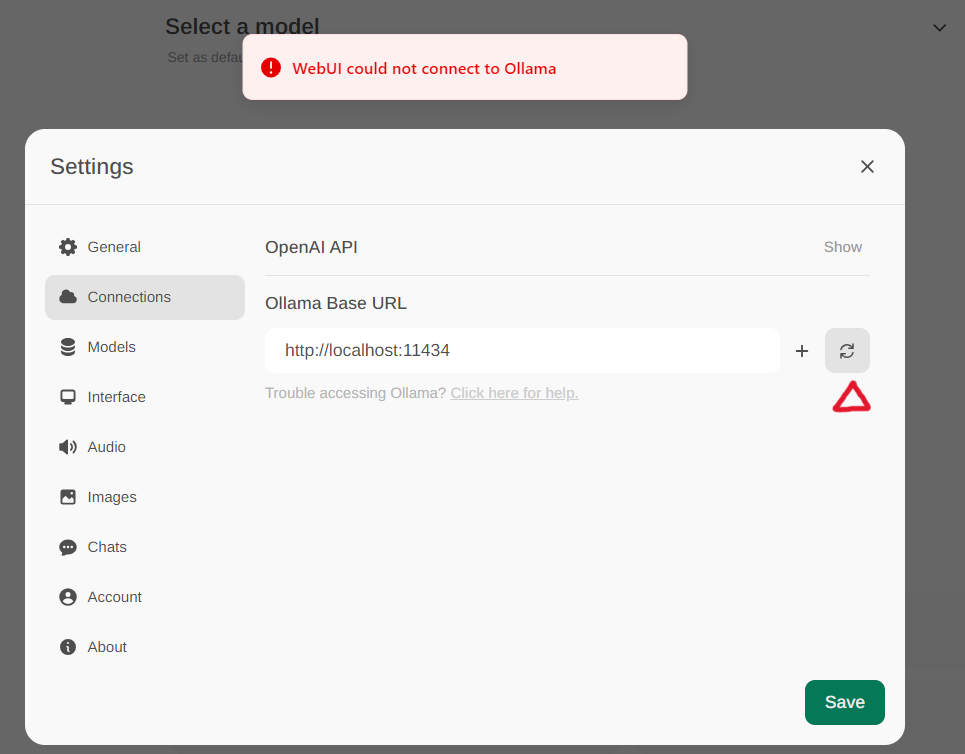
Access the Ollama settings through Admin Panel > Settings > Connections. By default, the Ollama API connection URL is http://localhost:11434 (http://host.docker.internal:11434 in the standard Docker image), as illustrated in the snapshot below. To verify the status of the Ollama service connection, click Configure (the gear icon) on the Ollama connection, then click Verify Connection next to the URL. If the WebUI is unable to establish a connection with the Ollama server, you will see an error message.
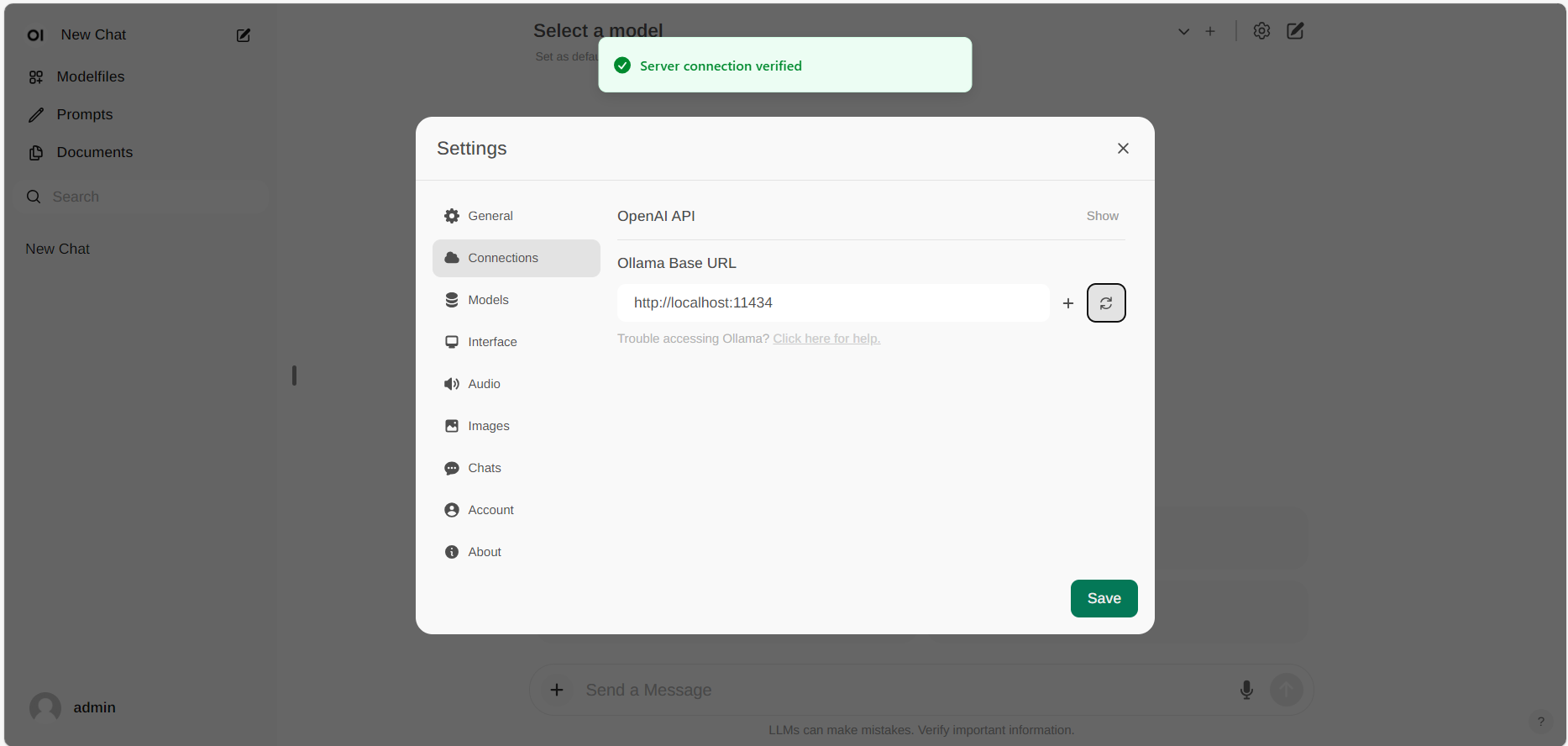
If the connection is successful, you will see a message stating Server connection verified, as illustrated below.
If you want to use an Ollama server hosted at a different URL, click Configure on the Ollama connection, change the URL, click Verify Connection, then click Save.