Notes
Write, think, and refine with AI by your side.
You search, you discover, you synthesize. Notes is where that becomes lasting knowledge. It's a dedicated workspace for content that lives outside of any single conversation: drafts, cheat sheets, research findings, project briefs. Things you build up over time, refine with AI, and inject into future chats as context.
Unlike standard chats, which are linear and ephemeral, Notes are persistent documents you can return to, edit, and share. Unlike Documents (RAG), which use vector search to find relevant chunks, Notes inject their full content directly into context, giving you precise control over what the AI sees.
Why Notes?
AI-assisted writing, built in
Open the Chat sidebar to brainstorm, critique, expand or rewrite your content without leaving the editor. It is the full chat interface, so you keep the model picker, tools and attachments, and you can hold several separate conversations per note. Highlight a passage first and the model rewrites just that part, in place.
Precise context injection
When you attach a Note to a chat, the AI reads the entire document, word for word. No chunking, no vector search, no guessing. You control exactly what the model sees.
Persistent, not disposable
Notes exist outside of chats. Write a coding reference, refine it over weeks, and attach it to any conversation whenever you need it.
AI can read and write your notes
With native function calling enabled, models can search, read, create, and update your notes autonomously, turning Notes into a dynamic long-term memory.
Key Features
| ✍️ Rich editor | Markdown and Rich Text with a floating formatting toolbar |
| 🤖 AI Enhance | Ask the note's chat to rewrite or improve selected text in place |
| 💬 Chat sidebar | The full chat interface inside the note, with as many conversations per note as you want |
| 📎 Context injection | Attach notes to any chat for full-fidelity context |
| 📄 Attachments | Upload files onto the note itself, listed above the note body |
| 📌 Pin to sidebar | Pin frequently used notes for quick access from the sidebar |
| 🔍 Agentic access | Models can search, read, and update notes autonomously |
| 📤 Export | Download as .txt, .md, or .pdf |
The Editor
Notes uses a context-aware floating toolbar for formatting:
- Click on empty space to start new headers, lists, or task lists
- Double-click text to apply bold, italic, underline, strikethrough, or inline code
- Drag-and-drop list items to reorder
The top bar shows real-time word and character counts, and a microphone icon enables voice dictation.
This editor can also be enabled for standard chats: Settings > Interface > Rich Text Input for Chat and Show Formatting Toolbar.
AI Integration
Open the note's chat with the speech bubble button in the editor toolbar, at the top of the note next to Undo/Redo. Everything the AI does to a note now runs through that chat.
Enhance
Rewriting happens in the chat, there is no separate Enhance button. Select the passage you want reworked, open the chat and either use the Rewrite the selected text. suggestion or say what you want. The model rewrites the note in place through replace_note_content, and the change appears in the editor as it happens. Leave nothing selected to talk about the whole note.
Chat Sidebar
Opens the full chat interface in a pane beside the note. It is the same component as a normal chat, so you get the model picker, tool and skill selection, file attachments, web search and the rest of the chat input. Ask the AI to summarize, extract data, critique or rewrite specific sections.
Voice mode is the exception. Its button is not offered in a note's chat, so use a normal chat for a hands-free voice conversation. Dictation still works, from the microphone button in the chat input.
Insert a response into the note. Every assistant response carries an Insert button that drops that response into the note at the cursor. Insertion creates a note version first, so Undo/Redo (top right) reverts it.
Several conversations per note. The panel header is a dropdown listing every chat attached to this note. Use it to switch between them, start a new one or delete one. A new conversation is only stored once you send its first message, so opening one and walking away leaves nothing behind. Deleting the last remaining chat immediately recreates an empty one.
Suggested prompts. While a conversation is still empty, four prompts are offered: enhance the note and update it, summarize it, extract action items, rewrite the selected text. They disappear as soon as the conversation has messages, and they are also suppressed if you set Settings > Interface > Landing Page Mode to Chat.
Selected text is passed along. If you have text selected in the note, that selection is appended to whatever you send as the target for a rewrite. Selecting nothing sends the message on its own.
The note is not pasted into the conversation. The chat carries a system prompt with the note's id, and the model reads the note with view_note and edits it with replace_note_content. Edits land in the editor as the model makes them, without a reload.
Two consequences. A model that cannot call tools will not see the note content at all. And builtin tools behave differently in this chat than anywhere else: the note tools are always injected, and the whole builtin-tool surface is force-enabled even for models an administrator configured without it. See Builtin tools in a note-attached chat.
Non-image files attached to the note are injected as retrieval context on every message in the note's chats.
Chats opened from a note are internal chats. They do not appear in the sidebar chat list or in search, and they are per user: on a shared note, each collaborator has their own set of conversations and cannot see anyone else's. Read access on the note is enough to open one.
All AI changes are tracked by Undo/Redo (top right), so you can always revert.
Using Notes in Chat
- Go to the Chat Input bar
- Click the + (More) button
- Select Attach Notes
- Choose the note(s) to attach
The full content of the note is injected into the context window for that conversation.
You can also drag a note straight from the sidebar into the chat to attach it as a context reference, without opening the menu. The same drag-and-drop works for chats, folders and models from the sidebar.
Agentic Note Management
With native function calling enabled, models can work with your notes autonomously:
| Tool | What it does |
|---|---|
search_notes | Search your notes by title and content |
view_note | Read the full content of a note |
write_note | Create a new note |
replace_note_content | Update an existing note, either replacing the whole content or editing a range of it in place |
You: Search my "Project X" notes and find the database schema.
You: Add a new task to my "Weekly Todo" note to review the PR.
Pinning Notes
Pin important notes to the sidebar for quick access. Pinned notes appear in a dedicated Notes folder in the sidebar, just like pinned chats.
How to pin
- From the Notes list: click the ⋯ menu on any note and select Pin to Sidebar
- From the Note editor: click the ⋯ menu in the top right and select Pin to Sidebar
How to unpin
- From the sidebar: hover over the pinned note and click the ✕ button
- From the Notes list or editor: click the ⋯ menu and select Unpin
The sidebar Notes folder only appears when at least one note is pinned and the Notes feature is enabled.
Pinning a note only affects your sidebar: collaborators with access to the same note can pin or unpin it independently without changing what you see. Pinned notes are listed in pin-time order (newest first), and toggling a pin no longer counts as an edit, so it does not bump the note's "Updated" timestamp. Pre-existing pins from before this change are kept for the note's owner only; other users will need to re-pin shared notes they want in their own sidebar.
Management and Sharing
Access management options via the More (...) menu in the top right corner.
Export
- Plain text (.txt) or Markdown (.md) for raw content
- PDF (.pdf) with visual formatting and the images pasted into the note (dark mode detected automatically)
Sharing
Share in the More (...) menu offers Copy link and Copy to clipboard. A copied link opens the note only for someone who can already reach it.
Granting that reach is the Access button, at the top right beside the More (...) menu. It opens the Access Control panel, where you set the note's visibility and share it with people and groups at either Read, which opens the note and lets them start chats from it while the editor stays read-only, or Write, which also allows editing the body and its files. The button appears only with write access and is disabled unless you own the note or are an admin; a read-only collaborator sees a Read-Only Access label instead. The list works the same as anywhere else in Open WebUI.
The same panel opens from the Notes list: the ⋯ menu of a note you own has an Access entry, and administrators see it on every note. Each change there is saved right away.
Administrators can control sharing via environment variables or the Admin Panel:
USER_PERMISSIONS_NOTES_ALLOW_SHARINGshows the access list in the Access Control panel (defaultFalse)USER_PERMISSIONS_NOTES_ALLOW_PUBLIC_SHARINGfor public links (defaultFalse)
These can also be configured in Admin Panel > Users > Groups, as Notes Sharing and Notes Public Sharing. Both start off, and the public toggle is only shown once Notes Sharing is on. Admins can share notes publicly regardless. See Permissions.
Attachments
Notes carry their own files. Pick Upload files in the More (...) menu. Non-image files appear as a row of chips above the note body; click one to open it, or use its ✕ to detach it. Uploading is only offered with write access on the note, and read-only collaborators cannot detach files either. Anyone with read access to a shared note can open the files attached to it, and the note's chat uses them too. This applies to files the note's owner uploaded, and those files stay read-only for them.
Two things to know:
- Images uploaded from the menu are invisible. They are stored on the note but are neither shown as a chip nor placed in the text. To get an image into the note, paste it into the editor, which inserts it where the cursor is. Dropping files onto a note does nothing in this release.
- Attached files feed the note's chat. Every non-image attachment is added as retrieval context on every message you send in a chat opened from this note.
Formatting
Formatting in the More (...) menu decides whether the editor formats as you type and paste. It is on, and needs write access to change.
Turn it off and Markdown characters stay as characters, a pasted URL stays text rather than becoming a link, and pasting brings the plain text without the source's styling. Anything already formatted in the note stays formatted, so this changes what happens next instead of stripping what is there.
Quick creation
- Navigate to
/notes/newto create a note titled with today's date - Add query parameters:
/notes/new?title=My%20Title&content=Initial%20text - Create from the search window (
Cmd+K/Ctrl+K): open its Actions menu (Cmd+K/Ctrl+Kagain) and select Create a new note, which uses the search text as the note's content - Import
.mdfiles by dragging them onto the Notes list
The first three open a Create a new note dialog showing the title and content, and the note is created once you confirm.
View options
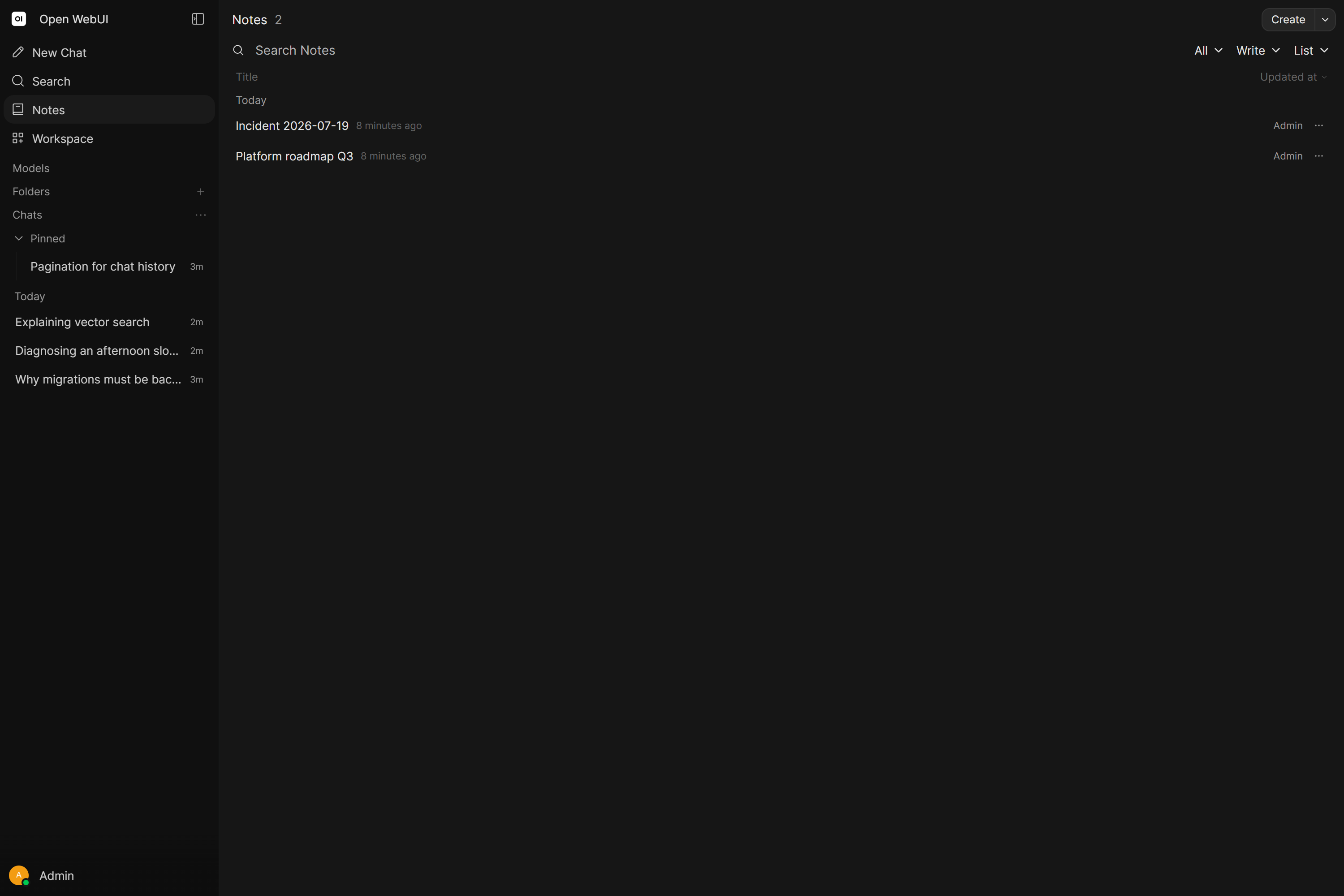
Toggle between Created by you and Shared with you filters, and switch between List and Grid layouts.
The search window also finds your notes and the notes shared with you, by title and content. Opening a result selects the first match in the note.
Quick delete
Hold Shift while the Notes list is open and every note's ⋯ menu button turns into a delete button. Clicking it deletes that note straight away, with no menu and no confirmation prompt. It works in both List and Grid layouts, and holding Shift closes any note menu that is already open. Release Shift, or click away from the window, and the menu button comes back. Without Shift nothing changes: delete still goes through the menu and asks you to confirm.
Notes are workspace items. By default (BYPASS_ADMIN_ACCESS_CONTROL=True), administrators can see all users' notes. Set BYPASS_ADMIN_ACCESS_CONTROL to False to restrict this. See Environment Configuration for details. To turn Notes off for the whole instance, see ENABLE_NOTES.
Use Cases
Living drafts
Draft something in Notes, select the bullet points and ask the note's chat to expand them into paragraphs, then keep a second conversation open for brainstorming titles. The Note is the final product, not just a reference.
High-fidelity code context
RAG uses vector search, which is probabilistic and might miss a crucial line. Paste specific functions into a Note and attach it so the model sees 100% of your code, exactly as arranged.
Data sanitization
Paste server logs containing sensitive data into a Note, redact the keys (or ask the note's chat to anonymize the text), then attach the sanitized Note to a chat. This prevents leaking sensitive data into your chat history.
Limitations
Context window usage
Attaching a note injects the full text. A very large note attached to a model with a small context window may cause the model to lose earlier conversation context.
Write access
When manually attached, notes are read-only. In Native Mode with the replace_note_content tool enabled, models can modify your notes. Review changes and use Undo/Redo if needed.
The tool has two modes. Passing whole content replaces the entire note, so anything the model leaves out is gone. Passing replace_range operations changes only the given character range and leaves the rest of the note untouched; each operation carries an expected field with the current text of that range, and a mismatch rejects the edit instead of applying it. Ask for partial edits explicitly (add a section, change these lines) so the model reaches for range operations.
Notes keep no server-side history. Undo/Redo only walks the versions the editor recorded, which happens when you insert a chat response into the note or step through versions, so a tool edit on a note without such versions cannot be undone there. The previous text is still in the chat: the model reads the note with view_note before editing, and that tool result stays in the chat message. Expand the tool call in that message to copy the old content back.