Two-Factor Sign-In (MFA)
Ask every user for a code from an authenticator app each time they sign in.
With multi-factor authentication (MFA) turned on, signing in takes two steps: the usual password (or LDAP, SSO or trusted-header sign-in), then a six-digit code from an authenticator app on the user's phone or computer. Any app that supports time-based one-time codes works, for example Proton Authenticator, Aegis, Bitwarden, Bitwarden Authenticator, Microsoft Authenticator, 1Password or Google Authenticator. A stolen password alone is then no longer enough to get into an account.
The setting covers every user on the instance. Users who have not set up an authenticator yet are walked through it at their next sign-in.
Requirements
- Authentication turned on.
WEBUI_AUTHmust stay at its defaultTrue. - Persistent configuration turned on.
ENABLE_PERSISTENT_CONFIGmust stay at its defaultTrue. - A stable encryption key. The secret behind each user's authenticator is stored encrypted in the database. The key is derived from
WEBUI_SECRET_KEY, or taken fromMFA_ENCRYPTION_KEYwhen that is set. If the key changes after users have enrolled, their authenticators can no longer be read.
While MFA is on, Open WebUI checks all of this at startup and refuses to start when authentication or persistent configuration is off, when MFA_ENCRYPTION_KEY is not a valid key, or when a stored authenticator secret cannot be decrypted with the current key. In that last case, the log shows ValueError: Stored MFA secrets cannot be decrypted. Restore the WEBUI_SECRET_KEY or MFA_ENCRYPTION_KEY they were encrypted with. Restore the previous key to get the instance running again.
Turning It On
- Open Settings > Admin > Authentication.
- In the Multi-factor authentication section, turn on Require an authenticator for all users.
- Optionally turn on one or both exemptions that appear below it:
- Allow OAuth sign-in without an authenticator: users who sign in through your OAuth or OIDC provider skip the code. Use this when the provider already enforces its own second factor.
- Allow trusted-header sign-in without an authenticator: users who arrive through trusted-header authentication skip the code. Use this when your authenticating proxy already enforces a second factor.
- Click Save.

Any change to these three switches signs every user out of every device, you included, and you land on the sign-in page. Users with an authenticator enter their code; users without one set it up on the spot.
Only an administrator's sign-in session can change these switches; requests made with an API key are refused.
The same switches exist as environment variables: ENABLE_MFA, MFA_ALLOW_OAUTH_BYPASS and MFA_ALLOW_TRUSTED_HEADER_BYPASS. They set the starting value on the first start; after that, the value saved in the admin panel wins.
Signing In
While MFA is on, an account that is still awaiting administrator approval gets no session: every sign-in to it ends on the sign-in page with the fixed message Your account is awaiting administrator approval. The custom pending overlay set with PENDING_USER_OVERLAY_TITLE and PENDING_USER_OVERLAY_CONTENT needs a session, so it shows only while MFA is off.
Setting up an authenticator
The first time a user signs in after MFA is turned on:
- They sign in with their password as usual.
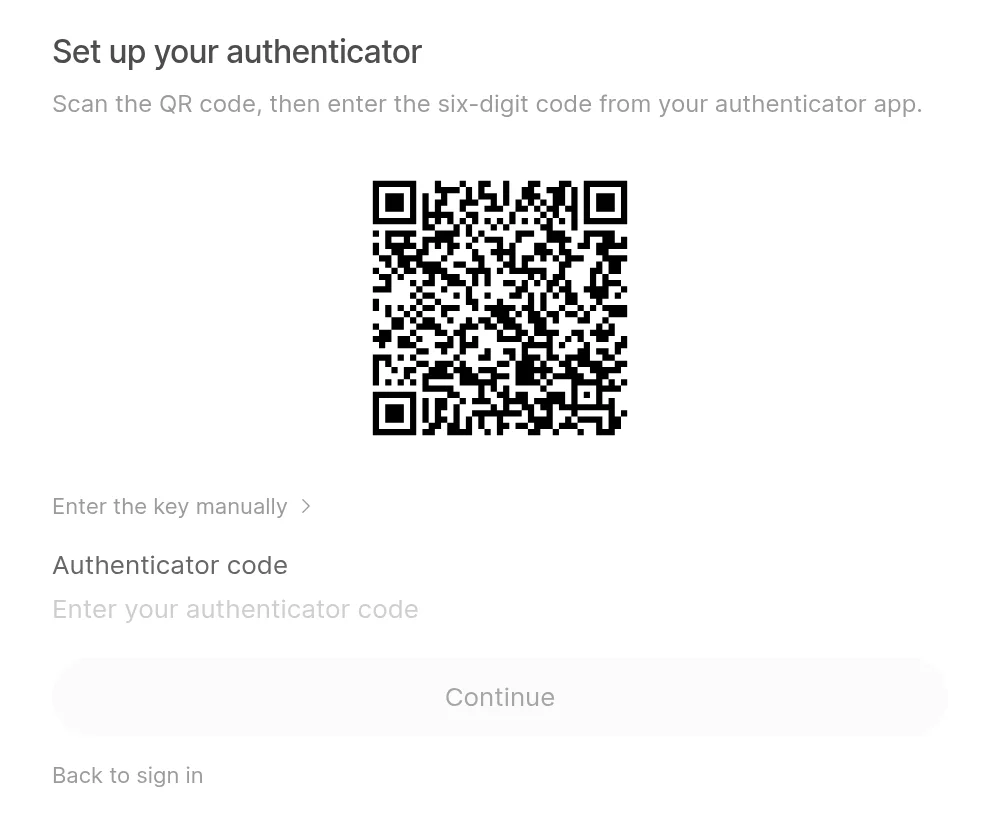
- Open WebUI shows Set up your authenticator with a QR code. They scan it with their authenticator app, or open Enter the key manually and type the key into the app. The entry appears in the app as Open WebUI with their email address.
- They enter the six-digit code the app shows.
- Open WebUI shows ten recovery codes, once. They can download them, must confirm they have saved them, and are then signed in.
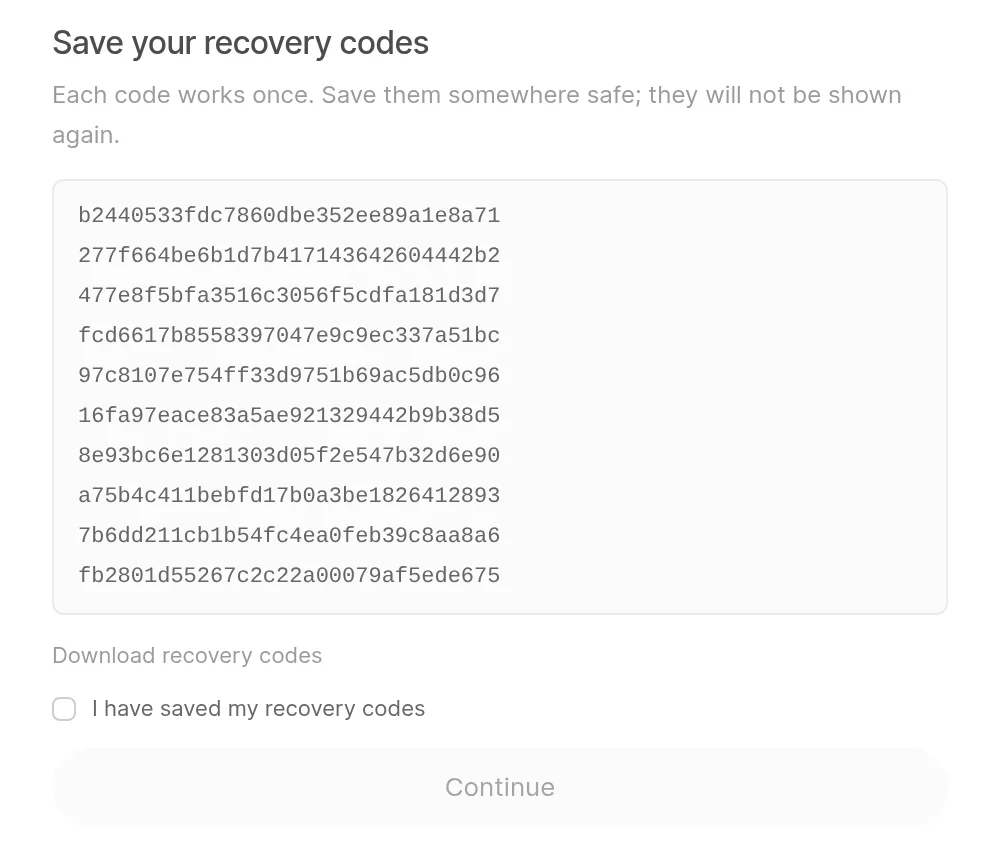
Each recovery code works once and stands in for an authenticator code. They are the way back in when the phone is lost, so users should store them somewhere safe and separate from the phone.
Every later sign-in
After the password, Open WebUI asks for the current six-digit code. Use a recovery code switches the field to take one of the saved recovery codes.
Codes change every 30 seconds. Open WebUI also accepts the code just before and just after the current one to absorb small clock differences, and each code is accepted only once. The second step has to be finished within five minutes of entering the password; after that, the user starts again from the password.
Managing Your Authenticator
Users find their authenticator under Settings > Account > Multi-factor authentication. It shows whether an authenticator is set up and how many recovery codes are left. The section only shows when the way they signed in requires an authenticator: MFA is on and their sign-in method is not exempt. There, Manage offers two actions:
- Replace authenticator: moves the account to a new app or phone. After the new one is confirmed, a fresh set of ten recovery codes is shown.
- Generate recovery codes: issues ten new recovery codes. The old ones stop working.
Both actions need a current authenticator code (or a recovery code) and a sign-in within the last five minutes. If the sign-in is older, Open WebUI asks the user to Sign in again first. Both actions sign the account out of every device, including the one making the change.
Recovering a Lost Authenticator
When a user has lost both their authenticator and their recovery codes, someone with shell access to the server resets their MFA. Verify the person's identity first, then run:
open-webui mfa reset [email protected] --reason "Lost phone, identity confirmed by video call"In the Docker image, run the same command through Python inside the container:
docker exec -it open-webui python -c "from open_webui import app; app()" mfa reset [email protected] --reason "Lost phone, identity confirmed by video call"The command:
- Removes the user's authenticator and recovery codes and signs them out of every device.
- Prints a recovery token that works once and expires after 30 minutes.
Send the token to the user over a channel you trust. At their next sign-in they enter their password, then the token in the Operator recovery token field, then set up a new authenticator and receive new recovery codes exactly as on first setup. If the token expires unused, run the command again for a new one.
A reason is required. The command must run against the same database as the server and needs the same WEBUI_SECRET_KEY: it reads the key from the environment, or from the .webui_secret_key file in the current directory.
Attempt Limits
While MFA is on, Open WebUI limits how fast sign-ins can be tried:
| Limit | Applies to |
|---|---|
| 10 per account per 15 minutes | Password and LDAP sign-ins. Successful ones count too. |
| 10 per account per 15 minutes | Authenticator and recovery codes entered for the account. |
| 5 per sign-in | Codes entered in one sign-in. After that, the user starts again from the password. |
| 100 per IP address per 15 minutes | Requests that change something on the authentication API: sign-ins, sign-ups, MFA steps, password changes and the other account actions under /api/v1/auths. |
The per-address limit is shared across workers and replicas through Redis when it is configured, and counted per process otherwise. It relies on the real client address, so set FORWARDED_ALLOW_IPS to your reverse proxy's address.
API Access and Automation
- API keys are unaffected. They keep working without a code, so scripts and integrations should use an API key.
- Signing in through the API returns an MFA step in place of a session token whenever the sign-in needs a code. The same applies to the OAuth token exchange endpoint unless OAuth sign-ins are exempted.
- Adding a user as an administrator through the API returns the new account without a session token while MFA is on.
Events and Logs
Open WebUI emits the events below. An Event function runs your own Python when one of them fires, for example to alert your security team when wrong codes keep coming in for an account, to notify admins when someone changes the MFA switches, or to record enrollments and recovery code use in an external system:
| Event | When |
|---|---|
auth.mfa.enrolled | A user set up their authenticator. |
auth.mfa.replaced | A user replaced their authenticator. |
auth.mfa.failed | A wrong or already used code was entered. |
auth.mfa.recovery_used | A recovery code was used. |
auth.mfa.recovery_codes_regenerated | A user generated new recovery codes. |
auth.mfa.policy_changed | An administrator changed the MFA switches. |
Each of these, along with sign-ins refused for hitting the per-account limit, is also written to the server log as an MFA security event line and to the audit log when audit logging is enabled.