Open WebUI Integration
Overview
Open WebUI v0.6+ supports seamless integration with external tools via the OpenAPI servers, meaning you can easily extend your LLM workflows using custom or community-powered tool servers 🧰.
In this guide, you'll learn how to launch an OpenAPI-compatible tool server and connect it to Open WebUI through the intuitive user interface. Let's get started! 🚀
External tools depend on the model to select a tool, generate valid arguments, and interpret its response. Supporting tool calling does not guarantee doing it well. If a connected and enabled tool is ignored or used incorrectly, try a stronger model with reliable native tool calling before assuming the problem is in Open WebUI. This applies to OpenAPI tools, native MCP connections, and MCP tools exposed through mcpo.
Step 1: Launch an OpenAPI Tool Server
To begin, you'll need to start one of the reference tool servers available in the openapi-servers repo. For quick testing, we'll use the time tool server as an example.
🛠️ Example: Starting the time server locally
git clone https://github.com/open-webui/openapi-servers
cd openapi-servers

# Navigate to the time server
cd servers/time

# Install required dependencies
pip install -r requirements.txt

# Start the server
uvicorn main:app --host 0.0.0.0 --reload
Once running, this will host a local OpenAPI server at http://localhost:8000, which you can point Open WebUI to.

Step 2: Connect Tool Server in Open WebUI
Next, connect your running tool server to Open WebUI:
- Open WebUI in your browser.
- Open ⚙️ Settings → Integrations.
- Click ➕ in the Tools section to add a new tool server.
- Enter the URL where your OpenAPI tool server is running (e.g., http://localhost:8000).
- Click "Save".
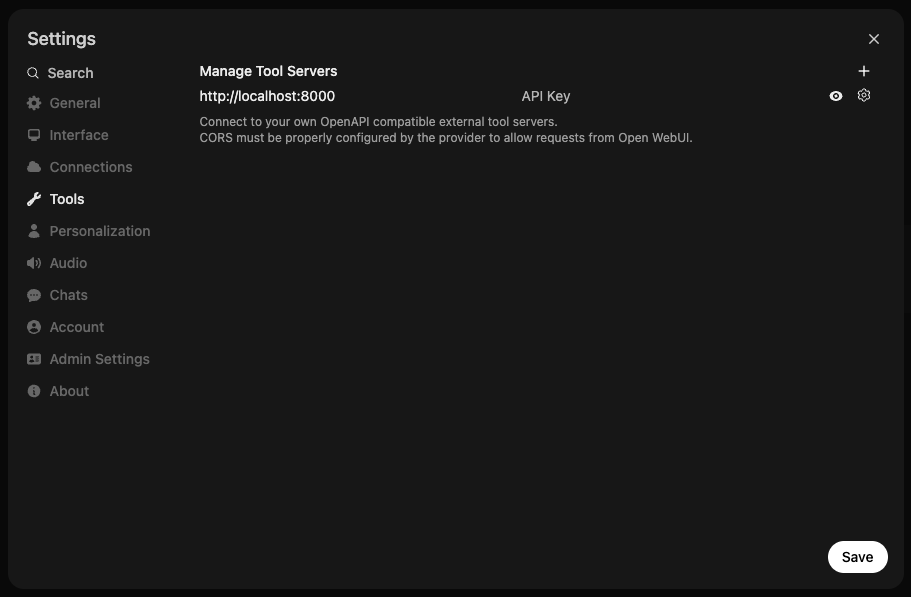
🧑💻 User Tool Servers vs. 🛠️ Global Tool Servers
There are two ways to register tool servers in Open WebUI:
1. User Tool Servers (added via regular Settings)
- Only accessible to the user who registered the tool server.
- The connection is made directly from the browser (client-side) by the user.
- Perfect for personal workflows or when testing custom/local tools.
- Admins see this section by default. For everyone else an admin has to grant the Direct Tool Servers permission first, which is off by default; without it the whole Integrations tab of Settings is hidden.
2. Global Tool Servers (added via Admin Settings)
Admins can manage shared tool servers available to all or selected users across the entire deployment:
- Go to 🛠️ Settings → Admin → Integrations, Tools section.
- Add the tool server URL just as you would in user settings.
- These tools are treated similarly to Open WebUI's built-in tools.
Main Difference: Where Are Requests Made From?
The primary distinction between User Tool Servers and Global Tool Servers is where the API connection and requests are actually made:
-
User Tool Servers
- Requests to the tool server are performed directly from your browser (the client).
- This means you can safely connect to localhost URLs (like
http://localhost:8000), even exposing private or development-only endpoints such as your local filesystem or dev tools, without risking exposure to the wider internet or other users. - Your connection is isolated; only your browser can access that tool server.
-
Global Tool Servers
- Requests are sent from the Open WebUI backend/server (not your browser).
- The backend must be able to reach the tool server URL you specify, so
localhostmeans the backend server's localhost, not your computer's. - Use this for sharing tools with other users across the deployment, but be mindful: since the backend makes the requests, you cannot access your personal local resources (like your own filesystem) through this method.
- Think security! Only expose remote/global endpoints that are safe and meant to be accessed by multiple users.
Summary Table:
| Tool Server Type | Request Origin | Use Localhost? | Use Case Example |
|---|---|---|---|
| User Tool Server | User's Browser (Client-side) | Yes (private to you) | Personal tools, local dev/testing |
| Global Tool Server | Open WebUI Backend (Server-side) | No (unless running on the backend itself) | Team/shared tools, enterprise integrations |
User Tool Servers are best for personal or experimental tools, especially those running on your own machine, while Global Tool Servers are ideal for production or shared environments where everyone needs access to the same tools.
👉 Optional: Using a Config File with mcpo
If you're running multiple tools through mcpo using a config file, take note:
🧩 Each tool is mounted under its own unique path!
For example, if you're using memory and time tools simultaneously through mcpo, they'll each be available at a distinct route:
This means:
- When connecting a tool in Open WebUI, you must enter the full route to that specific tool. Do NOT enter just the root URL (http://localhost:8000).
- Add each tool individually in Open WebUI Settings using their respective subpath URLs.
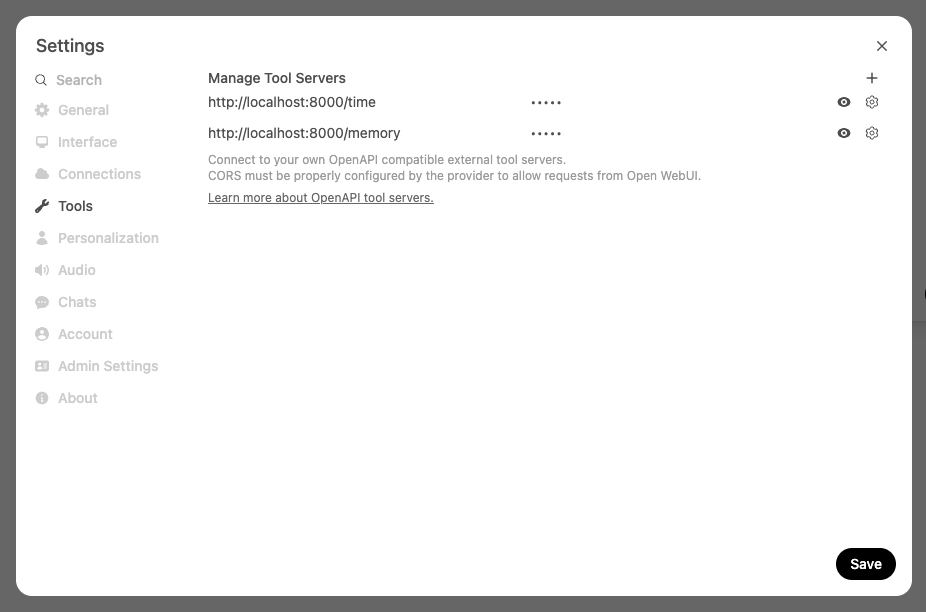
✅ Good:
http://localhost:8000/time http://localhost:8000/memory
🚫 Not valid:
This ensures Open WebUI recognizes and communicates with each tool server correctly.
Advanced > Forward cookies decides whether the cookies from the browser request are sent on to this server. It is off by default and applies to admin-configured connections; a user's own direct connections never forward cookies.
Turn it on only for a server you control that authenticates the person behind the request by cookie, typically one sitting inside your own network behind the same sign-on. Everything the browser holds for your Open WebUI domain goes with the request, session cookie included, so a third-party endpoint should never have this on.
This changed: connections using the Session or System OAuth auth types used to forward cookies unconditionally. They no longer do. If such a connection stops authenticating after an upgrade, switch this on.
Step 3: Confirm Your Tool Server Is Connected ✅
Once your tool server is successfully connected, Open WebUI will display a 👇 tool server indicator directly in the message input area:
📍 You'll now see this icon below the input box:
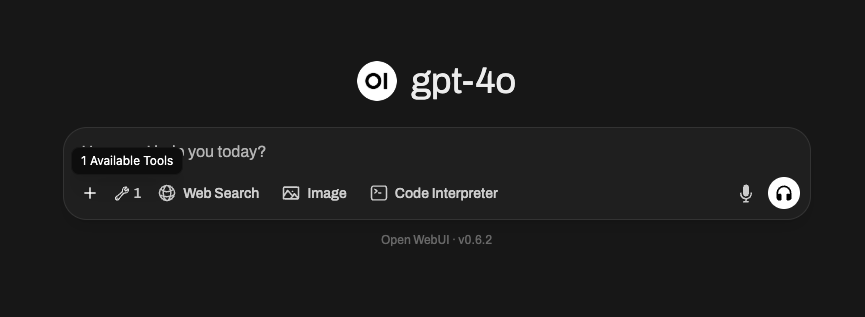
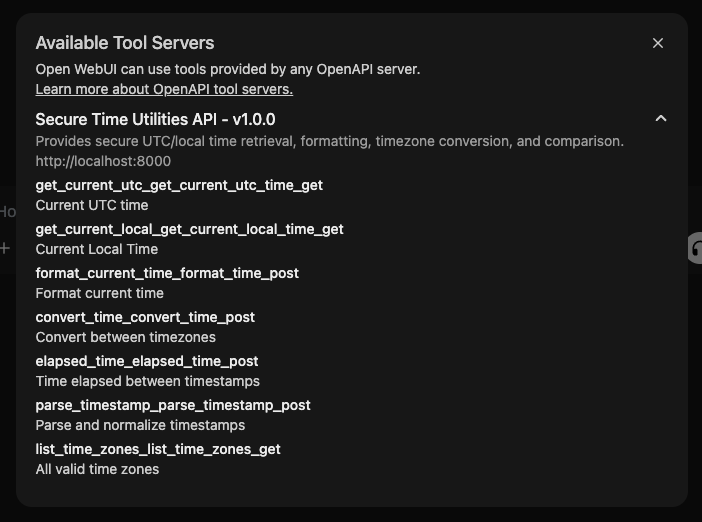
Clicking this icon opens a popup where you can:
- See the tools selected for the chat and the tool servers they come from
- Expand an MCP server to load its tool names and descriptions live
- Check whether each server is connected or shows Auth required, and use Reconnect to sign in again
To disconnect OAuth for an MCP server, use the Integrations menu in the message input.
🔍 Here's what the tool information modal looks like:
🛠️ Global Tool Servers Look Different, And Are Hidden by Default!
If you've connected a Global Tool Server (i.e., one that's admin-configured), it will not appear automatically in the input area like user tool servers do.
Instead:
- Global tools are hidden by default and must be explicitly activated per user.
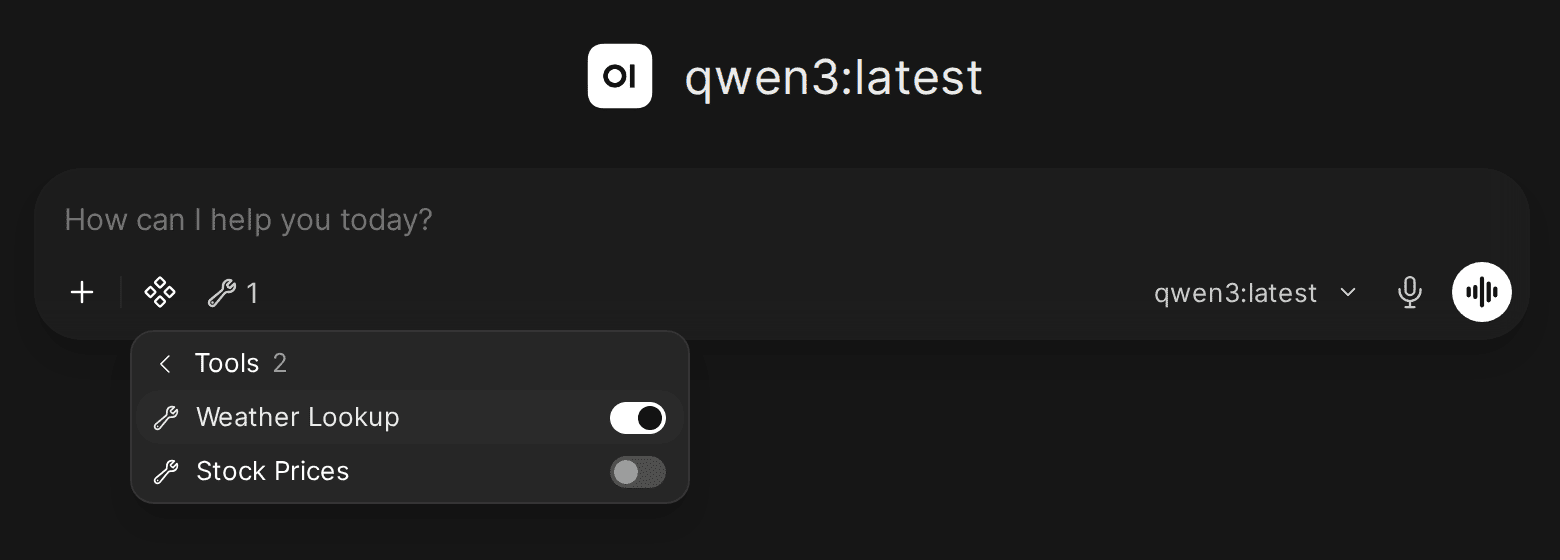
- To enable them, you'll need to click on the Integrations button in the message input area (bottom left of the chat box, next to the ➕ button), select Tools, and manually toggle on the specific global tool(s) you want to use.
Here's what that looks like:
⚠️ Important Notes for Global Tool Servers:
- They will not show up in the tool indicator popup until enabled from the Integrations menu.
- Each global tool must be individually toggled on to become active inside your current chat.
- Once toggled on, they function the same way as user tools.
- Admins can control access to global tools via role-based permissions.
This is ideal for team setups or shared environments, where commonly-used tools (e.g., document search, memory, or web lookup) should be centrally accessible by multiple users.
(Optional) Step 4: Choosing the Function Calling Mode 🧠
Native function calling is the default, so there is nothing to switch on for it. The model uses its own built-in tool calling, which needs a model that genuinely supports it. Some local models claim support and produce poor results, so prefer a model with solid native tool calling if you have the choice.
Legacy is the alternative: Open WebUI injects the tool definitions into the prompt and calls tools once before generating. It works with a much wider range of models, at the cost of being limited to that single tool-calling round, where Native keeps calling tools until the model is done.
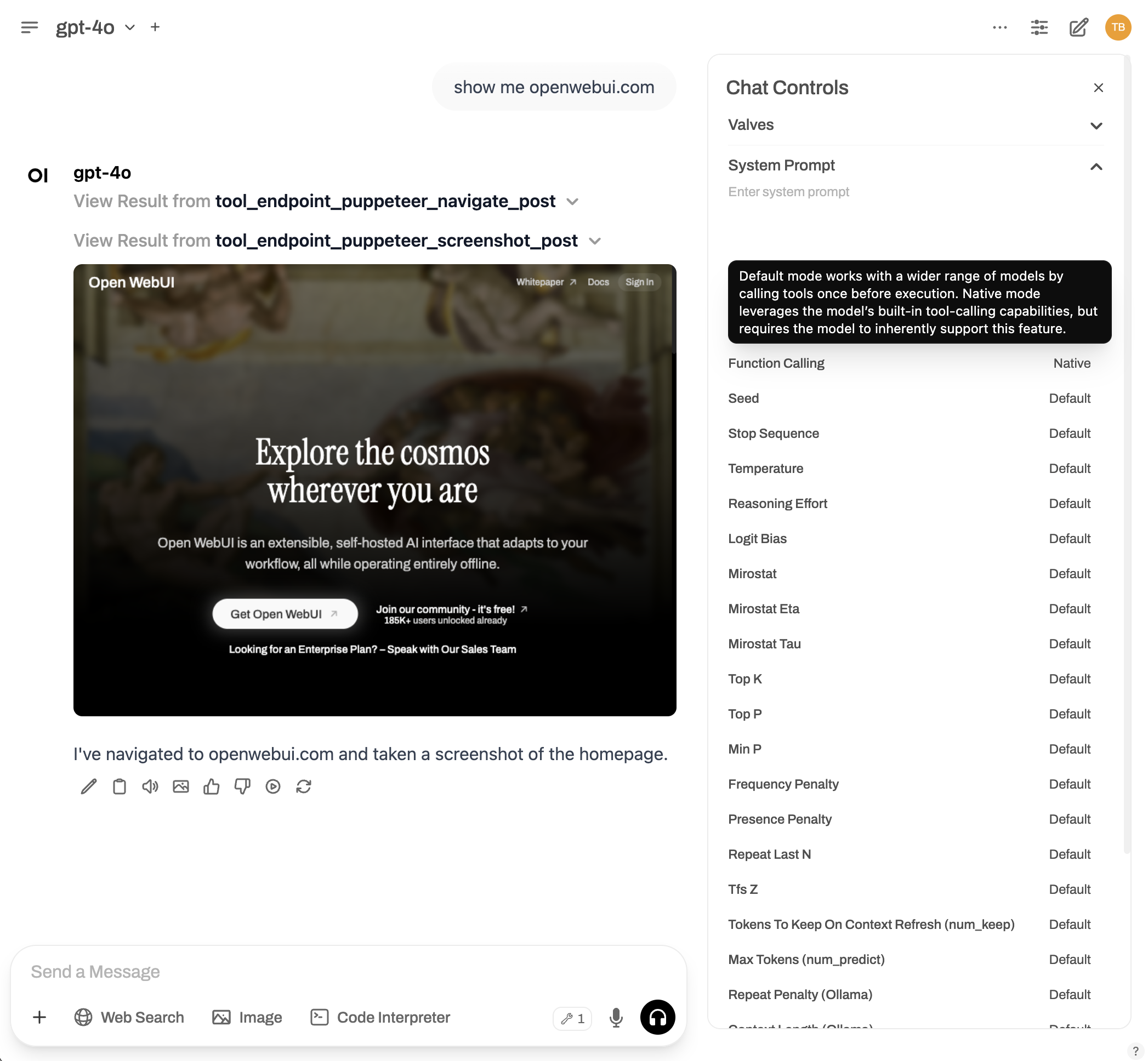
✳️ How to switch modes:
- Open the chat window.
- Go to ⚙️ Chat Controls > Advanced Params.
- Set the Function Calling parameter.
DefaultandNativebehave identically,Legacyselects prompt injection.
Need More Tools? Explore & Expand! 🧱
The openapi-servers repo includes a variety of useful reference servers:
- 📂 Filesystem access
- 🧠 Memory & knowledge graphs
- 🗃️ Git repo browsing
- 🌎 Web search (WIP)
- 🛢️ Database querying (WIP)
You can run any of these in the same way and connect them to Open WebUI by repeating the steps above.
Troubleshooting & Tips 🧩
Tools are enabled but the model does not use them correctly
If the model answers without calling a needed tool, invents a tool result, supplies invalid arguments, or stops partway through a task, model capability may be the cause. Open WebUI makes the tools available and executes their calls; the model decides how to use them.
- Confirm that the tool is enabled in the current chat and that the selected model supports native tool calling.
- Start a fresh chat with only the tool needed for a simple request, such as asking a time tool for the current time.
- Repeat the same request with a more capable model, keeping the tool and server configuration the same. If that model succeeds, the original model or its serving configuration is a likely cause. Multi-step workflows may require a stronger model even when simple calls work.
Connection failures, authentication errors, and tool-server errors still need their own troubleshooting; switching models will not repair those. See Model Requirements & Caveats for more on model selection.
Connection fails immediately after adding the URL
Check the protocol (HTTP vs HTTPS). Most local tool servers don't use TLS, so the URL needs to be plain http://, for example http://localhost:8000.
Check the port number. The default port varies by server. For example, uvicorn defaults to 8000, while Open Terminal defaults to 8888. Make sure the port in your URL matches the port your tool server is actually listening on.
Connection fails even though the server is running
Understand which machine "localhost" refers to. This is the most common connectivity issue and depends on which type of tool server you are registering:
- User Tool Servers: Requests come from your browser.
localhostmeans the machine running your browser. This usually works for local development setups, but there is a catch (see below). - Global Tool Servers: Requests come from the Open WebUI backend.
localhostmeans the backend server, not your personal machine. If the backend runs in Docker,localhostinside the container does not reach your host machine, so usehost.docker.internalor the machine's actual IP instead.
Even for User Tool Servers, localhost only works if you're accessing Open WebUI at http://localhost:... in your browser.
If you're accessing Open WebUI at a different IP address (for example, connecting from another device on your LAN via http://10.0.0.5:3000, or using the network URL that npm run dev outputs) then your browser is not on localhost relative to the tool server. The browser will try to reach localhost on the device it's running on, not the machine hosting the tool server.
Fix: Replace localhost with the actual IP of the machine where your tool server is running (e.g., http://10.0.0.5:8000), and ensure the tool server is binding to 0.0.0.0 (not just 127.0.0.1).
CORS errors in the browser console
If you see CORS errors, your tool server needs to allow requests from the Open WebUI origin. See the FAQ entry on CORS for a FastAPI example.
General tips
- 🔒 If you're using remote servers, check firewalls and HTTPS configs.
- 📝 To make servers persist across reboots, consider deploying them in Docker or with system services.
- 🔍 When in doubt, try opening the tool server URL (e.g.,
http://localhost:8000/docs) directly in the same browser you use for Open WebUI. If it loads, the browser can reach it.
Need help? Visit the 👉 Discussions page or open an issue.