Configure Speech-to-Text
Use speech-to-text to dictate prompts in Open WebUI. Choose local Whisper, your browser's speech recognition, or a hosted transcription provider, then configure the corresponding admin and user settings below.
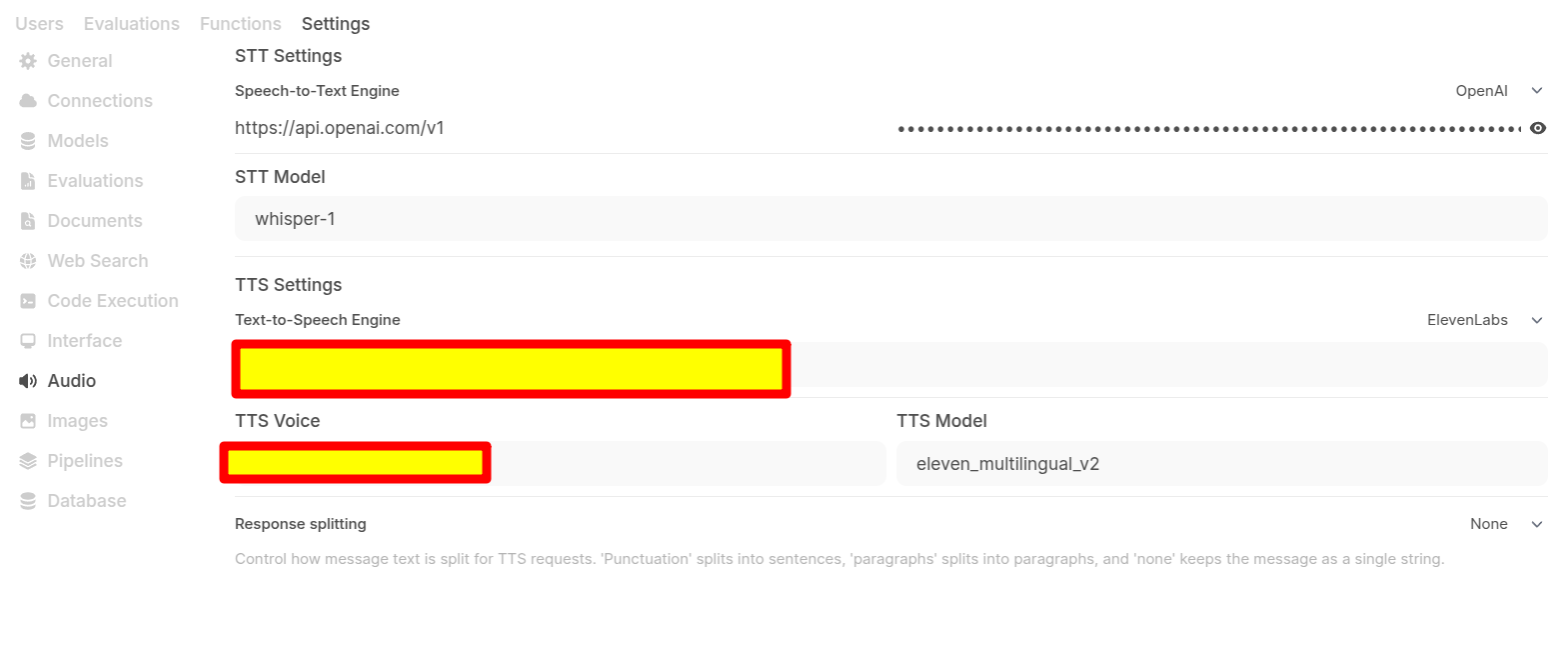
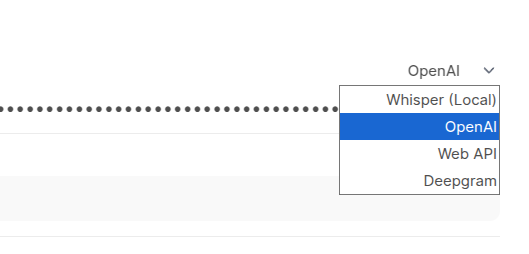
Choose a Speech-to-Text Provider
The following speech-to-text providers are supported:
| Service | API Key Required | Guide |
|---|---|---|
| Local Whisper (default) | ❌ | Built-in, see Environment Variables |
| OpenAI (Whisper API) | ✅ | OpenAI STT Guide |
| Self-hosted (OpenAI-compatible) | ✅ | Self-Hosted STT Guide (uses an authenticated server) |
| Mistral (Voxtral) | ✅ | Mistral Voxtral Guide |
| Deepgram | ✅ | N/A |
| Azure | ✅ | Azure AI Speech STT Guide |
Web API provides STT via the browser's built-in speech recognition (no API key needed, configured in user settings).
Configuring Your STT Provider
To configure a speech to text provider:
- Navigate to the admin settings
- Choose Audio
- Provider an API key and choose a model from the dropdown

Restricting Accepted Audio Extensions
Open WebUI ships with an Allowed Extensions list under Settings → Admin → Audio → STT that controls which audio file extensions the upload endpoint will accept (default: mp3,wav,m4a,webm,ogg,flac,mp4,mpga,mpeg). Uploads with any other extension are rejected with 400 Invalid audio file extension before transcription runs.
This is enforced server-side in addition to the MIME-type check (AUDIO_STT_SUPPORTED_CONTENT_TYPES), so tightening it is a low-cost way to harden the STT endpoint against unexpected file types. Set the matching AUDIO_STT_ALLOWED_EXTENSIONS environment variable to seed the list at startup, or clear it in the UI to skip the extension check entirely.
User-Level Settings
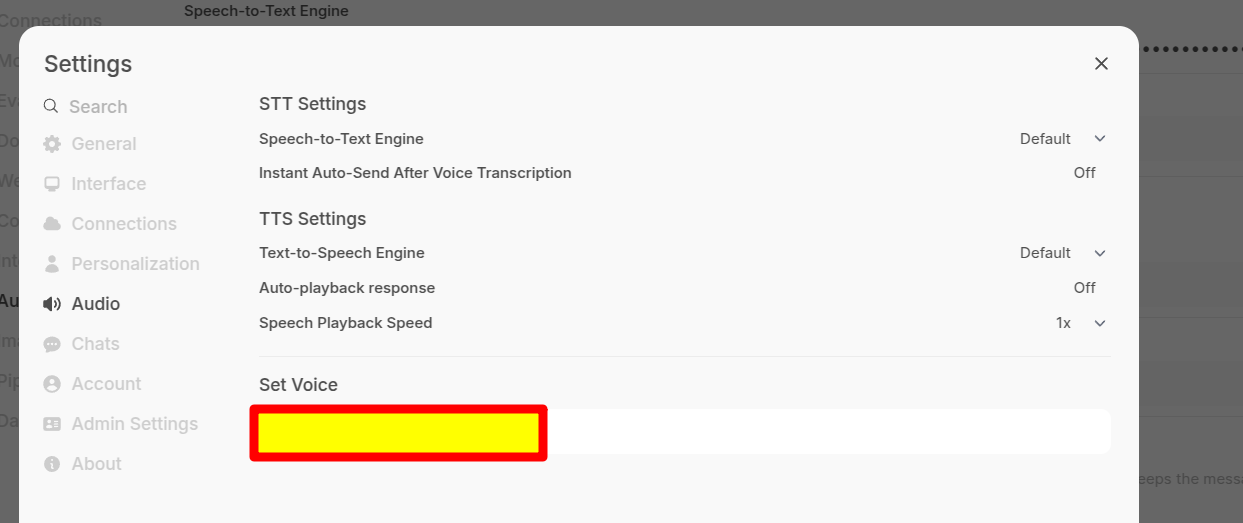
In addition the instance settings provisioned in the admin panel, there are also a couple of user-level settings that can provide additional functionality.
- STT Settings: Contains settings related to Speech-to-Text functionality.
- Speech-to-Text Engine: Determines the engine used for speech recognition (Default or Web API).
These settings are on the Audio tab of your Settings. The tab shows for admins and for users who hold at least one of Allow Speech to Text, Allow Text to Speech or Allow Call (see Permissions).
Using STT
Speech to text provides a highly efficient way of "writing" prompts using your voice and it performs robustly from both desktop and mobile devices.
To use STT, simply click on the microphone icon:

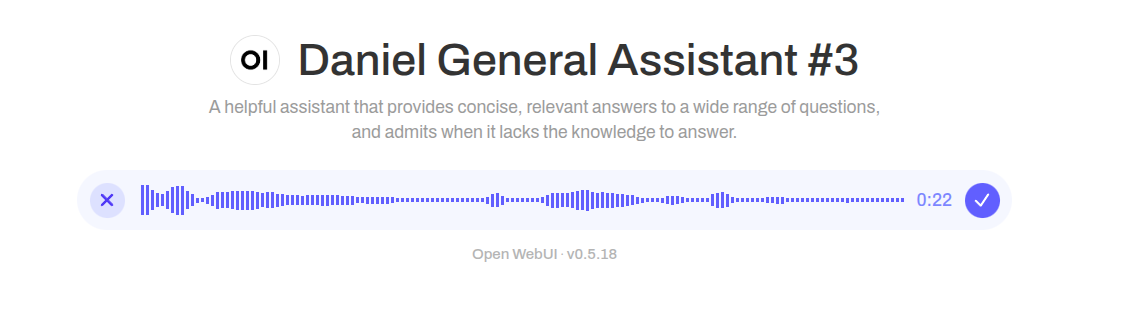
A live audio waveform will indicate successful voice capture:
STT Mode Operation
Once your recording has begun you can:
- Click on the tick icon to save the recording (if auto send after completion is enabled it will send for completion; otherwise you can manually send)
- If you wish to abort the recording (for example, you wish to start a fresh recording) you can click on the 'x' icon to scape the recording interface

Troubleshooting
Common Issues
"int8 compute type not supported" Error
If you see an error like Error transcribing chunk: Requested int8 compute type, but the target device or backend do not support efficient int8 computation, this usually means your GPU doesn't support the requested int8 compute operations.
Solutions:
- Upgrade to the latest version: persistent configuration for compute type has been improved in recent updates to resolve known issues with CUDA compatibility.
- Switch to the standard Docker image instead of the
:cudaimage. Older GPUs (Maxwell architecture, ~2014-2016) may not be supported by modern CUDA accelerated libraries. - Change the compute type using the
WHISPER_COMPUTE_TYPEenvironment variable:environment: - WHISPER_COMPUTE_TYPE=float16 # or float32
For smaller models like Whisper, CPU mode often provides comparable performance without GPU compatibility issues. The :cuda image primarily accelerates RAG embeddings and won't significantly impact STT speed for most users.
Microphone Not Working
- Check browser permissions: ensure your browser has microphone access
- Use HTTPS: some browsers require secure connections for microphone access
- Try another browser: Chrome typically has the best support for web audio APIs
Poor Recognition Accuracy
- Set the language explicitly using
WHISPER_LANGUAGE=en(uses ISO 639-1 codes) - Toggles multilingual support: use
WHISPER_MULTILINGUAL=trueif you need to support languages other than English. When disabled (default), only the English-only variant of the model is used for better performance in English tasks. - Use a larger Whisper model: options:
tiny,base,small,medium,large - Larger models are more accurate but slower
For more detailed troubleshooting, see the Audio Troubleshooting Guide.