Skills
Teach your AI how to approach a task with plain-text instructions.
Skills are reusable, markdown-based instruction sets that you attach to models or invoke on-the-fly in chat. Unlike Tools (executable Python scripts), Skills are plain-text instructions: code review guidelines, writing style rules, troubleshooting playbooks, data analysis workflows. The model reads them and follows them.
Mention a skill with $ in chat to inject its full content immediately. Or bind skills to a model so they're always available, loaded on-demand to keep the context window efficient.
Why Skills?
Instructions without code
Write guidelines in Markdown. No Python, no API calls, no deployment. If you can write a document, you can create a skill.
On-demand context loading
With native function calling, every active skill the user can read is listed in a lightweight manifest (id, name, description), bound to the model or not. Binding a skill to a model only pre-selects it in the chat. The model loads full instructions when it needs them via the view_skill tool and reads the skill's supporting files with read_skill_file. In legacy mode every bound, toggled or mentioned skill is injected in full and there is no manifest.
Reusable across models
Create one "Code Review Guidelines" skill and attach it to every coding model. Update the skill once, and every model gets the new version.
Composable with tools
Pair a skill with Open Terminal or any tool server. The skill teaches the model how to use the tool (check exit codes, handle errors, use streaming for long-running commands), while the tool provides the capability.
Key Features
| 📝 Markdown content | Write instructions in plain Markdown |
| 📁 Supporting files | Ship scripts, references, templates and assets next to SKILL.md |
| 🕘 Version history | Every save is a version you can compare, export or set back as the current one |
| ⚡ $ mention in chat | Type $ to inject a skill's full content into the current message |
| 🧩 Per-chat toggle | Switch skills on for one chat from the + Integrations menu, no model edit needed |
| 🤖 Model binding | Attach skills to models so they're always available |
| 📦 Lazy loading | Model-attached skills inject only a manifest; full content loads on-demand |
| 📥 Import/Export | Import ZIP archives, skill folders, JSON or single .md files, or load them from a URL; export as ZIP or JSON |
| 🌍 Community | Find skills on openwebui.com and share your own |
| 🔒 Access control | Private by default, shareable with users or groups |
| 🔀 Active/Inactive toggle | Deactivate skills without deleting them |
How Skills Work
User-selected skills ($ mention)
Type $ in the chat input to open the skill picker, or pick the skill from the / menu. Select a skill, and its full content is injected directly into the system prompt, in both function calling modes. The model has immediate access to the complete instructions. The injection carries the first 100,000 characters of SKILL.md. With the skill tools available it also lists up to 50 of the skill's supporting files, and the model reads those files and the rest of a longer SKILL.md through read_skill_file. A message that is only a $ mention is sent with the skill names as its text, so providers that reject empty content do not fail.
Per-chat skills (Integrations menu)
Open the + menu in the chat input and choose Skills to toggle individual skills on for the current chat, the same place you enable Tools. A badge shows how many are active. The selection persists for that chat and is sent with every message, and the toggled skill is listed in the manifest under native function calling (only a $ mention injects full content there). Under legacy function calling a toggled skill is injected in full, like a $ mention.
Model-attached skills
Skills bound to a model use lazy loading:
- Manifest injection - Only the skill's name and description are added to the system prompt.
- On-demand loading - The model receives a
view_skillbuilt-in tool. When it determines it needs a skill's full instructions, it callsview_skill(id)with the skill id from the manifest to load them. The result also lists the skill's supporting files, which the model opens withread_skill_file.
This means many skills can be attached to a model without consuming context window space until actually needed.
The manifest reaches further than the model's own skills. As long as built-in tools are active for the chat, every active skill you have access to is listed in it, so the model can find and load one you never selected or attached. Without built-in tools there is no manifest and no view_skill, and only the skills you selected or attached are injected, each with the first 100,000 characters of its SKILL.md. The model cannot read the rest of a longer SKILL.md or the supporting files. Switching off a model's Skills category under Builtin Tools has the same effect: the model can no longer find and load skills by itself, and skills you select or attach are injected the same way. The switch also covers read_skill_file, update_skill_files and create_skill, so /skills:create needs it switched on.
Skill tools
With built-in tools active and the model's Skills category on, the model gets these tools:
| Tool | What it does |
|---|---|
view_skill | Loads a skill's SKILL.md, up to 100,000 characters per call, together with the list of its supporting files. |
read_skill_file | Reads one file of a skill by its path, in pages of up to 100,000 characters. For a binary file it returns the file's size and a link that opens it in the skill editor. |
update_skill_files | Saves file changes (write a file, move a file or folder, delete a file or folder) as a new version of a skill the user can edit. Writes are text only. When someone saved the skill after the model read it, the save is refused with a conflict and the model is told to load the skill again and reapply its edit. |
create_skill | Creates a new private skill in the workspace from the SKILL.md text and optional text files. Offered to admins and to users with the Skills Access permission. |
All four follow the skill's access grants. A user with write access to an inactive skill can still have the model load and read it.
Skills from a terminal server
A connected Open Terminal server can carry its own skills, kept in the workspace next to the files they describe. Open WebUI reads them from the server and offers them in the $ picker beside your workspace skills, under ids of the form terminal:<url-encoded name>. They behave like any other skill: $ mention injects the full content, otherwise they sit in the same manifest and load through view_skill. What gets injected carries the skill's directory and the files it ships with, so the model knows where to read them from in the workspace. read_skill_file pages through a terminal skill's SKILL.md; its other files stay on the terminal, and the model opens them with the terminal's own file tools. The skill editor, version history and update_skill_files work on workspace skills.
Writing a terminal server of your own means answering two endpoints:
| Endpoint | Returns |
|---|---|
GET /skills | A JSON array, one entry per skill, each with id (prefixed terminal:, the name url-encoded), name, description and location (or path). |
GET /skills/read?name=<name> | One skill: name, description, content (the Markdown instructions), location (or path) and resources, an array of file paths shipped with the skill. |
Open Terminal serves both from v0.13.0.
A terminal an admin configured is called by the Open WebUI server, with the connection's auth, Accept: application/json, X-User-Id, X-Session-Id (the chat id) and X-Terminal-Context-Id, the same identity headers as every other terminal call, so a server that scopes skills per user or per chat has what it needs. Redirects are not followed. A terminal a user added in their own settings is called from that user's browser, with the bearer key and X-Session-Id. It only has to be reachable from the browser, so a terminal on the user's own machine, such as http://127.0.0.1:8000, works with Open WebUI hosted elsewhere.
Creating a Skill
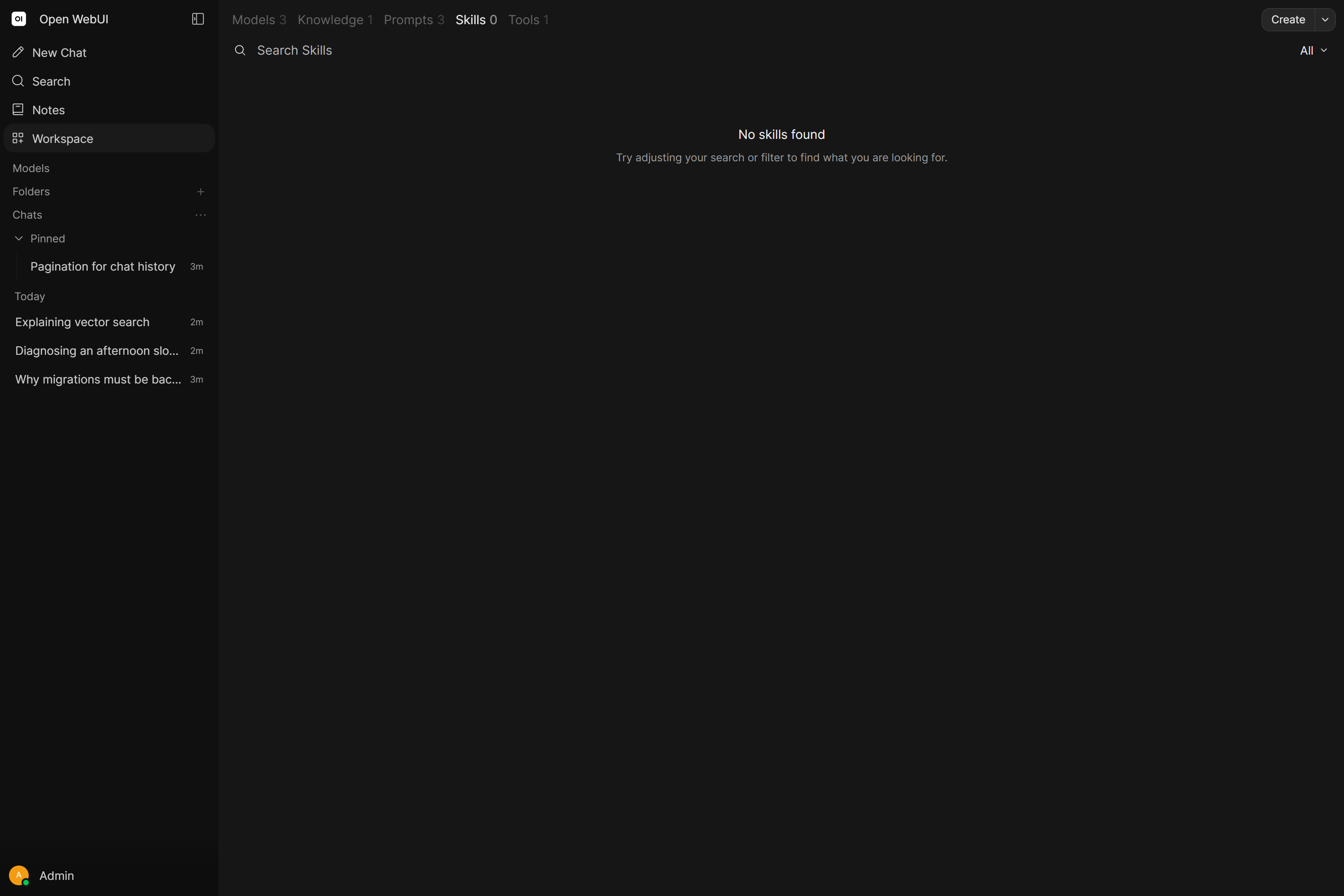
Navigate to Workspace > Skills and click Create in the Workspace header.
| Field | Description |
|---|---|
| Name | Human-readable display name (e.g., "Code Review Guidelines") |
| Skill ID | Unique slug, auto-generated from the name. Editable during creation, read-only afterwards |
| Description | Short summary shown in the manifest. For model-attached skills, the model uses this to decide whether to load the full instructions |
| Files | SKILL.md with the full skill instructions in Markdown, plus any supporting files |
The globe selector beside the name translates the Name and Description per language, so a skill reads in the user's own language wherever it is listed. See Translations.
While you create a skill, YAML frontmatter typed or pasted into SKILL.md fills in an empty Name and Description: name: code-review-guidelines becomes the name "Code Review Guidelines". The frontmatter is parsed as real YAML, so quoted and multi-line values come through as written.
Add a short note in Describe this change beside Save to label the version the save creates (see Version History).
Supporting files
A skill is a small folder: SKILL.md at its root, plus any files the instructions refer to, such as scripts in scripts/, detailed docs in references/, reusable outputs in templates/ and images or other assets in assets/. The file panel in the editor lists them as a tree. Its ... menu offers New File, New Folder, Upload and Upload Folder. Entries can be renamed, deleted or dragged into another folder, and the open file has a Download button. Markdown files have a Preview, images and PDFs open in place and other binary files are offered for download.
| Limit | Value |
|---|---|
| Size of one file | 10 MiB |
| Size of all files in one skill | 50 MiB |
| Files per skill | 1,000 |
Text files are stored as text and any other file as binary. SKILL.md stays at the root and must be UTF-8 text. All file changes land together when you click Save.
Importing skills
The chevron menu beside Create has three import entries:
- Import takes one or more
.zip,.jsonor.mdfiles, up to 200 MiB per import. A ZIP holds a single skill withSKILL.mdat its root, or several skill folders that each contain aSKILL.md. A.mdfile becomes a skill with that file as itsSKILL.md. A JSON file is a skill export from Open WebUI, older exports with a singlecontentfield included. Needs the Skills Access and Import Skills permissions. - Import from URL (admins only) downloads skills from a link. See Importing from a URL.
- Import folder takes a skill folder from your computer, or a folder holding several skill folders, each with its own
SKILL.md. Needs the Skills Access and Import Skills permissions.
Every import opens a preview listing each skill with its name, ID and files. For each one, choose Create, Create copy, Replace or Skip. A skill whose ID or name already exists starts on Skip; give it a unique ID and name to create it as a copy. Replace appears for existing skills you can edit, and saves the import as a new version of that skill with its sharing unchanged. New skills and copies start private.
Importing from Markdown
Skills imported from a ZIP, a folder or a .md file take their name and description from the SKILL.md frontmatter, and the ID from the name; a JSON export carries its own:
---
name: code-review-guidelines
description: Step-by-step instructions for thorough code reviews
---

# Code Review Guidelines

1. Check for correctness...
Importing from a URL
Import from URL in the chevron menu beside Create loads skills straight from the web. It is available to administrators. Paste one of these links:
| Link | What gets imported |
|---|---|
A GitHub repository, such as https://github.com/owner/repo | Every skill in the repository: each folder that holds a SKILL.md, or the whole repository when SKILL.md sits at its root |
A GitHub folder, https://github.com/owner/repo/tree/<branch>/<folder> | The skills in that folder |
A GitHub SKILL.md, https://github.com/owner/repo/blob/<branch>/<folder>/SKILL.md | The skill in that SKILL.md's folder, with all its files |
A direct link to a .zip, .json or .md file | The skills in that file, read the same way as an upload |
GitHub links are downloaded as a ZIP of the repository at that branch, tag or commit, so a skill arrives with its supporting files. A branch name containing / has to be URL-encoded (%2F), or use a commit link. The skills found open in the same import preview as an upload, where you choose what to create.
The link is checked against the same address rules as web fetching before the download starts and again at every redirect, so with ENABLE_LOCAL_WEB_FETCH off a link that leads into your private network is refused. It follows up to 5 redirects, gives up after 60 seconds and stops at 200 MiB. A link that returns a web page is refused with a hint to use a raw file or a ZIP download link; on GitHub, the repository, folder and SKILL.md links above work as they are.
From a chat with /skills:create
A workflow you just worked through in a chat can be turned into a skill without writing it out yourself. Type /skills:create in that chat, optionally followed by what the skill should cover, and the model gathers the material, authors one SKILL.md to the standard below and saves it to your Workspace > Skills with the create_skill tool, along with any supporting text files under scripts/, references/, templates/ or assets/. The new skill is private. The model reports the name, the location and a one-line summary when it is done, and can revise an existing skill you can edit with update_skill_files.
Anything you write after the command is treated as authoring guidance, all of it. Sources to pull from (paths, URLs, "what we just did", pasted notes) and requirements that shape the result (focus, exclusions, naming, style) can be mixed freely in one request.
The command needs:
- the Skills Access workspace permission (admins always have it),
- a model with built-in tools active and its Skills category switched on under Builtin Tools,
- a chat that already has content, since the chat is the raw material.
The server checks all three before the model may save anything. The / menu offers the command once the chat has content and you hold the permission.
Skill Authoring Standard
This is the standard Open WebUI itself follows when it writes a skill through /skills:create, and the one to hold your own skills to.
Frontmatter
| Key | Rule |
|---|---|
name | Lowercase and hyphenated, no spaces, 64 characters at most. |
description | A clear description, 1024 characters at most, ending in a period. Name the capability, skip the implementation, do not repeat the skill name and leave out words like powerful, comprehensive, seamless, advanced or robust. Count the characters before saving. |
platforms | [macos], [linux] or [windows], and only when the skill uses something OS-bound. Omit it for portable skills. |
Body sections, in this order
# <Human Title>and a short intro: what it does, what it does not do, what it assumes is installed.## When to Use, with concrete trigger phrases.## Prerequisites: exact environment variables, credentials and install steps, orNone.## How to Run: the canonical workflow, framed through the tools the model actually has.## Quick Reference: flat list of commands, routes, files or APIs.## Procedure: numbered steps, copy-paste exact.## Pitfalls: known limits and failure modes.## Verification: one focused check that proves the skill works.
Framing the tools. Name tools in backticks, run_command, write_file and view_skill among them, and describe shell work as run through run_command. Prefer the read and search tools over raw shell utilities where one exists. Third-party CLIs are fine inside a procedure as long as it is clear the agent invokes them through run_command.
Quality bar. Use commands, routes, paths, function names, config keys and error text exactly as they appear in the source; invented flags or APIs are the main way a skill goes wrong. Keep SKILL.md scannable, roughly 100 lines for a simple workflow and 200 for a complex one, and put the bulk elsewhere: larger scripts in scripts/, detailed docs in references/, reusable outputs in templates/, binary or visual assets in assets/. A skill that only points at other skills is worth nothing; write the one that does the work.
Binding Skills to a Model
- Go to Workspace > Models.
- Edit a model and open the Skills row.
- Pick the skills you want this model to always have access to.
- Click Save & Update.
In native mode the manifest already lists every readable skill, so binding only pre-selects those skills in the chat. In legacy mode the bound skills' full content is appended to the system prompt.
Skill Management
From the Skills workspace list, use the ellipsis menu (...) on a skill you can edit:
| Action | Description |
|---|---|
| Edit | Open the skill in the editor |
| Access | Open the skill's access settings straight from the list. Changes save as you make them |
| Clone | Create a private copy of the current version, with all its files, and open it in the editor. The copy's name and ID get a short random suffix |
| Export JSON / Export ZIP | Download the skill with all its files. Needs the Skills Access and Export Skills permissions |
| Share | Publish the skill with all its files on openwebui.com. Needs Community Sharing on and the Export Skills permission. See Community skills |
| Delete | Permanently remove the skill and its whole version history (Shift+Click for quick deletion) |
Bulk export: Click Export ZIP or Export JSON in the chevron menu beside Create to export all accessible skills as one file. The ZIP holds one folder per skill. Both need the Skills Access and Export Skills permissions.
Active/Inactive toggle: Inactive skills are left out of manifests and $ mentions, even when bound to a model. Users with write access can still have the model load them (see Skill tools).
Community skills
With Community Sharing switched on (see Open WebUI Community), the Skills workspace connects to openwebui.com:
- Discover a skill, at the bottom of the skill list, opens the skills published on openwebui.com.
- A skill imported from its page on openwebui.com opens in a new skill editor on your instance, with its name, description and all its files filled in. Review it and click Save & Create to add it. This needs the Skills Access and Import Skills permissions.
- Share in a skill's ... menu opens openwebui.com in a new tab with a new post holding the skill and all its files. Nothing is published until you finish the post there. This needs the Export Skills permission, and a skill can be shared up to 15 MiB in total.
Version History
Every save that changes a skill's name, description, translations or files stores a complete snapshot of the skill as a new version. Switching a skill on or off and changing its access leave the history as it is. Skills that existed before the upgrade start with one version holding their current content.
The version menu at the top of the editor's file panel lists Current and every earlier version, newest first and 20 per page, each with its author and the note from Describe this change (or a short version ID when there is none). Picking an earlier version opens it read-only with two actions:
- Compare to current shows what differs between that version and the current one: name, description and translations, plus every added, deleted or modified file with a line-by-line diff for text files.
- Set as Production makes that version the current one again. It needs write access. If someone saved the skill after you opened the version, the switch is refused and the editor offers to reload the latest state.
The ... beside each earlier version holds Delete, for users with write access. Versions that were based on a deleted one are linked to its parent, so the chain stays intact. With the Export Skills permission, the file panel's ... menu also exports the version you are viewing as JSON or ZIP.
If someone else saves the skill while you edit it, your save is refused and your draft stays in the editor. A banner offers Reload latest, Save draft as copy or Keep editing.
Access Control
Skills use the same Access Control system as other workspace resources:
- Private by default: Only the creator can see and edit a new skill.
- Share with users or groups: Grant
readorwriteaccess via the Access button in the editor or the Access entry in the list menu. - Read-only access: Users with read access can view but not edit. The editor shows a "Read Only" badge.
Attaching a skill to a model does not bypass access control. When a user chats with the model, Open WebUI checks whether that user has read access to each attached skill. Skills the user can't access are silently excluded.
Example: An admin creates a private skill and attaches it to a shared model. Regular users chatting with this model will not get the skill because they don't have read access.
Solution: Make sure users who need the model's skills also have read access to each skill (via access grants, group permissions, or by making the skill public).
Required permissions
| Permission | What it controls |
|---|---|
| Workspace > Skills Access | Access the Skills workspace and create/manage skills |
| Workspace > Import Skills | Import skills from ZIP, folder, JSON or Markdown, and open skills from openwebui.com |
| Workspace > Export Skills | Export skills and their versions as ZIP or JSON, and share skills to openwebui.com |
| Sharing > Skills Sharing | Share skills with individual users or groups |
| Sharing > Skills Public Sharing | Make skills publicly accessible |
See Permissions for configuration details.
Skills API
The editor's file, version, import and export features are backed by these endpoints under /api/v1/skills. Reads need read access to the skill; changing the current version and deleting a version need write access.
| Endpoint | What it does |
|---|---|
GET /id/{id}/files | Lists the skill's files with path, size and encoding. version_id picks a historical version. |
GET /id/{id}/files/content | Downloads one file, given path and version_id. |
GET /id/{id}/history | Lists versions, newest first, 20 per page. |
GET /id/{id}/history/{history_id} | Returns one version with its file list. |
GET /id/{id}/history/diff | Lists what changed between from_id and to_id: metadata and added, deleted or modified files. /history/diff/file with a path returns the line diff of one text file. |
POST /id/{id}/update/version | Makes a stored version the current one. The body carries version_id and expected_version_id, the version you believe is current; when that no longer matches, the call returns 409. |
DELETE /id/{id}/history/{history_id} | Deletes a version other than the current one and links its child versions to its parent. |
POST /id/{id}/clone | Copies the skill under a new id and name, optionally from a given version_id. The copy is private. |
GET /export | Exports skills as format=json or format=zip. Repeat ids to pick skills; with exactly one id, version_id exports a historical version. |
POST /load/url | Admins only. Downloads the skills behind {"url": "..."} (see Importing from a URL) and returns them as skill packages, without saving anything. |
POST /import/preview | Reads uploaded ZIP, JSON or Markdown files (up to 200 MiB in total) and lists the skills found, flagging IDs and names that already exist. |
POST /import | Imports the same uploads with a decisions list, one entry per skill: action (create, copy, replace or skip), an optional id and name, plus expected_version_id for replace. |
POST /create and POST /id/{id}/update take the skill's files as files, and an optional commit_message that labels the new version. An update can send operations (put, move, delete) to change single files. An update that sends files or operations needs expected_version_id and returns 409 when someone saved the skill in the meantime.
Use Cases
Code review standards
Write your team's review checklist as a skill: naming conventions, error handling patterns, test coverage requirements. Attach it to your coding models so every review follows the same bar.
Writing style guide
Document tone, formatting rules, and terminology in a skill. Attach it to content-writing models. Every draft follows your brand voice.
Troubleshooting playbooks
Encode your runbook for common issues: "check logs first, verify config, test connectivity, escalate if X." The model follows the same diagnostic steps your senior engineers would.
Tool usage instructions
Pair a skill with Open Terminal to teach the model how to use it well. "Always check exit codes. Use set -e in scripts. Stream output for commands that take more than 10 seconds."
Limitations
Plain text only
Open WebUI stores a skill's scripts for the model to read. Running one takes a tool that executes code, such as Open Terminal or the code interpreter. For computation, API calls or system access, use Tools.
Context window with $ mention
When injected via $ mention, the skill content goes into the system prompt, up to the first 100,000 characters of SKILL.md. A very long skill attached to a model with a small context window may crowd out conversation history.
Lazy loading requires function calling
The manifest and the view_skill built-in tool need native function calling with Builtin Tools enabled. Without them there is no lazy loading at all: every bound, toggled or mentioned skill is injected into the system prompt, up to the first 100,000 characters of its SKILL.md. Reading a skill's supporting files takes the skill tools, so it needs native function calling too.