Create Documents and Files
Reading files is half of it. Open Terminal can also write them: a Word document, a PDF, a slide deck, a chart, a script. The AI builds the file with ordinary Python libraries that are already in the image, saves it into your workspace, and can put it straight into the chat with a download button on it.
Nothing has to be set up for this. No plugin, no export service, no copy and paste out of a code block.
What it can produce
| Type | Formats |
|---|---|
| Documents | Word (.docx), PDF, Markdown, plain text, HTML |
| Spreadsheets | Excel (.xlsx), CSV |
| Presentations | PowerPoint (.pptx) |
| Graphics | SVG, PNG charts, resized and converted images |
| Code | Python, shell scripts, config files, anything else text based |
The default image ships python-docx, python-pptx, fpdf, openpyxl, Pillow and matplotlib, which covers all of the above. Anything missing can be installed on the spot.
"Put this in a Word document"
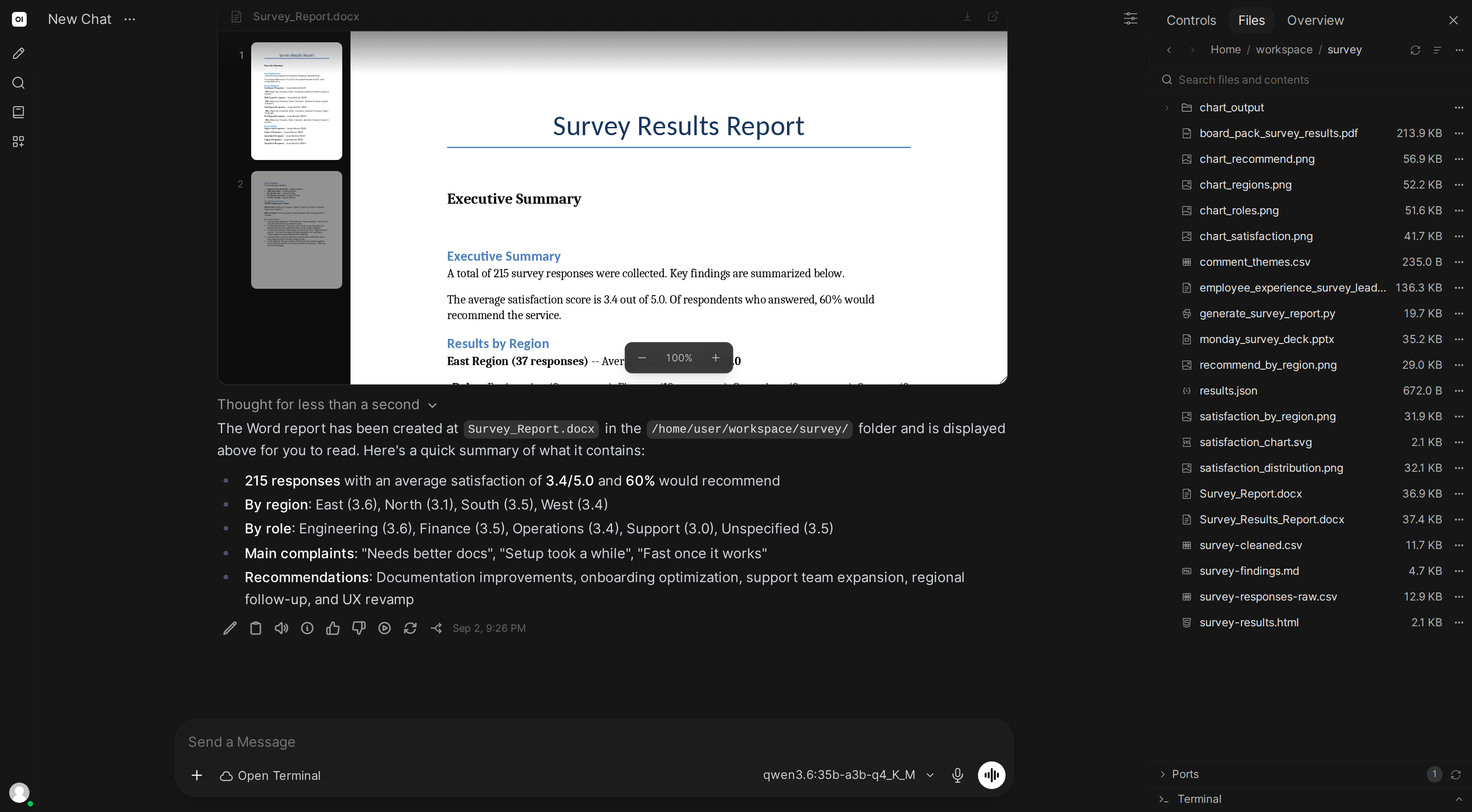
You: Turn the site readings into a one page Word document with a summary and a table of the per site totals, then show it to me.
The AI reads the data, builds the .docx with a heading, a summary paragraph and a real table, and displays it in the chat.
"Make me a PDF"
You: Make a one page PDF from the same readings, with a title and the per site totals.
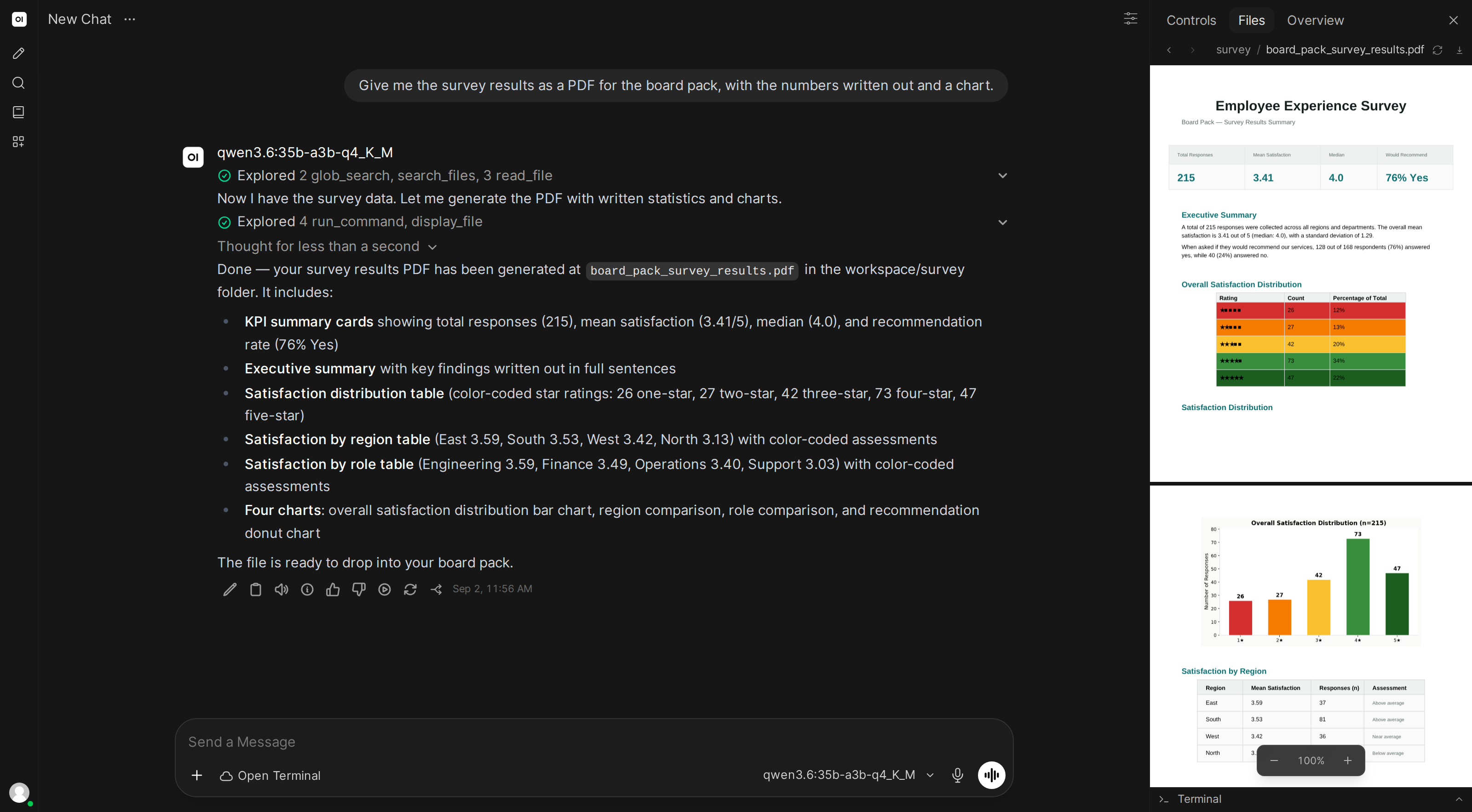
Long documents open at whichever page you ask for. See Files shown in the chat message.
"Turn it into a deck"
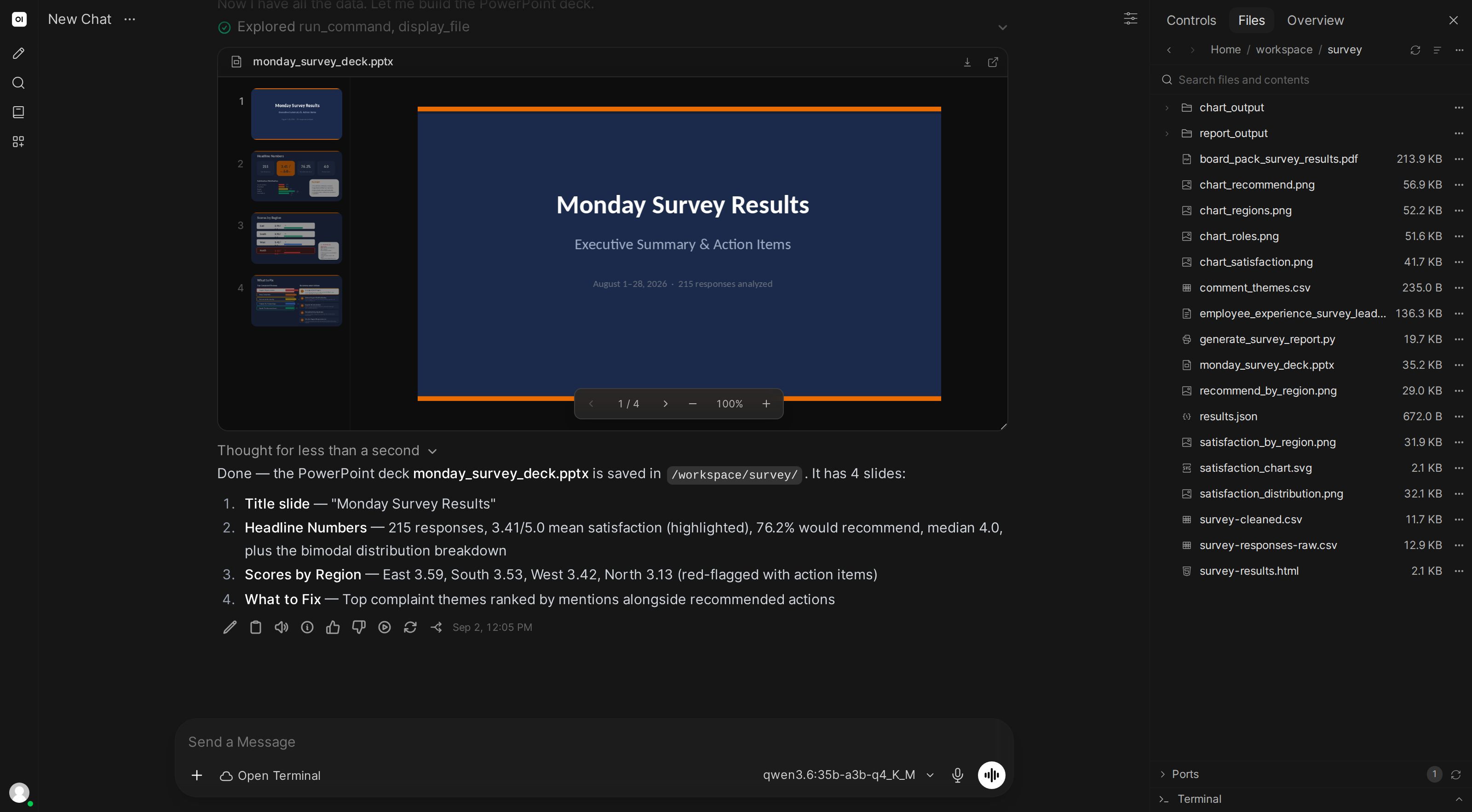
You: Build a three slide deck covering the readings: a title slide, the per site totals, and the sites needing attention.
The deck arrives with its slide rail and page controls, so you can page through it without leaving the conversation.
"Draw it as an SVG"
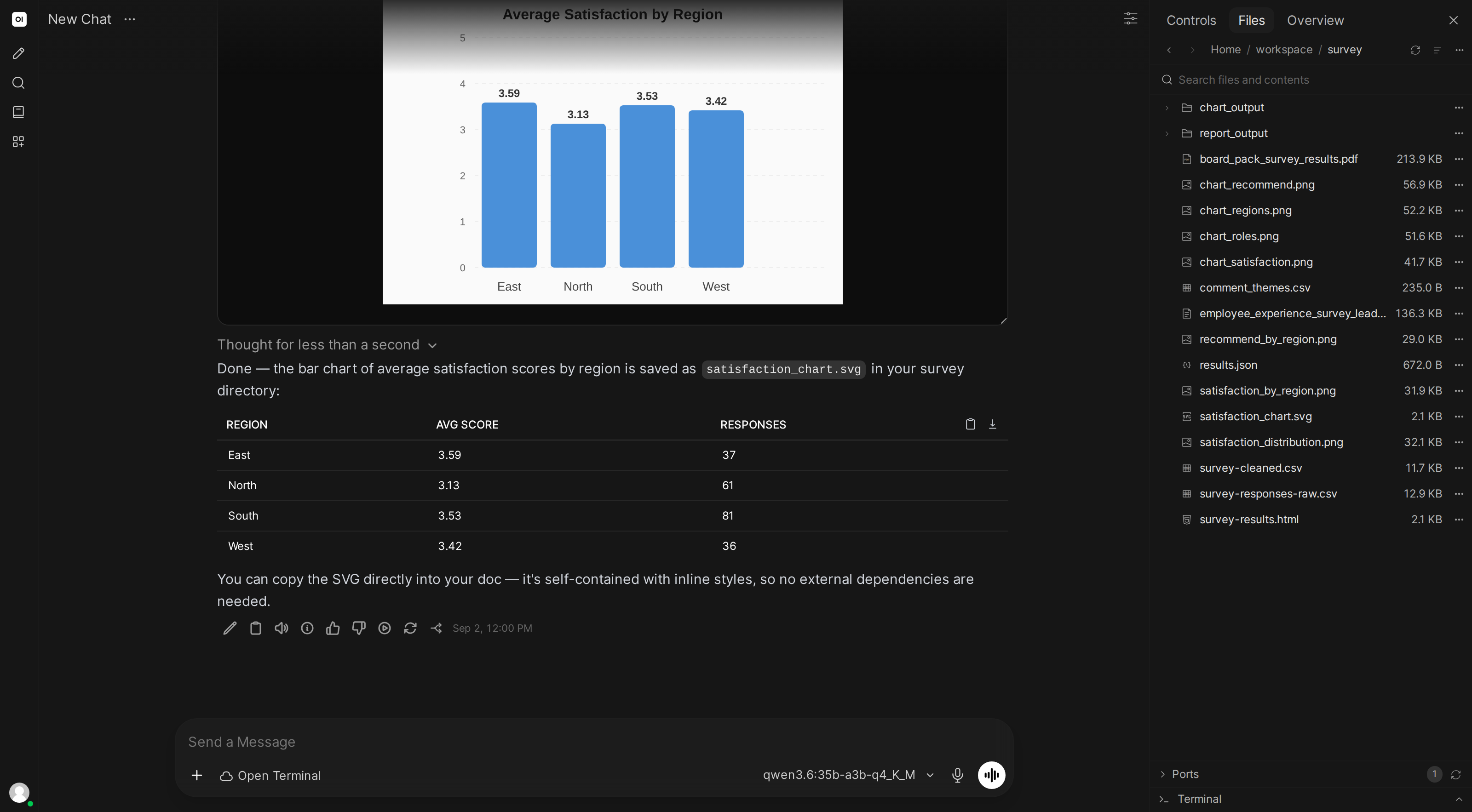
You: Draw the per site output as a bar chart in a plain SVG file, no external assets.
Vector output is written as text, so the AI can edit it afterwards the way it edits any other file. Ask for a different colour or an extra label and it rewrites the shapes rather than regenerating a picture.
"Write me a script for it"
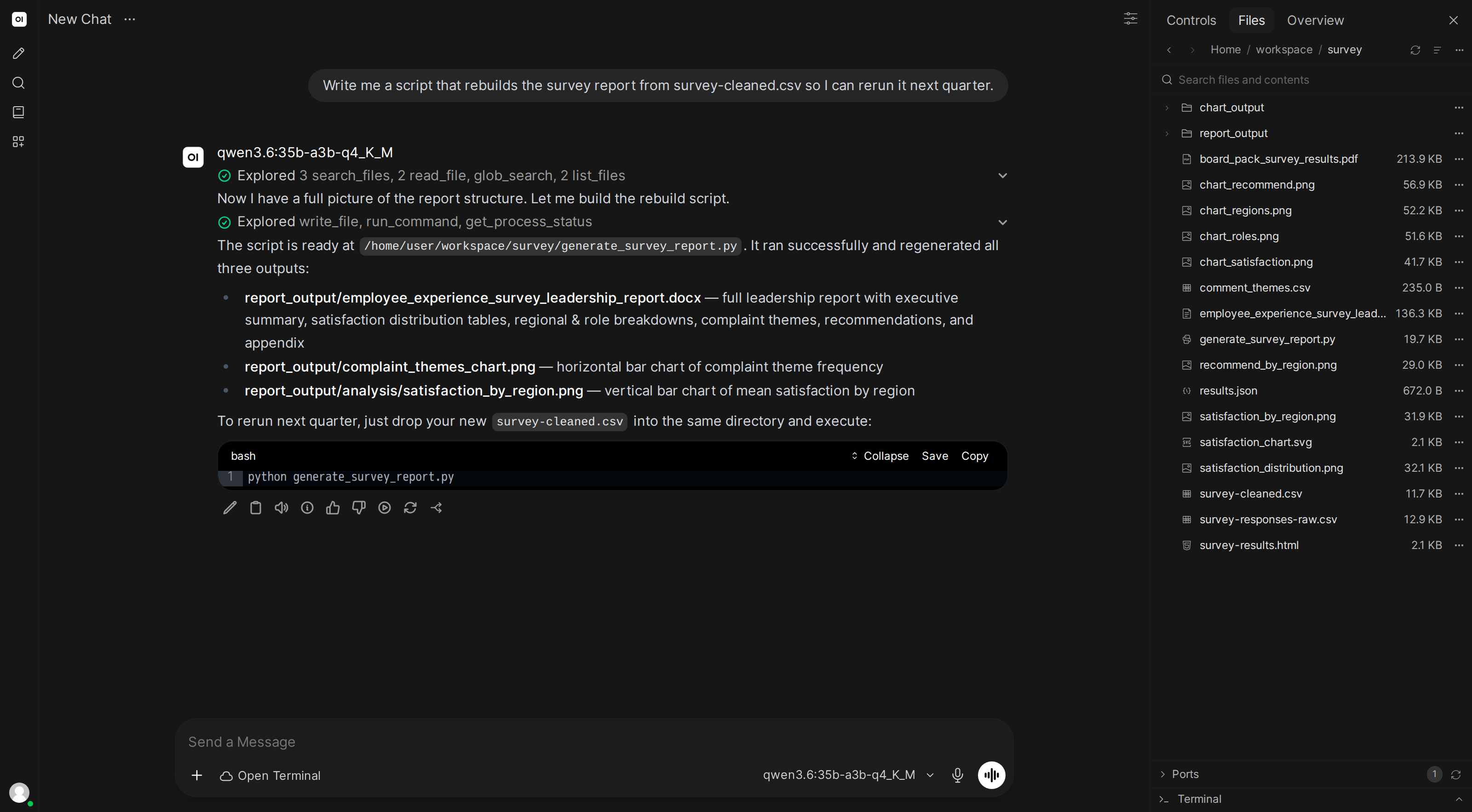
You: Write me a script that rebuilds the survey report from the raw CSV so I can rerun it next quarter.
Code comes back as a file in your workspace rather than a block you have to copy out of the chat, so it is ready to run and ready to edit.
"Write it up for the wiki"
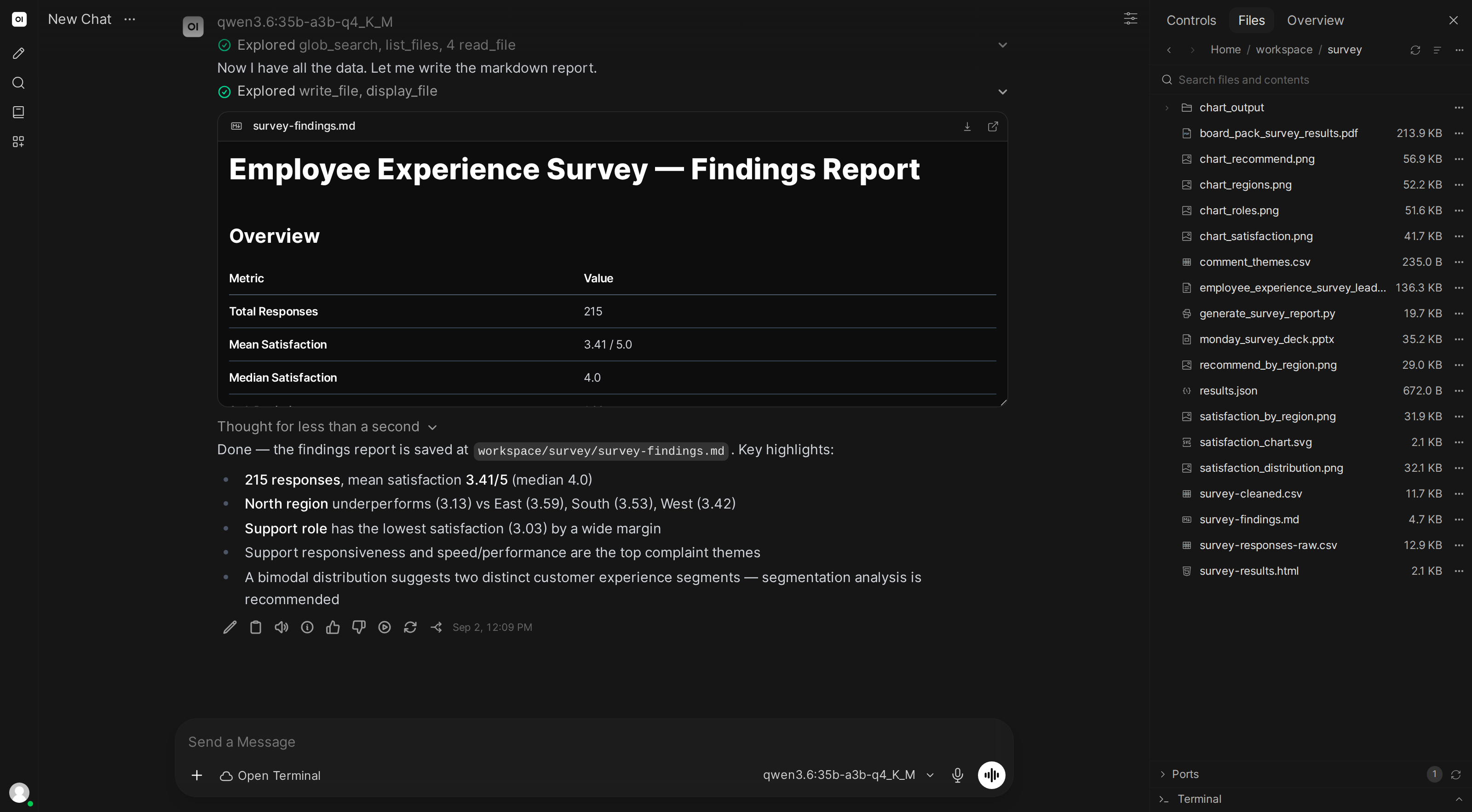
You: Write the survey findings up as markdown for the wiki.
Markdown renders in the preview, so you can read the finished page before you paste it anywhere.
Getting the file out
Every file shown in the chat carries a download button in the top right of its card, next to the control that opens it in the file browser.
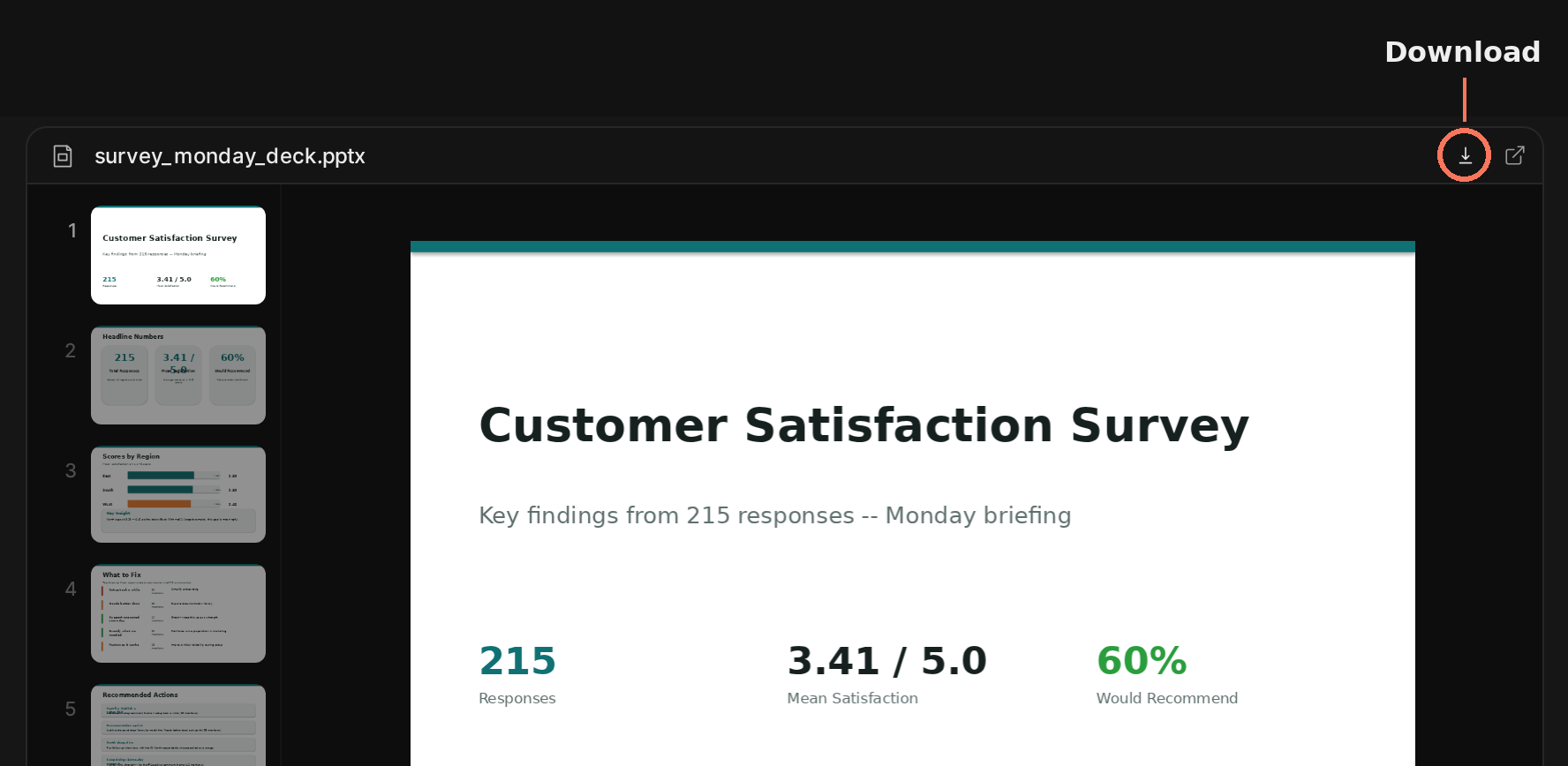
The file is also sitting in your workspace, so the file browser has it too, alongside everything else the AI has made. Asking for it in the chat just saves you going to look.
"as a Word document", "as a PDF", "as a deck", "as an SVG" all work in plain language. If you do not say, the AI usually picks Markdown, which is fine for reading and less useful for sending on.