Folders & Projects
Open WebUI provides powerful folder-based organization that turns simple chat containers into full-featured project workspaces. Folders allow you to not only group related conversations but also define specific contexts, system prompts, and knowledge bases that apply to all chats within them.
Enabling Folders
Folders are enabled by default. Administrators can control this feature via:
- Admin Panel: The folders feature is controlled globally alongside other features.
- Environment Variable:
ENABLE_FOLDERS. Set toTrue(default) to enable orFalseto disable.
Core Features
Creating Folders
Create a new folder to organize your conversations:
- In the sidebar, click the + button on the Folders section header.
- Select "New Folder".
- Enter a name for your folder.
- Click Save.
Moving Conversations into Folders
Organize existing chats by moving them into folders:
- Drag and Drop: Click and drag any conversation from the sidebar into a folder.
- Conversation menu: Hover a conversation in the sidebar, click the three-dot menu that appears, then choose Move and pick the destination folder. The entry appears once at least one folder exists.
A folder highlights while you drag a chat over it when you are allowed to file the chat there, so you can see where the drop will land before you let go. A folder of your own always takes one. A folder shared with you takes one only with write access; with read-only access it does not highlight and does not accept the drop, so a move that would be refused anyway is never started.
Nested Folders
Folders can be nested within other folders to create hierarchical organization:
- Create subfolder from menu: Click the three-dot menu on any folder and select "Create Folder" to create a new subfolder directly inside it.
- Drag and drop: Drag a folder onto another folder to make it a subfolder.
- Export: the same three-dot menu on a folder also has Export, which downloads the folder's chats. It needs the Allow Chat Export permission. There is no move entry. Folders are re-parented by drag and drop only.
- Folders can be expanded or collapsed to show/hide their contents.
- Subfolder names must be unique within the same parent folder. If a duplicate name is entered, a number is automatically appended (e.g., "Notes 1").
Unread Badge
A folder shows a count of the chats inside it you have not read yet, next to its name in the sidebar.
- The count includes the folder's own chats and everything in its subfolders, so a collapsed parent still shows what is waiting below it.
- A chat counts as unread when it has changed since you last opened it. Archived chats never count, and a chat whose reply is still being generated is not counted until the response has finished.
- Opening a chat clears it from the count immediately, in every window you have open: the server recalculates your folder counts on the spot and pushes them to your other sessions rather than waiting for the next reload.
- Unread state is about your own reading. Shared folders carry no badge, and chats belonging to someone else never show as unread to you, however recently they were touched.
- A title generated automatically for a chat does not make it unread again.
The folder's chat list marks the same state per chat: a dot for an unread conversation, and a spinner for one whose answer is still streaming. Unread chats are listed first, each group ordered by recent activity, so what is waiting for you sits at the top of the folder rather than wherever its timestamp puts it. The list keeps itself current while you look at it, a chat that starts or finishes generating updates in place and re-sorts, a chat that arrives in the folder is inserted rather than triggering a full reload, and the list reloads after a dropped connection is restored. Opening a chat from this list clears its dot immediately, without waiting for the chat to load.
Marking Read and Unread
- Mark a chat unread: open a chat's three-dot menu in the sidebar and choose Mark as unread. The chat gets its dot back, moves up with the other unread chats, and the folder count goes up again. Use it to keep a conversation on your radar after skimming it.
- Mark a folder read: open a folder's three-dot menu and choose Mark all as read. On a folder you own this clears your unread chats in that folder and everything nested under it; on a folder shared with you it clears only that folder, and only your own chats in it. Archived chats are left alone.
- Mark everything read: the Chats section header in the sidebar has its own menu with Mark all as read, which clears every unread chat you own, loose chats and chats in folders alike, and zeroes all the folder badges at once. Archived chats are again left alone.
Starting a Chat in a Folder
When you click on a folder in the sidebar, it becomes your active workspace:
- Click on any folder in the sidebar to select it.
- The chat interface will show that folder is active.
- Any new chat you start will automatically be created inside this folder.
- New chats will inherit the folder's settings (default model, system prompt and knowledge).
A folder's three-dot menu also has New Chat, which opens the folder the same way.
Each folder in the sidebar is a link to its own page, so a middle click or Ctrl/Cmd click opens the folder in a new tab.
Moving a chat into a folder requires write access to it. That means the folder is yours, or it is shared with you with write access, either directly or through a folder above it. Read-only access on a shared folder lets you open it and read the chats in it, but sending the first message of a new chat there is refused instead of quietly moving the chat into the folder.
The check is the same in all three places a chat is given a folder: creating a chat through the API, moving an existing chat into a folder, and sending the first message of a chat started inside one. Naming a folder that does not exist is refused the same way as naming one you cannot write to.
Folder Settings (Project Configuration)
Folders can be configured as full project workspaces with their own AI behavior and context. To edit folder settings:
- Hover over a folder in the sidebar.
- Click the three-dot menu (⋯).
- Select "Edit" to open the folder settings modal.
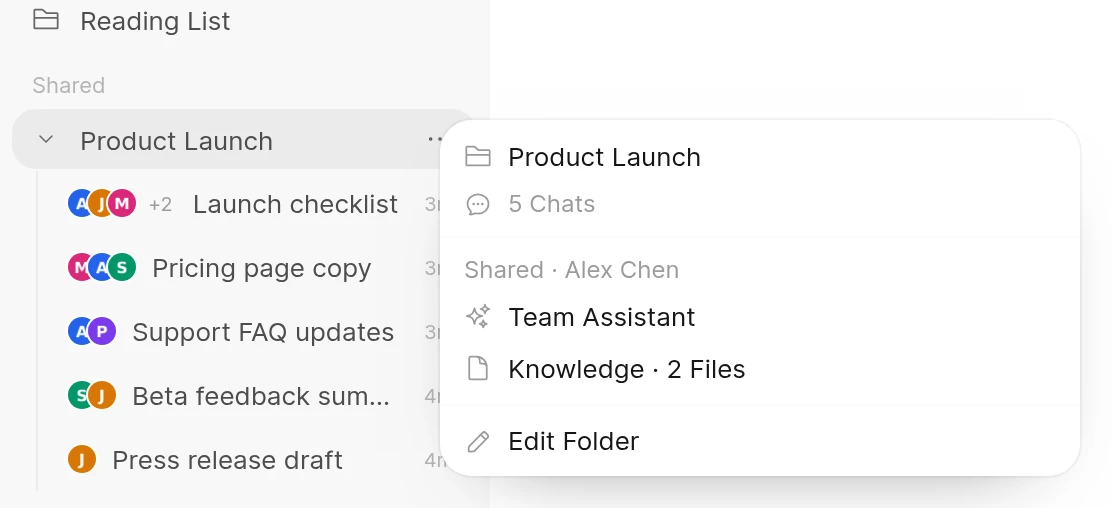
On desktop, resting the pointer on a folder's name in the sidebar shows a preview of the folder: its number of chats, its default model and how many knowledge items are attached, plus the owner's name for a folder shared with you. With write access, the preview also has an Edit Folder button that opens the same settings.
Folder Name
Change the name of your folder to better reflect its purpose or project.
Description
Add a short note on what the folder is for. It shows under the folder's name on the folder's page, cut off after two lines.
Folder Background Image
Customize the visual appearance of your folder by uploading a background image. This helps visually distinguish different projects in your workspace.
Default Model
Pick the model new chats in this folder start with, or leave it on Use default to fall back to your usual default. Switching models inside one of the folder's chats leaves the folder's default as it is; change it here.
System Prompt
Assign a dedicated System Prompt to the folder that automatically applies to all conversations within it:
- The system prompt is prepended to every new conversation created in the folder.
- This tailors the AI's behavior for specific tasks or personas.
- System prompts are optional. You can use folders purely for organization without one.
The System Prompt field is only visible if you have permission to set system prompts (controlled by admin settings).
Attached Knowledge
Link knowledge bases and files to your folder:
- All attached files and knowledge bases are automatically included as context for every chat in the folder.
- With Native function calling, the model gets a list of the folder's knowledge and reads it with the Knowledge Base builtin tools, whether File Context is on or off. With Legacy function calling, it is retrieved and injected through RAG (Retrieval Augmented Generation) while File Context is on.
- Knowledge is optional. Folders work for organization without any attached files.
- Attaching a folder to another chat. Folders are listed in the
#menu, and you can also drag one from the sidebar into the message input. This attaches the files and knowledge bases linked to the folder, and only while File Context is on. With File Context off, attach the folder's knowledge bases and files with#directly, or start the chat inside the folder.
Whose access decides what is attached. A folder's knowledge is measured against the folder owner, not against whoever is editing or reading it:
- Attaching a file, collection or note to a folder requires the owner to be able to read it. So someone with write access to a shared folder cannot attach documents into it that its owner could not open themselves, including their own private ones. The same check applies to a subfolder created inside a shared folder, which belongs to the parent's owner.
- Every chat in the folder re-checks the attachments against the owner's current access before using them. If the owner loses access to a knowledge base after attaching it, it stops being fed into the folder's chats, rather than continuing to serve content through the folder to everyone who can see it.
- Entries that are not a file, collection or note, or that carry no ID, are ignored rather than passed through, since there is nothing to check them against.
Sharing Folders
Share a folder, and the chats inside it, with specific users or groups so a team can work from the same set of conversations.
Sharing a folder needs the Folders Sharing permission, which is off by default. An administrator turns it on under Admin Panel > Users > Groups or with USER_PERMISSIONS_FOLDERS_ALLOW_SHARING.
- Hover over a folder in the sidebar, open the three-dot menu (⋯) and select Edit.
- Click Access at the top of the Edit Folder dialog.
- Add the users or groups to share with. Each one starts on Write; switch it to Read in their row of the Access List where needed:
- Read: they can open the folder and read its chats. They cannot start a chat in it or move one into it, and dragging a chat over it in the sidebar does not offer it as a drop target.
- Write: they can also rename the folder, start chats in it, move their own chats into it and create subfolders inside it. It highlights and takes the chat when they drag one onto it in the sidebar.
- Pick the Sharing mode. You can set it before anyone has access, so the folder is ready when you add people:
- Clone only (default): people you shared with read the folder's chats and clone one to continue it on their own.
- Allow replies: everyone with access to the folder, read or write, can send messages into the chats directly in it, which then work like a shared chat with replies. Chats in a subfolder follow that subfolder's own sharing mode, which you set in the subfolder's own Access dialog; until then they open read-only.
Each change applies as soon as you make it.
Only the folder's owner or an admin can change who a folder is shared with and its sharing mode. People with write access do not get the Access button in the Edit Folder dialog.
The Add Access picker lists only the people and groups the folder is not already shared with, so you cannot add the same person twice and the list shrinks as you go. To move someone between Read and Write, or to drop them entirely, use their row in the Access List instead.
Shared folders appear in the recipient's sidebar. A few rules to know:
- Subfolders inherit the share. Access granted on a folder cascades to everything nested inside it. When someone has inherited Write on a subfolder and a direct Read grant on it too, Write applies. The sharing mode applies per folder, so replying in a subfolder's chats needs Allow replies on that subfolder.
- Someone else's chat opens under their name. In a folder set to Clone only it is read-only; with Allow replies on, it opens with the message input and you can write into it. Each message carries the name and profile picture of the person who sent it, both in the conversation and on the message nodes in the Overview window. In the bubble layout, messages from other people sit on the left with their name and picture, and your own sit on the right; with Chat Bubble UI off in Settings > Interface, every message shows its sender's name and picture.
- The folder's owner can tidy up other people's chats. In a folder you own, you can rename chats other people started (title only) and move them to other folders in the same shared tree.
- Edit and regenerate together. With Allow replies on, people with access can edit any prompt into a new branch and regenerate any reply, the same as in a shared chat with replies. The chat's top bar shows who else has it open right now.
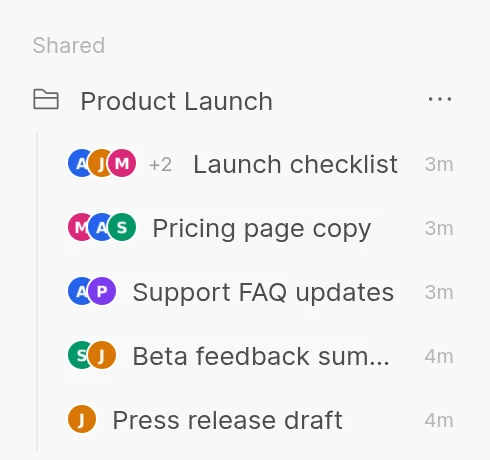
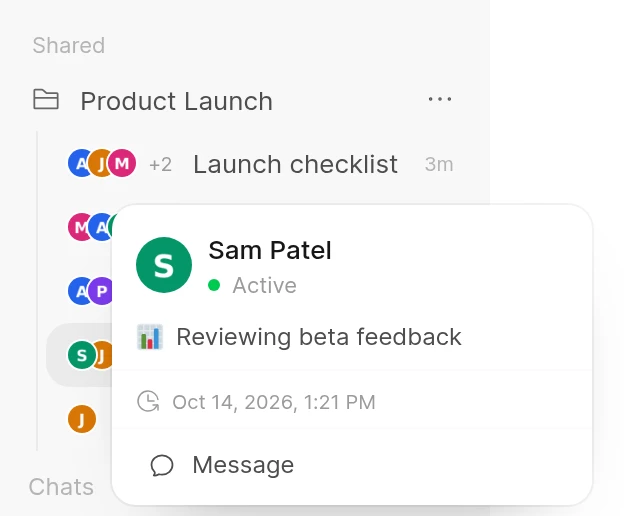
- Each chat shows who wrote in it. In a shared folder, every chat in the sidebar and on the folder's page shows the profile pictures of the people who wrote in it, the chat's owner first. Up to three pictures show, followed by a count such as +2; click the count to see everyone. Hover or click a picture to open that person's profile card.
- Chats in a shared folder can be attached as context. Drag one from the sidebar into the message input of another chat and the model receives that conversation's messages, the same as for a chat you own. Read access on the folder, whether granted on it directly or inherited from a folder above it, is enough.
- Archiving a chat takes it out of the folder. People who could see it only through the folder lose access.
- Only the owner or an admin can delete a shared root folder. People with write access can add and edit chats and subfolders.
- Clone a chat to continue it yourself. In a folder set to Clone only, use Clone Chat or Fork chat to continue a chat in your own chats; see Cloning or Forking a Shared Chat.
- Folders cannot be shared publicly, by admins either. Sharing is always to specific users or groups.
Example Use Case
Imagine you're working on a Python development project:
- Create a folder named "Python Expert".
- Edit the folder and set the System Prompt:
You are an expert Python developer. You provide clean, efficient, and well-documented code. When asked for code, prioritize clarity and adherence to PEP 8 standards. - Attach Knowledge by linking your project's technical specification PDF or library documentation.
- Click on the folder to select it as your active workspace.
- Start chatting: every new conversation will have:
- The expert Python persona
- Access to your project documents
- Automatic organization in the folder
Tags (Complementary Organization)
In addition to folders, tags provide a flexible labeling system for conversations:
- Adding Tags: Apply keyword labels to conversations based on content or purpose.
- Searching by Tags: Type
tag:<name>in the search window to list your chats with that tag, ortag:nonefor chats without tags. See Filtering results. - Flexible Organization: Tags can be added or removed at any time and don't affect folder structure.
- Automatic Tags: A task model can tag your chats for you. Turn this off for yourself with Chat Tags Auto-Generation in Settings > Interface. The switch shows only while the admin has Tags Generation on.
If you frequently discuss topics like "marketing" or "development," tag conversations with these terms. When you search for a specific tag, all relevant conversations are quickly accessible regardless of which folder they're in.
Related Configuration
| Setting | Description |
|---|---|
ENABLE_FOLDERS | Enable/disable the folders feature globally (Default: True) |
USER_PERMISSIONS_FEATURES_FOLDERS | Control user-level access to the folders feature (Default: True) |
USER_PERMISSIONS_FOLDERS_ALLOW_SHARING | Allow users to share folders with specific users or groups (Default: False) |