Advanced Workflows with Skills
These workflows combine multiple Open Terminal capabilities into powerful multi-step pipelines. Each one includes a Skill — a reusable set of instructions you create in Open WebUI that tells the AI exactly how to approach a specific type of task.
What are Skills?
A Skill is a reusable set of markdown instructions that you save in Open WebUI. When you invoke a skill, its instructions are injected into the AI's system prompt for that conversation, making the AI an expert at that specific task.
Think of it like giving someone a detailed SOP (standard operating procedure) before asking them to do a job — except the AI follows it perfectly every time.
Creating a Skill
- Go to Workspace in the left sidebar
- Click Skills
- Click Create (+ button)
- Give it a name (e.g., "Data Report Generator") and a description
- Write the instructions in markdown in the content area
- Click Save & Create
If your skill instructions start with YAML frontmatter, the name and description fields auto-populate:
---
name: data-report-generator
description: Analyzes data files and creates professional PDF reports
---

## Instructions
When asked to analyze data:
1. First, read the file...
Using a Skill
There are two ways to use a skill:
Option 1: Mention it in chat ($)
Type $ in the chat input, then search for your skill by name. Select it, and the AI receives the full instructions for that conversation. This is best when you want to explicitly tell the AI to follow a specific skill right now.
Option 2: Attach it to a Model (auto-discovery)
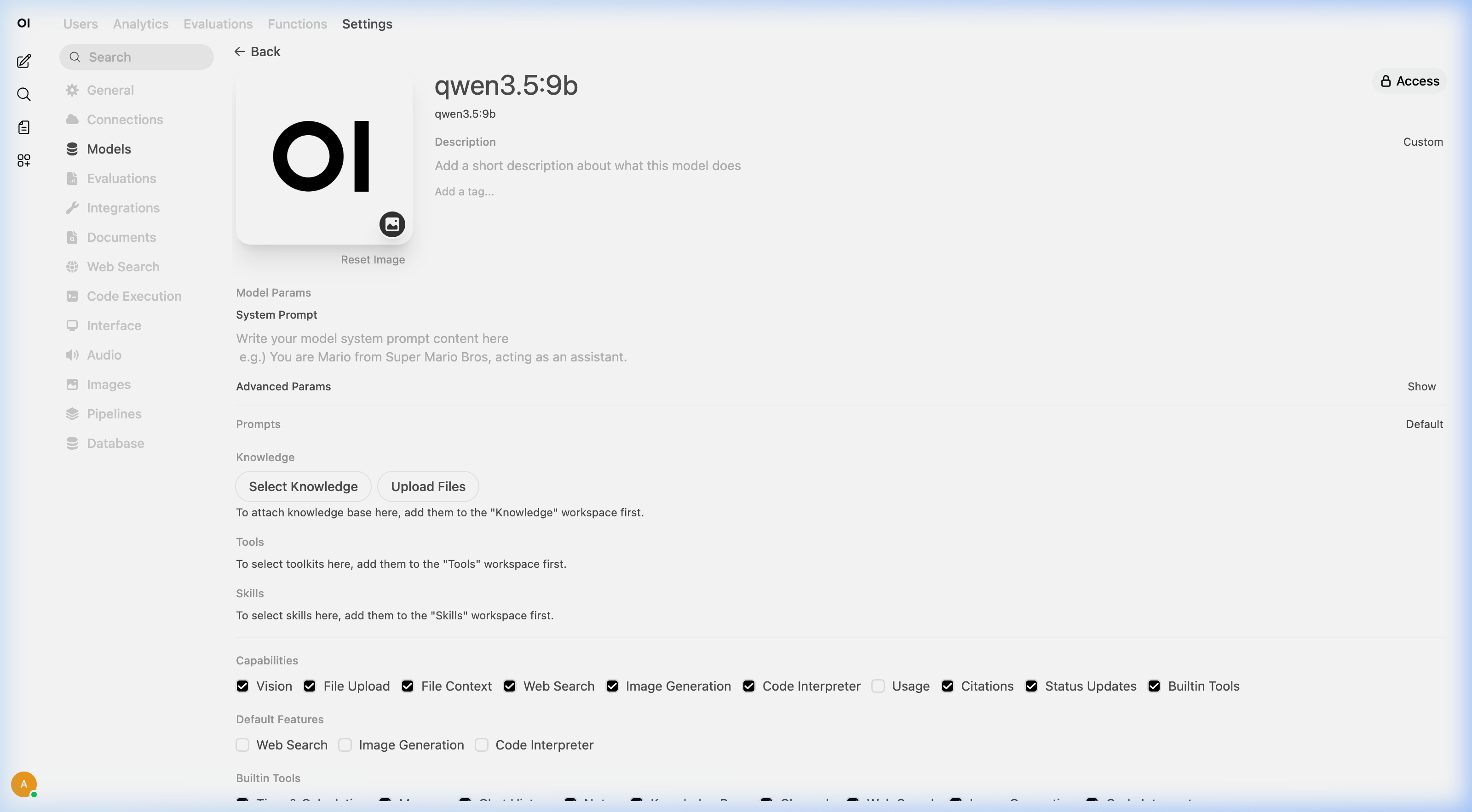
This is the more powerful option. Go to Workspace → Models → Edit and check the skill under the Skills section. Now the AI automatically discovers and uses it when relevant — you don't need to mention the skill at all.
Here's how it works behind the scenes:
- The AI receives a manifest listing each attached skill's name and description (not the full instructions — that would waste context)
- When your request matches a skill's description, the AI autonomously calls a built-in
view_skilltool to load the full instructions - The AI then follows those instructions to handle your request
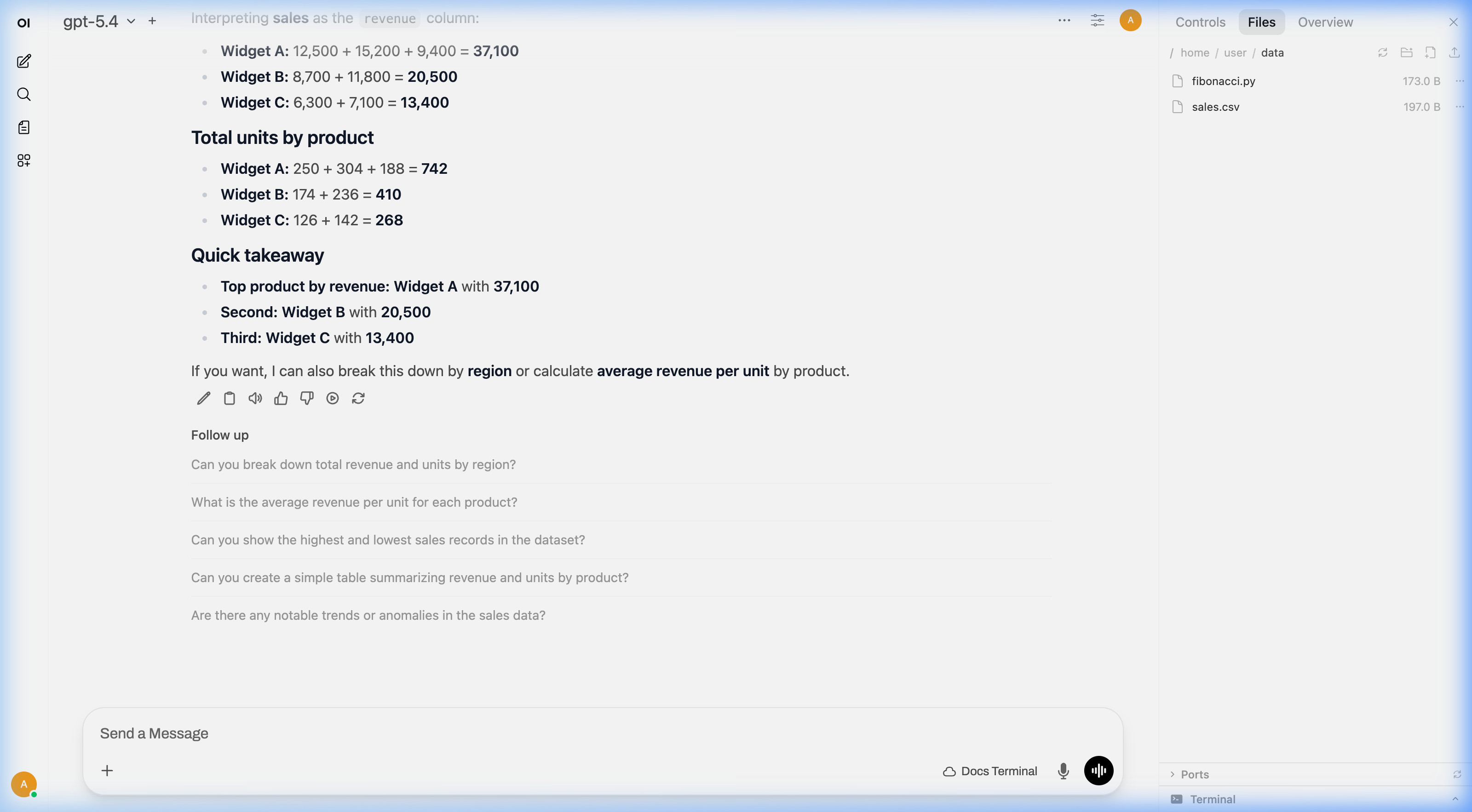
This means you can attach a "Data Report Generator" skill to your model, and any time you drop a CSV and say "analyze this," the AI will automatically load and follow the reporting instructions — without you needing to remember the skill exists.
Attach several skills to a single model and it becomes a multi-purpose expert. Drop a spreadsheet → it loads the data analysis skill. Ask "research EV batteries" → it loads the research skill. Build a landing page → it loads the web dev skill. All automatically.
Sharing Skills
Skills have access controls. You can:
- Keep them private (only you can use them)
- Share with specific users or groups
- Make them public (available to everyone on your instance)
Click the Access button in the skill editor to configure who can use your skill.
Workflow Library
Each page below is a complete workflow with a copy-pasteable skill:
| Workflow | What it does |
|---|---|
| Data Reports | Turn messy CSVs into polished PDF reports with charts |
| Database Analysis | Connect to PostgreSQL/MySQL/SQLite, run queries, produce insights |
| Research Assistant | Gather web sources and write structured briefings |
| Email Processing | Extract action items and deadlines from .eml files |
| Document Comparison | Diff two versions of a contract or proposal |
| Finance Dashboard | Analyze bank statements and chart spending |
| Image Processing | Batch resize, watermark, and convert images |
| Competitive Analysis | Scrape competitor pricing and build comparisons |
| App Builder | Build a complete web app from a description |
| Code Review | Review code changes for security, performance, and style issues |
Tips for Writing Great Skills
Keep instructions specific
Bad: "Analyze the data" Good: "Read the file, count rows, identify columns, check for missing values, then compute averages per category"
Number your steps
LLMs follow numbered instructions more reliably than prose paragraphs.
Include output expectations
Tell the skill what the final deliverable should look like: "Create a PDF with a title page and 3 sections" is better than "make a report."
Test and iterate
Create the skill, try it on a real task, and refine the instructions based on what the AI gets right or wrong.
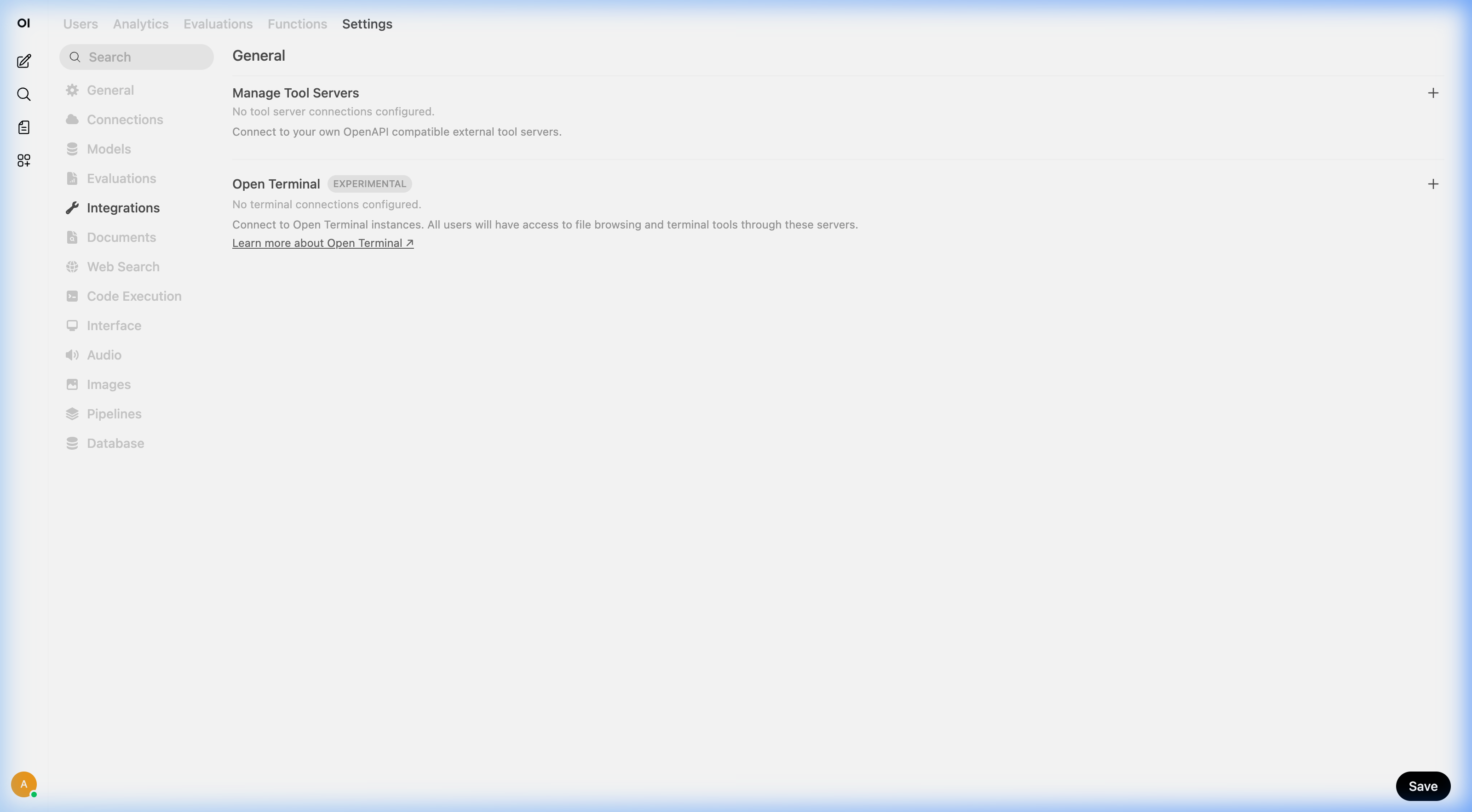
Combine with Open Terminal capabilities
The real power comes from combining skills with Open Terminal's tools: file reading, code execution, web preview, and the file browser. A skill that says "read the spreadsheet, generate a chart with Python, and save it as a PNG" leverages all of these.