History & Search
Open WebUI provides a powerful system for managing and navigating your previous conversations. Whether you are looking for a specific snippet of code from last month or trying to organize hundreds of chats, the history and search features help you find your data quickly.
Chat History Sidebar
All your conversations are automatically saved in the Sidebar.
-
Persistence: Chats are saved to the internal database (
webui.db) and are available across all your devices. -
Organization: Chats are grouped by time period (Today, Yesterday, Previous 7 Days, etc.).
-
Hover Preview: Resting the pointer on a chat opens a small card with its most recent messages, so you can tell conversations apart without opening them. The card's header shows how many turns the chat has, counting your messages and the replies in the branch you are on. A chat with replies from several models shows one reply per turn, the one on your branch. Switch it off with Chat Hover Previews in Settings > Interface > Chat if you want a quieter sidebar, are sharing your screen or are on a connection slow enough that the previews lag. Previews need a pointer, so they do not appear on a touchscreen.
-
Unread Indicator: Chats with new activity show an unread dot in the sidebar until you open them. A chat's three-dot menu has Mark as unread to put the dot back; a folder's menu, and the Chats section header's own menu, both have Mark all as read to clear a folder or your whole chat list in one go.
-
Renaming: Titles are automatically generated by a task model, but you can manually rename any chat by clicking the pencil icon next to its title in the sidebar. With a chat open, Rename in the menu next to its title does the same, and the Generate (sparkle) button beside the field writes a new title from the conversation. The automatic title is written without counting as activity, so a chat is not pushed back to the top of the list, or marked unread again, just for being named. Turn automatic titles off for yourself with Title Auto-Generation in Settings > Interface. The switch shows only while the admin has Title Generation on in Settings > Admin > Interface, and your saved choice is kept while it is hidden.
-
Archivial: You can Archive chats to remove them from the main list without deleting them. Archived chats are left out of the search window unless you search with
archived:true, and stay browsable under Settings > Archived Chats. An admin can hide Archive under Visible controls in Settings > Admin > Interface; see Archived Chats for what that hides. -
Selecting Several Chats: Shift-click a chat to start a selection. This selects every chat from the last one you clicked to the one you Shift-click. Each chat then shows a checkbox and a plain click adds or removes a chat. Further Shift-clicks extend the range from that same starting chat. A bar at the bottom of the sidebar shows how many are selected, with buttons to Archive or Delete them all at once and to Clear selection. Deleting asks for confirmation first, and the delete button only appears with the Allow Chat Delete permission.
Escapealso clears the selection. Chats owned by someone else, such as other people's chats in a shared folder, cannot be selected. If some chats fail, they stay selected so you can try again. -
Folder Unread Count: A folder shows how many unread chats it holds, counting its subfolders too. See Folders & Projects.
-
Opening and Closing: The sidebar slides in and out. Your chats are loaded once when you open Open WebUI, not again each time you show the sidebar, so hiding it and bringing it back keeps everything you had already scrolled into view instead of dropping you back at the newest chats.
Open WebUI tracks read state per chat and updates it when you open a conversation, so unread indicators stay in sync across sessions. Opening a chat clears its unread mark, and the folder counts, in your other open windows right away.
Searching Your History
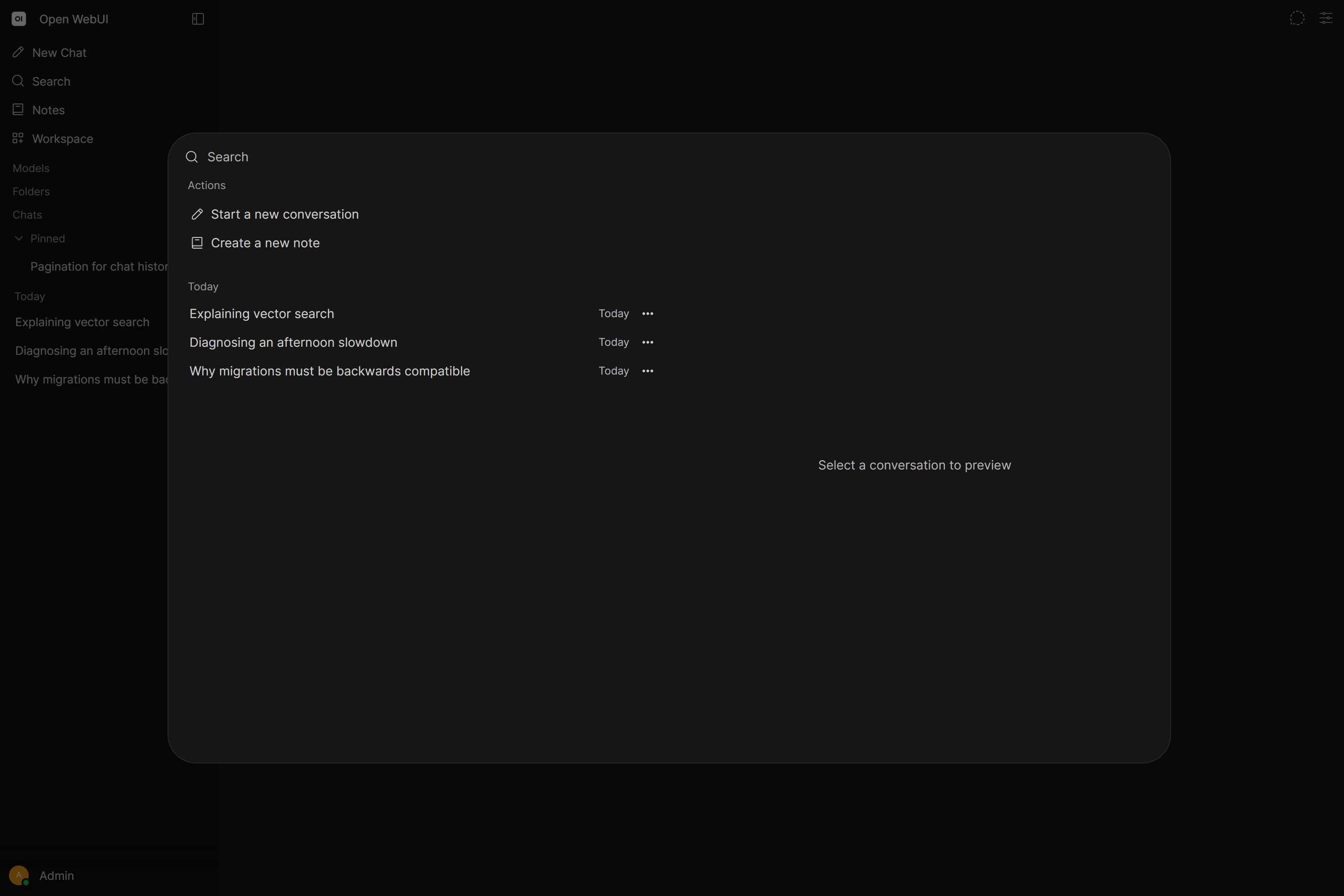
The search window searches everything you can open in one place.
- Click Search in the sidebar or press
Cmd+K/Ctrl+K. - Type your query. The window searches:
- Your own chats, by title and message content
- Chats in folders shared with you, including their subfolders
- Chats shared with you by name or through a group. A chat shared with Allow replies opens live. Any other shared chat shows as a Shared snapshot and opens its share link.
- Messages in channels and direct messages you can access
- Notes you own or that are shared with you
- Click a result, or press
Enter, to open it.
Channel messages only appear when Channels are enabled and you have the Channels feature permission. Notes work the same way with Notes and the Notes permission. Admins always have both permissions. Archived chats are left out unless you search with archived:true.
With an empty query, the window lists Pinned & recent: your pinned chats and notes first, then everything else by most recent activity.
Filtering results
The button next to the search box picks the content type: Everything, Chats, Messages or Notes. The filter button next to it has two more filters:
- View: All, Created by you or Shared with you. Shared with you keeps the items someone else owns or wrote.
- Location: Everywhere, a folder or a channel. A folder includes its subfolders and shows chats only. A channel shows only that channel's messages.
Active filters show as chips under the search box. Click a chip to remove it, or use Reset in the filter menu.
You can also type the filter prefixes into the search box, together with search words. tag:none finds untagged chats, and spaces in tag and folder names are written as underscores (folder:client_work). Any prefix limits the results to your own chats. While you type, the window suggests prefixes and values; pick one with the arrow keys and Enter or Tab.
Working with results
Each result shows its title, where it lives (a folder, Personal chat, Shared chat, a channel, Personal note or Shared note) and a short snippet from the matching message. A chat matched only on its title shows its last message. A channel message shows its sender's name as the title. The words of your query are highlighted in the title and the snippet.
- Chats open at the matching message, switching to the branch that holds it.
- Channel messages open the channel with the message's thread at the matching message.
- Notes open on the matching page with the first match selected.
Press Ctrl/Cmd + Enter to show or hide a preview of the selected result next to the list. The preview starts open on screens at least 768 px wide, and once you show or hide it, that choice applies at every width. While it is open, a click selects a result and a double click opens it.
The Actions menu, opened with its button or with Cmd+K / Ctrl+K while the window is open, has Open result, Show preview or Hide preview, Copy link, Start a new conversation with your query as the prompt and Create a new note with your query as its content.
How queries are matched
In the search window, a query of several words finds every item that contains all of them, in any order. Words are split on spaces, and up to twelve count. Each word can come from the title or from any message, and different words can come from different messages. Matching ignores case and works on substrings. Items whose title equals your query come first, then items whose title contains it, then the rest by most recent activity. More results load as you scroll.
The Reference Chats picker in the chat input's + menu and the model's search_chats tool search your own chats with different rules. A query of several words finds every chat that contains all of them, in any order, without needing them next to each other. Each word can come from the chat's title or from any of its messages, and different words can come from different messages, so docker healthcheck also finds a chat titled "Docker setup" whose reply mentions a healthcheck. Chats that contain your query as an exact phrase are listed first, then the rest, each group ordered by most recently updated.
Matching ignores case and works on substrings, so log also matches "login" and "backlog". Words are cut out of your query on English letters and digits, so v0.9.1 searches for v0, 9 and 1 separately. A query written entirely in another script, Chinese or Russian for example, is searched as one exact phrase.
Filter prefixes
In the search window and the Reference Chats picker you can narrow results with filter prefixes, alone or combined with a query:
tag:<name>, chats with a given tag, ortag:nonefor chats with no tagsfolder:<name>, chats in a folderpinned:trueorpinned:false: only pinned chats, or only chats that are not pinnedarchived:trueorarchived:false: only archived chats, or only chats that are not archivedshared:trueorshared:false: only chats with a share link, or only chats without one
The last three need true or false after the colon. Typed on their own, pinned:, archived: and shared: are dropped from the query and filter nothing. In the search window, tag: and folder: with nothing after them are dropped too.
The search window suggests the prefixes as you type. When you type the first letters of a prefix, such as t for tag:, a list under the search box offers it with a short description. Picking tag: lists your tags, folder: lists your folders, and pinned:, archived: and shared: offer true and false. Click a suggestion, or use the arrow keys with Enter or Tab. Escape closes the list and leaves the window open.
A filter in the search window searches only chats you own. Notes, channel messages and shared snapshots have no tags, folders or archive state, so they drop out of the results while a filter is in the query.
For example, folder:work meeting notes searches for "meeting notes" within the work folder.
Native Conversation Search (Agentic)
When using a model with Native Function Calling enabled (see the Central Tool Calling Guide), models can search through your chat history autonomously.
Available History Tools:
search_chats: Text search across chat titles and message content, using the same matching as the Reference Chats picker and skipping the chat the model is currently in. Returns matching chat IDs and snippets.view_chat: Reads and returns the full message history of a specific chat by ID.
Why use native tool calling for Search?
This allows the model to leverage its own previous work. You can ask: "What was the feedback I got on my last email draft?" or "Find the Python script I wrote about image processing two weeks ago."
The model will search your history, identify the correct chat, read it, and provide you with an answer or the code you were looking for, saving you the effort of manual scrolling and copy-pasting.
Data Management
- Export: You can download individual chats or your entire history as JSON, plain text (.txt) or PDF. The whole history exports as JSON only. There is no Markdown export.
- Import: Drag and drop a JSON chat export into the sidebar to restore it.
- Deletion: You can delete a single chat from its three-dot menu in the sidebar or from the menu at the top of the chat itself, and clear your entire history with Delete All Chats in Settings > Data Controls.
Deleting needs the Chat Delete permission. Where an administrator has taken it away, none of those delete controls are drawn, so you no longer meet a delete button that refuses when you press it. Archiving is unaffected, and admins are always exempt.