Generate and Edit Images in Chat
Generate images from a prompt, or upload images and describe the changes you want, in an Open WebUI conversation. An administrator must first configure an image provider; keep your normal chat model selected while using it.
Image generation is only available in a chat when all of the following are true:
- Image Generation is enabled in Settings > Admin > Images.
- Your role has the Image Generation feature permission. Admins always pass this check.
- The model has the Image Generation capability checked in Workspace > Models > Edit. Outside Legacy mode its Builtin Tools capability and the Image Generation builtin tool category must stay enabled too. All of these are on by default.
- The Image toggle is on for that chat, in the Integrations menu of the message input. Tick Image Generation under Default Features in the model editor to have it active in every new chat.
If Image is missing from the Integrations menu entirely, then either image generation is off globally, the Image Generation capability is off on one of the selected models, or your role lacks the permission. The engine's own URL and key are a separate matter. Get those wrong and the toggle still appears, generation just fails once it runs.
Using Image Generation
- Switch Image on in the Integrations menu of the message input.
- Enter your image generation prompt.
- Click
Send.
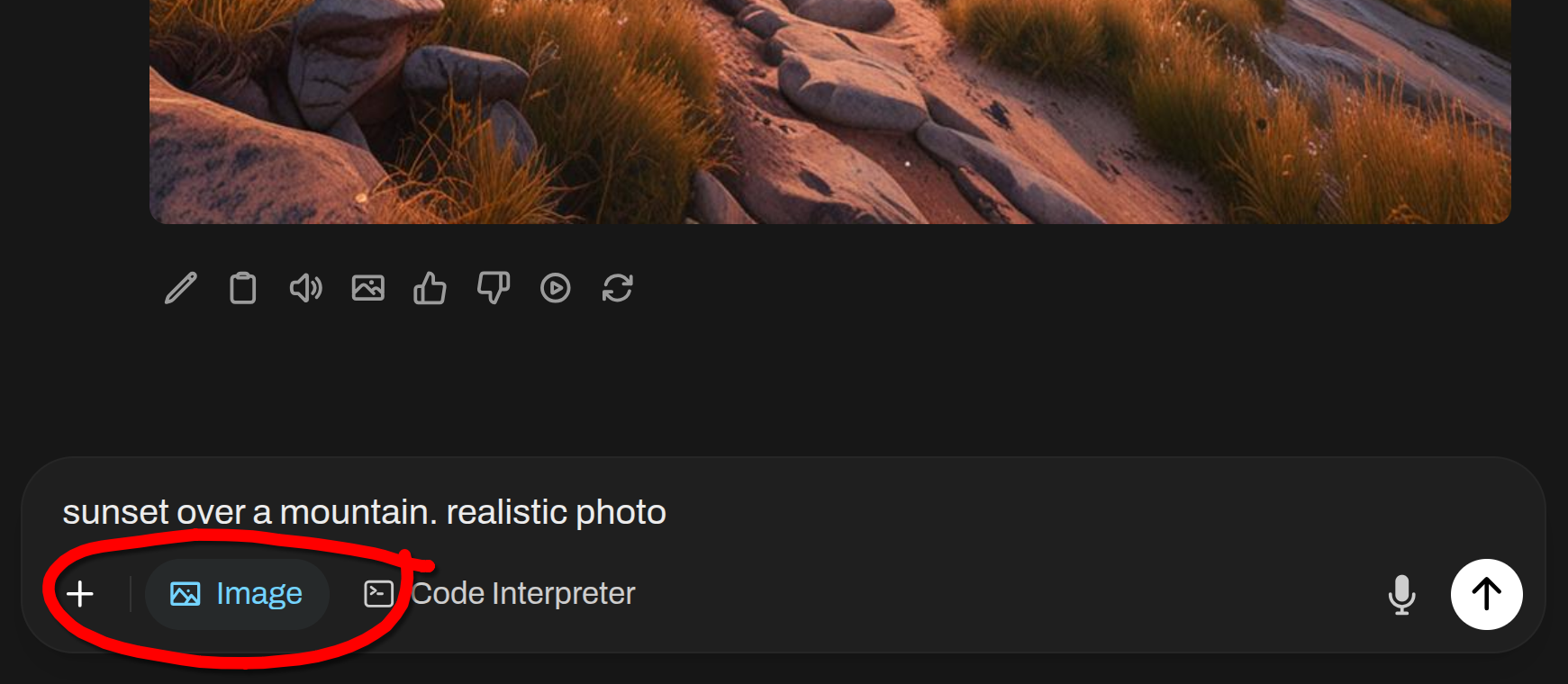
The model selector at the top of the chat stays on your normal chat model. The image model is configured once in the admin image settings and is never selected there.
Picking the image model as the chat model is the most common setup mistake. Everything looks configured, and generation fails or returns nothing useful, because an image model cannot hold a conversation and is not being asked for a picture in the way it expects. If image generation has stopped working and the settings look right, check what the model selector says first.
What happens next depends on the Function Calling mode. It can be set per chat in Chat Controls > Advanced Params, for yourself in Settings > General > Advanced Parameters, per model in the model editor or globally under Model Defaults in the admin model settings. The first of those that is not Default wins, and Native applies when none of them is set.
Native takes the tool path described below. In Legacy mode every message you send while the toggle is on goes straight to the image engine, whatever you asked for. It edits instead of creating when the recent conversation carries images and Image Edit is on. On the create path a task model rewrites your message into the image prompt first, unless you switch Image Prompt Generation off in the admin settings.
Native Tool-Based Generation (Agentic)
With Native Function Calling (see the Central Tool Calling Guide), the model invokes image generation directly as a tool.
How it works:
- Natural Language: You can simply ask the model: "Generate an image of a cybernetic forest."
- Model Dependent: A model that does not call tools reliably will simply never call
generate_image, so try a stronger model before suspecting your engine configuration. - Display: The generated image is displayed directly in the chat interface.
- Editing: The
edit_imagetool (e.g., "Make the sky in this image red") is handed over as well, but only when Image Edit is enabled in the admin settings.
This approach allows the model to "reason" about the prompt before generating, or even generate multiple images as part of a complex request.
Legacy "Generate Image" Button: As of Open WebUI v0.7.0, the native "Generate Image" button (which allowed generating an image directly from a message's content) was removed. If you wish to restore this functionality, you can use the community-built Generate Image Action.
Restoring the "Generate Image" Button
If you prefer the workflow where you can click a button on any message to generate an image from its content, you can easily restore it:
- Visit the Generate Image Action on the Open WebUI Community site.
- Click Get to import it into your local instance (or copy the code and paste it into your local instance).
- Once imported, go to Admin Panel > Functions and ensure the Generate Image action is enabled.
This action adds a "Generate Image" icon to the message action bar, allowing you to generate images directly from LLM responses, which is helpful if you want the assistant to first iterate on the image prompt and generate it once you are satisfied.
Requirement: Image editing runs through the same conditions listed at the top of this page. To use Image Editing or Image+Image Generation, also turn on Image Edit in the Edit Image section of Settings > Admin > Images, with an edit engine (Default (Open AI), ComfyUI or Gemini) and a model that supports inpainting or img2img.
Image Editing (Inpainting)
You can edit an image by providing the image and a text prompt directly in the chat.
- Upload an image to the chat.
- Enter a prompt describing the change you want to make (e.g., "Change the background to a sunset" or "Add a hat").
- The model will generate a new version of the image based on your prompt.
Image Compositing (Multi-Image Fusion)
Seamlessly combine multiple images into a single cohesive scene, a process professionally known as Image Compositing or Multi-Image Fusion. This allows you to merge elements from different sources (e.g., placing a subject from one image into the background of another) while harmonizing lighting, perspective, and style.
- Upload images to the chat (e.g., upload an image of a subject and an image of a background).
- Enter a prompt describing the desired composition (e.g., "Combine these images to show the cat sitting on the park bench, ensuring consistent lighting").
- The model will generate a new composite image that fuses the elements according to your instructions.